
# Mini-Program Integration FAQ
# 1. How to Design the Entry Point for Mini-Programs in an App?
Opening different Mini-Programs in an App is achieved by requesting different Mini-Program AppIDs. Opening a Mini-Program within an application is done through different entry points that correspond to specific Mini-Programs. The method of opening a Mini-Program is similar to how a browser opens different web pages by accessing different URLs.
Therefore, by integrating different Mini-Program "link" entry points in the App, you can open the corresponding Mini-Programs.
Typically, depending on business requirements, Mini-Program entry points in an App can take various forms. Here are some common methods:
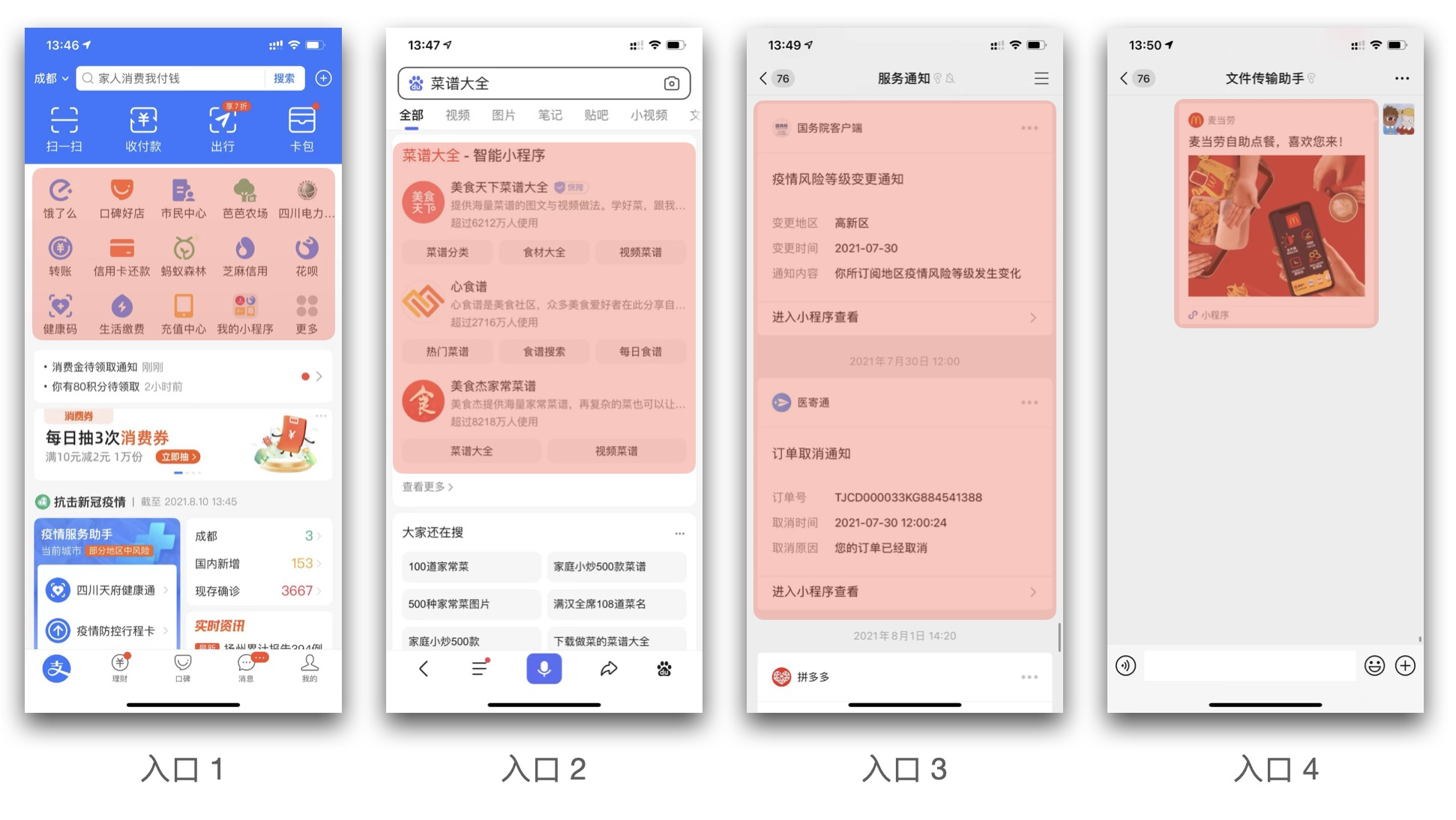
- Entry 1: Open a Mini-Program via an icon, such as the various functional entry points on the Alipay homepage that can open Mini-Programs;
- Entry 2: Open a Mini-Program via text and images, such as in the search results of the Baidu App, where Mini-Programs can be opened;
- Entry 3: Open a Mini-Program via an information block, such as clicking on Mini-Program information in WeChat's "Service Notifications" to open a Mini-Program;
- Entry 4: Open a Mini-Program via a share card, such as clicking on a card shared in WeChat to open a Mini-Program;
Please Note
The above only lists the more common styles. The entry points for Mini-Programs can be flexibly modified according to your needs. During the initial integration phase, you can dynamically configure the Mini-Program AppID in the entry page of the Mini-Program to open different Mini-Programs.
# 2. How to Dynamically Manage Mini-Program Entry Points Without Releasing a New App Version?
In practical use, opening a Mini-Program from an App involves the following steps:
- The App requests configuration information from the server and then initializes the FinClip Mini-Program SDK;
- After the user clicks the Mini-Program entry point, the App opens the specified Mini-Program via the AppID.
As mentioned earlier, the Mini-Program entry page is generally implemented using App Native Implementation (see the previous section "How to Design the Entry Point for Mini-Programs in an App?"). Therefore, the ability to dynamically manage Mini-Program entry points depends solely on the entry points used to open Mini-Programs within the App. If you wish to dynamically manage the Mini-Programs that can be opened in the App, you can achieve this by dynamically configuring the Mini-Program entry points.
::: Warning Please Note Since a prerequisite for opening a Mini-Program is the successful initialization of the configuration information for the corresponding Mini-Program server, it is essential to ensure that the Mini-Program SDK initialization includes the configuration information for the corresponding server. Otherwise, the Mini-Program cannot be opened.
For how to initialize the SDK configuration in a multi-server context, please refer to here. :::
# 3. Do Mini-Programs Support Running on Car Infotainment Systems or Other Platforms? How to Control the Window Size of a Mini-Program?
When opening a Mini-Program on an Android car infotainment system, Android TV, or other desktop devices, it may be necessary to adjust the Mini-Program's window resolution based on the actual screen size. In such cases, the Mini-Program will run in a floating window form, and the page beneath the floating window will not be interactive.
To configure the properties of the floating window, please refer to the Android API for handling.
# 4. How to Complete Mini-Program Development and Code Upload?
You can read the relevant content in [Introduction - Operation Guide - Enterprise Operation Guide]. You may refer to the following:
During Mini-Program development, we recommend using the Developer Tools or WeChat Developer Tools. You may refer to the following:
For documentation related to Mini-Program development, you may refer to the following: