
# Operation Center - Mini-Program Management
# 1. Feature Overview
In the "Mini-Program Management" menu, you can perform the following operations:
- Create Mini-Program: Add a new Mini-Program and configure related basic information.
- Version Management: Configure the Mini-Program for Trial, Review, and Online versions, perform operations such as publishing and unpublishing, and also perform version rollback.
- Gray Release: Set corresponding gray release plans for the Mini-Program based on different versions.
- API and Menu Configuration: Apply for the use of APIs and menus under the application for the Mini-Program.
- Configure Third-Party Platform Association: Enable FinClip Mini-Programs to associate with third-party platforms (currently mainly supports the WeChat platform).
- Privacy Agreement Settings: Configure the Mini-Program privacy agreement.
- Development Domain Configuration: Configure the Mini-Program development domain names.
- Mini-Program Information Viewing: View the Mini-Program's basic information, review records, code package information, operation logs, etc.
- Plugin Management:
# 2. Terminology Definition
Gray Release: Gray release is a feature where FinClip helps developers and operators allow different categories of users to experience different version features of the product based on set rules. After confirming stable feedback and a good user experience from the gray release users, the product audience is further expanded.
# 3. Usage Instructions
# 3.1 Create/Edit Mini-Program
In the "Mini-Program List", click the "Add" button.
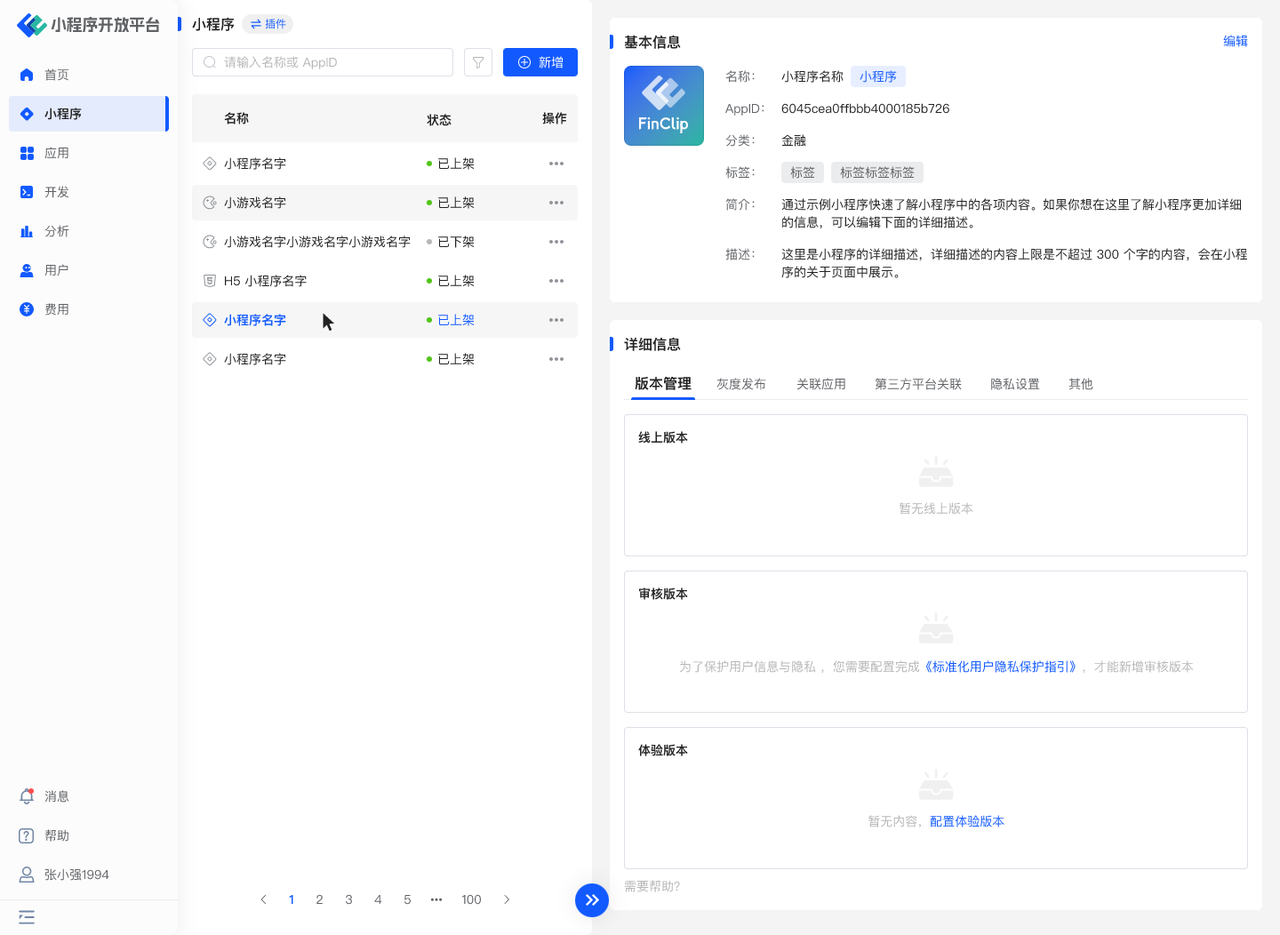
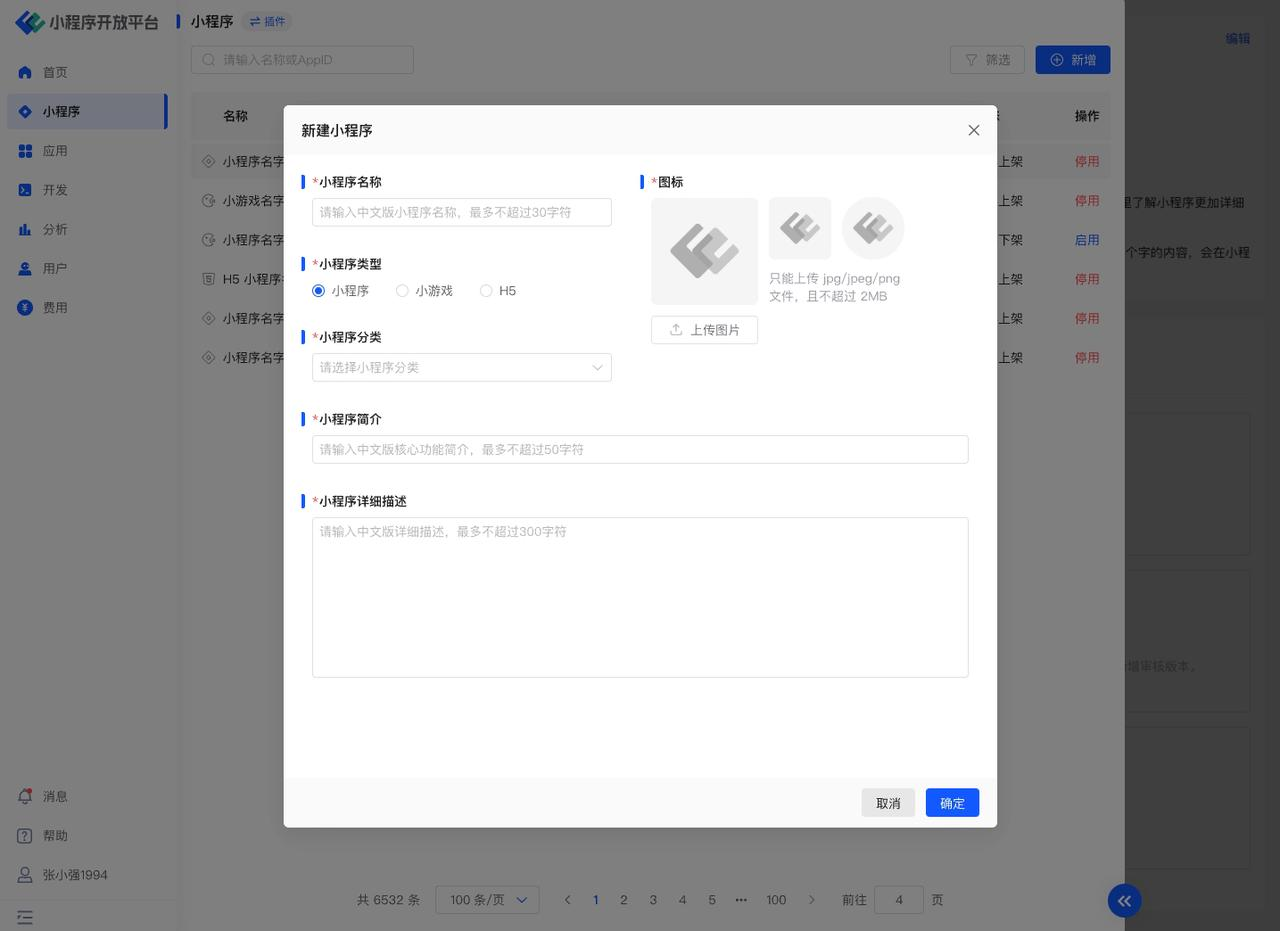
When creating a Mini-Program, you need to fill in basic information such as the Mini-Program name, type, category, and description, as shown below:
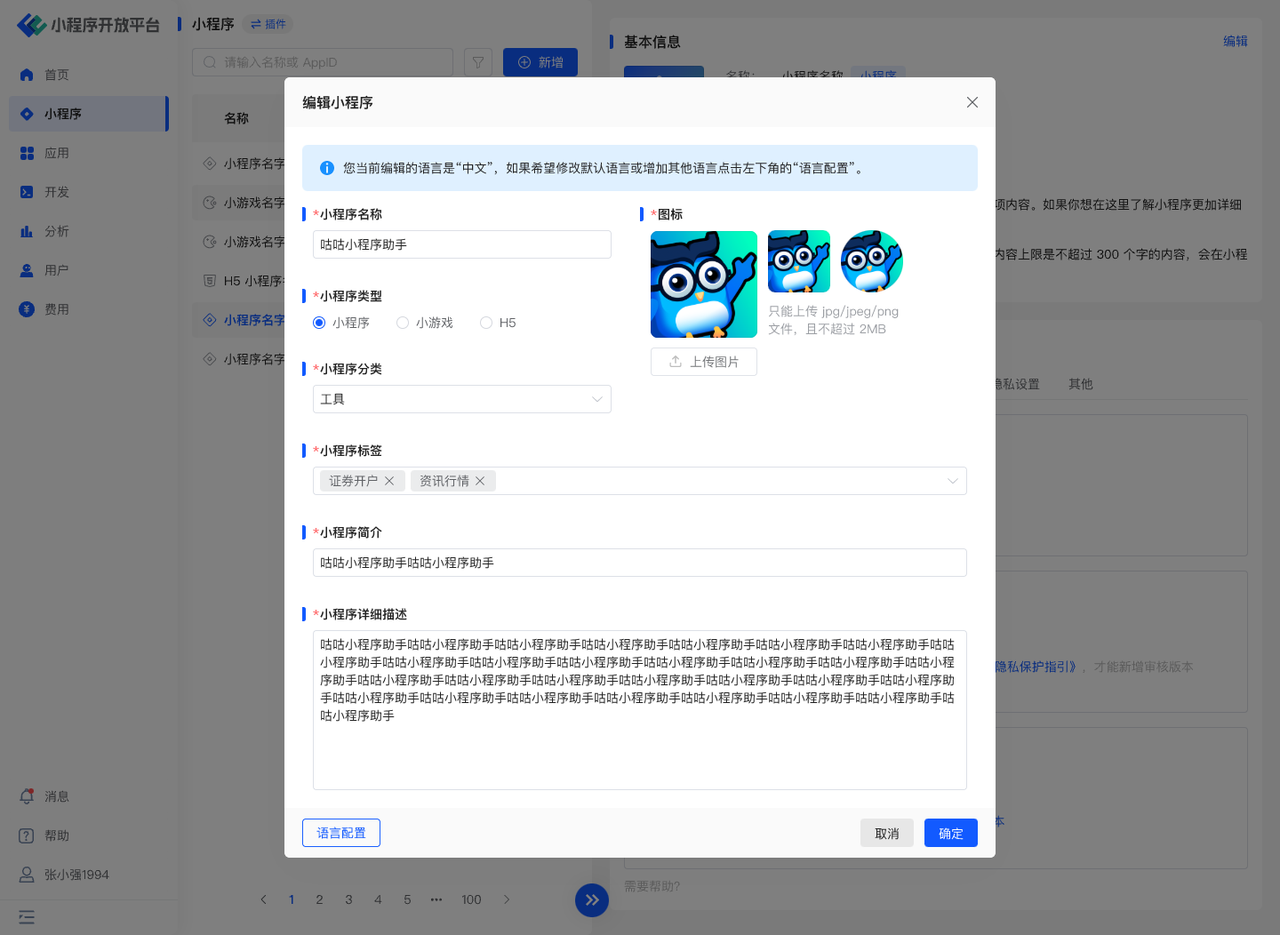
After the Mini-Program is successfully created, click on the Mini-Program. The details of the Mini-Program will expand on the right, divided into Basic Information and Detailed Information. "Basic Information" contains the information filled in during Mini-Program creation, including the Mini-Program name, Mini-Program type, category, description, and detailed description. "Detailed Information" is divided into tabs by function: Version Management, Gray Release, Associated Applications, Third-Party Platform Management, Development Domain Configuration, and Others.
Click "Edit" in "Basic Information" to modify the Mini-Program information. For basic information, click "Language Configuration" in the lower left corner to enter the multi-language configuration page.
# 3.2 Version Management
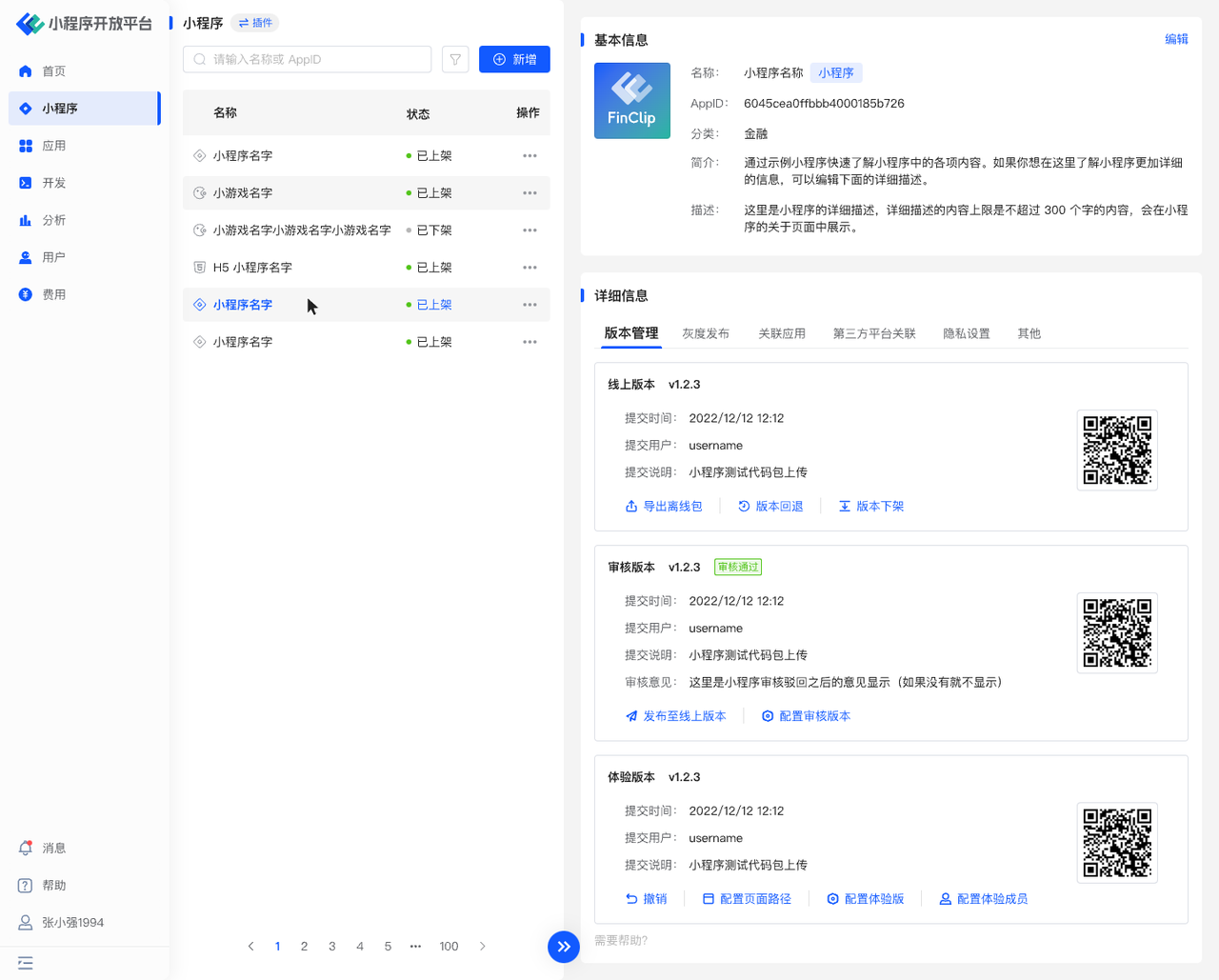
In the Mini-Program Version Management, you can configure the Online Version, Review Version, and Trial Version respectively, where:
- The Online Version represents the Mini-Program version currently in formal use in the online environment.
- The Review Version represents the Mini-Program version currently in the submission and review process.
- The Trial Version represents a version selected from the development versions, which is a "test version" that can only be opened by designated personnel.
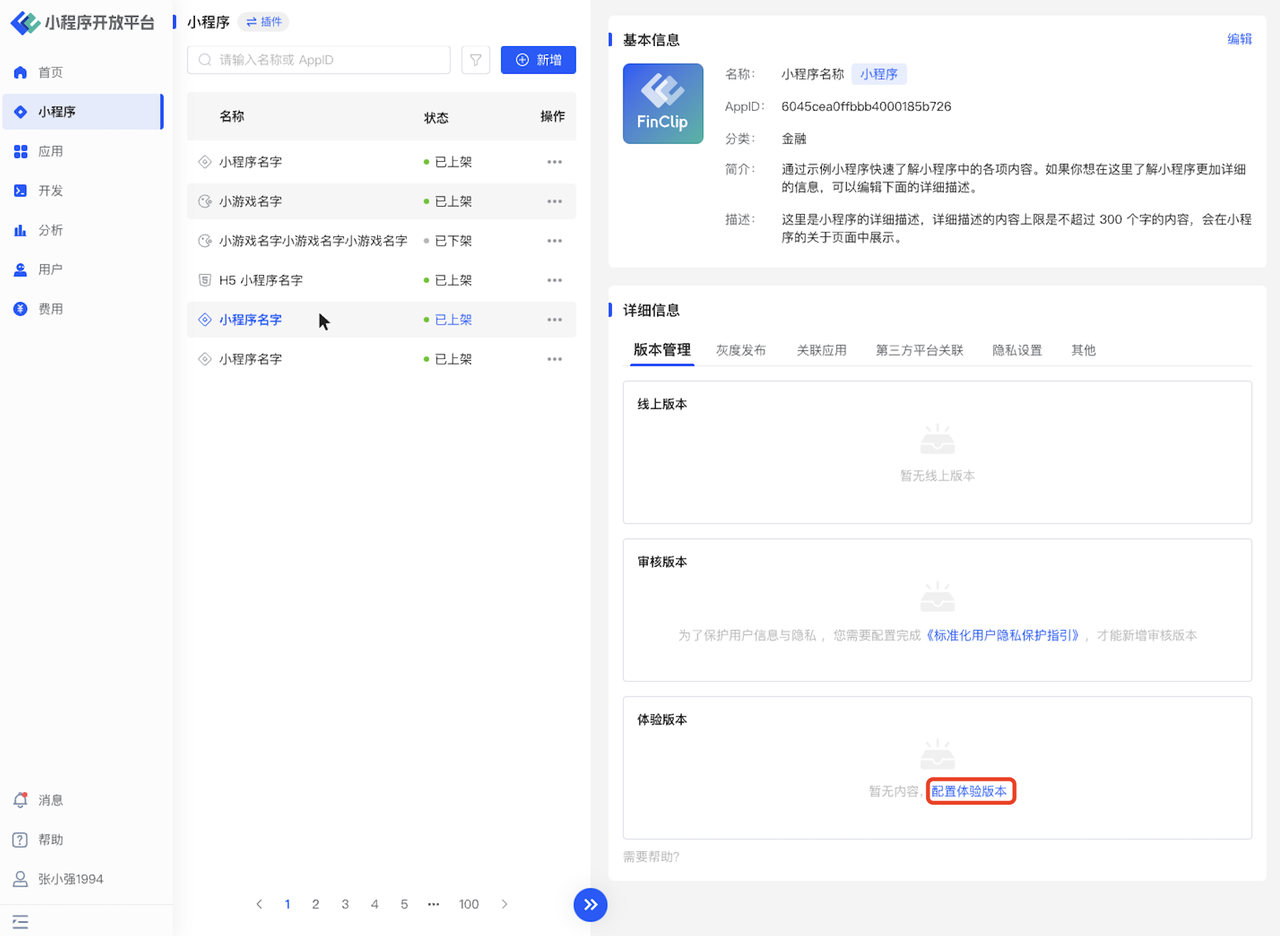
When configuring the Mini-Program for the first time, you need to manually configure the version information for the Mini-Program (the display interface is shown below). The operation process involves uploading the Mini-Program code information via FinClip Studio, setting the uploaded Mini-Program as a Trial Version or Review Version. After the review is passed, the Mini-Program can be published as an Online Version.
# Configure Trial Version
Click "Configure Trial Version" in the card, and select the already uploaded Mini-Program version in the pop-up window.
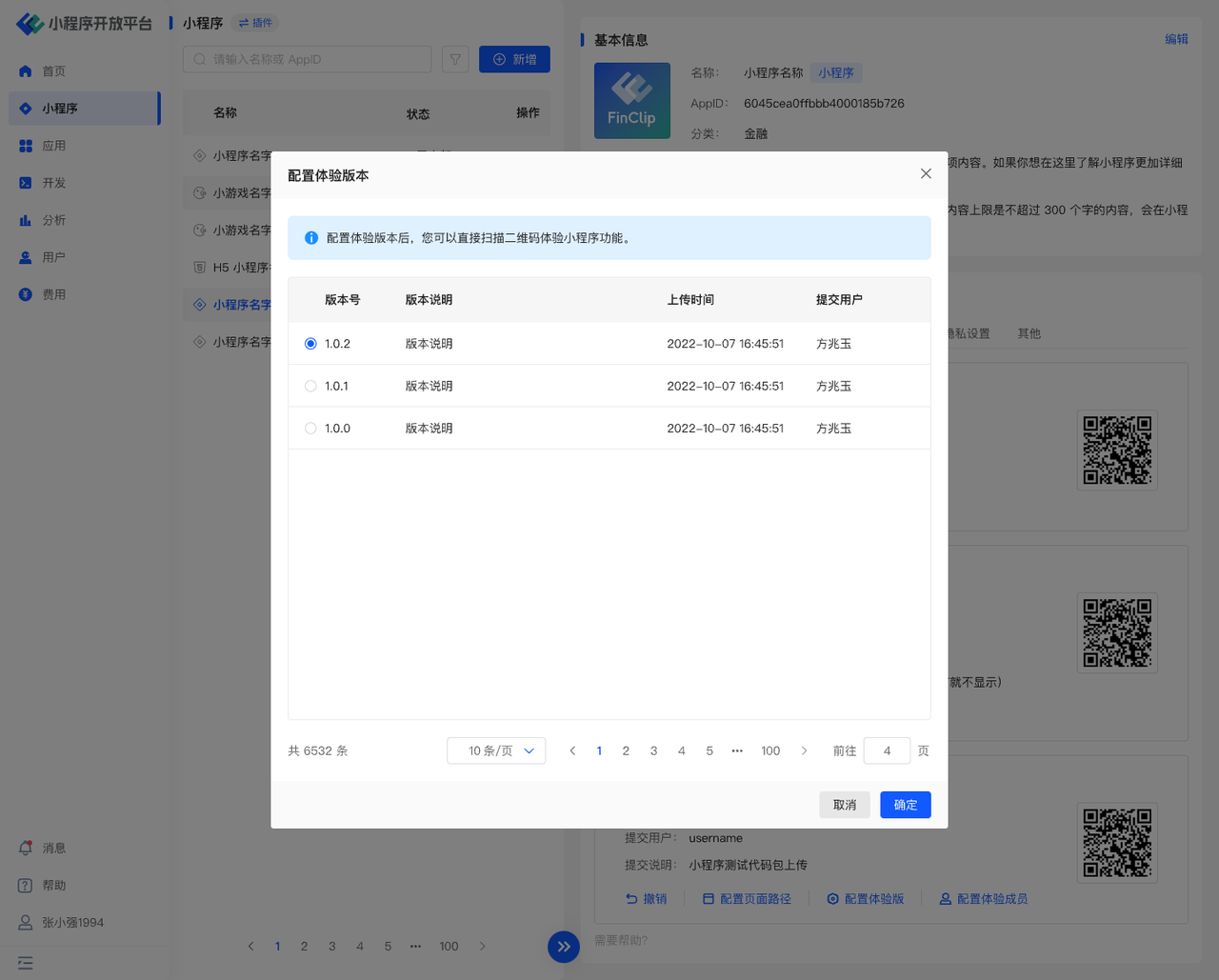
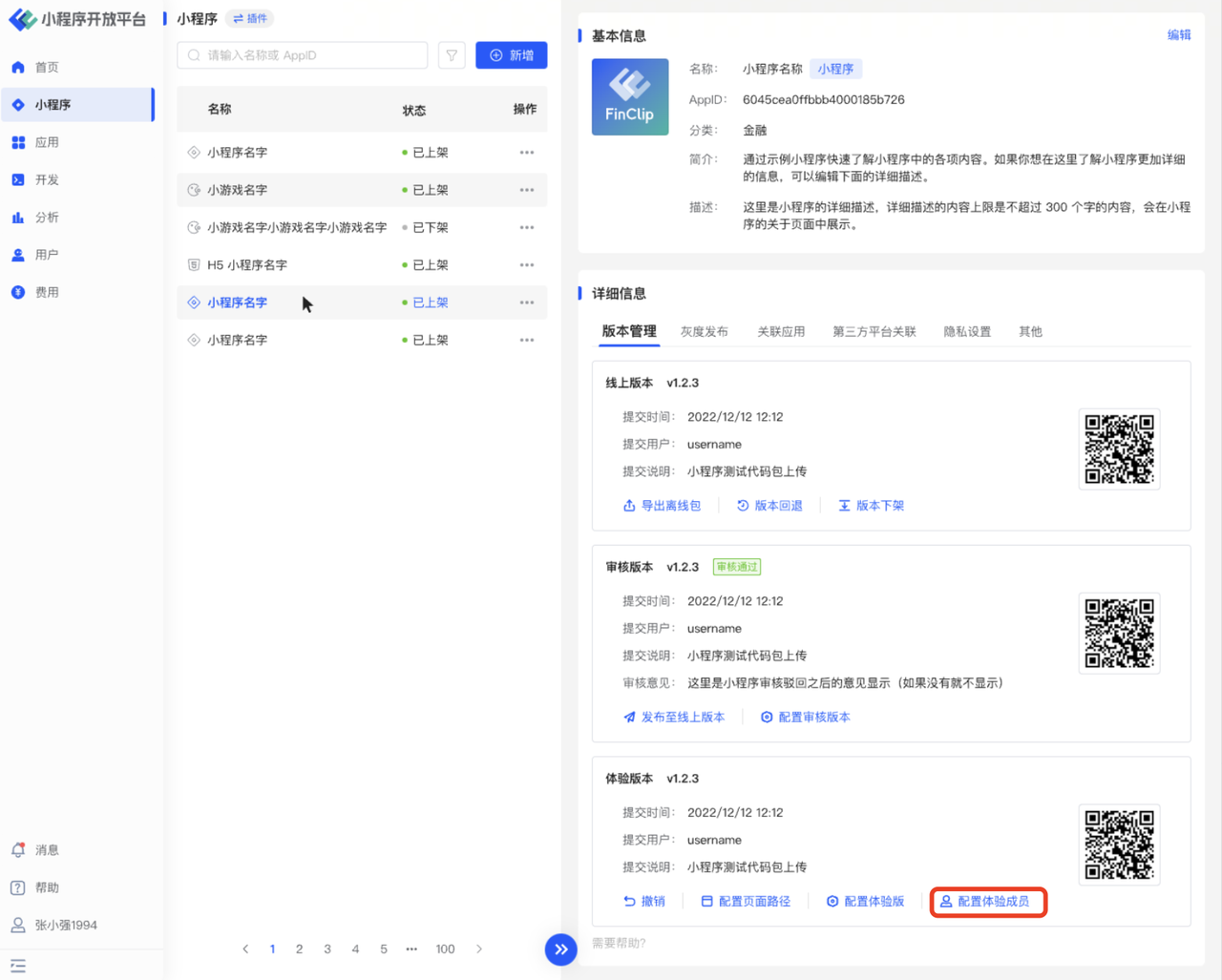
After configuration is complete, click the QR code icon of the Trial Version and scan it using the FinClip App (for FinClip App usage, please refer to: FinClip App FAQ (opens new window)) to preview and test. Simultaneously, in the Trial Version card, you can click "Configure Trial Members" to set members as trial users, who will have the permission to open the Trial Version Mini-Program.
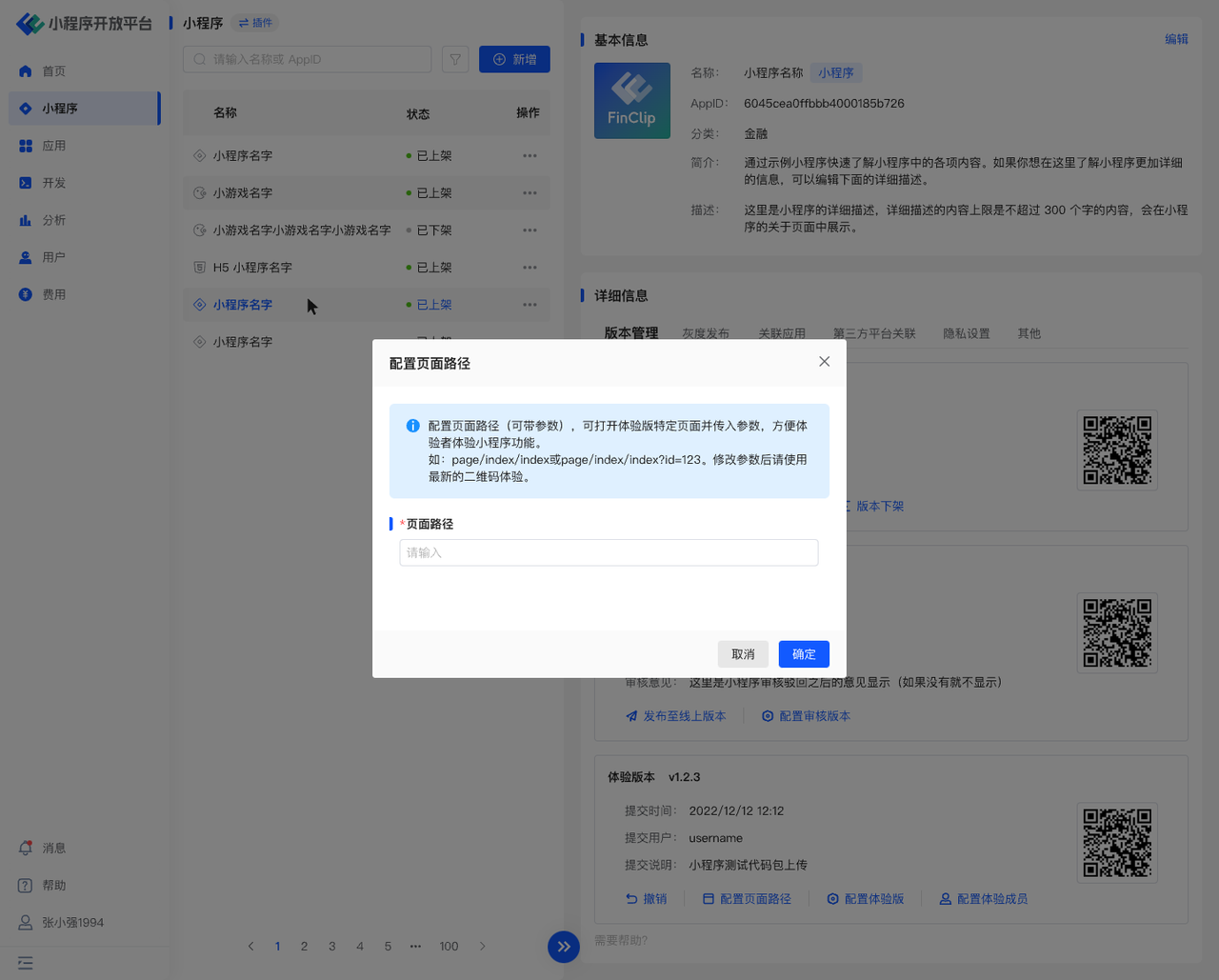
You can also click "Set Page Path", enter the page path with parameters. After setting, trial users will open a specific page of the Trial Version Mini-Program, making it convenient for them to experience the Mini-Program features. After modifying the page path, the Trial Version QR code may change. You can re-click the Trial Version to get the latest QR code for testing.
# Configure Review Version
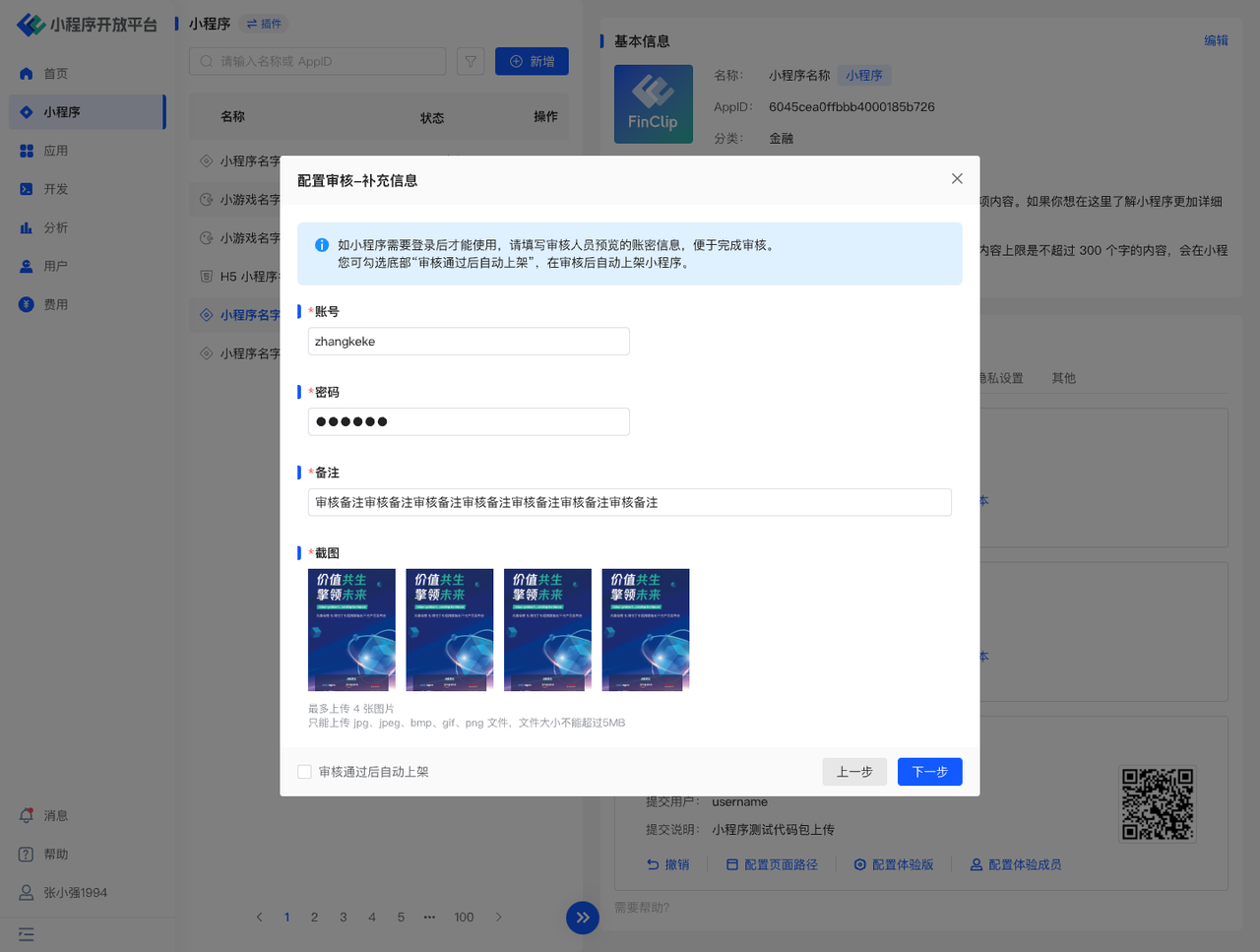
Click "Configure Review Version" in the card, select the already uploaded Mini-Program version in the pop-up window, and configure the corresponding user login information for the review process as needed, to submit the corresponding Mini-Program version to the review process.
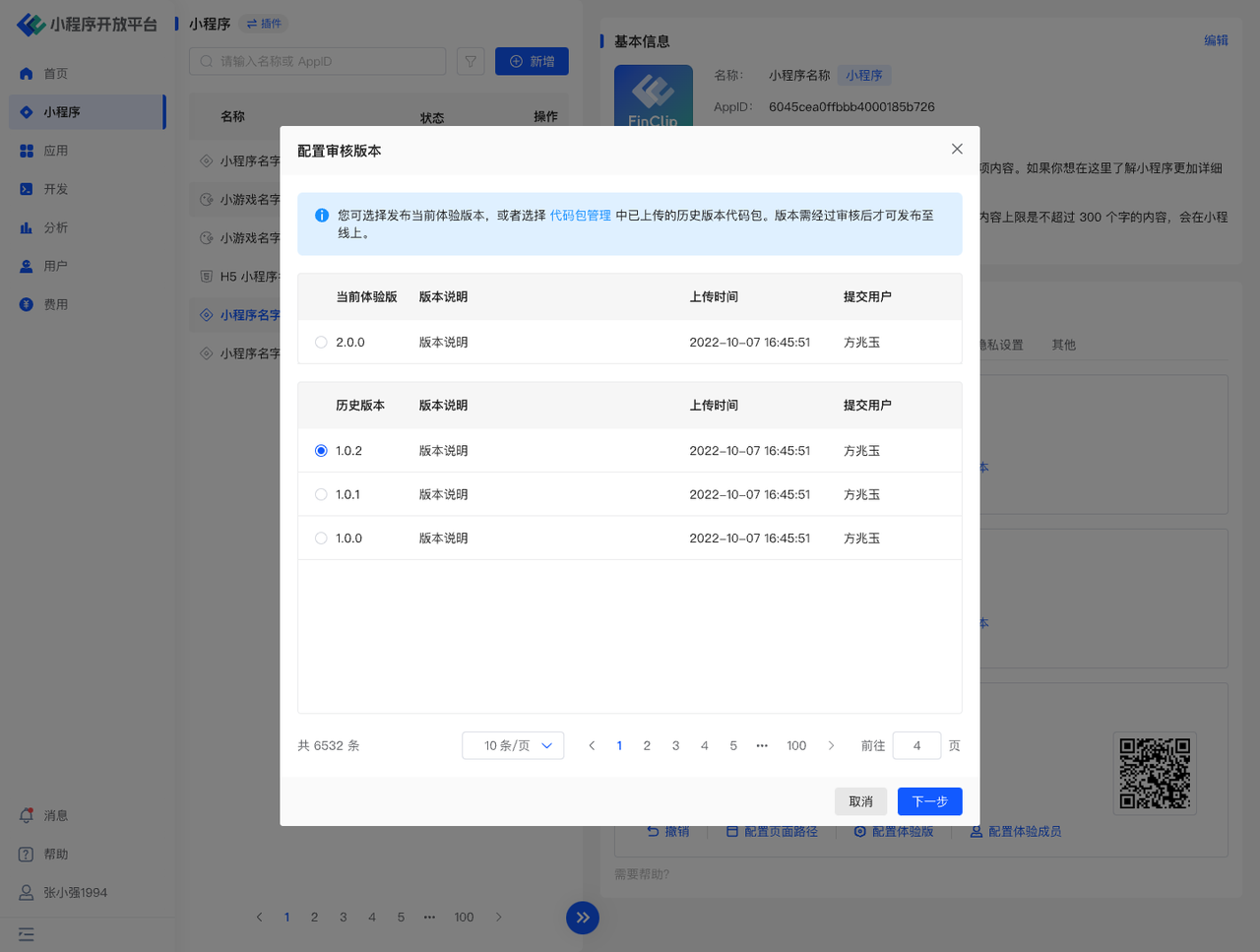
If you need the Mini-Program to be automatically published after review, please check the "Auto Publish After Review Approval" checkbox at the bottom.
# Review Mini-Program Information
Please Note The permission for Mini-Program publishing review is controlled by the Digital Center. It can be reviewed by the Operation Center itself or by the Digital Center.
If the Operation Center performs the review itself, go to the To-Do Center - Mini-Program Review. In the review interface, click the "Approve" button in the review details to complete the Mini-Program review operation.

# Configure Online Version
After the Mini-Program review is completed, click the "Publish to Online Version" button in the Review Version card. In the pop-up window, select "Full Release" to publish it as an Online Version. If you want to understand the usage of product features among different user groups, you can click "Gray Release by User Percentage" or "Create Gray Release Plan" for version graying (see section 3.3 Gray Release for details).

After configuring the Mini-Program as an Online Version, three buttons will be displayed in the card. Here you can export the Mini-Program Offline Package, unpublish the Online Version, or perform a version rollback operation.
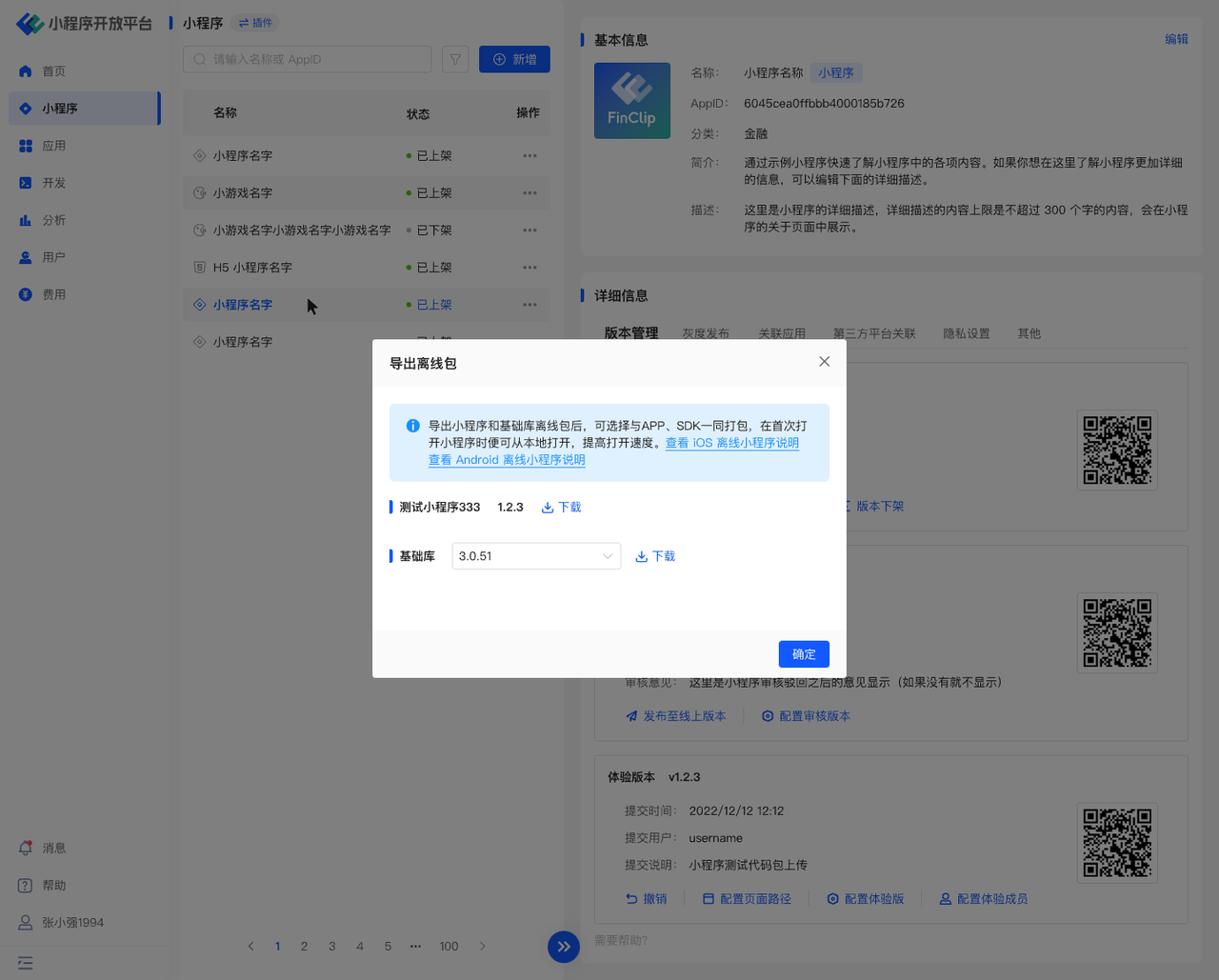
Exporting the Offline Package means you can package the Mini-Program and Base Library offline package together with the APP and SDK, allowing the Mini-Program to be opened locally upon first launch, thereby improving the Mini-Program loading speed.
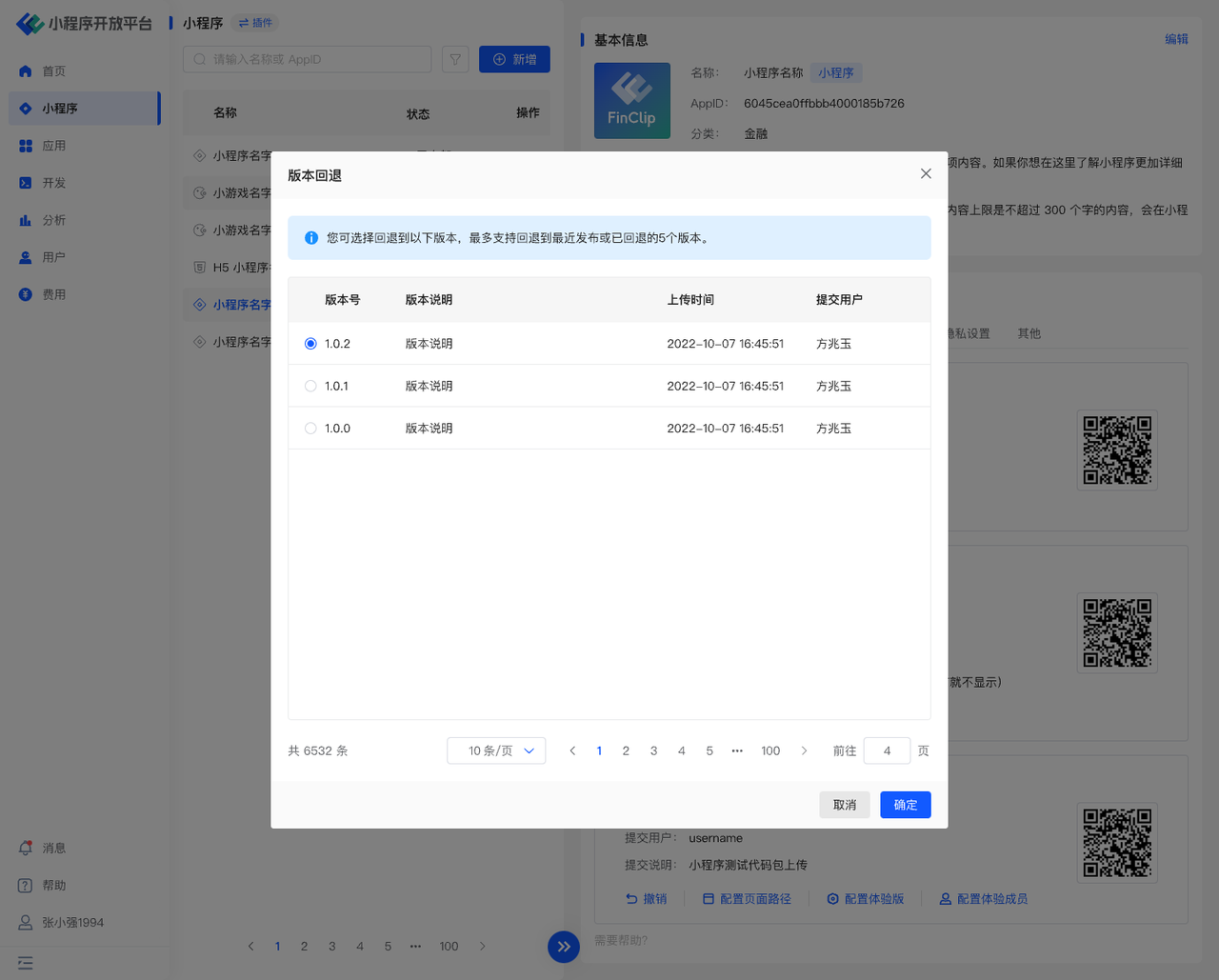
Version Rollback means you can roll back the Mini-Program to a specified version. Currently, it supports rolling back to the most recent 5 published or rolled-back versions. Rolling back to a specified version does not require a review operation for the Mini-Program.
# 3.3 Gray Release
In the Gray Release function, you can set corresponding gray release plans for the Mini-Program based on different versions, so that different users may open different versions of the Mini-Program according to their user tags and other information.
# Gray Rule Configuration
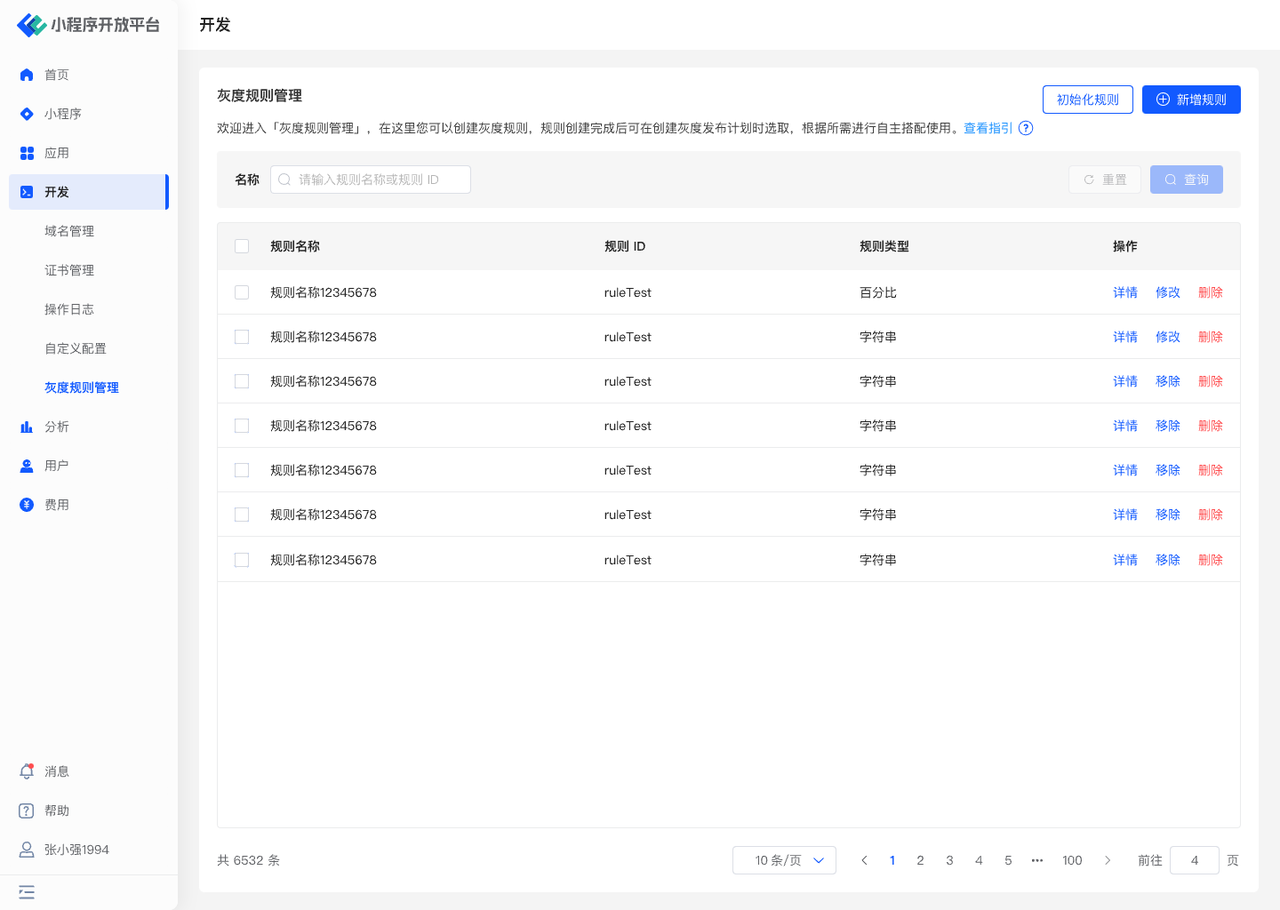
The rules for gray release need to be configured in "Development - Gray Rule Management", where you can add corresponding rule information. FinClip has pre-configured default rules for you, such as geographic location (Shanghai area, Guangzhou area, Beijing area, Shenzhen area), network (2G, 3G, 4G, 5G, WiFi), Runtime version (iOS, Android), Base Library version, etc.
# Create Gray Release Plan
After completing the required rule configuration, you can officially start creating a new gray release plan. Before use, the Mini-Program must meet the following conditions:
- The Mini-Program has a version that has "passed review but is not yet published" available for gray release use.
- The version number of the Mini-Program that has "passed review but is not yet published" cannot be lower than the version number in the online environment.
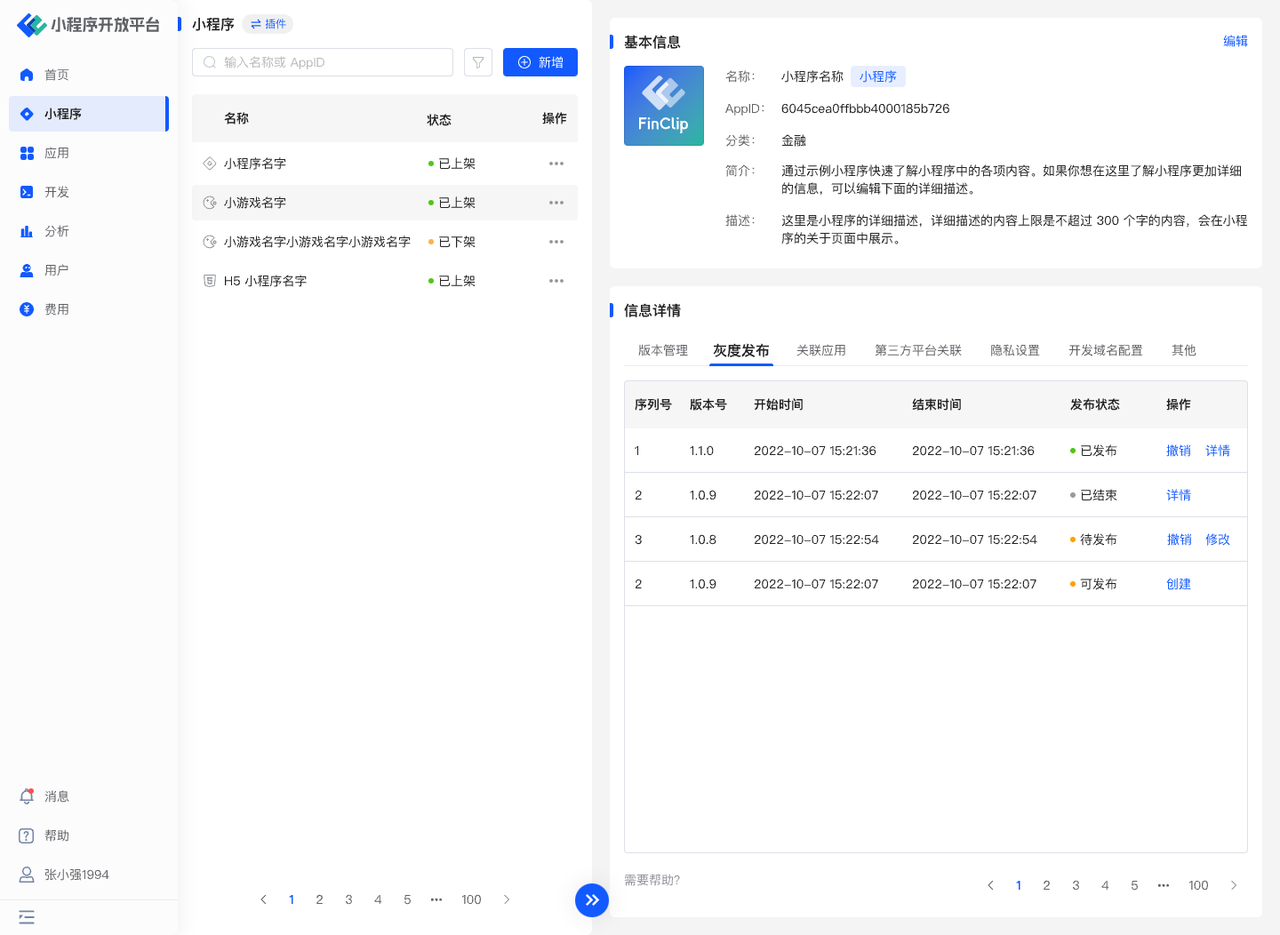
Click "Mini-Program Management - Gray Release" to enter the details page of Gray Release Management. If the current Mini-Program is eligible for gray release, you will see a "Create" button on the right side of the corresponding serial number in the list below.
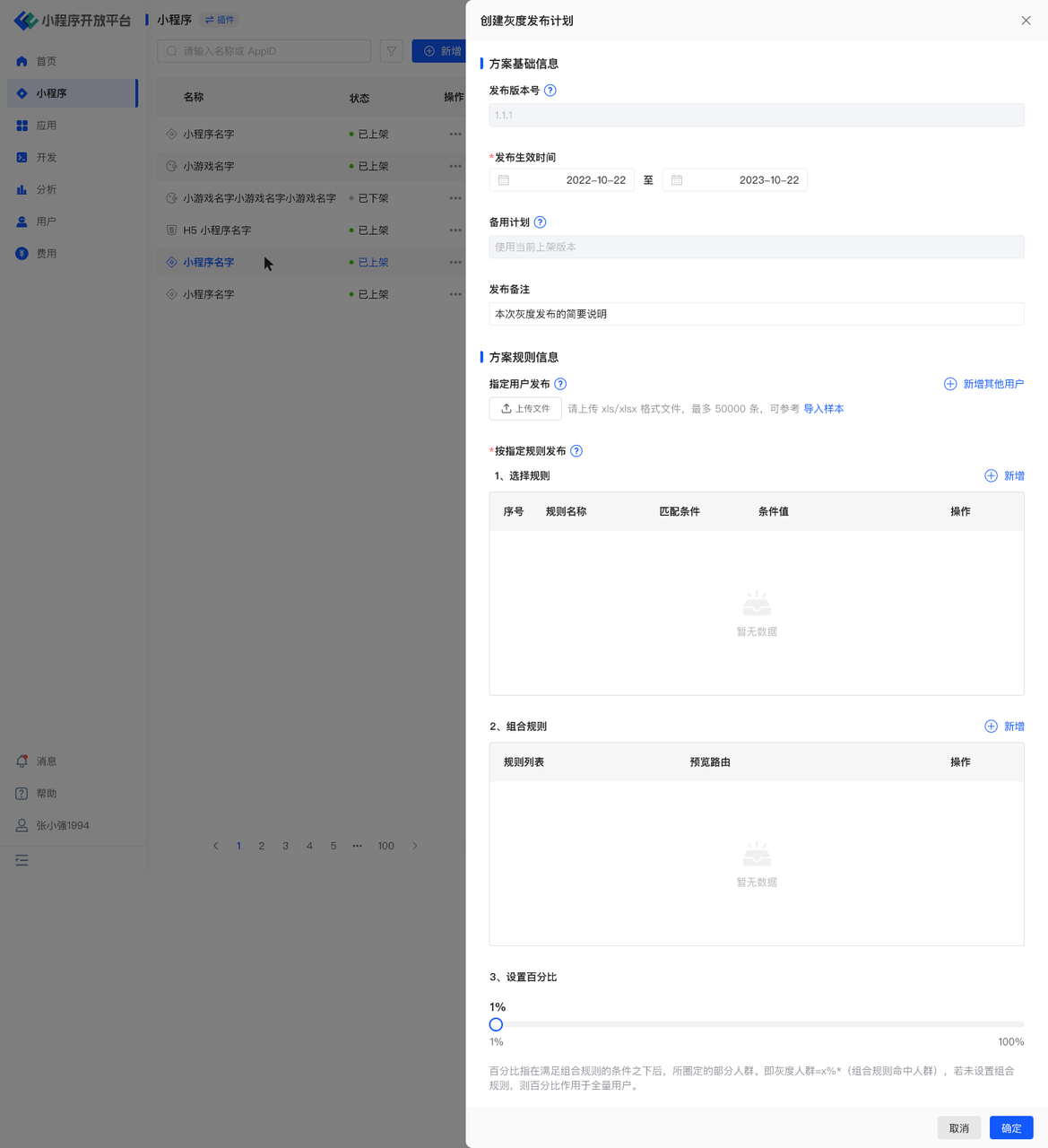
After clicking, a drawer will slide out on the right. Fill in the "Plan Basic Information" and "Plan Rule Information".
- Plan Basic Information
- Release Effective Time: The effective time period of the gray release plan. The gray release plan will be effective during this period.
- Release Remarks: Remarks and description of the gray release plan.
- Plan Rule Information
- Release to Specified Users: If user information is uploaded, only when the user's identity information matches the user list uploaded here can the Mini-Program gray version be displayed (optional).
- Release by Specified Rules:
- Step 1: Select Rules: Select the corresponding rules from the "Rule Configuration" page here, such as city, system version, etc.
- Step 2: Combine Rules: Configure the effective method of the plan. After selecting release rules, you need to configure the effective method of the gray release rules here. If multiple rules are configured, you need to supplement the "AND/OR" logic between the rules.
- Step 3: Set Percentage: The percentage refers to the portion of the population selected from within the group that meets the combined rules. That is, Gray Population = x% * (Population meeting the combined rules). If no combined rules are set, the percentage applies to the entire user base.
Please Note Since FinClip Mini-Programs do not provide a user system, when you select "Release to Specified Users", you need to pass the user information from the App to the Mini-Program through a custom API. Only then can the Mini-Program be released to specified users (when using a custom API to pass the user ID, the default rule ID is
xUserId). For how to use a custom API to pass the user ID, please see the links below:
After completing all the relevant content for the gray plan, click the "Confirm" button in the lower right corner to create the gray release plan. When the gray plan is released, if a user is not within the rules, they will open the current Online Version of the Mini-Program.
# Quick Gray Release
The entry point is "Mini-Program Management - Version Management". Click "Configure Online Version" on the Review Version card. A pop-up window displays 3 options. Check "Gray Release by User Percentage" to implement a quick gray release by setting a percentage that applies to the entire user base. You can also specify a member list to allow them to experience the Mini-Program gray version.
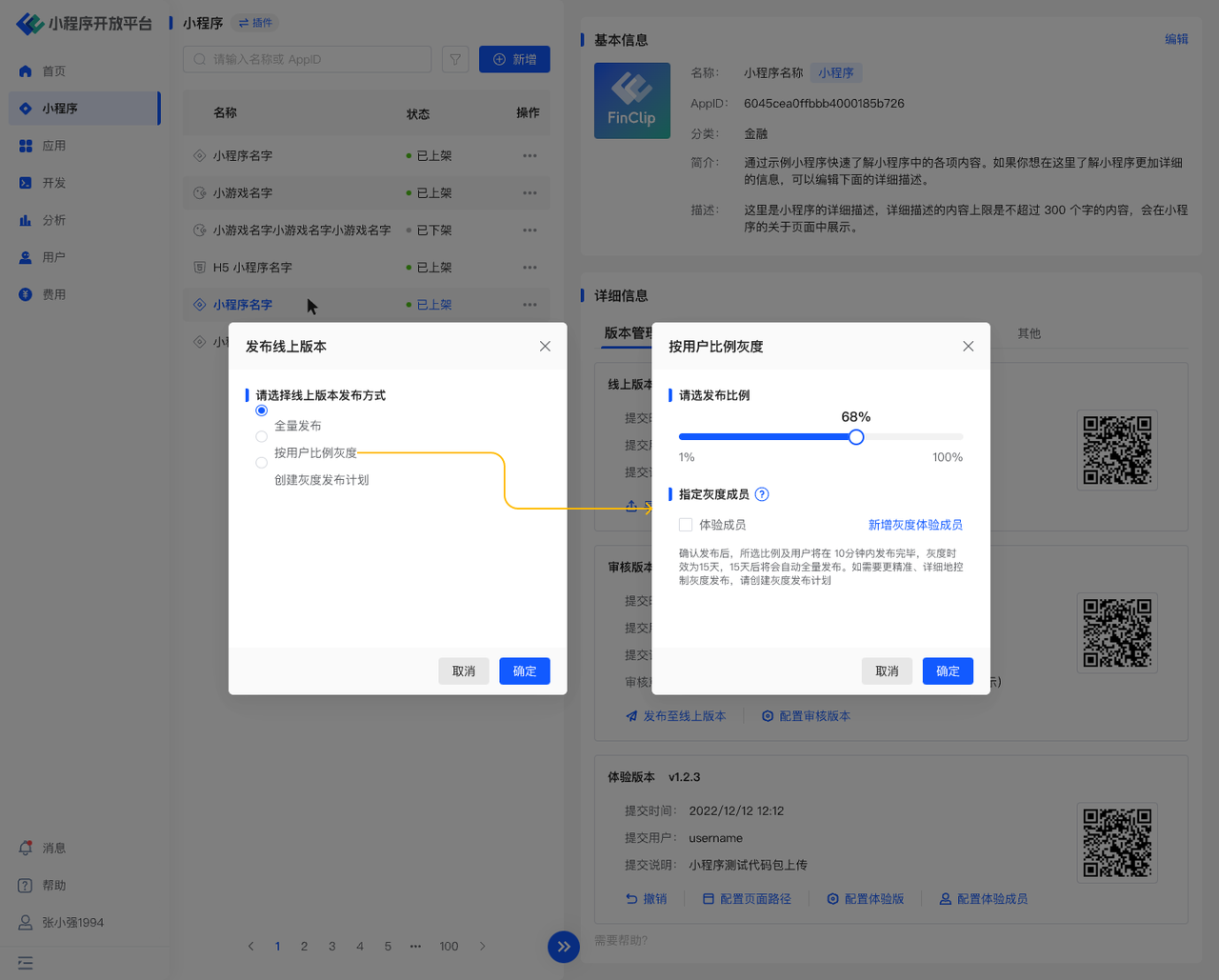
After confirming the release, the selected percentage and users will be released within 10 minutes. The gray release validity period is 15 days. After 15 days, it will automatically transition to a full release.
# 3.4 Associated Applications
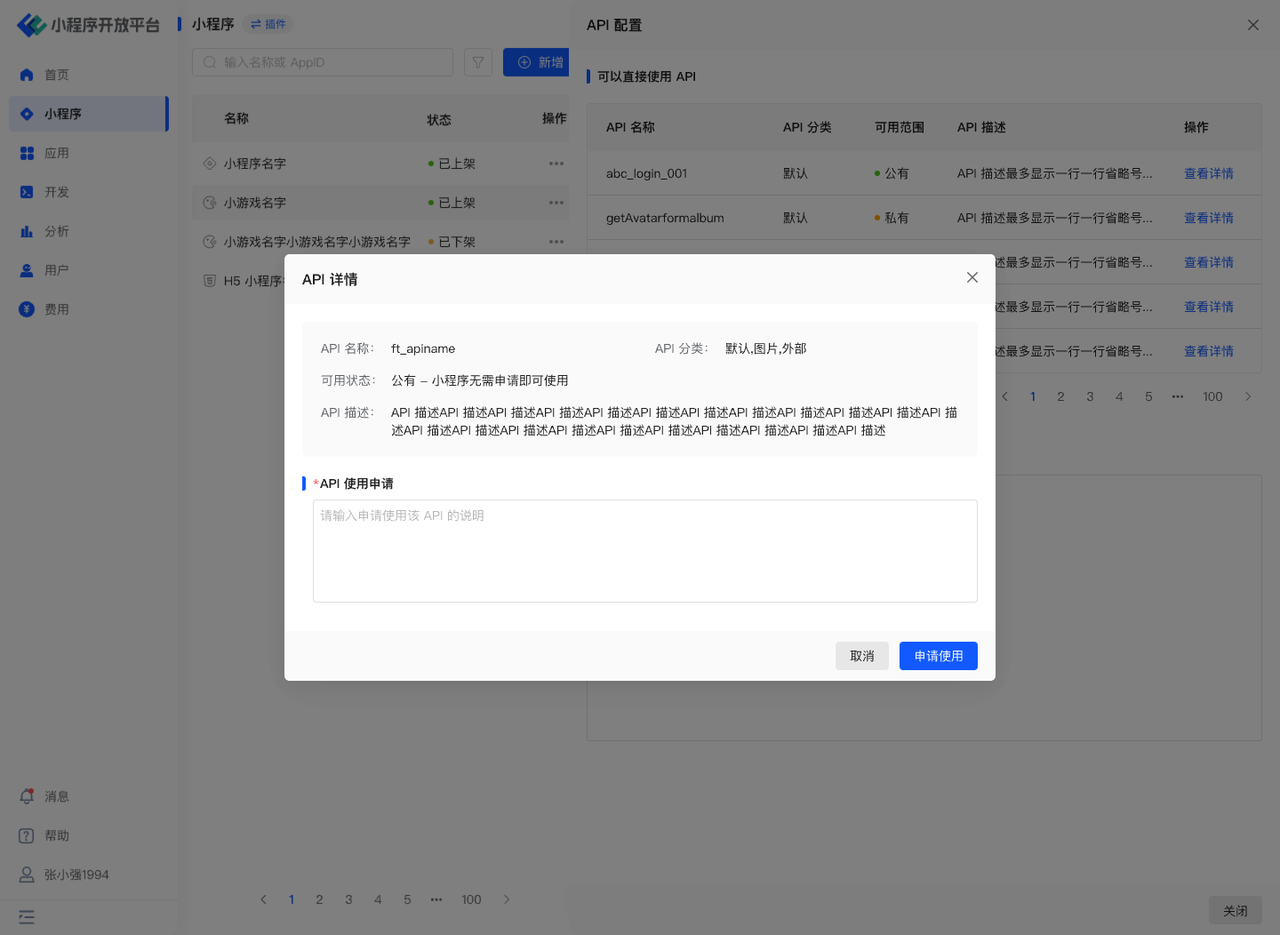
Click "Associated Applications" to view the applications associated with this Mini-Program.

If you need to apply for associated APIs or menus, click "API Configuration" or "Menu Configuration" under the corresponding application. Those with an availability status of "Public" can be used directly. Those with an availability status of "Private" require an application for use, and the approver is the creator of that application.
# 3.5 Third-Party Platform Association
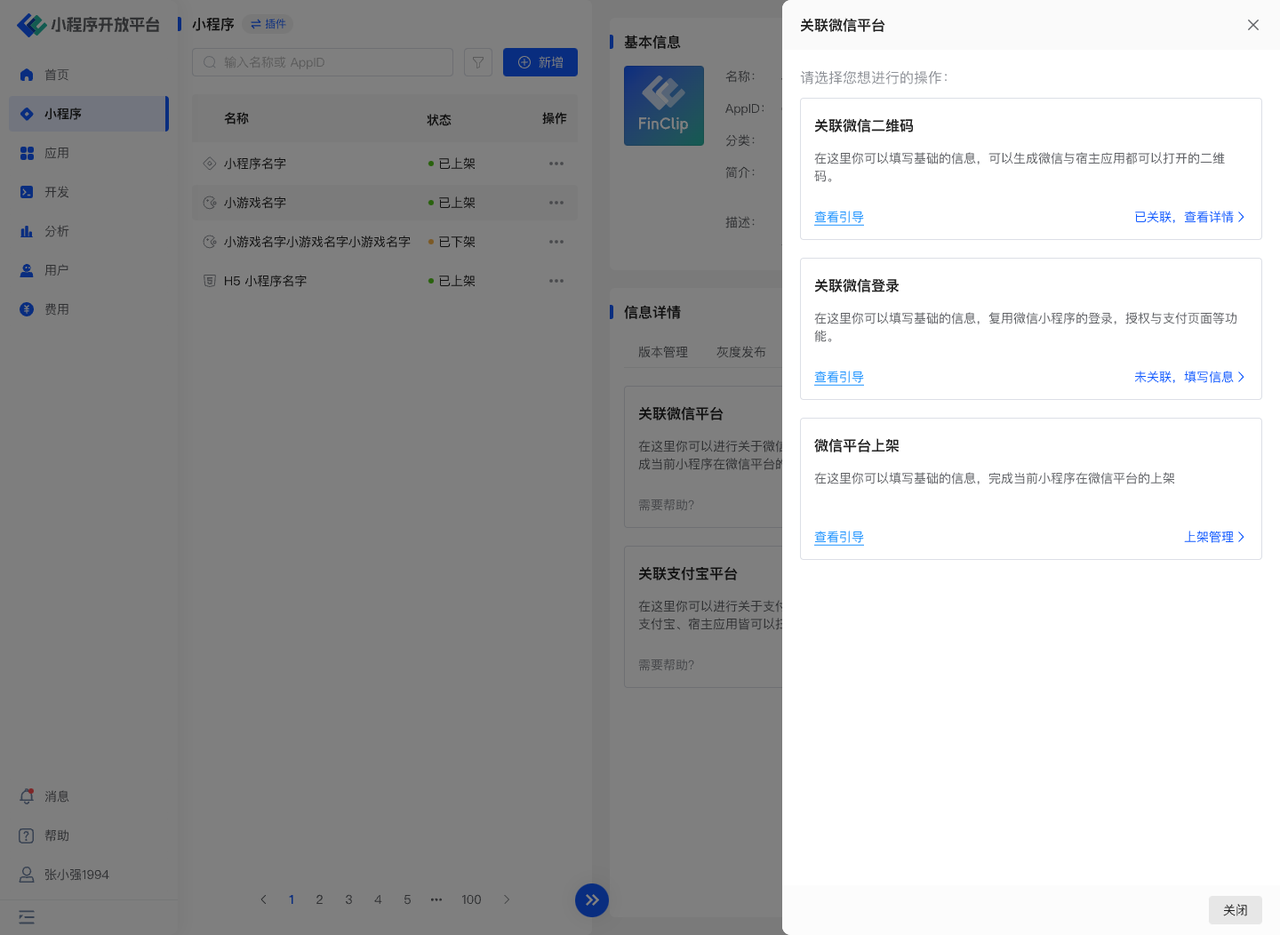
Third-party association support is a subset of functions within Mini-Program Management (currently supports WeChat platform association). When you need to reuse existing WeChat Mini-Program resources, you can directly use the related functions in the WeChat Association Support page to associate and publish WeChat QR codes and WeChat Mini-Programs.
# Associate WeChat QR Code
If you need to use the "Associate WeChat Mini-Program QR Code" function, simply click the corresponding button, then enter the associated WeChat Mini-Program's App ID, App Secret, and the Mini-Program page path parameters, and click OK.
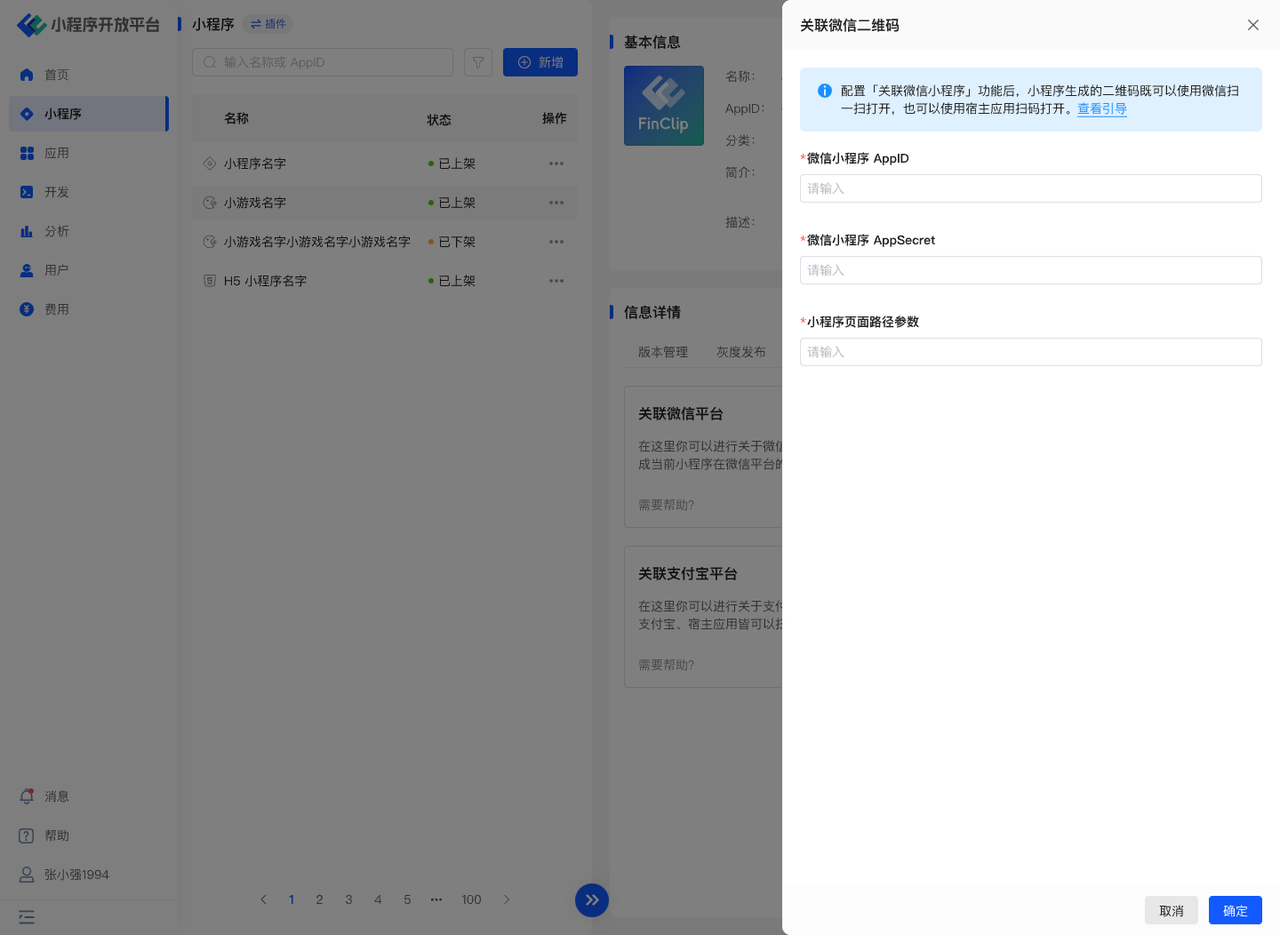
Please Note According to the WeChat official announcement (opens new window), after December 27, 2021, user nickname and avatar information will no longer be provided to developers. You may need to handle the logic for obtaining user avatars and nicknames yourself.
# Associate WeChat Login
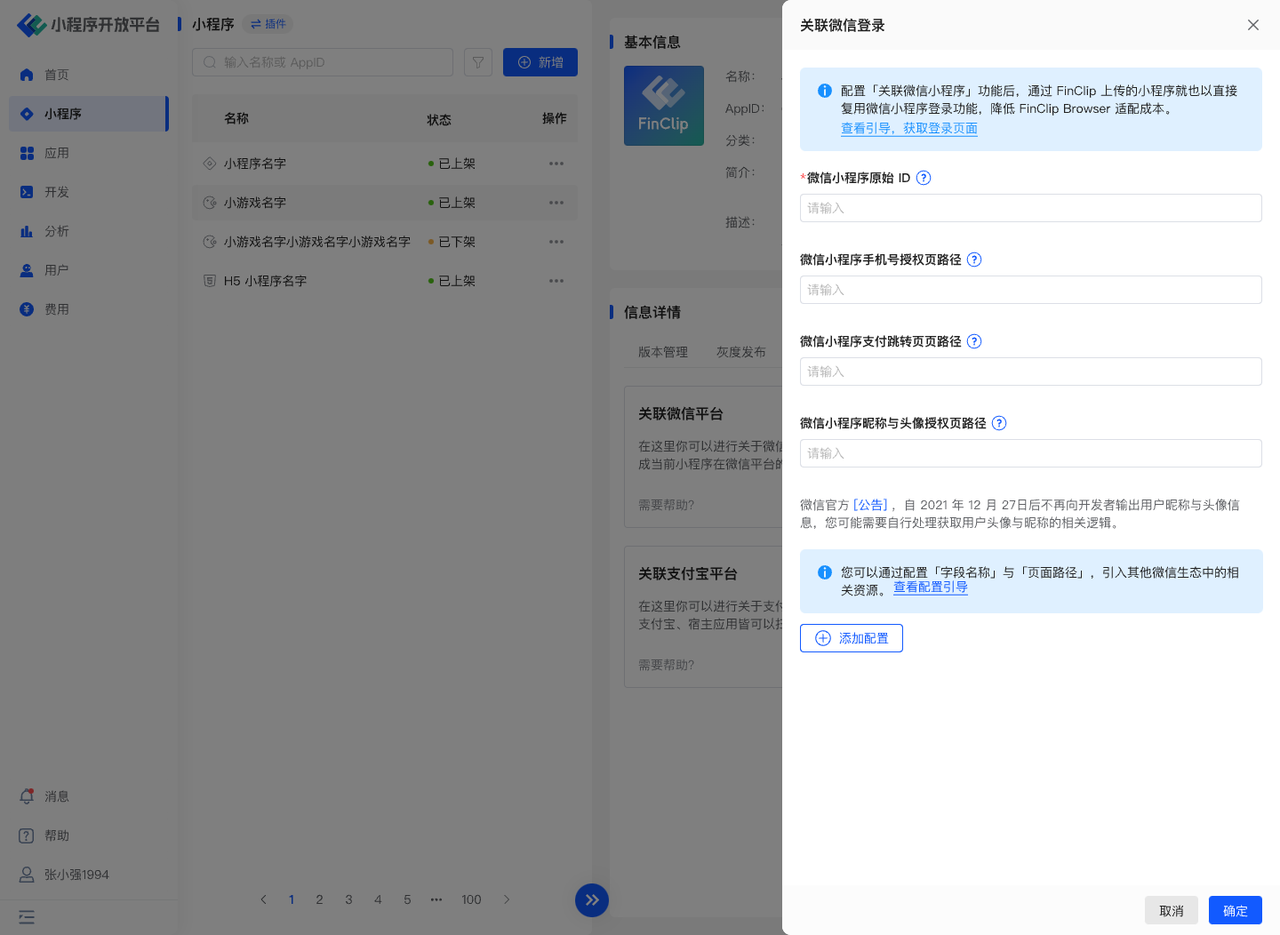
FinClip provides the capability to support Mini-Programs reusing WeChat login and payment. For commonly used functions like wx.login, wx.getUserProfile, button - getphonenumber, requestPayment, etc., when the Mini-Program runs in FinClip, after configuration, it can automatically redirect to the corresponding WeChat Mini-Program to obtain relevant data and complete the business loop. For details, see: Support WeChat Login and Payment (opens new window)
# WeChat Platform Publishing
In the "WeChat Platform Publishing" function, developers can associate already published FinClip Mini-Programs with WeChat Mini-Programs and directly upload WeChat WXML syntax Mini-Program code in FinClip Studio.
Subsequently, developers can directly configure the Mini-Program code through FinClip, such as setting the Mini-Program version as a Trial Version Mini-Program in the WeChat environment, submitting the WeChat Mini-Program code for review, and publishing the WeChat Mini-Program code version.
Please Note
- Code review and publishing operations in the WeChat Mini-Program environment need to be processed and reviewed by WeChat. FinClip cannot guarantee the timeliness of Mini-Program review and publishing (prompts such as "Please upload code" may appear).
- The current function only supports associating WeChat Mini-Programs with Mini-Programs that are already published in FinClip.
- To ensure the availability of the Mini-Program code in the WeChat environment, please ensure the Mini-Program is implemented using WeChat Mini-Program syntax (WeChat Mini-Programs can be used directly in the FinClip environment).
- Managing WeChat Mini-Programs using FinClip requires the Mini-Program user type to be "Enterprise". Personal type Mini-Programs cannot be provided with complete management capabilities.
Operation process is as follows:
To manage a WeChat Mini-Program, first enter the "Mini-Program Management - WeChat Mini-Program Management" page, find the existing FinClip Mini-Program, click the "Associate" button on the right side of the AppID, and use WeChat to scan the QR code on the newly opened page to complete the authorization binding between the WeChat Mini-Program and the FinClip Mini-Program.
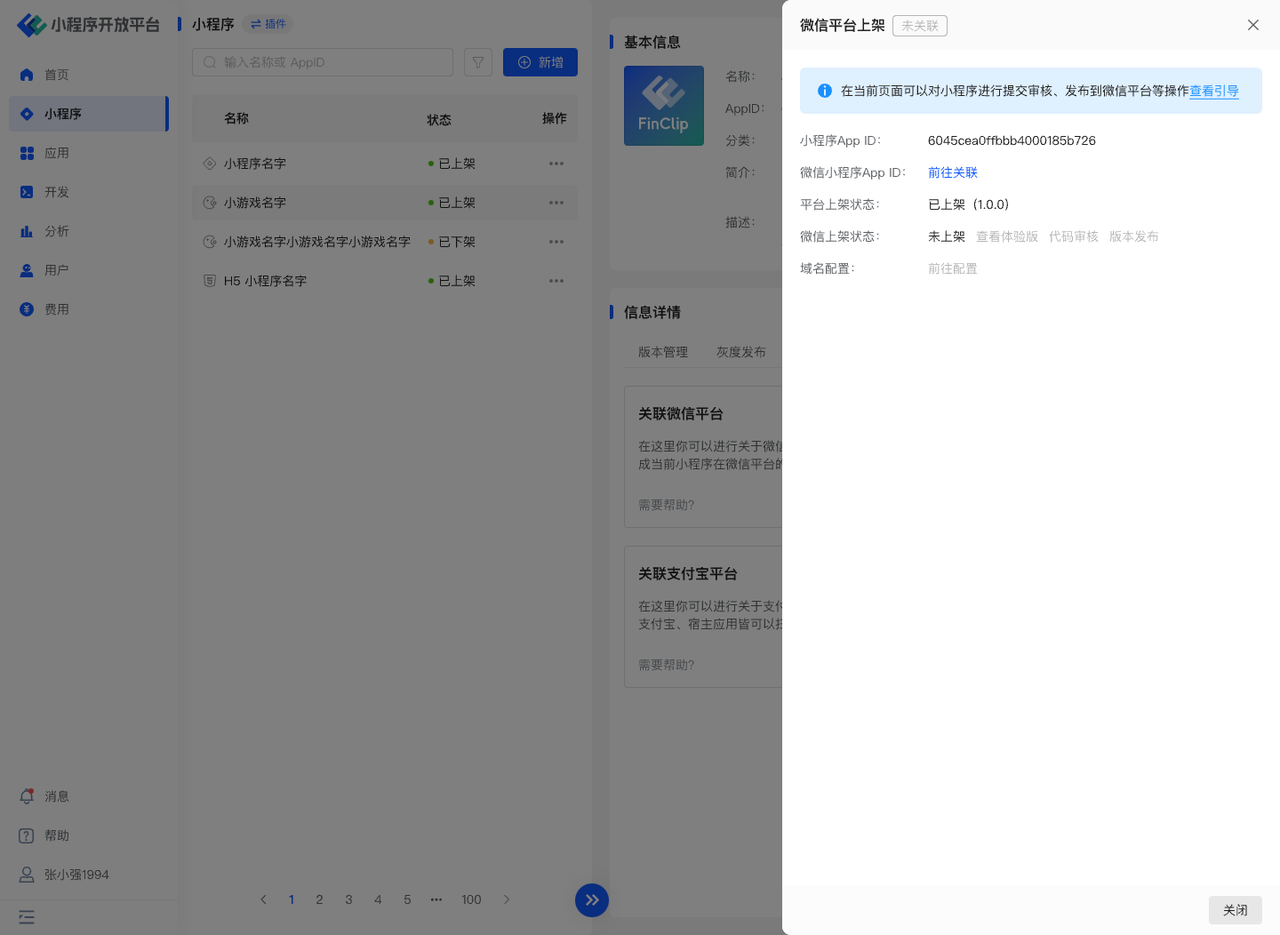
After the WeChat Mini-Program is successfully bound, the WeChat Mini-Program's AppID (starting with 'wx') will be displayed in the AppID column.
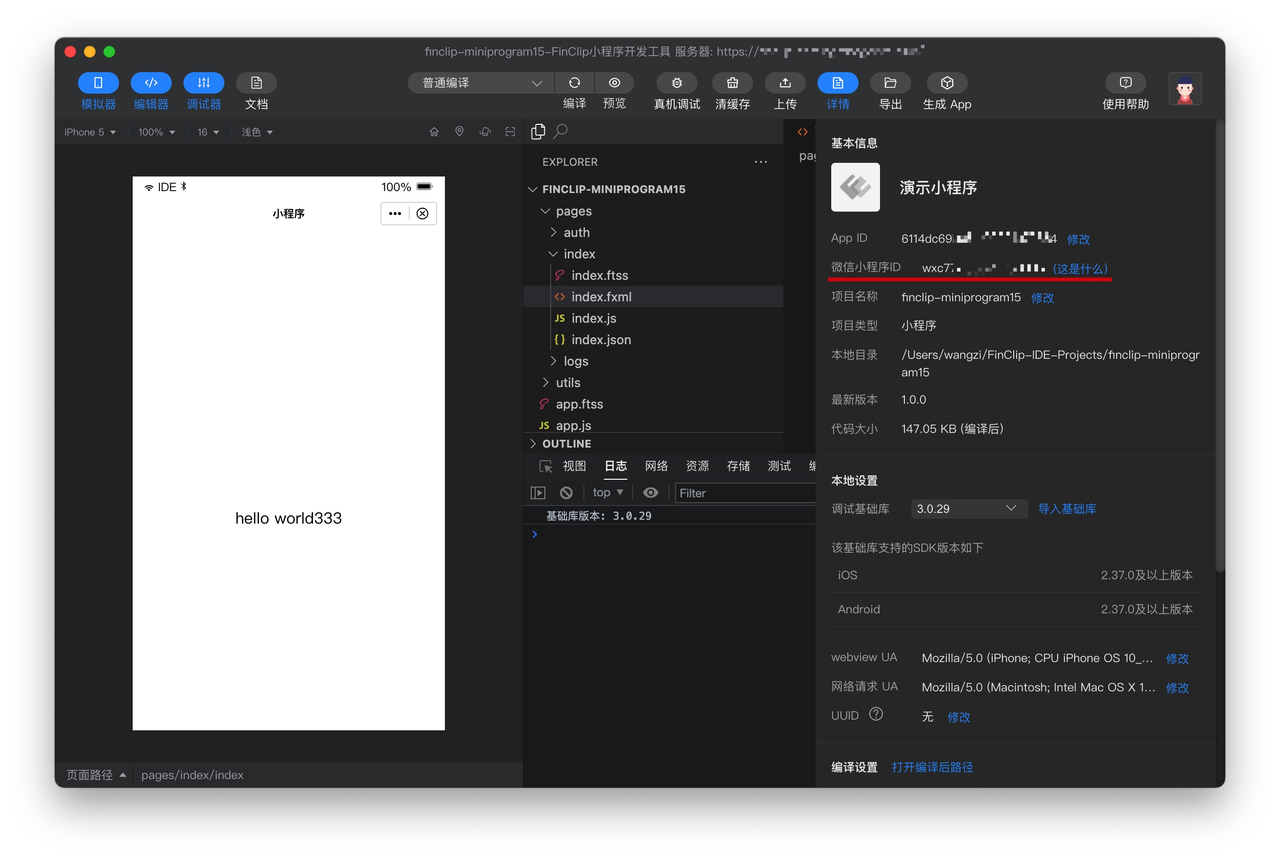
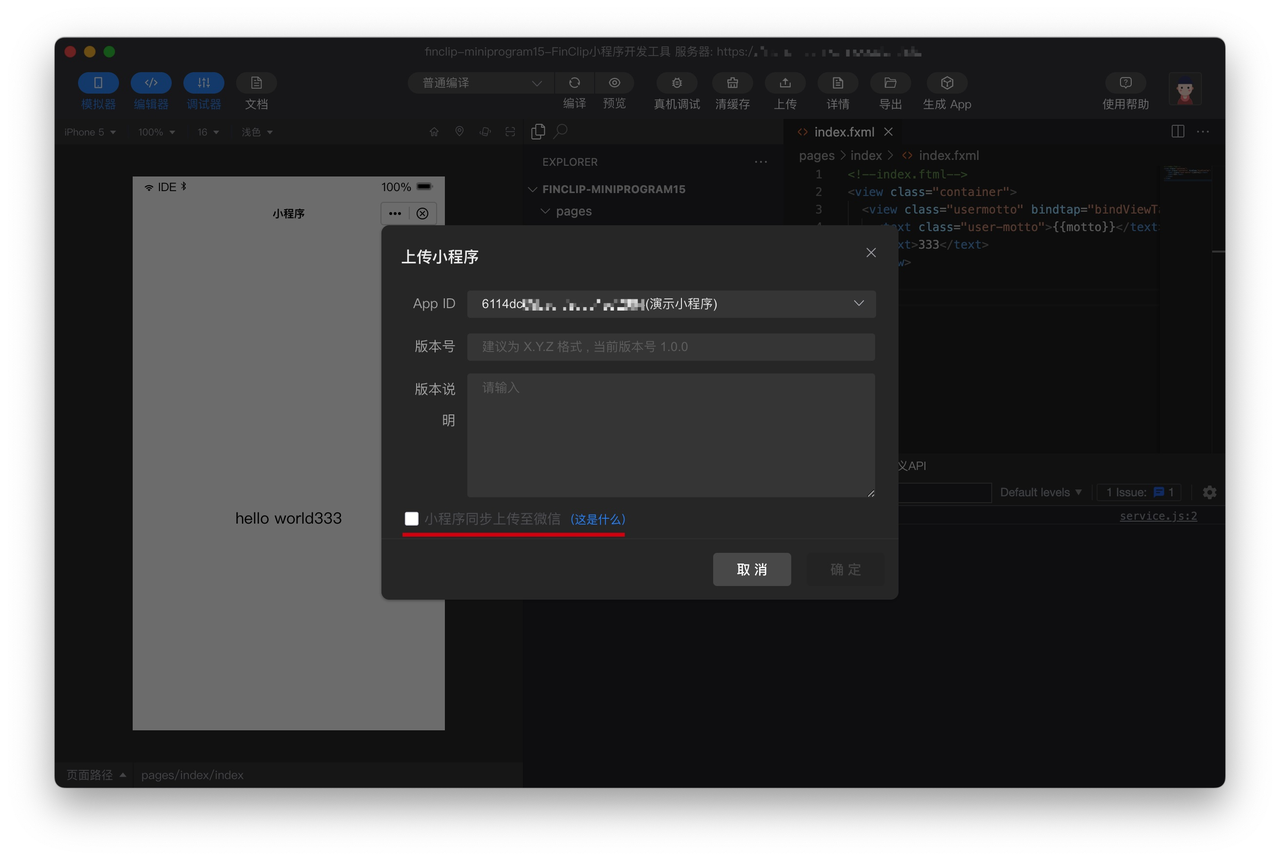
Open the corresponding Mini-Program using the FinClip Developer Tools. You can view the corresponding WeChat Mini-Program ID information on the "Details" page. After confirming the Mini-Program code is developed correctly, you can click the "Upload" button in the FinClip Studio interface and check the "Synchronously upload Mini-Program to WeChat" checkbox below. Then you can return to the Mini-Program Management Console and open the "WeChat Platform Publishing" page for subsequent operations.
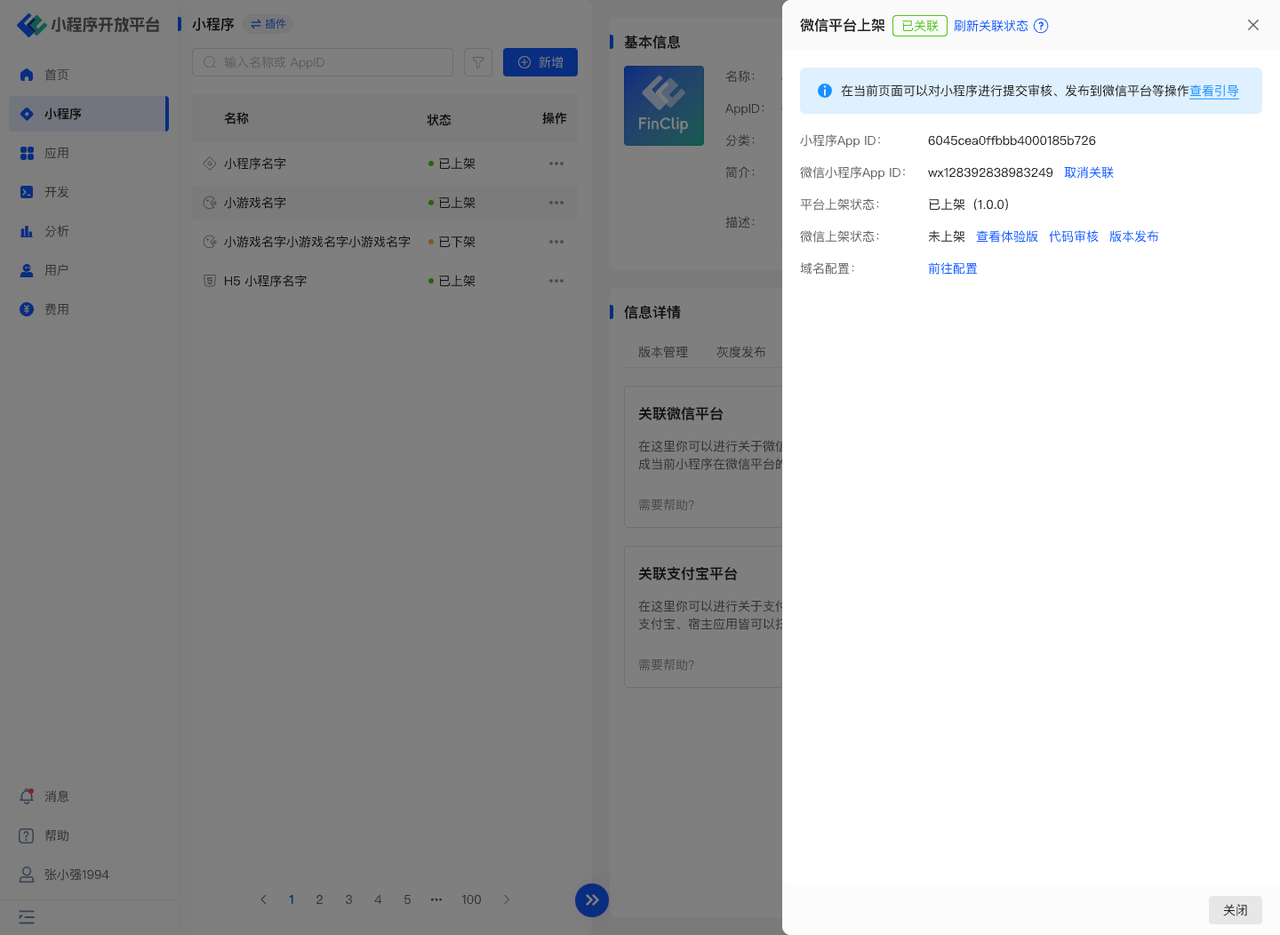
The functions in the operation column are as follows:
- View Trial Version: After the Mini-Program code has been uploaded via FinClip Studio, you can click this button and scan the QR code with the WeChat App to experience the Mini-Program.
- Code Review: Submit the current Trial Version Mini-Program code to WeChat for review. After the review ends, the review status and comments will be returned.
- Version Publish: Publish the Mini-Program that has passed the code review to the Online Version.
- Domain Configuration: Configure the WeChat Mini-Program server domain names and business domain names.
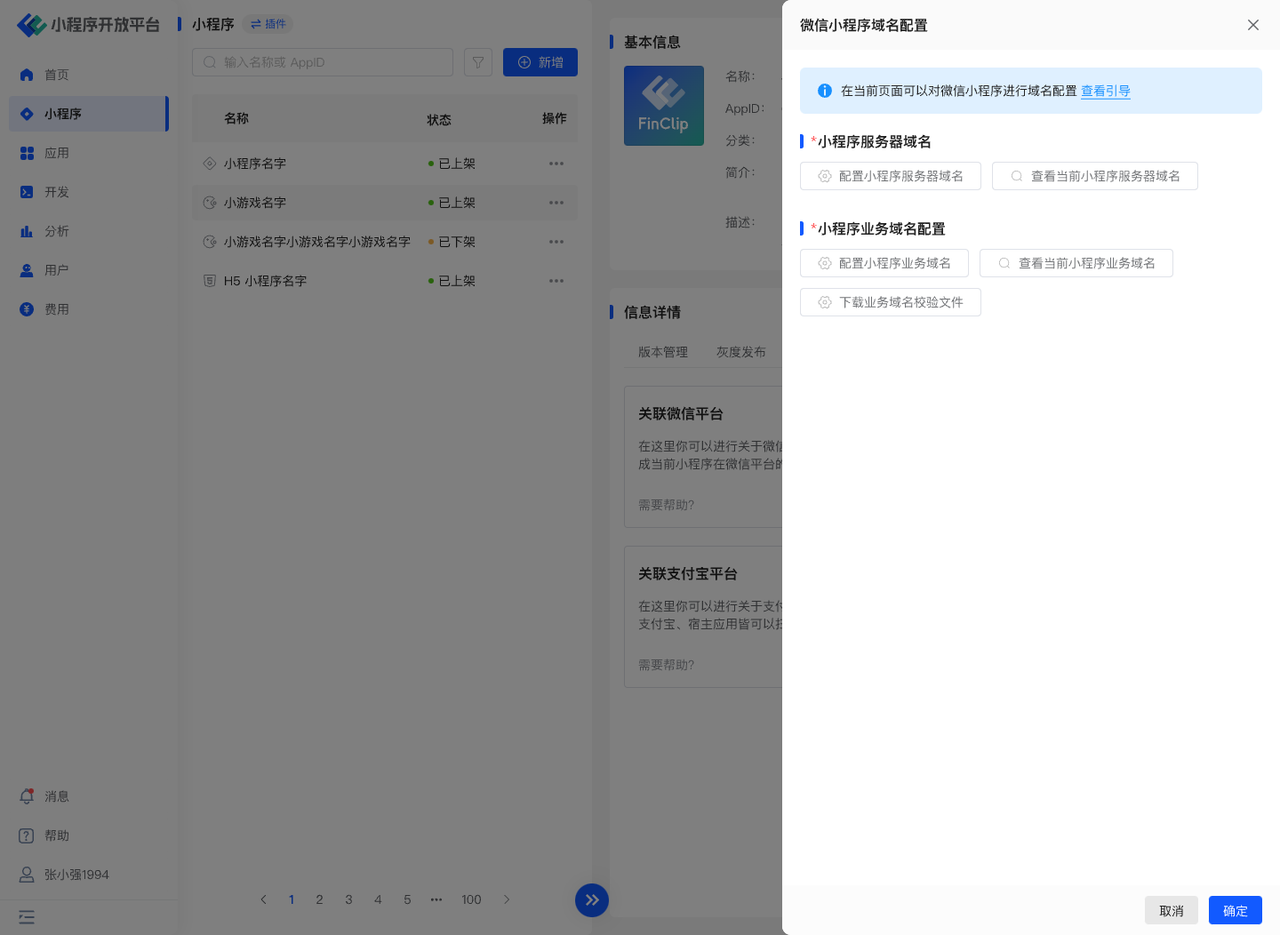
Please Note If you update the domain names through the Marketing Template entry when publishing a Mini-Program update, a pop-up reminder "Confirm to update WeChat Mini-Program domain names" will appear during the Mini-Program publishing process on the Marketing Template page. Clicking confirm will successfully update the WeChat Mini-Program domain names. (Prerequisite logic: The Mini-Program must already be associated with a WeChat Mini-Program and domain names must have been configured.)
# 3.6 Privacy Settings
Privacy Settings will be disclosed in scenarios such as the More Info page and authorization pop-ups when users use the Mini-Program.
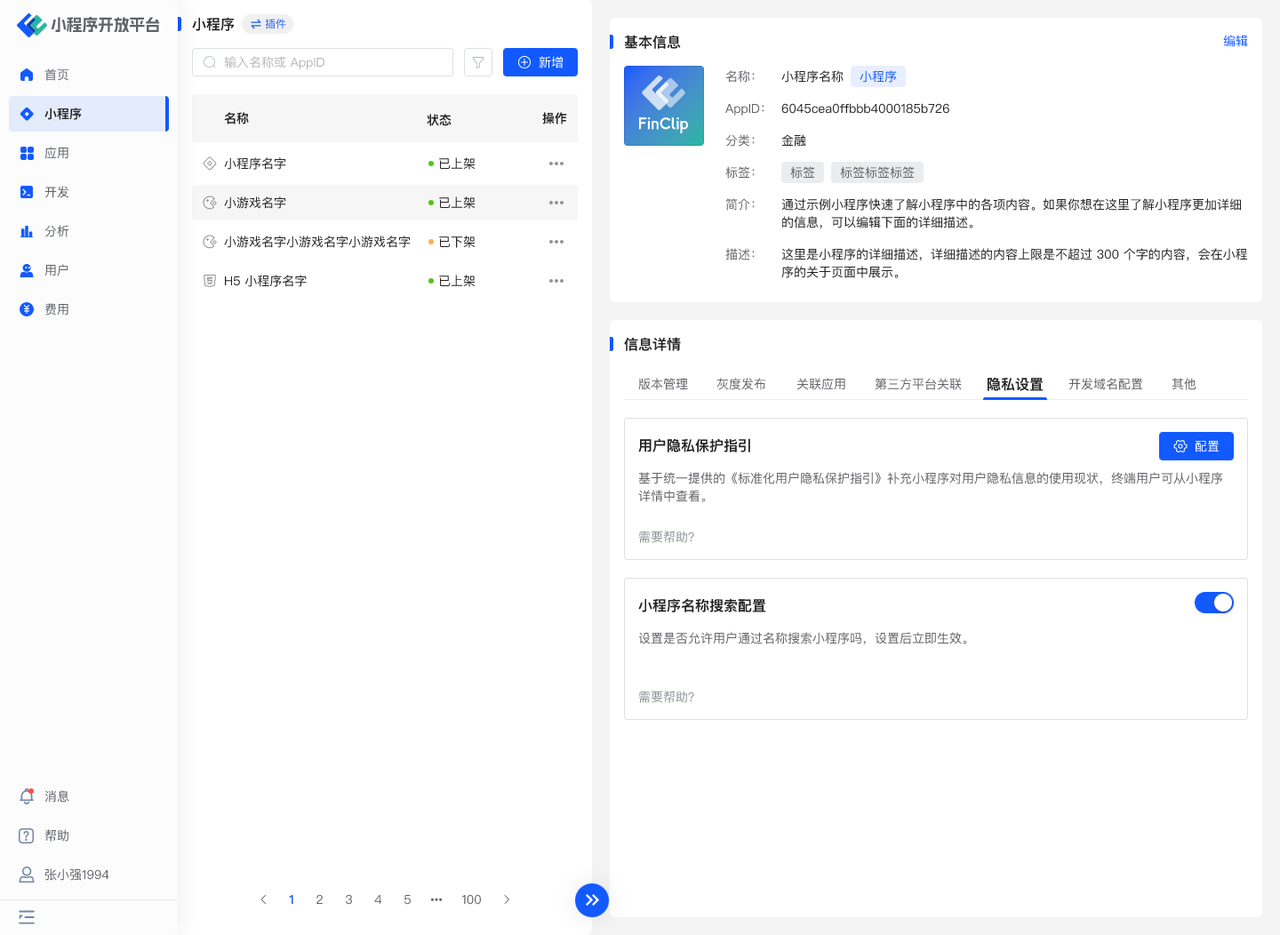
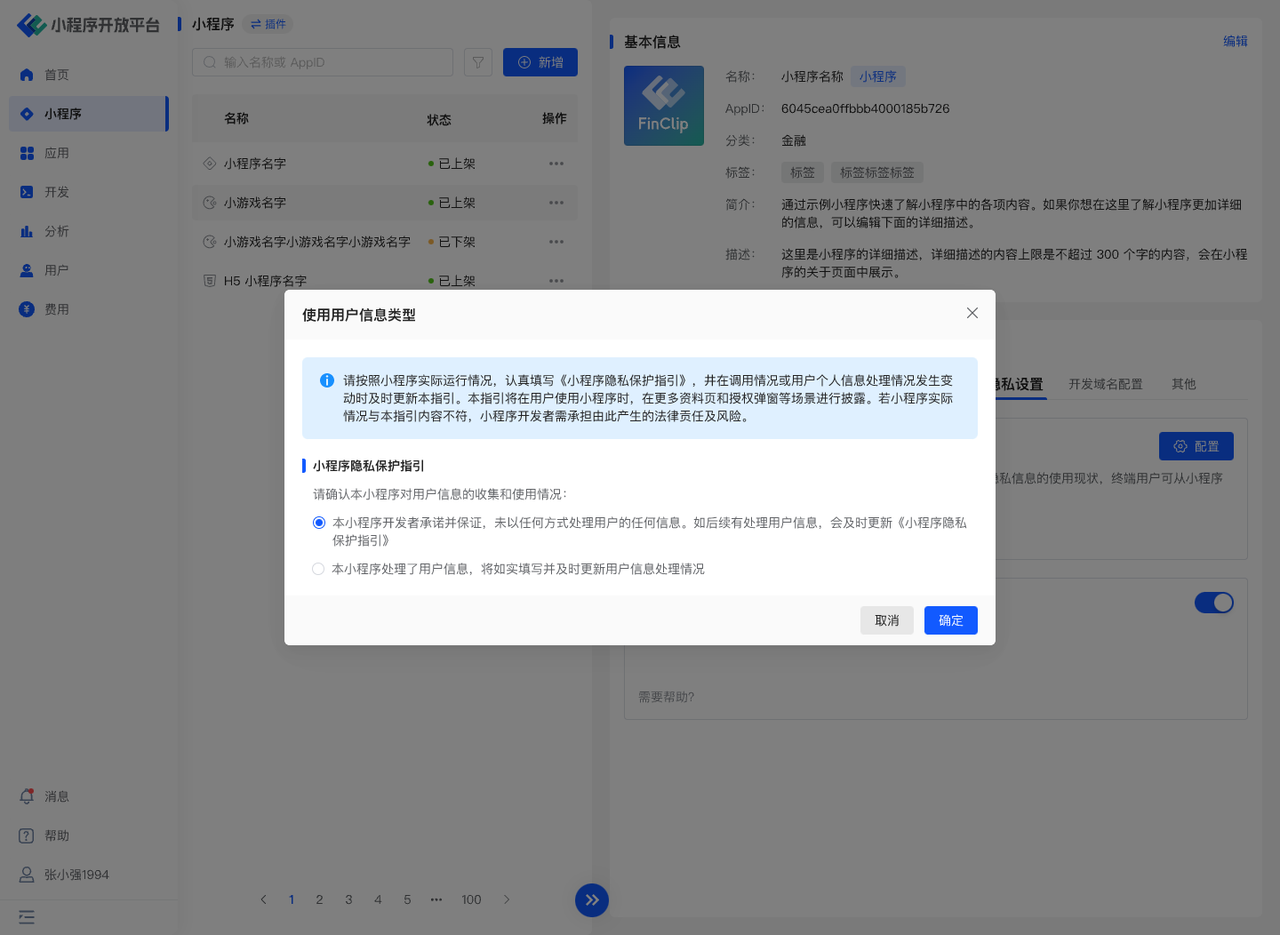
Click "Configure" and follow the page prompts to supplement the corresponding Mini-Program privacy information interfaces.
- If your Mini-Program does not use user-generated content (UGC), select the first option: "The developer of this Mini-Program promises and guarantees that user information is not processed in any way. If user information is processed subsequently, the 'Mini-Program Privacy Protection Guidelines' will be updated in a timely manner."
- Otherwise, please follow the prompts to select the second option and enter the corresponding permissions.
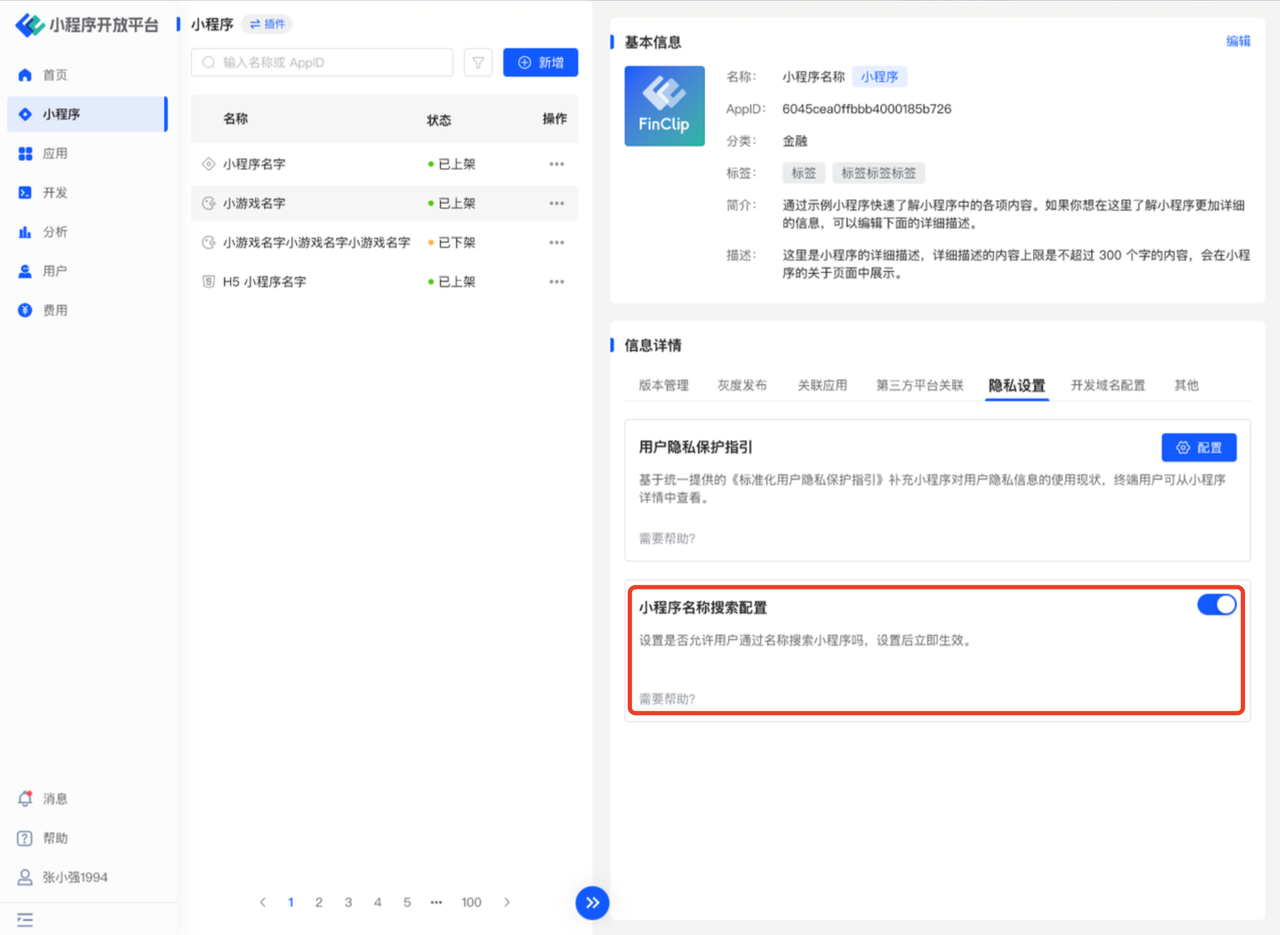
Mini-Program Name Search Configuration is used to configure whether users can search for the Mini-Program by its name.
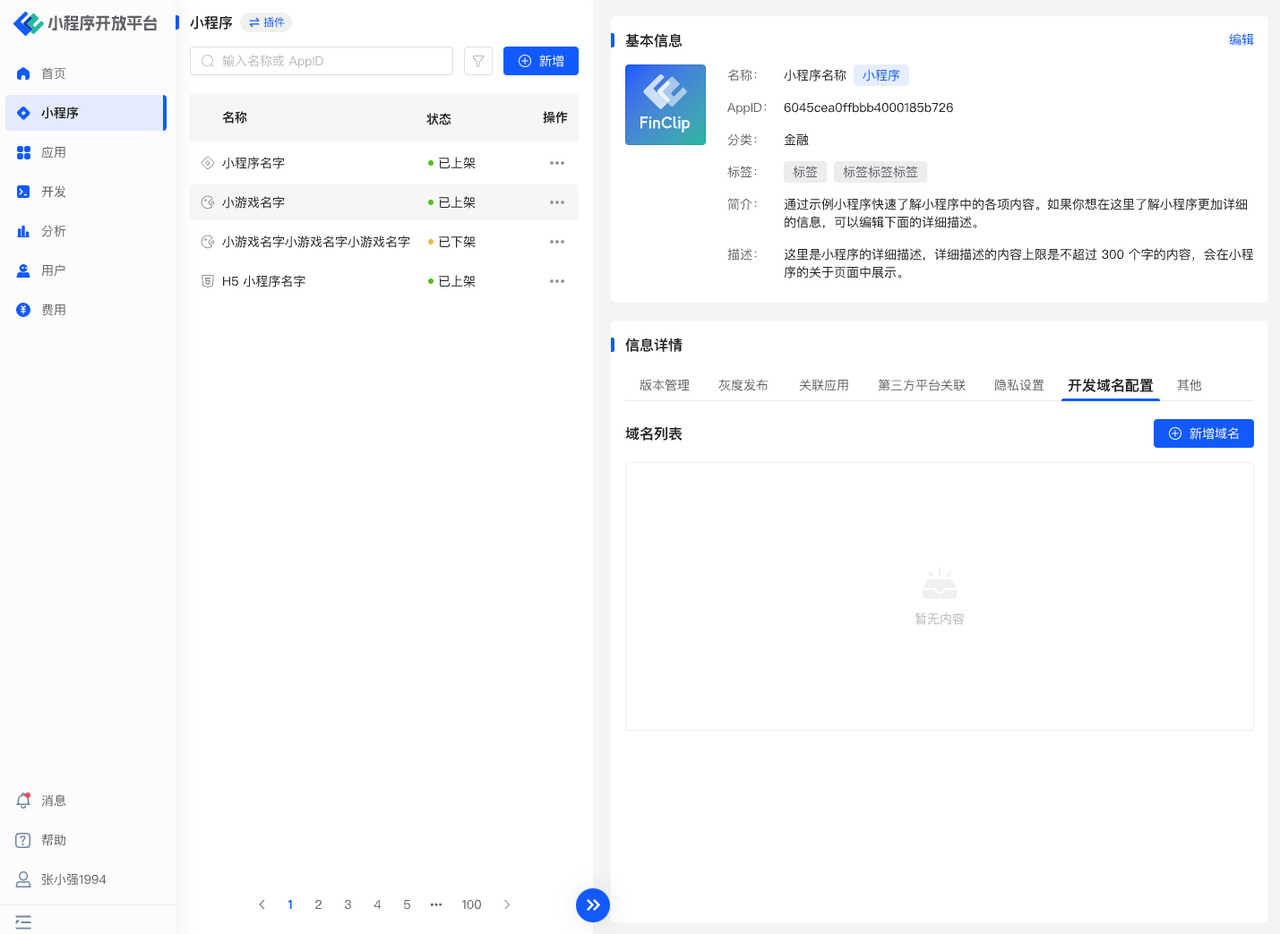
# 3.7 Development Domain Configuration
To ensure sufficient security in Mini-Program applications, all network request domain names in the Mini-Program need to be configured in advance. Only after configuration can they be accessed normally. In the "Development Domain Configuration" page, click "Add Domain" to configure domain names.
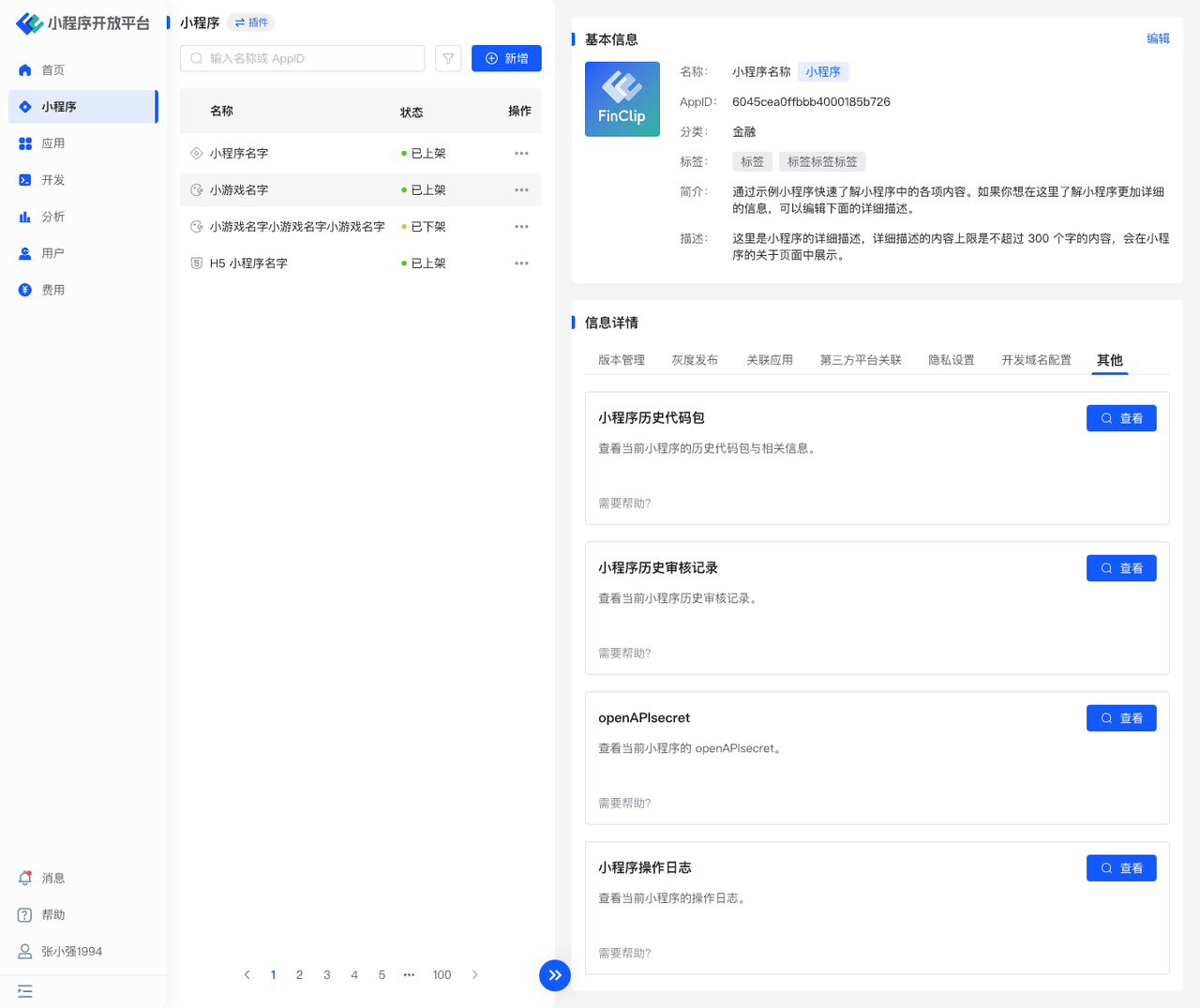
# 3.8 Others
Here you can manage the Mini-Program's historical code packages, view the Mini-Program's historical review records, view the current Mini-Program's openAPIsecret, and view the operation logs of the Mini-Program module.
# 3.9 Plugin Management
A Mini-Program Plugin is an encapsulation of a set of js interfaces, Custom Components (opens new window), or pages. Compared to ordinary js files or custom components, plugins have stronger independence. However, plugins cannot be called directly; they must be embedded into a Mini-Program to be used by users and cannot run independently. When a third-party Mini-Program uses a plugin, it cannot see the plugin's code. Therefore, plugins are suitable for encapsulating your own functions or services and providing them to third-party Mini-Programs for display and use.

Developers can write and upload plugins just like developing a Mini-Program. After the plugin is published, FinClip will host the plugin code. When other Mini-Programs call it, the uploaded plugin code will be downloaded and run together with the Mini-Program.
Within the FinClip Mini-Program system, we use sandbox technology to protect the data security of the Mini-Program and each plugin it uses, ensuring that they cannot steal data from any other party (unless the data is actively passed to the other party). The domain names required for requests within the plugin also need to be configured in the "Domain Settings" page. Plugins can also call all FinClip API functions.
Operation instructions are as follows:
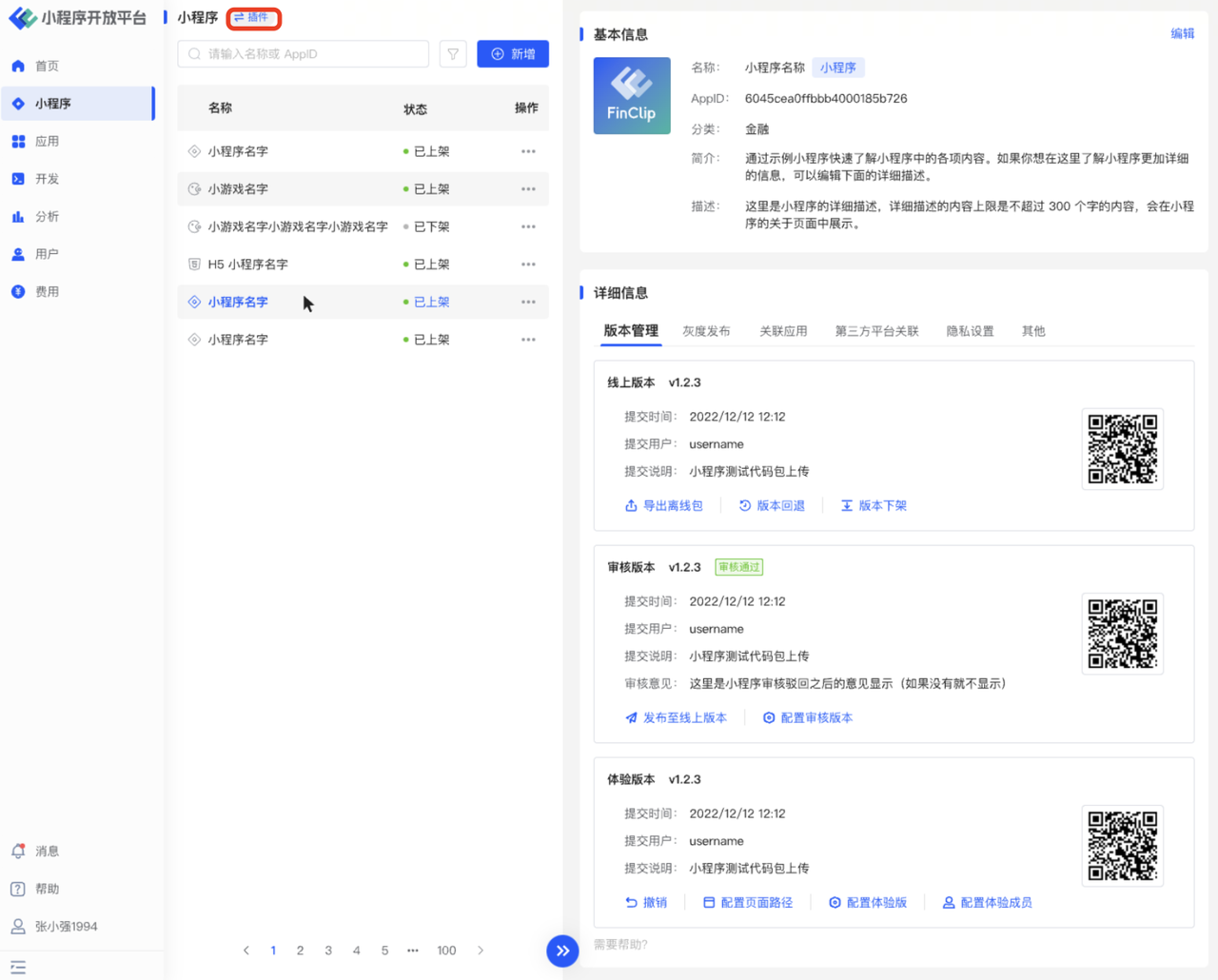
The use of Mini-Program plugins is divided into two parts: developers developing plugins, and Mini-Program developers using plugins. If you need to upload an existing plugin to the platform, click the "Switch to Plugin" button in the upper left corner of the Mini-Program list, click the "Add Plugin" button within it, and enter the plugin name, avatar, and introduction information to complete the plugin creation.
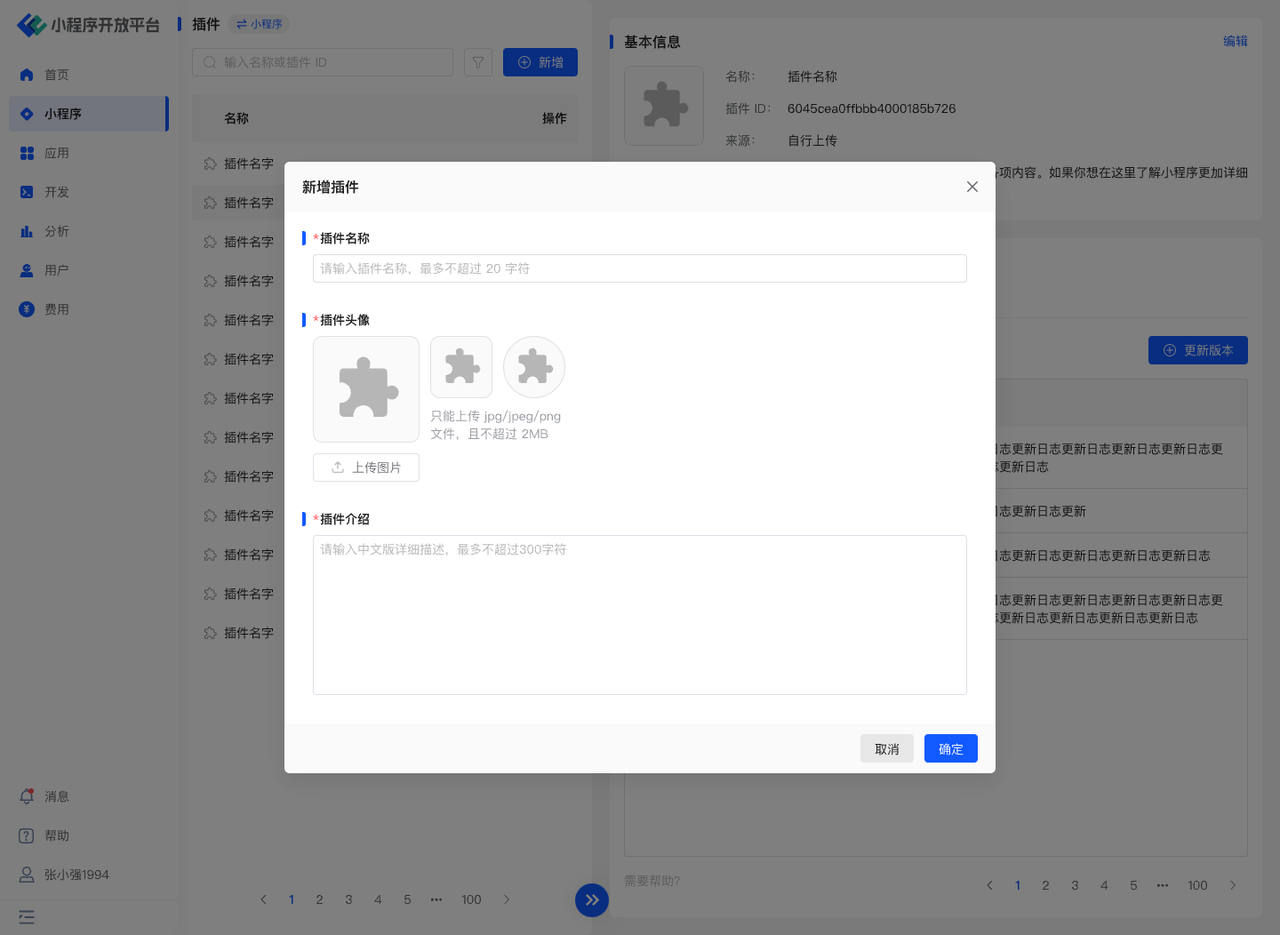
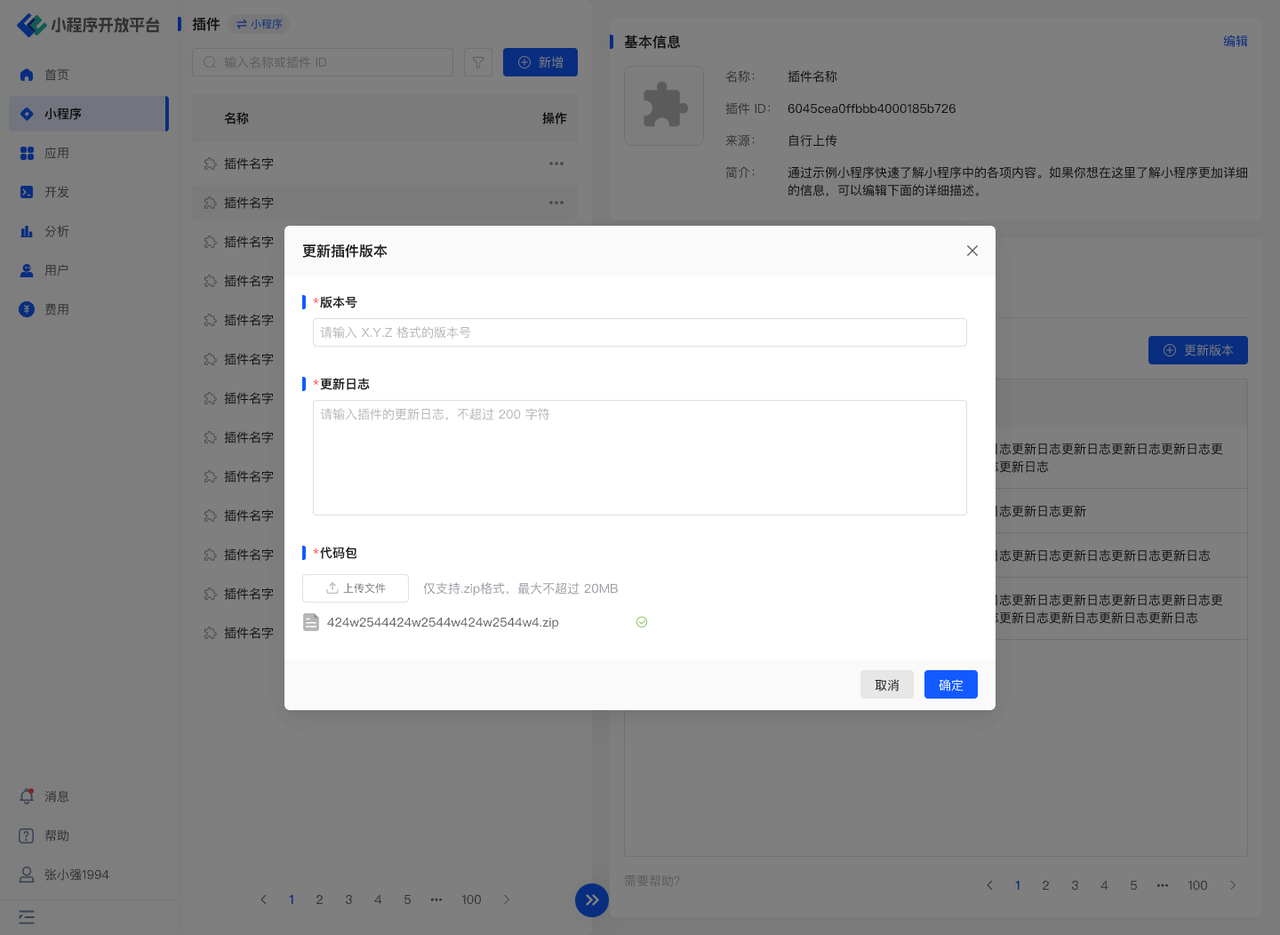
After the plugin is created, click "Update Plugin" on the right. Enter the plugin version number, update log, and upload the code package to complete the plugin upload.
Please Note To further obtain information related to Mini-Program plugin usage, you can also click Development - Guide - Mini-Program Plugin (opens new window) for details.
# 4. Environment Specifications
| Feature | Community Edition | SaaS Edition | Enterprise Edition (Annual Payment or One-time Purchase) |
|---|---|---|---|
| Create, View, Edit Mini-Program | ✅ | ✅ | ✅ |
| Version Management | ❌ | ✅ | Available upon request |
| Gray Release | ❌ | ✅ | Available upon request |
| Associated Applications | ❌ | ✅ | Available upon request |
| Third-Party Platform Association | ❌ | ✅ | Available upon request |
| Privacy Settings | ❌ | ✅ | Available upon request |
| Development Domain Configuration | ❌ | ✅ | Available upon request |
| Others | ❌ | ✅ | Available upon request |
| Plugin Management | ✅ | ✅ | ✅ |