# iOS Common Issues
# 1. Common Issues During Integration
# 1.1 What is the minimum configuration required for integrating the SDK?
Answer: The FinClip Mini-Program SDK supports iOS 9 and above. Versions below iOS 9 are not supported.
# 1.2 Does it support bitcode?
Answer: Versions prior to 2.34.5 do not support bitcode, while versions from 2.34.5 onward (including 2.34.5) do. Starting from version 2.36.13, bitcode support has been removed.
# 1.3 The project reports an error saying a certain category method cannot be found. What should I do?
Answer: This is because -ObjC has not been configured. Since the SDK contains categories, you need to add -ObjC in Other Linker Flags under Build Settings.
# 1.4 What parameters must be configured when initializing the SDK?
Answer: For SDK versions below 2.34.1, sdkSecret, sdkKey, apiServer, and apiPrefix are all mandatory configurations. For SDK versions 2.34.1 and above, we have optimized by removing apiPrefix, so sdkSecret, sdkKey, and apiServer are required.
FATStoreConfig *storeConfig = [[FATStoreConfig alloc] init];
storeConfig.sdkKey = @"Fill in your SDK Key here";
storeConfig.sdkSecret = @"Fill in your SDK secret here";
storeConfig.apiServer = @"Fill in your server address here"; // e.g., https://api.finclip.com;
storeConfig.apiPrefix = @"/api/v1/mop"; // apiPrefix can be omitted for versions 2.34.1 and above
FATConfig *config = [FATConfig configWithStoreConfigs:@[storeConfig]];

[[FATClient sharedClient] initWithConfig:config error:nil];
Additionally, if currentUserId is configured, data will be cached under this directory, making it easier to load data for different accounts during multi-account switching.
# 1.5 Why doesn't the registered custom Mini-Program API work?
Answer: When registering a custom API, it checks whether the current Mini-Program SDK has been successfully initialized. If initialization fails, registering the custom API will also fail.
Therefore, before registering a custom API, ensure that the Mini-Program has been successfully initialized.
# 1.6 Does the Mini-Program support switching between portrait and landscape orientations or forcing landscape orientation?
Answer: Yes.
To enable the Mini-Program to support switching between portrait and landscape orientations, first check Portrait, Landscape Left, and Landscape Right under 【General】 -> 【Deployment Info】 -> 【Device Orientation】 in the iOS project.
Then, configure [pageOrientation] in the window section of the Mini-Program’s app.json. Possible values are: auto / portrait / landscape.
Alternatively, you can set [pageOrientation] individually in the JSON configuration corresponding to each page.
For iPads, if you want the device to support switching between portrait and landscape orientations, you need to set resizable in app.json. Its value is of boolean type.
# 1.7 How to configure the number of Mini-Programs updated in batches by the SDK?
Answer: In FATConfig, there is an attribute called appletIntervalUpdateLimit, which defaults to 3. This means that during automatic background version checks, only the three most recently used Mini-Programs will be checked. You can modify appletIntervalUpdateLimit when initializing the SDK, with a range of 0~50.
# 1.8 How to try out the major version of the SDK?
Answer: Some features might affect existing modules, so we place them in the major version of the SDK. Users who need these features can integrate the major SDK in advance to try them out or start developing their own Mini-Programs early.
The major version of the SDK may contain some features that haven’t been fully tested and might not be very stable. There are two ways to experience the major version SDK: manual integration and pod integration.
Manual integration follows the same process as the official version: download the SDK, add it to the project, and modify the project settings, which won’t be elaborated here.
Let's focus on pod integration! Since the major version is less stable, it cannot be uploaded to the cocoapods source, so we upload the major version SDK to FinTech's own repository. The integration steps are as follows:
1. Add FinTech Repository Source
source 'https://git.finogeeks.com/cocoapods/FinPods'
Note: If the previous podfile does not include the cocoapods source, you need to add it.
# Choose one based on your actual situation
source 'https://github.com/CocoaPods/Specs.git'
source 'https://cdn.cocoapods.org/'
2. Specify the SDK version in the podfile
pod 'FinApplet', '2.37.0-alpha20220416v03'
pod 'FinAppletExt', '2.37.0-alpha20220416v03'
3. pod install
Install dependencies, or use pod update to update dependencies.
# 2. Common Issues During Usage
# 2.1 How to launch a Mini-Program?
Answer: Call the following API:
[[FATClient sharedClient] startRemoteApplet:appId startParams:startParams InParentViewController:viewController completion:^(BOOL result, NSError *error) {
        NSLog(@"result:%d---error:%@", result, error);
}];
# 2.2 Are there common error codes and troubleshooting methods when launching a Mini-Program?
Answer: There are eight common prompts for failed Mini-Program launches:
- appId or appTitle is nil. This happens when appId is not configured during Mini-Program launch, or the Mini-Program name is not configured when editing basic Mini-Program information in the backend.
- copyResources failed. This occurs when moving the downloaded
Mini-Program packageorBase Library packageto the runtime directory fails, usually due to issues with the compiledMini-Program zippackage orBase Library zippackage. - service.html not found! This happens when the compiled
Mini-Program zippackage lacksservice.html, possibly due to issues with the compiledMini-Program zip. - copy app file failed! This occurs when moving the downloaded
Mini-Program zipto the cache directory fails, which rarely happens. - Service exception, failed to get Mini-Program details. This generally happens when the interface for fetching Mini-Program details fails, often due to backend service issues or incorrect Mini-Program configuration. Remember to check if
apiPrefixis correctly configured asapi/v1/mop. - Cooperation terminated. This usually happens when the management console terminates cooperation with the application (corresponding bundleId). Please consult the Open Platform or backend administrator for specifics.
- Service unavailable. This generally happens when the Mini-Program hasn’t been associated with the application or there are backend issues.
- Service exception, abnormal return of Mini-Program details data. This generally happens when backend services encounter errors, causing the returned data format to be invalid.
# 2.3 How to add WeChat sharing functionality to a Mini-Program?
Answer: There are mainly three ways:
- Modify the forward function to WeChat sharing;
- Customize the WeChat sharing interface, then call the customized WeChat sharing interface within the Mini-Program.
- Directly reference the sharing SDK, refer to our SDK integration instructions
# 2.3.1 Modify the forward function to WeChat sharing
The FinClip Mini-Program SDK passes forwarding events through a delegate, so you just need to set an object implementing [FATClient sharedClient].buttonOpenTypeDelegate.
Then, you can retrieve forwarding information in the following delegate method:
/** Forwarding event
 When you click the forward menu in the top right corner of the Mini-Program, it triggers the shareAppMessage method in the Mini-Program, then calls back to the native method.
 @param contentInfo Mini-Program related information, including Mini-Program id, Mini-Program name, Mini-Program icon, Mini-Program screenshot (5:4), etc.
 {
    appAvatar = "Mini-Program icon URL";
    appDescription = "Mini-Program description";
    appId = "Mini-Program id";
    appInfo =  {}; // Customers can define fields in appInfo, and appInfo content will be passed through
    appStartParams =     {
        path = "Mini-Program page path at the time of forwarding";
    };
    appThumbnail = "Path to the Mini-Program cover image, could be a network path or local path, aspect ratio is 5:4";
    appTitle = "Mini-Program name";
    userId = "Mini-Program developer id";
}
 @param completion Callback after execution. If you want to inform the Mini-Program end of the forwarding result after completing the forwarding operation, you need to call this block.
 */
- (BOOL)forwardAppletWithInfo:(NSDictionary *)contentInfo completion:(void (^)(FATExtensionCode code, NSDictionary *result))completion;
Here, appInfo is a new property added in onShareAppMessage, and its content can define various key-value pairs.
Finally, call the WeChat sharing SDK’s Mini-Program sharing interface.
# 2.3.2 Customize the WeChat sharing interface, then call the customized WeChat sharing interface within the Mini-Program.
Since the FinClip Mini-Program SDK supports custom Mini-Program APIs, we can first customize a sharing API. After initializing the Mini-Program SDK, register a Mini-Program API like this:
    [[FATClient sharedClient] registerExtensionApi:@"shareToWechat" handle:^(id param, FATExtensionApiCallback callback) {
       // Here you can get param, which is the object passed from within the Mini-Program.

       // Then call the WeChat sharing interface to share.

        callback(FATExtensionCodeSuccess, nil);
    }];
At the same time, create a FinClipConf.js file in the Mini-Program root directory, with the following configuration example:
module.exports = {
  extApi:[
    { // Ordinary interaction API
      name: 'shareToWechat', // Extended API name, this API must be implemented by Native side
      params: { // Parameter format of extended API, list only necessary properties
        path: '',
        title: '',
        description: ''
      }
    }
  ]
}
Finally, call the customized WeChat sharing interface within the Mini-Program:
ft.shareToWechat
# 2.4 Why can't the request, uploadFile, and downloadFile interfaces be called? Packet capture also doesn't show the interface invocation process.
Answer: If the above three interfaces cannot be called, you will generally see the following error message: url not in domain list.
This is because the domain has not been configured for the Mini-Program in the backend. Configuring the domain is similar to configuring domains in WeChat, where you separately configure domains for request/uploadFile/downloadFile.
# 2.5 Why can't network links be loaded in the webView component of the Mini-Program?
Answer: If you receive a prompt like Unsupported non-business domain xxxxxxxx, please reconfigure when using webView to open a link, it’s because the business domain has not been configured in the management platform. This business domain is the domain where webView loads the link.
# 2.6 How to set the transition animation style when launching a Mini-Program?
Answer: Currently, there are two animation styles for launching a Mini-Program:
- Present style;
- Push-like animation style.
When calling the following launch function, set transitionStyle. The enumeration values are: FATTranstionStyleUp, FATTranstionStylePush.
[[FATClient sharedClient] startRemoteApplet:appId startParams:appStartParams InParentViewController:self transitionStyle:FATTranstionStyleUp completion:^(BOOL result, NSError *error) {
    NSLog(@"result:%d---error:%@", result, error);
}];
# 2.7 How to register a custom Mini-Program API?
Answer: Refer to iOS Register Custom Mini-Program API for corresponding operations.
# 2.8 How to get a screenshot of the current Mini-Program page?
Answer: Call the following function to get a screenshot of the current Mini-Program page (the screenshot is 5:4).
UIImage *coverImage = [[FATClient sharedClient] getCurrentAppletImage];
# 2.9 Can the menu in the more button at the top right corner of the Mini-Program be customized? If yes, how to implement it?
Answer: Yes.
You need to implement two delegate methods. First, customize a FATClientHelper class that implements the FATAppletMoreMenuDelegate protocol.
#import <Foundation/Foundation.h>
#import <FinApplet/FinApplet.h>

@interface FATClientHelper : NSObject<FATAppletMoreMenuDelegate>

+ (instancetype)shareInstance;

@end
Then, after successful SDK initialization, set the SDK’s delegate to the FATClientHelper object.
Example code:
[[FATClient sharedClient] initWithConfig:config error:nil];

[FATClient sharedClient].moreMenuDelegate = [FATClientHelper shareInstance];
Finally, implement the following protocol methods in FATClientHelper:
// Return the menu objects to be injected. Menu objects must conform to the FATAppletMenuProtocol.
// Menu objects come in two types (default is Common type):
// 1.OnMiniProgram type: Requires backend configuration + Mini-Program configuration, displaying the collection of the same menuId.
// 2.Common type: Displayed if configured.
// PS: For backward compatibility, if the backend version has not been upgraded or configured after upgrading, only adapt the menu object’s menuId to NSString type.

- (NSArray<id<FATAppletMenuProtocol>> *)customMenusInApplet:(FATAppletInfo *)appletInfo atPath:(NSString *)path
{

    FATCustomMenuModel *favModel1 = [[FATCustomMenuModel alloc] init];
    favModel1.menuId = @"WXShareAPPFriends";
    favModel1.menuTitle = @"WeChat Friends";
    favModel1.menuIconImage = [UIImage imageNamed:@"minipro_list_wx_chat"];
    favModel1.menuType = FATAppletMenuStyleOnMiniProgram;

    FATCustomMenuModel *favModel2 = [[FATCustomMenuModel alloc] init];
    favModel2.menuId = @"WXShareAPPMoments";
    favModel2.menuTitle = @"WeChat Moments";
    favModel2.menuIconImage = [UIImage imageNamed:@"minipro_list_wx_monents"];
    favModel2.menuType = FATAppletMenuStyleOnMiniProgram;

    FATCustomMenuModel *favModel3 = [[FATCustomMenuModel alloc] init];
    favModel3.menuId = @"Restart";
    favModel3.menuTitle = @"Restart";
    favModel3.menuIconImage = [UIImage imageNamed:@"minipro_list_restart"];
    favModel3.menuType = FATAppletMenuStyleCommon;

    return @[favModel1, favModel2, favModel3];
}

// Event triggered when a custom menu is clicked (old version, used when the backend has not been upgraded or configured after upgrade)
- (void)customMenu:(id<FATAppletMenuProtocol>)customMenu inApplet:(FATAppletInfo *)appletInfo didClickAtPath:(NSString *)path
{
    NSLog(@"Clicked %@",customMenu.menuTitle);
    NSLog(@"path = %@",path);
}

// Event triggered when a custom menu is clicked (new version, used when backend and Mini-Program are configured)
- (void)clickCustomItemMenuWithInfo:(NSDictionary *)contentInfo completion:(void (^)(FATExtensionCode, NSDictionary *))completion
{
    /**
    contentInfo includes
    {
         @"title": @"Title",
         @"description": @"Description",
         @"imageUrl": @"Image path",
         @"path": @"Mini-Program page path at the time of clicking",
         @"menuId": @"Identifier of the clicked menu button",
         @"params": self.params     // Original parameter data provided by the Mini-Program
    }
    */
    // Notify the Mini-Program of the click event handling status
    completion(FATExtensionCodeSuccess, contentInfo);
}
# 2.10 Does it support completely hiding the navigation bar on a specific Mini-Program page? If yes, how to implement it?
Answer: Yes.
Similar to Mini-Programs in WeChat, Alipay, and Baidu, the navigationStyle has two values: default/custom.
The FinClip Mini-Program SDK adds two more options: hide and customV2, resulting in four possible values: default/custom/hide/customV2.
Therefore, to hide the navigation bar on a specific page, simply set navigationStyle to hide.
The effects of each value are summarized in the table below:
| navigationStyle | Description |
|---|---|
| default | Displays both the navigation bar and the capsule button |
| custom | - For Mini-Program pages: Hides the navigation bar but shows the capsule button - For Mini-Program H5 pages: Displays both the navigation bar and the capsule button (same effect as default) |
| hide | Hides both the navigation bar and the capsule button |
| customV2 | Hides the navigation bar for both Mini-Program pages and Mini-Program H5 pages, but shows the capsule button |
# 2.11 How to Set Custom Rules for Gray Release?
Answer: In the Mini-Program SDK, there is a protocol method in FATAppletConfigurationDelegate:
- (NSDictionary *)grayExtensionWithAppletId:(NSString *)appletId
Implementing this protocol method will suffice.
Example code:
/// Custom gray release parameters for Mini-Programs
/// @param appletId Mini-Program ID
- (NSDictionary *)grayExtensionWithAppletId:(NSString *)appletId
{
    NSDictionary *grayExtension = @{@"key1":@"value1"};
//    if ([appletId isEqualToString:@"5e017a61c21ecf0001343e31"]) {
//        grayExtension = @{@"fckey1":@"fcvalue1"};
//    }
    return grayExtension;
}
Then, when the Mini-Program SDK loads a Mini-Program, it will call this protocol method to retrieve the gray release parameters and pass them to the backend service for rule matching.
Note
Since FinClip Mini-Programs do not provide a user system, when creating a gray release and selecting "Publish to Specified Users," you need to pass the user information from the App to the Mini-Program using a custom API. Only then can the Mini-Program publish according to specified users (when using a custom API to pass the user ID, the default rule ID is xUserId).
# 2.12 What to Do If Loading a Web Page in a Mini-Program Fails?
Answer: When loading a web page in a Mini-Program fails, you can enable the SDK's Log switch. Additionally, error messages will also be returned in the binderror callback of the webView.
For example, if you encounter the following error message:
Code=-1022 "The resource could not be loaded because the App Transport Security policy requires the use of a secure connection."
This indicates that the network address uses the HTTP protocol. To resolve this, configure App Transport Security Settings -> Allow Arbitrary Loads to YES in the app's info.plist.
# 2.13 Does the Mini-Program SDK Support Dark Mode Adaptation?
Answer: Yes.
When initializing the Mini-Program SDK, there is a property in the FATUIConfig class that can be set as follows: uiconfig.autoAdaptDarkMode = YES;. The dark mode adaptation in the Mini-Program SDK includes the More menu page, About page, Complaints and Feedback page, etc. The navigation bar color of the Mini-Program is unaffected by dark mode.
# 2.14 Does the Mini-Program SDK Support Disabling Permission Requests?
Our app is a financial app, and controlling permissions, especially sensitive ones like location, is crucial. We want the SDK to avoid requesting permissions proactively, allowing the app to request permissions at the appropriate time. Is this possible?
Answer: Yes.
In the Mini-Program SDK's config class, there is a property called disableAuthorize that controls permission requests.
If this property is not configured or is set to NO, the Mini-Program SDK will request permissions from the user when an unapproved permission is required. If set to YES (config.disableAuthorize = YES;), the SDK will return a failure in the API's failure callback when an unapproved permission is required, with the errMsg containing the reason for the failure (e.g., chooseImage:fail No photo album access permission).
Additionally, there is another property in the Mini-Program SDK's config class called appletAutoAuthorize, which controls whether Mini-Programs request permissions from the SDK.
If this property is not configured or is set to NO, a prompt will appear asking the user for authorization when a Mini-Program requires a specific permission. If the user agrees, the Mini-Program will request the permission from the SDK. If the user declines, the permission request will not be made, and a failure will be returned, with the errMsg containing the reason for the failure (e.g., chooseImage:fail No photo album access permission). If this property is set to YES, the Mini-Program will automatically request permissions from the SDK without showing an authorization prompt.
# 2.15 Can the Back Button Icon Be Replaced? How?
Answer: Yes.
Simply place a PNG image in your project and name it fin_btn_navi_back. Ensure it can be accessed via the mainBundle.
# 2.16 Does the Mini-Program SDK Support Opening Safari?
Answer: Yes.
Although our SDK does not provide an API to open Safari on a mobile device and load a specified URL, we support registering custom APIs. By injecting a custom H5 API, this functionality can be achieved. Since registering custom APIs involves two scenarios—registering APIs for Mini-Programs and registering APIs for H5 within Mini-Programs—the SDK provides separate functions for these scenarios, and their processing flows differ.
Opening Safari from H5 within a Mini-Program First, after initializing the SDK, register a custom API. Example code snippet:
[[FATClient sharedClient] fat_registerWebApi:@"openInSafari" handler:^(FATAppletInfo *appletInfo, id param, FATExtensionApiCallback callback) {
    NSString *url = param[@"url"];
    [[UIApplication sharedApplication] openURL:[NSURL URLWithString:url]];

    callback(FATExtensionCodeSuccess, nil);
}];
Next, include the FinClip Mini-Program JSSDK in the H5 page being loaded.
Finally, call the registered custom API in the H5 logic:
window.FinChatJSBridge.invoke('openInSafari', {url:'https://super-apps.ai'}, (result) => {
    console.log(result)
});
Opening Safari from a Mini-Program First, register a custom API for Mini-Programs. Example snippet:
[[FATClient sharedClient] registerExtensionApi:@"openInSafari" handle:^(id param, FATExtensionApiCallback callback) {
    NSString *url = param[@"url"];
    [[UIApplication sharedApplication] openURL:[NSURL URLWithString:@""]];

    callback(FATExtensionCodeSuccess, nil);
}];
Then, configure the custom API in the Mini-Program's root directory file FinClipConf.js:
module.exports = {
  extApi:[
    {
      name: 'openInSafari',
      params: {
        url: ''
      }
    }
  ]
}
Finally, call the custom API in the Mini-Program:
ft.openInSafari({
    url:'https://www.baidu.com',
    success: function (res) {
        console.log("startRecord success");
        console.log(res);
    },
    fail: function (res) {
        console.log("startRecord fail");
        console.log(res);
    }
});
# 2.17 Does the Mini-Program Support Retrieving Launch Parameters? How?
Answer: Yes. However, only the query parameter from the launch parameters can be retrieved in the Mini-Program.
The query parameters are converted into JSON, and the Mini-Program can retrieve them in the lifecycle events onLaunch(options) and onShow(options) via the options object.
For example, launching the Mini-Program with the following parameters:
    NSDictionary *startParam = @{
        @"query":@"key1=value1&key2=value2",
        @"path":@"pages/showToast/showToast"
    };
    [[FATClient sharedClient] startRemoteApplet:@"afdfddfdfdf" startParams:startParam InParentViewController:self completion:nil];
Retrieve the launch parameters in the Mini-Program's lifecycle events:
onLaunch(options) {
    console.log("App onLaunch =====>" + JSON.stringify(options))
    //options.query.key1
    //options.path
  },

 onShow(options) {
    // Do something when show.
    console.log("App onShow =====>" + JSON.stringify(options))
    //options.query.key1
    //options.path
  },
# 2.18 Can the SDK Set the UserAgent? How?
Answer: Yes.
In FATUIConfig, there is a configuration item called appendingCustomUserAgent. The content you set here will be appended to the userAgent of the webView corresponding to the Mini-Program page.
Example:
FATUIConfig *uiConfig = [[FATUIConfig alloc] init];//[FATClientHelper uiConfig];
uiConfig.progressBarColor = [UIColor redColor];
// Add userAgent content
uiConfig.appendingCustomUserAgent = @"custom agent";

[[FATClient sharedClient] initWithConfig:config uiConfig:uiConfig error:nil];
# 2.19 How to Implement Third-Party Login in a Mini-Program?
# 1. Integrate the FinClip Mini-Program SDK
Developers first need to integrate the FinClip Mini-Program SDK. Refer to the FinClip Mini-Program Open Platform iOS Integration Documentation for detailed integration instructions. This topic will not be elaborated further here.
# 2. Customize Mini-Program Interfaces to Implement Authorization Login, Retrieve User Information, Check Login Status, etc.
To allow Mini-Programs to access data outside the Mini-Program (e.g., from the host app), developers need to register custom Mini-Program interfaces. For details, refer to FinClip Mini-Program Open Platform - Custom Mini-Program Interfaces. The parameters in the examples below are determined by the developer; they are provided here for demonstration purposes only.
- Custom Authorization Login
loginInterface
@property (nonatomic,strong) FATExtensionApiCallback callBack;

[[FATClient sharedClient] registerExtensionApi:@"login" handle:^(id param, FATExtensionApiCallback callback) {
  self.callBack = callback;
  // Perform third-party login.
  [self thirdLogin];
}];

- (void)thirdLogin {
  // ToDo: Handle third-party login logic. After obtaining the result, pass the desired information back to the Mini-Program via callback. Developers decide what information to send; FinClip only facilitates the transfer and does not store it.

  // For example, refer to the WeChat third-party login documentation: https://developers.weixin.qq.com/doc/oplatform/Mobile_App/WeChat_Login/Development_Guide.html

  self.callBack(FATExtensionCodeSuccess, @{@"code": @"success", @"openid": @"XXXXXXXXXXXXXXXXX"});
}
- Custom Get User Information
getUserProfileInterface
[[FATClient sharedClient]registerExtensionApi:@"getUserProfile" handle:^(id param, FATExtensionApiCallback callback) {
    NSDictionary *userInfo = @{@"nickName": @"Zhang San", @"avatarUrl": @"", @"gender": @1, @"country": @"China", @"province": @"Guangdong", @"city": @"Shenzhen",@"language": @"zh_CN"};
    NSDictionary *resDic = @{@"userInfo": userInfo};
    callback(FATExtensionCodeSuccess, resDic);
}];
- Custom Check User Token
checkSessionInterface
[[FATClient sharedClient] registerExtensionApi:@"checkSession" handle:^(id param, FATExtensionApiCallback callback) {
  // For example
  if ([param[@"code"] intValue] == 1) {
      // ToDo something
  }
}];
# 2.20 Can the SDK Replace the "Mini-Program" Text with Another Name?
Answer: Yes.
In FATUIConfig, there is a configuration item called appletText. The content you set here will replace the original "Mini-Program" text.
Example:
FATUIConfig *uiConfig = [[FATUIConfig alloc] init];//[FATClientHelper uiConfig];
// Replace "Mini-Program" with "x Application"
uiConfig.appletText = @"x Application";

[[FATClient sharedClient] initWithConfig:config uiConfig:uiConfig error:nil];
# 2.21 Will Data Reporting Compress the Reported Data?
Answer: By default, the SDK does not compress the reported data during data reporting. If compression is required, it can be enabled by setting the enableApmDataCompression parameter to YES during SDK initialization.
Example:
FATStoreConfig *storeConfig = [[FATStoreConfig alloc] init];
storeConfig.sdkKey = @"Enter your SDK Key here";
storeConfig.sdkSecret = @"Enter your SDK secret here";
storeConfig.apiServer = @"Enter your server address here"; // e.g., https://api.finclip.com;
FATConfig *config = [FATConfig configWithStoreConfigs:@[storeConfig]];
config.enableApmDataCompression = YES;
# 2.22 Can the Mini-Program API for Retrieving Supervision Information Be Disabled?
Answer: Yes.
By default, the SDK allows Mini-Programs to call the API for retrieving supervision information (getSuperviseInfo). To disable it, set the disableGetSuperviseInfo parameter to YES during SDK initialization.
Example:
FATStoreConfig *storeConfig = [[FATStoreConfig alloc] init];
storeConfig.sdkKey = @"Enter your SDK Key here";
storeConfig.sdkSecret = @"Enter your SDK secret here";
storeConfig.apiServer = @"Enter your server address here"; // e.g., https://api.finclip.com;
FATConfig *config = [FATConfig configWithStoreConfigs:@[storeConfig]];
config.disableGetSuperviseInfo = YES;
After disabling, calling getSuperviseInfo in the Mini-Program will trigger the callback getSuperviseInfo:fail disabled.
# 2.23 Does It Support Opening Experience Version Mini-Programs?
Answer: Yes.
The platform supports configuring experience versions and experience members for Mini-Programs. Members with experience permissions can open the experience version of the Mini-Program.
Steps to use the experience version of a Mini-Program:
Upload the Mini-Program on the platform and configure its experience version. Refer to Mini-Program Development - Debugging for configuration instructions.
Pass the user ID during SDK initialization:
FATStoreConfig *storeConfig = [[FATStoreConfig alloc] init];
storeConfig.sdkKey = @"Enter your SDK Key here";
storeConfig.sdkSecret = @"Enter your SDK secret here";
storeConfig.apiServer = @"Enter your server address here"; // e.g., https://api.finclip.com;
FATConfig *config = [FATConfig configWithStoreConfigs:@[storeConfig]];
config.currentUserId = @"userId";
Only users whose IDs are included in the member list configured for the Mini-Program can open the experience version. Otherwise, an error message stating "No experience permissions" will be displayed when attempting to open the Mini-Program.
- Open the Mini-Program by calling the interface provided by the SDK. Refer to QR Code to Open Mini-Program for details.
# 2.24 Can offline Mini-Programs be supported to improve the first launch speed?
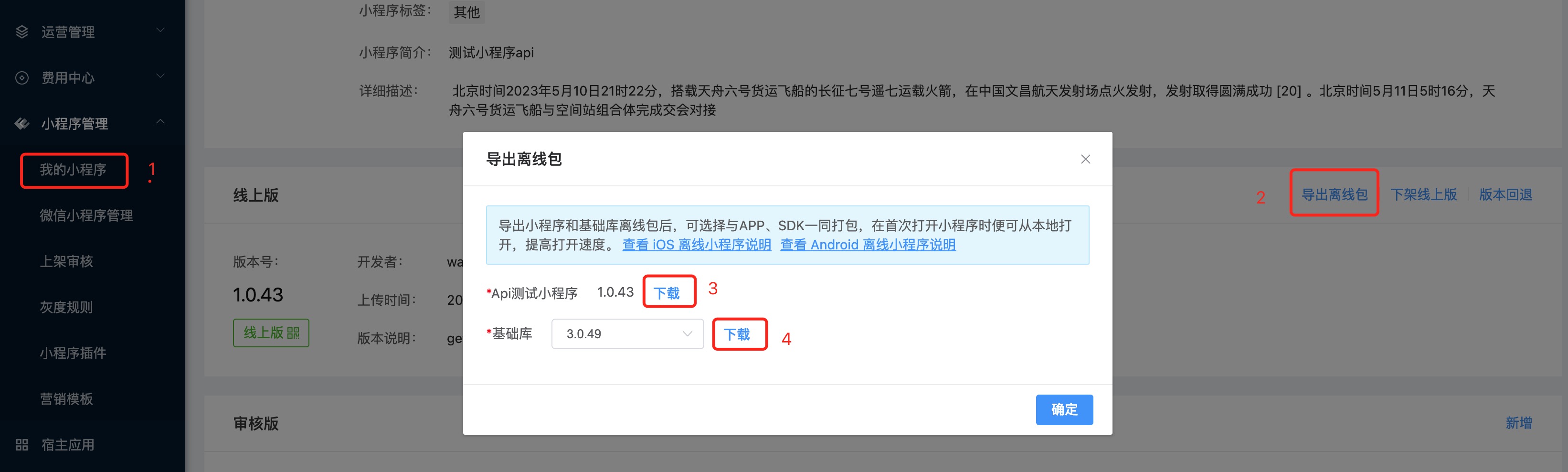
Answer: Starting from version 2.35.1, the paths for the offline Mini-Program package and the offline Base Library package can be configured. During the first launch, the local offline Mini-Program will be opened. At the same time, updates will be checked, and the latest version of the Mini-Program will be fetched for use the next time the Mini-Program is opened.
The method to obtain the offline Mini-Program package and the offline Base Library package is shown in the figure below:
The sample code is as follows:
    FATAppletRequest *request = [[FATAppletRequest alloc] init];
    // appletId can be obtained from the Mini-Program list on the page https://super-apps.ai/mop/mechanism/#/Applet/my
    request.appletId = @"61ee725a8bc99400018e1f7c";
    request.apiServer = @"https://api.finclip.com";
    // The offline Mini-Program zip package can be downloaded from My Mini-Program -> Mini-Program List -> Details -> Export Offline Package -> Mini-Program
    request.offlineMiniprogramZipPath = [[NSBundle mainBundle] pathForResource:@"hahahhah" ofType:@"zip"];
    // The offline Base Library can be downloaded from My Mini-Program -> Mini-Program List -> Details -> Export Offline Package -> Mini-Program Base Library
    request.offlineFrameworkZipPath = [[NSBundle mainBundle] pathForResource:@"framework-2.12.3" ofType:@"zip"];

    [[FATClient sharedClient] startAppletWithRequest:request InParentViewController:self.window.rootViewController completion:^(BOOL result, FATError *error) {
        NSLog(@"Open Mini-Program 11:%@", error);
    } closeCompletion:^{
        NSLog(@"Close Mini-Program 11");
    }];
# 2.25 Does it support using WebRTC functionality on iOS systems below 14.3?
Answer: Yes, it does. The platform implements WebRTC-related functionalities on iOS 9 and above by re-packaging the GoogleWebRTC library.
The steps to use are as follows:
- Add the dependency for WebRTC-SDK in the Podfile of your Xcode project:
pod 'FinAppletWebRTC'
- Import the header file for WebRTC-SDK:
#import <FinAppletWebRTC/FinAppletWebRTC.h>
- Register the WebRTC component:
// Initialize WebRTC
[FATWebRTCComponent registerComponent]
After completing the above steps, you can call the WebRTC APIs we provide within the Mini-Program to implement related functionalities.
# 2.26 What is the role of MapSDK and how to use it?
Answer: MapSDK supports the Map component and location API. It depends on the Extension SDK and serves as a supplement to the Map and Location functionalities. The map and positioning capabilities provided depend on third-party map, positioning, and search SDKs. It supports two combinations: AMap|AMap Location and Baidu Map|Baidu Location. By default, the native map implementation is used. If both Baidu and AMap are integrated, the last initialized one will be used.
The steps to use are as follows:
- Add the dependency for MapSDK in the Podfile of your Xcode project:
// If you need to use Baidu Map SDK, add this extension SDK
pod 'FinAppletBDMap'
// If you need to use AMap SDK, add this extension SDK
pod 'FinAppletGDMap'
- Import the header file for MapSDK:
// Similarly, if using Baidu Map, import this header file
#import <FinAppletBDMap/FinAppletBDMap.h>
// If using AMap, import this header file
#import <FinAppletGDMap/FinAppletGDMap.h>
- Register the MapSDK component:
// Prepare to initialize the map SDK
// If using Baidu Map, use this API to initialize
[FATBDMapComponent setBDMapAppKey:@"Your applied key"]
// If using AMap, use this API to initialize
[FATGDMapComponent setGDMapAppKey:@"Your applied key"]
- Call the map component or map API in the Mini-Program.
# 2.27 Why is the FinClip Mini-Program SDK a dynamic library? Can a static library be delivered?
Answer: Since Apple started supporting third parties to create dynamic libraries, many third-party SDKs have been dynamic libraries. Using a dynamic library can reduce the size of the final executable file. To ensure that the App size grows as little as possible, FinClip Mini-Program SDK has always been provided as a dynamic library. Additionally, due to the wide variety of customers' Apps and the different third-party libraries they use, using a static library may lead to various conflicts during compilation or runtime. The FinClip R&D team has limited resources and energy, so we cannot maintain both static and dynamic libraries simultaneously. Therefore, only dynamic libraries are packaged during normal iterations.
If you insist on needing a static library, we can handle it specially and deliver a separately packaged static library. We have also written a Demo to test that using the FinClip static library allows the Mini-Program to run normally. However, if conflicts or issues arise with the Host-App, we cannot guarantee timely resolution.
Additionally, static libraries can only be manually integrated at present. The integration steps are as follows:
1. Add SDK to the project 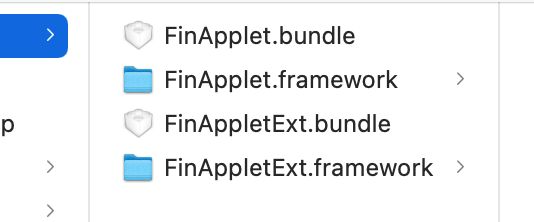
Of course, if you do not need to use the APIs in FinAppletExt.framework, you can omit adding FinAppletExt.framework and FinAppletExt.bundle.
Note
When manually introducing FinAppletBDMap (Baidu Map) or FinAppletGDMap (AMap), you must also manually add the bundle resource files in the framework to the project (FinAppletBDMap.bundle or FinAppletGDMap.bundle).
2 Modify Project Configuration
Add dependent system dynamic libraries:
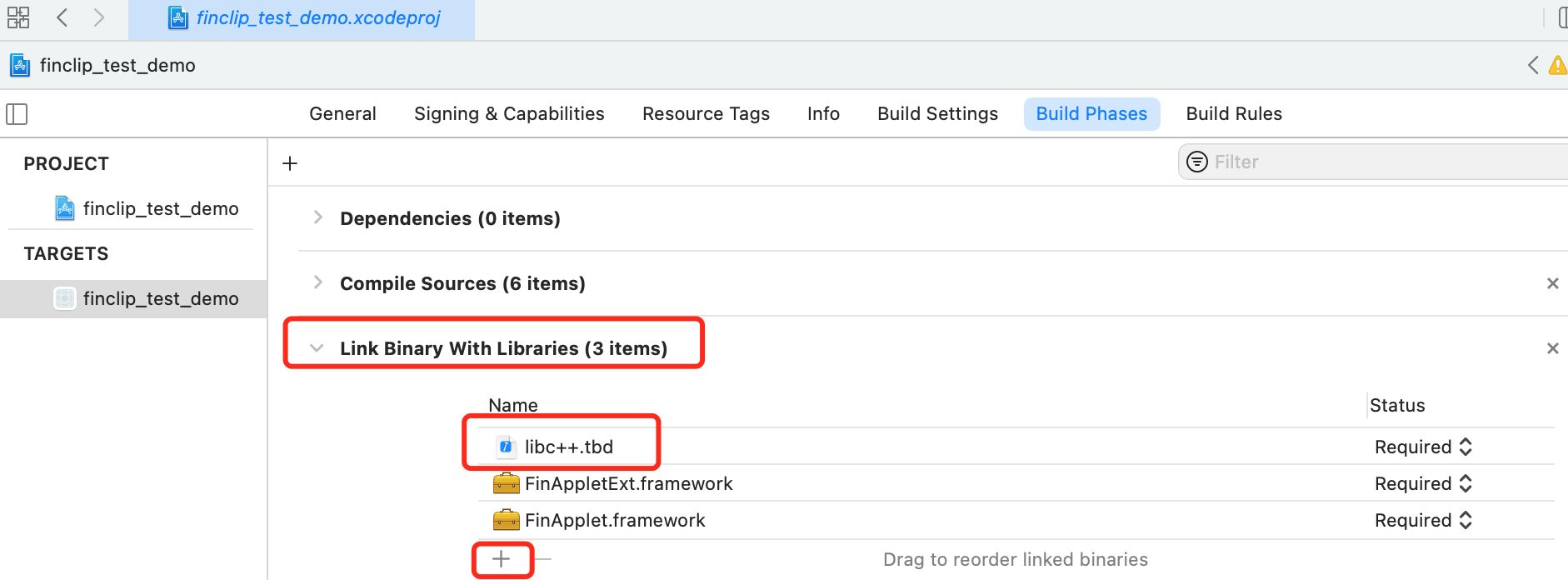
Add -ObjC to Build Setting -> Other Linker Flags.
Note
When manually introducing FinAppletBDMap (Baidu Map) or FinAppletGDMap (AMap), the embedding type defaults to Do Not Embed (TARGETS --- General --- Frameworks, Libraries, and Embedded Content). When manually introducing AMap, you need to integrate AMap's AMap3DMap-NO-IDFA, AMapLocation-NO-IDFA, and AMapSearch-NO-IDFA libraries yourself. When manually introducing Baidu Map, you need to integrate Baidu's BMKLocationKit, BaiduMapKit/Map, and BaiduMapKit/Search libraries yourself.
3 Open the Project
Double-click xxxx.xcodeproj to open the project.
4 Configure Archive Script
The SDK includes the x86_64 architecture, which facilitates development and debugging using the simulator. However, an SDK with the x86_64 architecture will cause errors when uploading to the App Store. Configuring a script to automatically remove the simulator architecture during packaging allows us to use the simulator for development and debugging while still being able to submit to the App Store normally.
Of course, you can also request a version of the SDK without the simulator.
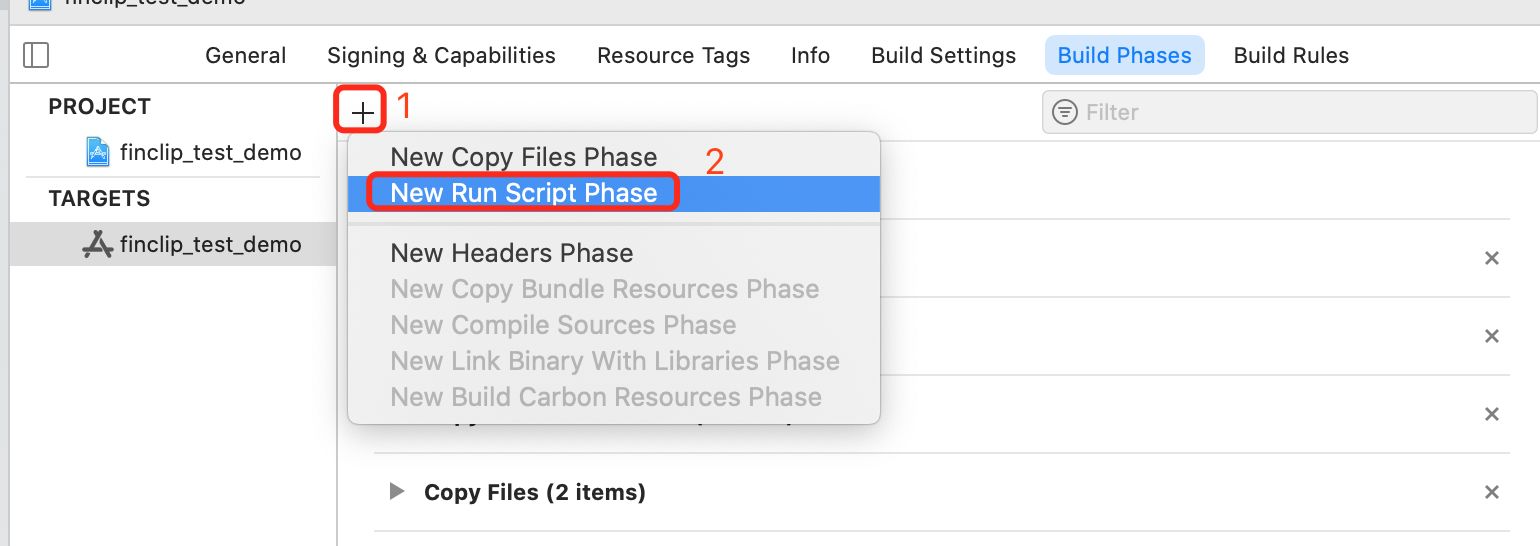

The script content is as follows:
#!/bin/sh

# Strip invalid architectures

strip_invalid_archs() {
binary="$1"
echo "current binary ${binary}"
# Get architectures for current file
archs="$(lipo -info "$binary" | rev | cut -d ':' -f1 | rev)"
stripped=""
for arch in $archs; do
if ! [[ "${ARCHS}" == *"$arch"* ]]; then
if [ -f "$binary" ]; then
# Strip non-valid architectures in-place
lipo -remove "$arch" -output "$binary" "$binary" || exit 1
stripped="$stripped $arch"
fi
fi
done
if [[ "$stripped" ]]; then
echo "Stripped $binary of architectures:$stripped"
fi
}

APP_PATH="${TARGET_BUILD_DIR}/${WRAPPER_NAME}"

# This script loops through the frameworks embedded in the application and
# removes unused architectures.
find "$APP_PATH" -name '*.framework' -type d | while read -r FRAMEWORK
do
FRAMEWORK_EXECUTABLE_NAME=$(defaults read "$FRAMEWORK/Info.plist" CFBundleExecutable)
FRAMEWORK_EXECUTABLE_PATH="$FRAMEWORK/$FRAMEWORK_EXECUTABLE_NAME"
echo "Executable is $FRAMEWORK_EXECUTABLE_PATH"

strip_invalid_archs "$FRAMEWORK_EXECUTABLE_PATH"
done
# 2.28 Does the Mini-Program support customizing more panels?
Answer: Yes, it does.
By implementing the applet:(FATAppletInfo *)appletInfo didClickMoreBtnAtPath:(NSString *)path delegate method of FATAppletMoreMenuDelegate, you can pop up a customized more panel.
/**
 Click event for the 【...】 in the top-right capsule. You can pop up a self-designed more panel view in this event.
 If this delegate event is implemented, the following two custom menu events will not be triggered.
 @param appletInfo Mini-Program information
 @path Mini-Program page path, example: pages/index/index
 */
- (void)applet:(FATAppletInfo *)appletInfo didClickMoreBtnAtPath:(NSString *)path;
If you implement a custom more panel but want to navigate to the Mini-Program’s settings, about, feedback, or implement forwarding functionality, you can achieve this through the relevant APIs provided by FATMoreMenuHelper.
/// Trigger the forward event to get the Mini-Program information used for forwarding. After obtaining the Mini-Program information, it will trigger the callback - (void)forwardAppletWithInfo:(NSDictionary *)contentInfo completion:(void (^)(FATExtensionCode, NSDictionary *))completion
/// @param appletId Mini-Program ID
+ (void)invokeForwardMenuAction:(NSString *)appletId;

/// Update the Mini-Program's favorite status (requires setting the current user ID, otherwise the update will fail)
/// @param appletId Mini-Program ID
/// @param favorite Favorite status
/// @param complete Result callback, error is nil means update successful
+ (void)updateApplet:(NSString *)appletId favoriteStatus:(BOOL)favorite withComplete:(void(^)(NSError *error,FATAppletInfo *appletInfo))complete;


/// Open the Mini-Program's feedback page
/// @param appletId Mini-Program ID
+ (void)goToFeedbackPage:(NSString *)appletId;


/// Open the Mini-Program's about page
/// @param appletId Mini-Program ID
+ (void)goToAboutPage:(NSString *)appletId;


/// Open the Mini-Program's settings page
/// @param appletId Mini-Program ID
+ (void)goToSettingPage:(NSString *)appletId;


/// Enable/disable the Mini-Program's debug mode. If config sets enableAppletDebug to true, executing the enable/disable debug mode operation will be ineffective
/// @param appletId Mini-Program ID
/// @param enable Allow debug mode
+ (void)setEnableAppletDebug:(NSString *)appletId enable:(BOOL)enable;


/// Check if the Mini-Program's debug mode is enabled
/// @param appletId Mini-Program ID
+ (BOOL)isEnableAppletDebug:(NSString *)appletId;


/// Check if the Mini-Program is favorited
/// @param appletId Mini-Program ID
+ (BOOL)isAppletFavorite:(NSString *)appletId;


/// Get data for custom menu items (requires the Mini-Program to implement the corresponding menu item and provide additional invocation parameters)
/// @param appletId Mini-Program ID
/// @param menuId Icon ID
/// @param complete Result callback
+ (void)getMiniProgramTypeMenuData:(NSString *)appletId menuId:(NSString *)menuId complete:(void(^)(NSDictionary *result,FATAppletInfo *appletInfo))complete;

/// Check if the Mini-Program implements custom menu functionality
/// The onShareAppMessage event is affected by whether the Mini-Program calls the showShareMenu/hideShareMenu API
/// If the Mini-Program calls showShareMenu and then checks with this method, regardless of whether the Mini-Program implements the onShareAppMessage event, the value for this event will be YES
/// If the Mini-Program calls hideShareMenu and then checks with this method, regardless of whether the Mini-Program implements the onShareAppMessage event, the value for this event will be NO
/// @param appletId Mini-Program ID
/// @param menuIds Custom icon ID array
/// @param complete Result callback, the callback parameter is NSArray, where each element is @{@"eventName": ##Mini-Program Event Name##,"menuId": ##Icon ID##, "value": ##Whether the event is implemented##}
+ (void)checkMenus:(NSString *)appletId menuIds:(NSArray<NSString *> *)menuIds complete:(void(^)(NSArray *result))complete;
Example code for customizing more panels:
// Implement this delegate method in the class that implements FATAppletMoreMenuDelegate. In this delegate method, you can use a custom menu view and must return YES finally.
- (BOOL)appletInfo:(FATAppletInfo *)appletInfo didClickMoreBtnAtPath:(NSString *)path {
    // Here we use UIAlertController as an example (users can customize their own views)
    UIAlertController *alertVC = [UIAlertController alertControllerWithTitle:@"More Menu" message:@"Custom More Menu" preferredStyle:UIAlertControllerStyleActionSheet];

    UIAlertAction *forwardAction = [UIAlertAction actionWithTitle:  @"Forward"  style:UIAlertActionStyleDefault handler:^(UIAlertAction * _Nonnull action) {
        // When the click event responds, call the method 【+ (void)invokeForwardMenuAction:】 to invoke the 【Forward】 function
        [FATMoreMenuHelper invokeForwardMenuAction:appletInfo.appId];
    }];
    [alertVC addAction:forwardAction];

    UIAlertAction *feedbackAction = [UIAlertAction actionWithTitle:@"Feedback & Complaints" style:UIAlertActionStyleDefault handler:^(UIAlertAction * _Nonnull action) {
        // When the click event responds, call the method 【+ (void)goToFeedbackPage:】 to navigate to the 【Feedback & Complaints】 page
        [FATMoreMenuHelper goToFeedbackPage:appletInfo.appId];
    }];
    [alertVC addAction:feedbackAction];

    UIAlertAction *aboutAction = [UIAlertAction actionWithTitle:@"About" style:UIAlertActionStyleDefault handler:^(UIAlertAction * _Nonnull action) {
        // When the click event responds, call the method 【+ (void)goToAboutPage:】 to navigate to the 【About】 page
        [FATMoreMenuHelper goToAboutPage:appletInfo.appId];
    }];
    [alertVC addAction:aboutAction];

    UIAlertAction *settingAction = [UIAlertAction actionWithTitle:@"Settings" style:UIAlertActionStyleDefault handler:^(UIAlertAction * _Nonnull action) {
        // When the click event responds, call the method 【+ (void)goToSettingPage:】 to navigate to the 【Settings】 page
        [FATMoreMenuHelper goToSettingPage:appletInfo.appId];
    }];
    [alertVC addAction:settingAction];

    // Get the status of the 【debug mode】 button
    BOOL enableDebug = [FATMoreMenuHelper isEnableAppletDebug:appletInfo.appId];
    UIAlertAction *debugAction = [UIAlertAction actionWithTitle: enableDebug ? @"Turn Off Debug Mode" : @"Turn On Debug Mode" style:UIAlertActionStyleDefault handler:^(UIAlertAction * _Nonnull action) {
        // When the click event responds, call the method 【+ (void)setEnableAppletDebug:enable:】 to set the status of the 【debug mode】 button
        [FATMoreMenuHelper setEnableAppletDebug:appletInfo.appId enable:!enableDebug];
    }];
    [alertVC addAction:debugAction];

    // Custom menu button IDs
    NSArray *menuIds = @[ @"WXShareAPPFriends", @"WXShareAPPMoments", @"ShareSinaWeibo", @"ShareQQFriends" ];
    // Call the method 【+ (void)checkMenus:menuIds:complete:】 to check if the passed menuIds are implemented in the Mini-Program
    [FATMoreMenuHelper checkMenus:appletInfo.appId menuIds:menuIds complete:^(NSArray * _Nonnull result) {
        // Iterate through the check results
        for (NSDictionary *dict in result) {
            NSString *title = dict[@"eventName"];
            NSString *menuId = dict[@"menuId"];
            BOOL value = [dict[@"value"] boolValue];
            UIAlertAction *customAction = [UIAlertAction actionWithTitle:title style:UIAlertActionStyleDefault handler:^(UIAlertAction * _Nonnull action) {
                // When the click event responds, call the method 【+ (void)getMiniProgramTypeMenuData:menuId:complete:】 to trigger the Mini-Program to call the custom button method
                [FATMoreMenuHelper getMiniProgramTypeMenuData:appletInfo.appId menuId:menuId complete:^(NSDictionary * _Nonnull result, FATAppletInfo * _Nonnull appletInfo) {
                    // Callback for custom menu button click event, please add business logic here
                }];
            }];
            // Set the click status of the button
            customAction.enabled = value;
            [alertVC addAction:customAction];
        }

        [alertVC addAction:[UIAlertAction actionWithTitle:@"Cancel" style:UIAlertActionStyleCancel handler:nil]];
        // Display the custom menu
        UIViewController *topVC = [[UIApplication sharedApplication] fin_topViewController];
        [topVC presentViewController:alertVC animated:YES completion:nil];
    }];

    // Return YES
    return YES;
}
# 2.29 Does FinClip SDK support batch updating Mini-Programs?
Answer: Supported.
After the SDK initialization is completed, calling the API [- (void)downloadApplets:apiServer:complete:] can achieve pre-downloading one or more Mini-Programs, i.e., the batch update Mini-Program function.
Example code:
/**
 @brief Batch update Mini-Programs
 @param appIds Array of Mini-Program IDs
 @param apiServer Server address
 @param complete Callback for batch updating Mini-Programs
 */
[[FATClient sharedClient] downloadApplets:##appIds## apiServer:##apiServer## complete:^(NSArray *results, FATError *error) {
    // Callback for batch updating Mini-Programs
    // results  Results of batch updating Mini-Programs, an array object
    //          Each element is: @{@"appId": ##Mini-Program ID##, @"success": ##Whether the update was successful##, @"needUpdate": ##Whether an update is needed##}
    //          For each Mini-Program ID passed in, the latest version might already be cached locally, so an update might not be necessary. In this case, the needUpdate field will be false.
    // error    Error, nil when successful
}];
# 2.30 Does the FinClip SDK support setting language? How to set it?
Starting from FinClip iOS SDK version 2.40.0-alpha20230106v02, setting the language type of the SDK is supported. The language type affects the public UI text within the SDK (such as the More panel, About, Settings, Complaint Feedback, etc.). Currently, only Simplified Chinese and English are supported inside the SDK. When other language strings are set, they will display as Simplified Chinese. Starting from iOS version 2.42.7, we have added the customLanguagePath property, allowing users to customize internationalization languages by configuring this property.
How to set it?
If you only need to set Simplified Chinese or English, there is a language configuration item in FATConfig, which can be set during initialization.
Example code:
FATStoreConfig *storeConfig = [[FATStoreConfig alloc] init];
storeConfig.sdkKey = @"Enter your SDK Key here";
storeConfig.sdkSecret = @"Enter your SDK secret here";
storeConfig.apiServer = @"Enter your server address here"; // e.g.: https://api.finclip.com;
storeConfig.apiPrefix = @"/api/v1/mop"; // No need to configure apiPrefix if above version 2.34.1
FATConfig *config = [FATConfig configWithStoreConfigs:@[storeConfig]];
config.language = FATPreferredLanguageSimplifiedChinese;
If you need to set other internationalization languages, you must customize them through the customLanguagePath property, which has higher priority than the language property.
For example, to set Japanese, create an internationalization file directory jp.lproj in the iOS development project, and create a Localizable.strings file under this directory. Copy the keys from our FinApplet.framework into this file and translate them.
FATStoreConfig *storeConfig = [[FATStoreConfig alloc] init];
FATConfig *config = [FATConfig configWithStoreConfigs:@[storeConfig]];
// Place jp.lproj directly under the project directory (i.e., mainBundle), initialize as follows
config.customLanguagePath = "jp.lproj";
// Or, if the jp.lproj file is stored in a custom bundle, include the relative path
// config.customLanguagePath = "XXX.bundle/jp.lproj";
Note: The keys used for custom internationalization languages need to be obtained from FinApplet.framework, located at: FinApplet.framework/FinApplet.bundle/zh-Hans.lproj/Localizable.strings
# 2.31 Detailed explanation of landscape and portrait modes in the SDK
Currently, the public UI interfaces in the SDK, such as the loading page when launching a Mini-Program, About, Settings, Complaint Feedback pages, and pages opened by Mini-Program APIs like scancode, chooseLocation, openLocation, etc., default to portrait mode. You can set the commonUISupportOrientaion property in FATUIConfig to configure the orientation of these pages. This is a global setting that applies to all Mini-Programs. Alternatively, you can set the commonUIOrientation property in FATAppletRequest when opening a Mini-Program to configure the orientation, which only applies to the currently opened Mini-Program. The priority of the setting in FATAppletRequest is higher than that in FATUIConfig.
The supported orientations of Mini-Program pages depend on the pageOrientation settings in app.json and page.json.
- If
pageOrientationisportrait, the page only supports Portrait. - If
pageOrientationislandscape, the page supports LandscapeLeft and LandscapeRight. - If
pageOrientationisauto, the page supports Portrait, LandscapeLeft, and LandscapeRight.
The view controllers in the SDK may be in portrait, landscape, or support rotation with the device's orientation. Therefore, iOS project configuration is required, and Portrait, LandscapeLeft, and LandscapeRight should be selected.

If your project only supports portrait mode 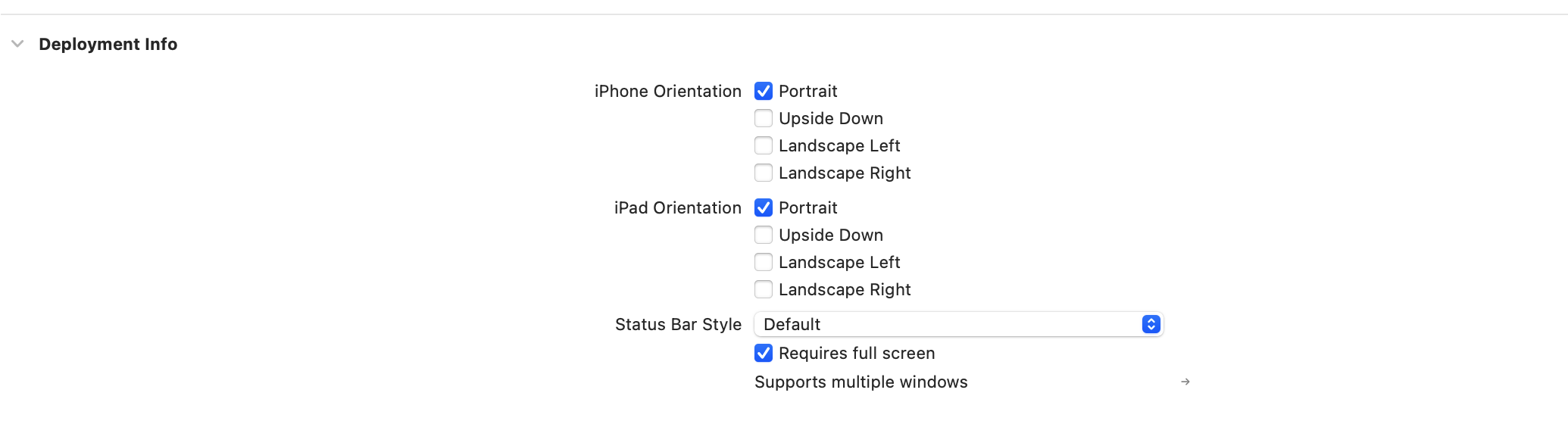
Then, you need to implement the following method in AppDelegate.
- (UIInterfaceOrientationMask)application:(UIApplication *)application supportedInterfaceOrientationsForWindow:(UIWindow *)window
{
    UIViewController *topVC = [application fat_topViewController];
    Class class = NSClassFromString(@"FATUIViewController");
    if ([topVC isKindOfClass:class]) {
        return UIInterfaceOrientationMaskAllButUpsideDown;
    }
     // After version 2.45.3, you can use the following method to determine if it's a FinClip view controller
    <!-- [[FATClient sharedClient] fat_isFinclipViewController:topVC] -->
    return UIInterfaceOrientationMaskPortrait;
}
If your project only supports landscape mode 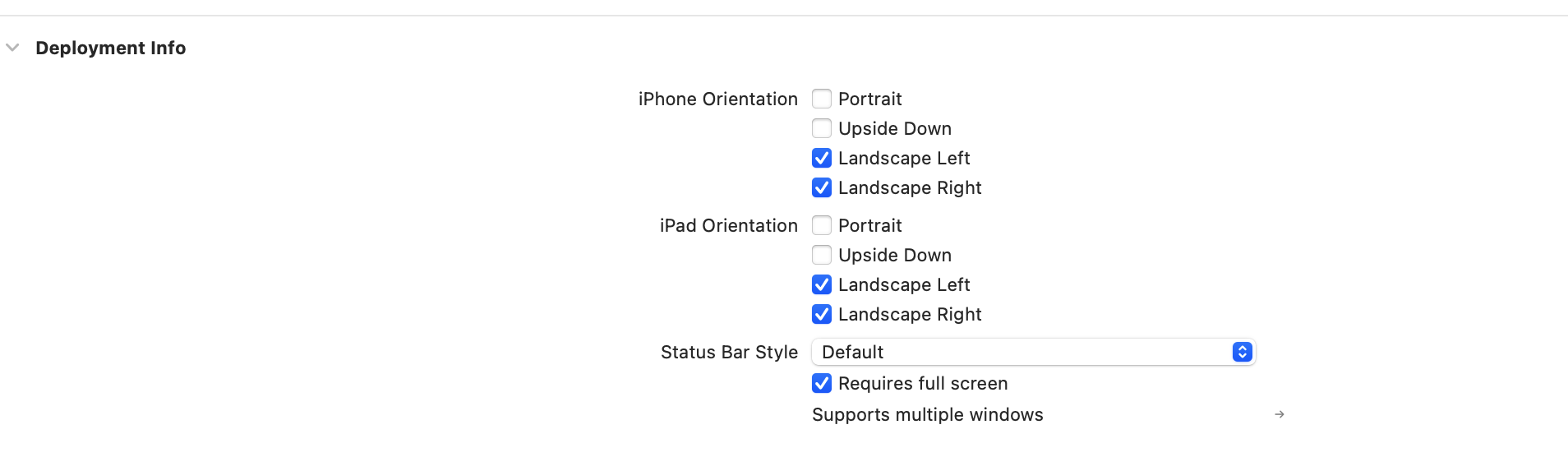 Then, you also need to implement the following method in AppDelegate.
- (UIInterfaceOrientationMask)application:(UIApplication *)application supportedInterfaceOrientationsForWindow:(UIWindow *)window
{
    UIViewController *topVC = [application fat_topViewController];
    Class class = NSClassFromString(@"FATUIViewController");
    if ([topVC isKindOfClass:class]) {
        return UIInterfaceOrientationMaskAllButUpsideDown;
    }
    // After version 2.45.3, you can use the following method to determine if it's a FinClip view controller
    <!-- [[FATClient sharedClient] fat_isFinclipViewController:topVC] -->

    return UIInterfaceOrientationMaskLandscape;
}
# 2.32 Handling errors when introducing the sharing SDK.
If you encounter the error 'could not build module FinAppletWXExt\FinAppletShareExt', you need to perform the following steps: Build Settings --- Enable Modules(C and Objective-C) --- NO.
# 2.33 The share panel does not appear after introducing the sharing SDK.
Since the share panel is hidden by default, after introducing the sharing SDK, you need to configure the hideShareAppletMenu parameter in FATUIConfig to False to display the share panel.
# 2.34 Requests in H5 within Mini-Programs lose body parameters, causing request failures.
Answer: The issue of losing body parameters in H5 requests is caused by intercepting http/https protocols in the Host-App. For example:
// Using NSURLProtocol interception causes this issue
[HtmlURLProtocol HtmlURLProtocolRegisterScheme:@"http"];
[HtmlURLProtocol HtmlURLProtocolRegisterScheme:@"https"];
[NSURLProtocol registerClass:HtmlURLProtocol.class];

// Using WKBrowsingContextController interception also causes this issue
[WKBrowsingContextController registerSchemeForCustomProtocol:@"https"]
This problem occurs because when the app intercepts http/https requests, the system constructs network requests in H5 into request objects but does not add the body to the request object during construction. Therefore, when we use the intercepted request to initiate a request, the server receives the request without the business parameters in the body, leading to request failure.
This issue can also occur in native apps that intercept requests and then directly use WKWebView. A third-party library solves this problem: https://github.com/karosLi/KKJSBridge. Our FinClip SDK also references the solution provided by this open-source library.
The general principle of the solution:
- Inject a piece of JS into the HTML to hook the network request before it is initiated and generate a requestId.
- Call a native event to send the requestId and body content to the native side, which matches and stores the requestId and body.
- Append the requestId parameter to the URL of the original network request in the HTML.
- In the native interception of http/https events, retrieve the URL from the NSURLRequest object and extract the requestId.
- Use the requestId to find the corresponding body, set the body parameter on the NSURLRequest (usually creating a new NSMutableURLRequest), and send the request.
- Delete the stored requestId and body.
Therefore, the solution in FinClip is as follows:
- Set whether to allow hooking H5 network requests and the field name of requestId when initializing the SDK.
FATConfig *config = [FATConfig configWithStoreConfigs:storeArrayM];
// Allow hooking to inject the hook processing JS
config.enableH5AjaxHook = YES;
// Set the field name for appending requestId, for example, setting requestKey to FinClip-RequestId, then the appended URL will become https://www.exampleexample.com?FinClip-RequestId=xxxxxxx
// If this parameter is not set, the key will be FinClipHookBridge-RequestId.
config.h5AjaxHookRequestKey = @"FinClip-RequestId";
- Set the delegate for Mini-Program SDK configuration.
[FATClient sharedClient].configurationDelegate = self;
- Implement the delegate method in
FATAppletConfigurationDelegateto handle the hooked body content.
#pragma mark - FATAppletConfigurationDelegate
- (void)applet:(FATAppletInfo *)appletInfo hookRequestInfo:(NSDictionary *)requestInfo
{
    NSLog(@"hookRequestInfo:%@", requestInfo);
    NSDictionary *data = requestInfo;
    NSString *requestId = data[@"requestId"];
    // Here FATAjaxBodyManager is a singleton commonly used in our demo app
    FATAjaxBodyManager *bodyManager = [FATAjaxBodyManager manager];
    bodyManager.bodyCacheDictionary[requestId] = data;
}
- Set the body in the class handling the interception of http/https protocols (Host-App logic).
- (void)startLoading {
    NSMutableURLRequest *mutableReqeust = [[self request] mutableCopy];
    // Set an identifier for the processed request to prevent infinite loops,
    [NSURLProtocol setProperty:@YES forKey:FinClipNSURLProtocolKey inRequest:mutableReqeust];

    NSString *requestId;
    if ([mutableReqeust.URL.absoluteString containsString:[self requestIdKey]]) {
        requestId = [self fetchRequestId:mutableReqeust.URL];
        // Remove the temporary requestId key-value pair
        NSString *reqeustPair = [self fetchRequestIdPair:mutableReqeust.URL];
        if (reqeustPair) {
            NSString *absString = [mutableReqeust.URL.absoluteString stringByReplacingOccurrencesOfString:reqeustPair withString:@""];
            mutableReqeust.URL = [NSURL URLWithString:absString];
        }
    }

    self.requestId = requestId;
    self.requestHTTPMethod = mutableReqeust.HTTPMethod;

    // Set body, only for request types with body
    NSArray<NSString *> *methods = @[@"POST"];
    if (mutableReqeust.HTTPMethod.length > 0 && [methods containsObject:mutableReqeust.HTTPMethod]) {
        NSDictionary *bodyReqeust = [[FATAjaxBodyManager manager].bodyCacheDictionary objectForKey:requestId];
        if (bodyReqeust) {
            // Set the cached body to the request
            [KKJSBridgeAjaxBodyHelper setBodyRequest:bodyReqeust toRequest:mutableReqeust];
        }
    }

    NSURLSession *session = [NSURLSession sessionWithConfiguration:[NSURLSessionConfiguration defaultSessionConfiguration] delegate:self delegateQueue:nil];
    self.customTask = [session dataTaskWithRequest:mutableReqeust];

    [self.customTask resume];
}
# 2.33 Does the FinClip SDK support setting custom province, city, and district data? How to set it?
Starting from FinClip iOS SDK version 2.43.1, setting the province, city, and district data in the SDK is supported, specifying a custom file path for loading and displaying regional data. When this property is set, the picker will attempt to load data from the specified path, which can be a path in the app's sandbox directory or a filename included in the app bundle.
How to set it?
If you only need to set Simplified Chinese or English, there is a pickerRegionPath configuration item in FATConfig, which can be set during initialization.
Example code:
FATStoreConfig *storeConfig = [[FATStoreConfig alloc] init];
storeConfig.sdkKey = @"Enter your SDK Key here";
storeConfig.sdkSecret = @"Enter your SDK secret here";
storeConfig.apiServer = @"Enter your server address here"; // e.g.: https://api.finclip.com;
storeConfig.apiPrefix = @"/api/v1/mop"; // No need to configure apiPrefix if above version 2.34.1
FATConfig *config = [FATConfig configWithStoreConfigs:@[storeConfig]];
config.language = @"customData.json";
Note: If you need to pass a file within the sandbox, you need to provide the full path. Below is an example format for province, city, and district data:
postalCode: Postal Code name: Region Name areaCode: Area Code
[
    {
        "name": "Beijing",
        "postalCode": "100000",
        "areaCode": "110000",
        "city": [
            {
                "name": "Beijing",
                "postalCode": "100000",
                "areaCode": "110100",
                "area": [
                    {
                        "name": "Dongcheng District",
                        "postalCode": "100010",
                        "areaCode": "110101"
                    },
                    {
                        "name": "Xicheng District",
                        "postalCode": "100032",
                        "areaCode": "110102"
                    },
                    {
                        "name": "Chaoyang District",
                        "postalCode": "100020",
                        "areaCode": "110105"
                    },
                    {
                        "name": "Fengtai District",
                        "postalCode": "100071",
                        "areaCode": "110106"
                    },
                    {
                        "name": "Shijingshan District",
                        "postalCode": "100043",
                        "areaCode": "110107"
                    },
                    {
                        "name": "Haidian District",
                        "postalCode": "100089",
                        "areaCode": "110108"
                    },
                    {
                        "name": "Mentougou District",
                        "postalCode": "102300",
                        "areaCode": "110109"
                    },
                    {
                        "name": "Fangshan District",
                        "postalCode": "102488",
                        "areaCode": "110111"
                    },
                    {
                        "name": "Tongzhou District",
                        "postalCode": "101100",
                        "areaCode": "110112"
                    },
                    {
                        "name": "Shunyi District",
                        "postalCode": "101300",
                        "areaCode": "110113"
                    },
                    {
                        "name": "Changping District",
                        "postalCode": "102200",
                        "areaCode": "110114"
                    },
                    {
                        "name": "Daxing District",
                        "postalCode": "102600",
                        "areaCode": "110115"
                    },
                    {
                        "name": "Huairou District",
                        "postalCode": "101400",
                        "areaCode": "110116"
                    },
                    {
                        "name": "Pinggu District",
                        "postalCode": "101200",
                        "areaCode": "110117"
                    },
                    {
                        "name": "Miyun District",
                        "postalCode": "101500",
                        "areaCode": "110118"
                    },
                    {
                        "name": "Yanqing District",
                        "postalCode": "102100",
                        "areaCode": "110119"
                    }
                ]
            }
        ]
    }
]
# 3. Debugging
# 3.1 How to debug Mini-Programs?
After integrating the Mini-Program SDK, you can run the Mini-Program using Xcode (applications packaged with a develop profile can also be inspected using Safari on your computer). Open Safari on your computer, then in the Develop toolbar, select the running Simulator or Physical Device. You will be able to choose from a list of pages opened by the Mini-Program. Select the currently open page to inspect elements, view network requests, and check logs.
# 3.2 How to enable vConsole?
If you need to debug a Mini-Program, there are several ways to enable vConsole, allowing you to view logs within the Mini-Program.
Three ways to enable vConsole:
- When initializing the SDK in the app, set the
appletDebugModeparameter in the initialization configurationFATConfigtoFATAppletDebugModeEnable. - For non-release versions of Mini-Programs where the
appletDebugModeparameter is set to its default value, enable vConsole debugging via the "Open Debugging" option in the "More" panel. - Inside the Mini-Program, call the Mini-Program API (
ft.setEnableDebug) to enable vConsole.
The effect after enabling vConsole is shown in the image below:
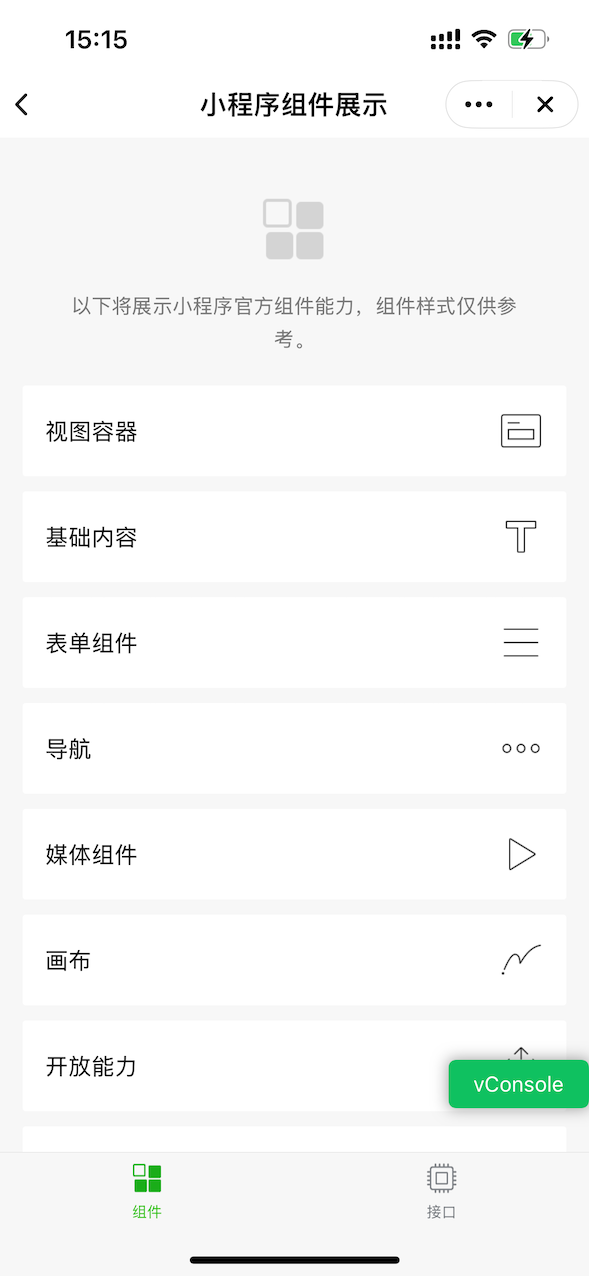
Explanation of each enumeration value for appletDebugMode:
| appletDebugMode | Description |
|---|---|
| FATAppletDebugModeDefault | Default value, behaves similarly to WeChat's vConsole control. The "Open Debugging" button will appear in the "More" menu for non-release versions. |
| FATAppletDebugModeEnable | Forces all Mini-Programs (all versions) to enable vConsole. It cannot be turned off via setEnableDebug or through the debugging menu in the "More" panel. |
| FATAppletDebugModeForbidden | Forces all Mini-Programs (all versions) to disable vConsole. It cannot be enabled via setEnableDebug or through the debugging menu in the "More" panel. |
| FATAppletDebugModeForbiddenRelease | Forces all release versions of Mini-Programs to disable vConsole. Other versions behave like FATAppletDebugModeDefault. |
Note
- The Mini-Program's debug mode is persistently stored. After calling
ft.setEnableDebugto enable vConsole, it will remain enabled the next time the same Mini-Program is opened. - The debug mode is consistent across the same Mini-Program. If the trial version enables vConsole via
ft.setEnableDebug, opening the corresponding release version of the same Mini-Program ID will also have vConsole enabled. - If
appletDebugModeis set toFATAppletDebugModeEnableorFATAppletDebugModeForbidden, theft.setEnableDebugAPI will not take effect.
Finally, it is recommended to set config.appletDebugMode to FATAppletDebugModeEnable during app development. Then, when submitting the app for review, change it to FATAppletDebugModeDefault.
When set to FATAppletDebugModeDefault, release versions of Mini-Programs will not display the "Open Debugging" or "Close Debugging" buttons, but vConsole can still be enabled via the API (ft.setEnableDebug).
For non-release versions of Mini-Programs, vConsole can be enabled via the "Open Debugging" button or ft.setEnableDebug.
# 3.3 How to check the iOS SDK version number and Base Library version number?
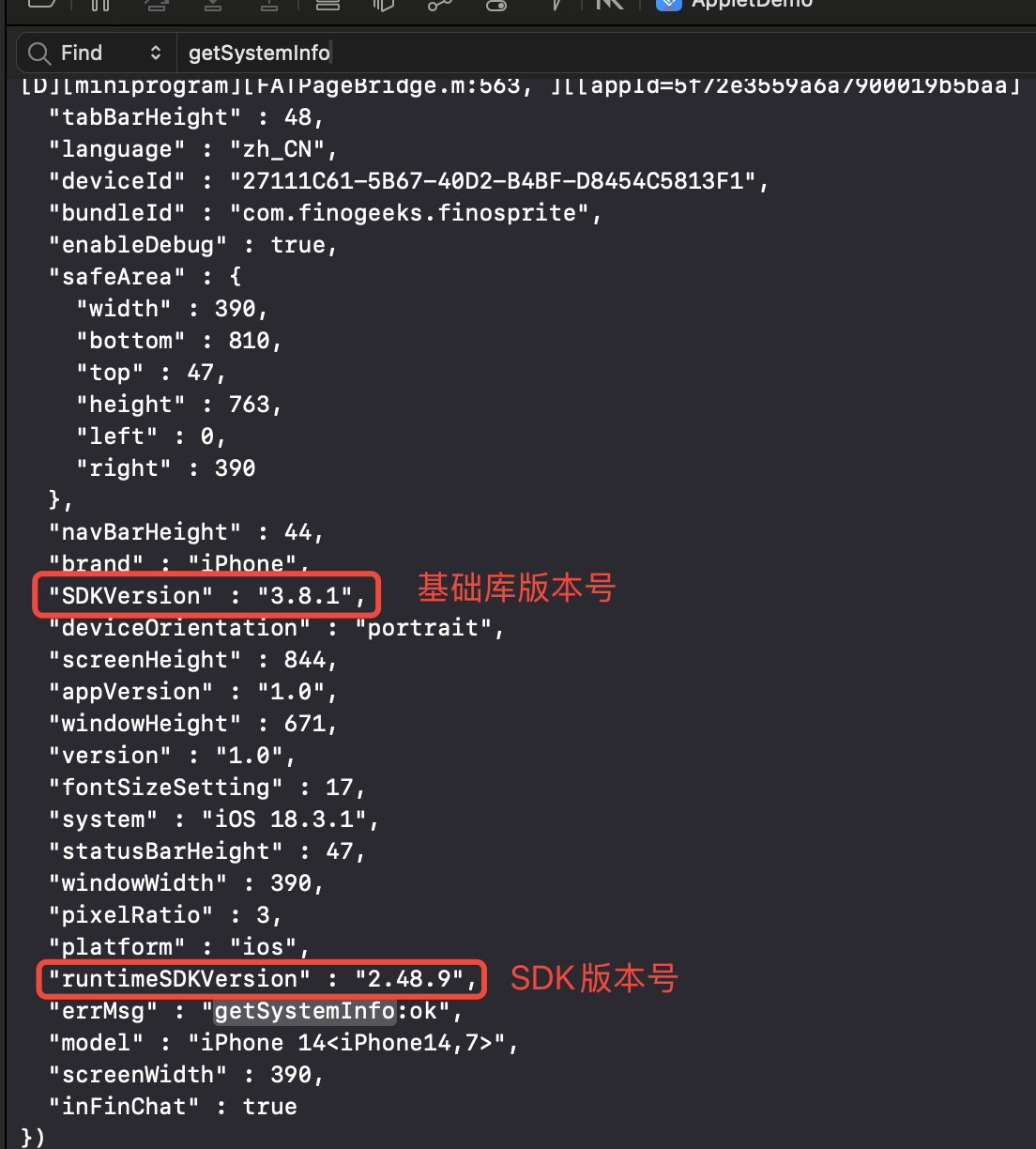
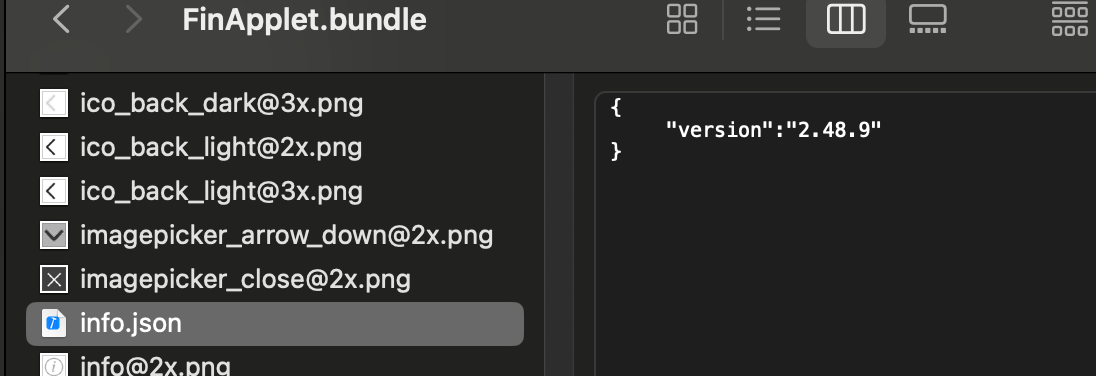
Answer: There are multiple ways to do this: from the Mini-Program vConsole, from the app’s Podfile, from the info.json file inside the integrated framework, or from the logs.
- If the Mini-Program has vConsole enabled, you can see the SDK version number and Base Library version number from the vConsole. After opening vConsole, the first few lines in the Log tab show the Base Library version number; the userAgent in the System tab shows the SDK version number.
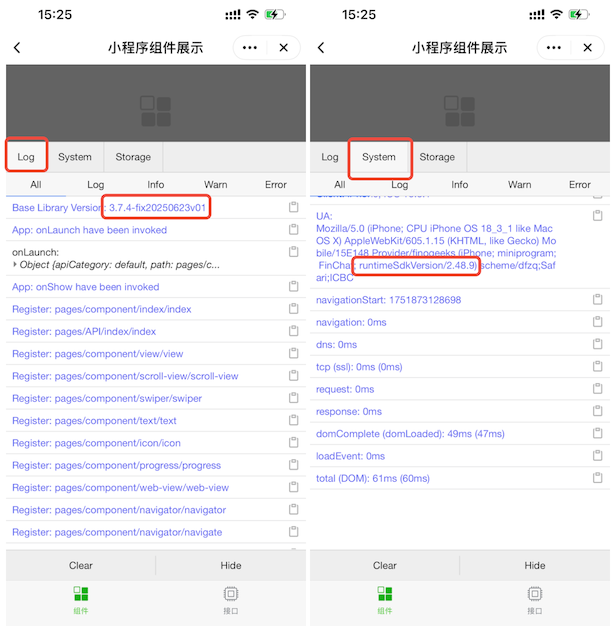
- Check the SDK version number from the app’s Podfile.
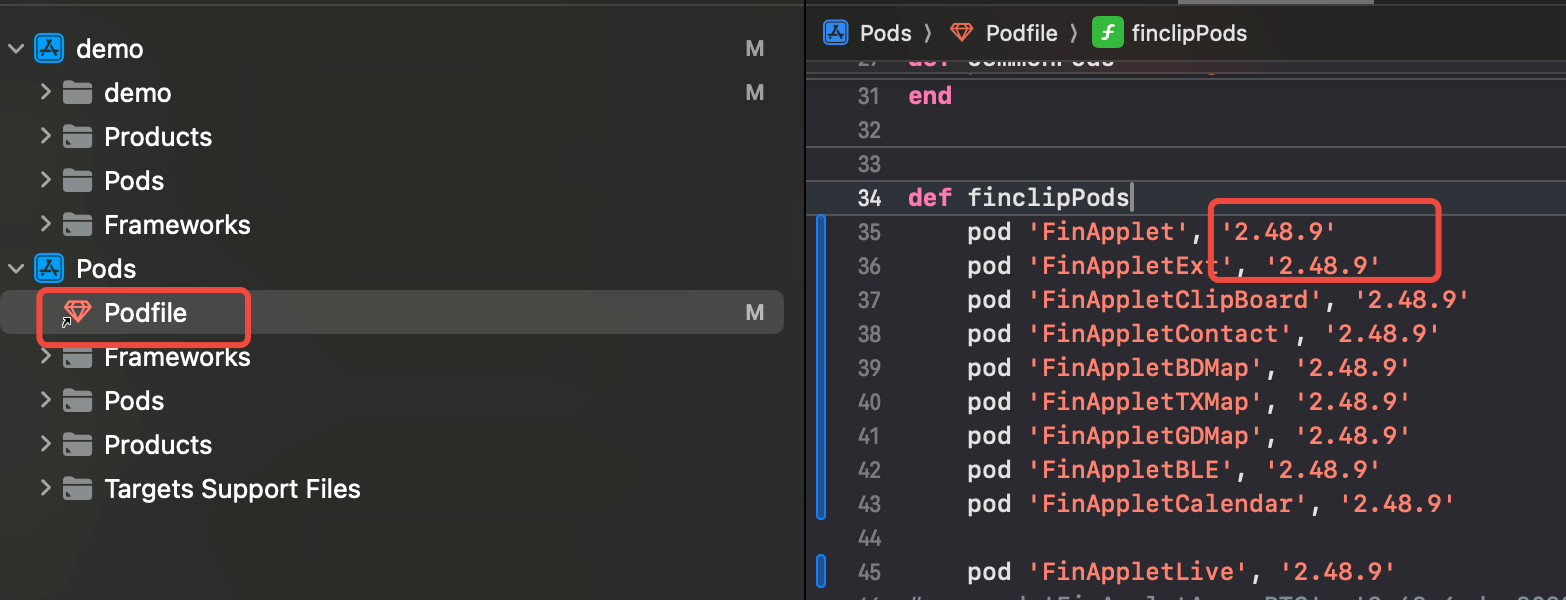
Check the SDK version number from the info.json file inside the integrated framework.
If you manually integrate FinApplet.framework, open the FinApplet.bundle file inside the framework and locate the info.json file.
- Check the SDK version number and Base Library version number from the logs in the iOS app console.