
# Mini-Program Management
Feature Background
Mini-Program Management can be used to manage Mini-Programs, including Mini-Program details, version management, code package management, review management, and gray release.
# 1. Mini-Program List
 Click "Mini-Program Management - My Mini-Programs" on the left to enter the "My Mini-Programs" list. In the list, you can see all information related to the Mini-Programs. Click the buttons in the "Operation" column to view the relevant information of the Mini-Program.
If a Mini-Program is no longer in use, you can click the "Disable" button at the end to disable it. Once disabled, the Mini-Program can no longer be used.
# 2. Mini-Program Details
# 2.1 Basic Mini-Program Information
 On the Mini-Program details page, you can see the basic information of the Mini-Program, as well as version cards for the Online Version, Review Version, and Experience Version.
The basic information mainly includes the Mini-Program's name, avatar, App ID, category, tags, introduction, and detailed description. When users open the Mini-Program or view its details, they will see the relevant information here.

Please Note
After you update the relevant information of the Mini-Program, please submit the Mini-Program for review to facilitate the information update.
# 2.2 Mini-Program Version Management
 In Mini-Program version management, you can configure the Online Version, Review Version, and Experience Version respectively, where:
- The Online Version represents the officially used Mini-Program version in the current online environment;
- The Review Version represents the Mini-Program version currently submitted for review;
- The Experience Version represents the version selected from the development version, which is a "test version" that can only be opened by designated personnel.
When configuring the Mini-Program for the first time, you need to manually configure the version information of the Mini-Program (the display interface is shown in the figure below). The operation process is to upload the Mini-Program code information through FinClip Studio, set the uploaded Mini-Program as the Experience Version or Review Version, and after the review is passed, the Mini-Program can be released as the Online Version.

# 2.2.1 Configure Review Version
Click "Add Review" on the right side of the Review Version card, select the already uploaded Mini-Program version in the pop-up window, and configure the corresponding user login information for the review as needed, then you can submit the corresponding Mini-Program version to the review process.
 If you want the Mini-Program to be automatically released after review, please click the "Auto-release after approval" checkbox at the bottom.

# 2.2.2 Configure Experience Version
Click "Configure Experience Version" on the right side of the Experience Version card, select the already uploaded Mini-Program version in the pop-up window, and configure the corresponding user login information for the review as needed, then you can submit the corresponding Mini-Program version to the review process.
 After adding the Experience Version, you can click "Configure Experience Members" in the Experience Version card. Members set as experience members will have the permission to open the Experience Version Mini-Program.

After configuration, click the QR code icon of the Experience Version and scan the code with the FinClip App (for the use of the FinClip App, please refer to: FinClip App FAQ) to preview and test;
 You can also click "Set Page Path", enter the page path with parameters. After setting, the experience members will open the specific page of the Experience Version Mini-Program, making it convenient for them to experience the Mini-Program functions. After modifying the page path, the Experience Version QR code may change, and you can re-click the Experience Version to get the latest QR code for experience.

# 2.2.3 Review Mini-Program Information
Please Note
If you are using a SaaS environment, you can click "Mini-Program Management - Mini-Program Release Review" in the left navigation bar to perform Mini-Program review operations; if you are using a Community Edition or a private deployment environment, you need to switch to the operation end and perform Mini-Program review operations in "Mini-Program Management - Mini-Program Release Review".
 In the review interface, click the "Approve" button in the review details to complete the Mini-Program review operation.
# 2.2.4 Configure Online Version
After the Mini-Program review is completed, click the "Release Version" button on the right side of the Review Version, and click confirm in the pop-up window to configure the Mini-Program from the Review Version to the Online Version.
 After configuring the Mini-Program as the Online Version, three buttons will be displayed on the right side of the card, where you can export the Mini-Program Offline Package, take the Online Version offline, or perform a version rollback operation.
 Exporting the Offline Package means that you can package the Mini-Program and the Base Library offline package together with the APP and SDK, so that the Mini-Program can be opened locally when it is first opened, thereby improving the Mini-Program loading speed.
 Taking the Online Version offline means that you can take the current Online Version of the Mini-Program offline. When the Mini-Program is taken offline, users will not be able to open the Mini-Program through associated applications or other entry points.
 Version rollback means that you can roll back the Mini-Program to a specified version. Currently, it supports rolling back to the latest 5 released or rolled-back versions. Rolling back to a specified version does not require a review operation for the Mini-Program.
# 2.3 Mini-Program Code Package Management
In Mini-Program Code Package Management, you can view the code package versions that have been uploaded for the current Mini-Program, and support downloading the code package of a specified version.

Different FinClip environments may have corresponding entries for "whether code packages can be uploaded through the online environment". To ensure a smooth experience and operation, we recommend that you complete the compilation and upload of Mini-Program code packages through the Developer Tools.
# 2.4 Mini-Program Review History
 In the Mini-Program Review History, you can see the historical version review information of the current Mini-Program, and you can click the corresponding details in the Mini-Program review version.
 Click the "View Details" button on the right side of the Mini-Program to view the review information of the corresponding version of the Mini-Program, and you can also quickly release or take offline the Mini-Program.
# 2.5 Mini-Program Gray Release
 In the Gray Release function, you can set corresponding gray release plans for the Mini-Program according to different versions, so that different users may open different versions of the Mini-Program based on their own user tags and other information.
 The rules for Gray Release need to be configured in "Mini-Program Management - Rule Configuration", where you can add corresponding rule information. FinClip has provided default rules for location (Shanghai area, Guangzhou area, Beijing area, Shenzhen area), network (2G, 3G, 4G, 5G, WiFi), Runtime version (iOS, Android), Base Library version, etc.
If you need to view the functional introduction related to Gray Release, you can click here View.
# 2.6 Mini-Program Privacy Management
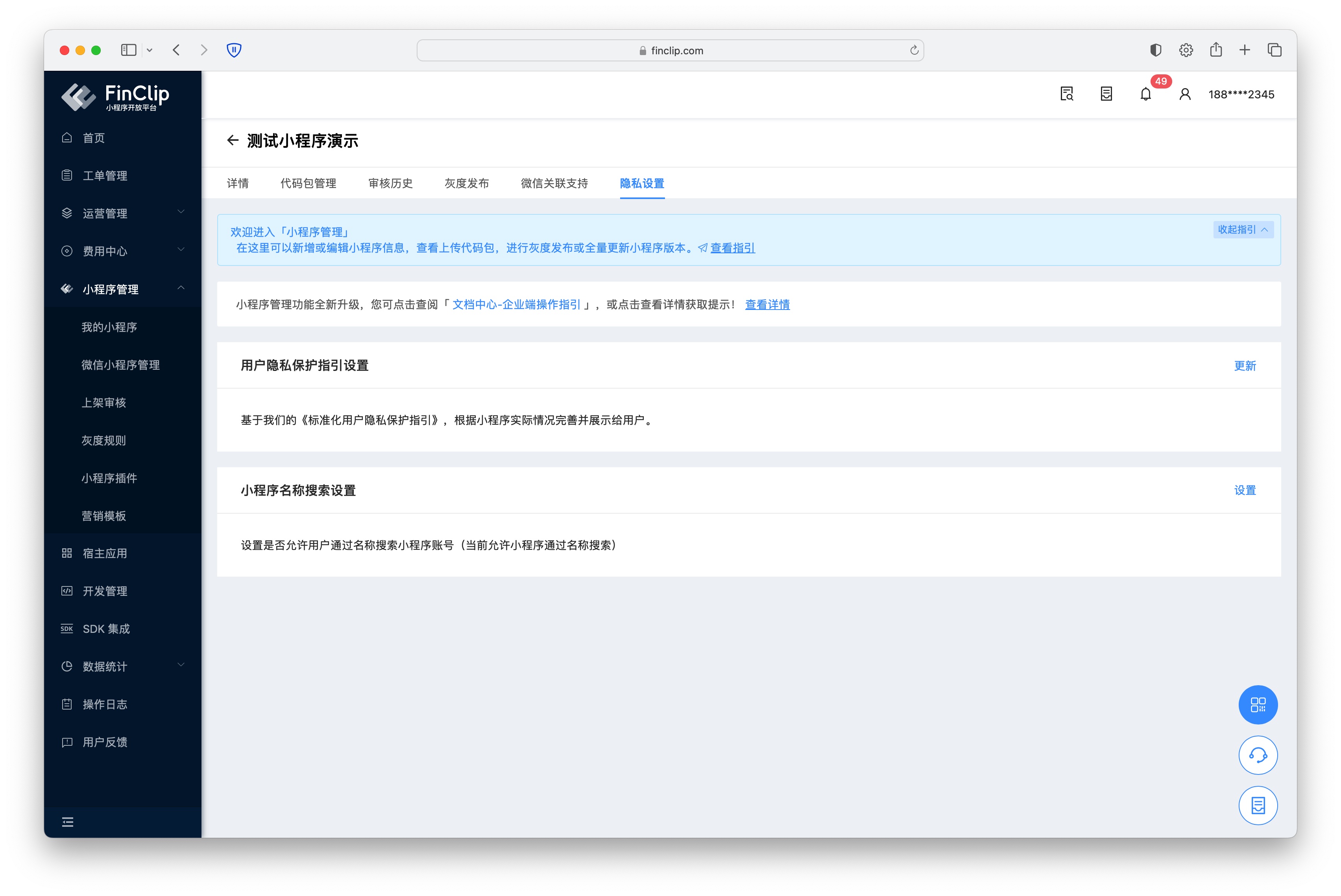 On the Mini-Program Privacy Settings page, you can configure the user privacy protection guidelines and name search permission for the Mini-Program.
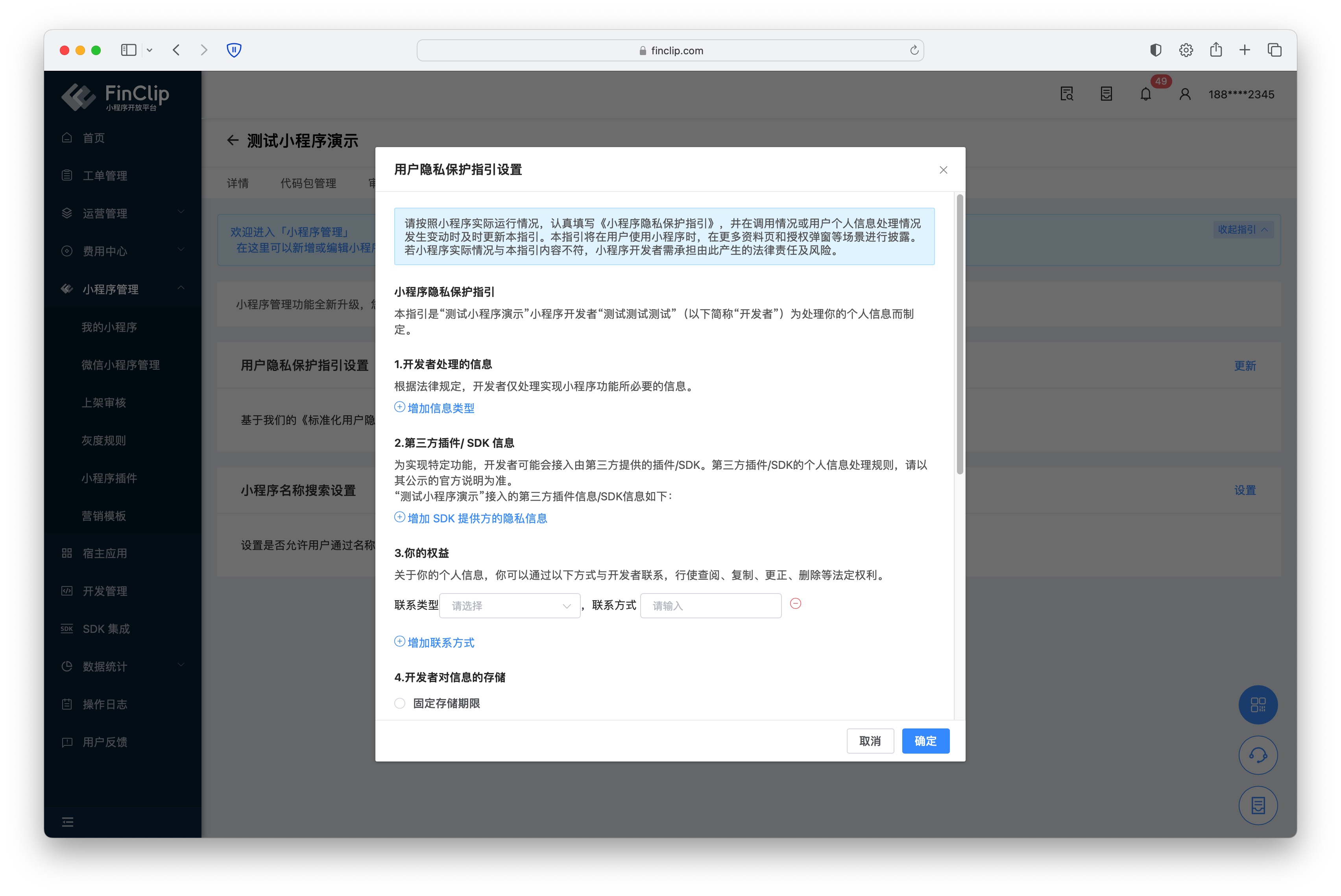 If the Mini-Program manages and accesses user-related data, you can configure the information accessed by the Mini-Program related to users and the methods for users to contact the developer through "User Privacy Protection Guide Settings".
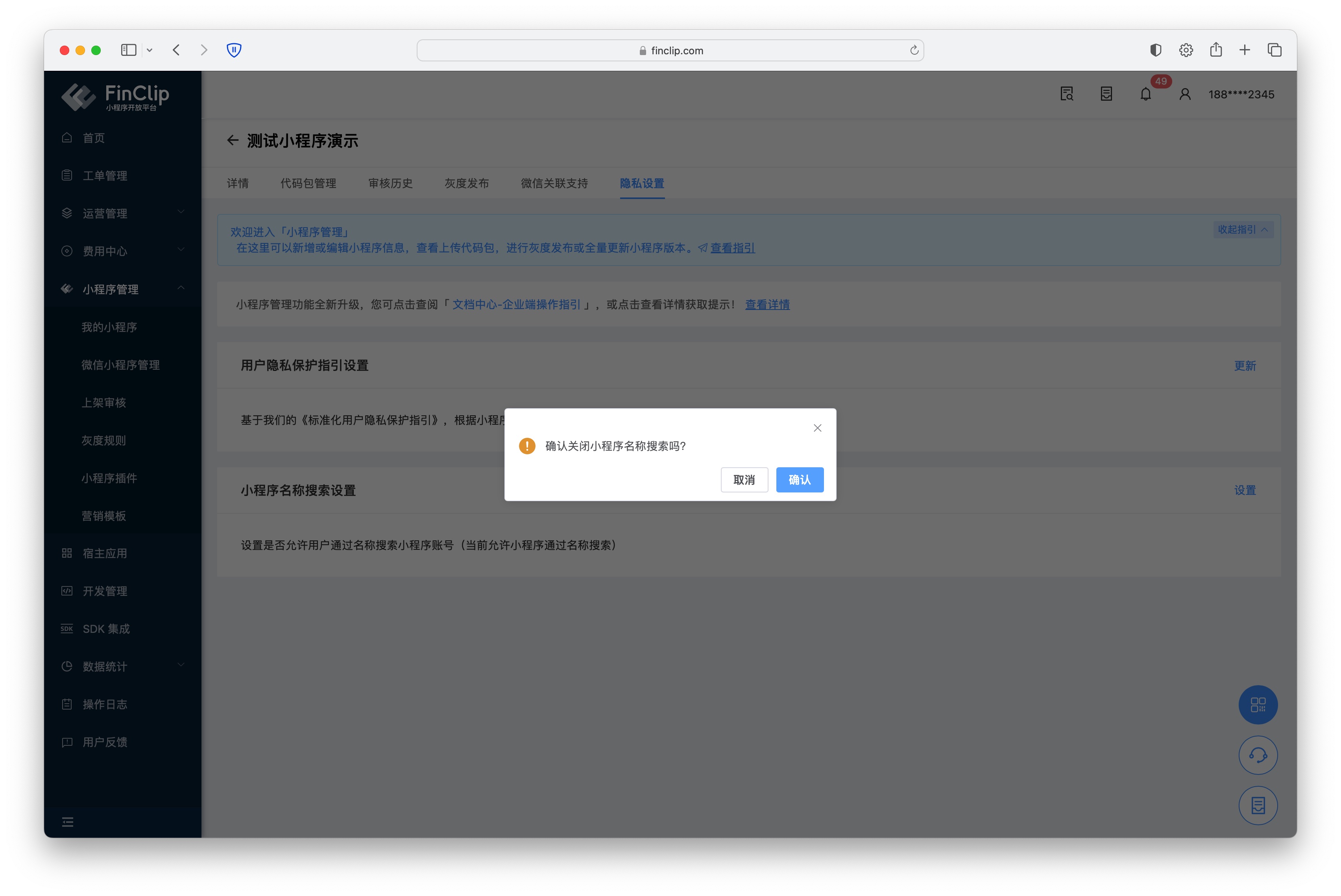 The Mini-Program Name Search Configuration is used to configure whether users can search for the Mini-Program by its name.
# 2.7 Mini-Program Search Visibility Settings
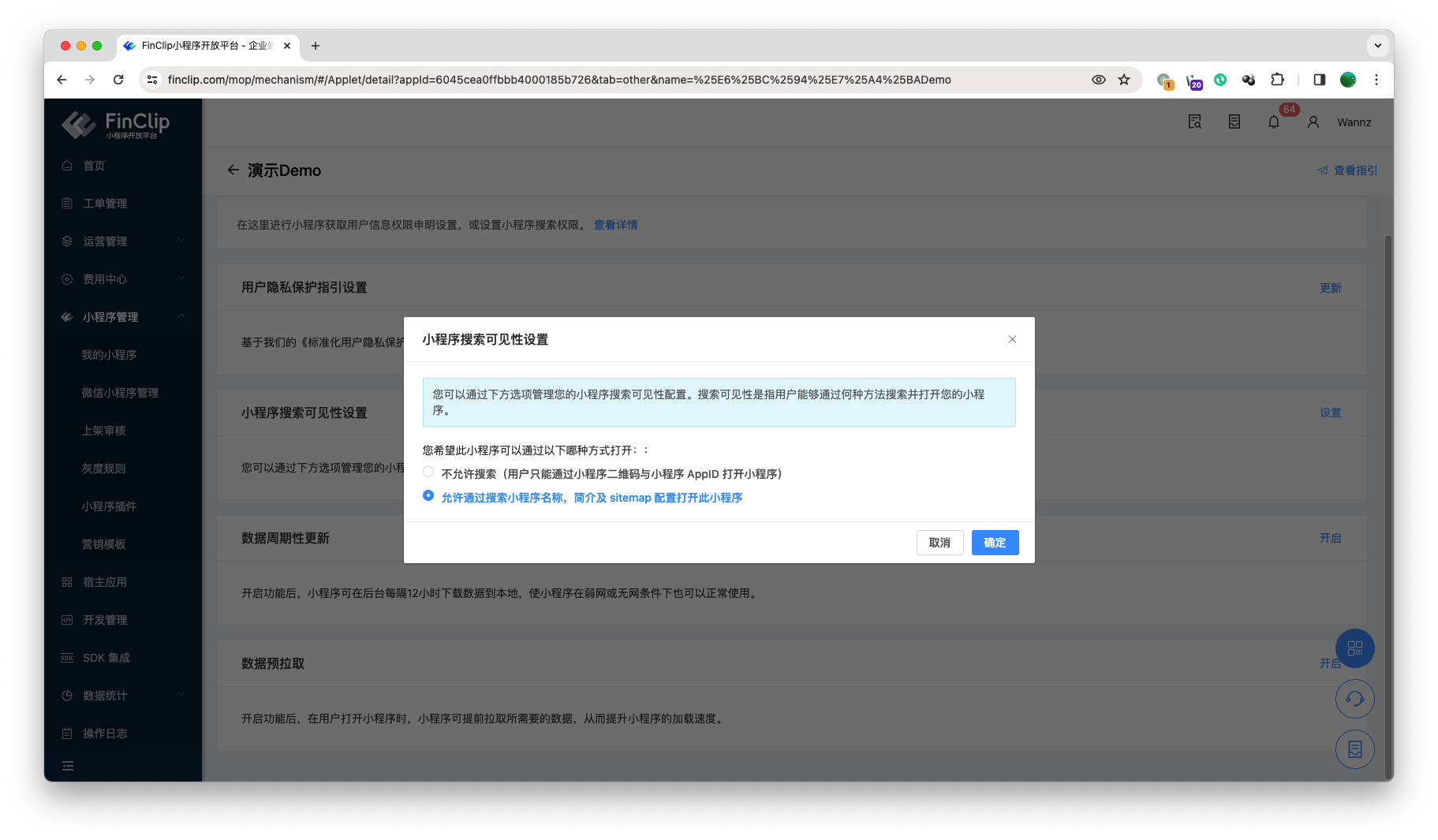 In the Mini-Program Search Visibility Settings, you can configure the search visibility of the Mini-Program according to the actual situation. Search visibility refers to how users can search for and open your Mini-Program.
Currently, we provide two visibility options:
- Do not allow search (users can only open the Mini-Program through the Mini-Program QR code and Mini-Program AppID). Selecting this option means that users can only open your Mini-Program through fixed entry points;
- Allow opening this Mini-Program by searching the Mini-Program name, introduction, and sitemap configuration. Selecting this option means that users can open your Mini-Program through the search function.
# 2.8 Data Periodic Update and Data Preload
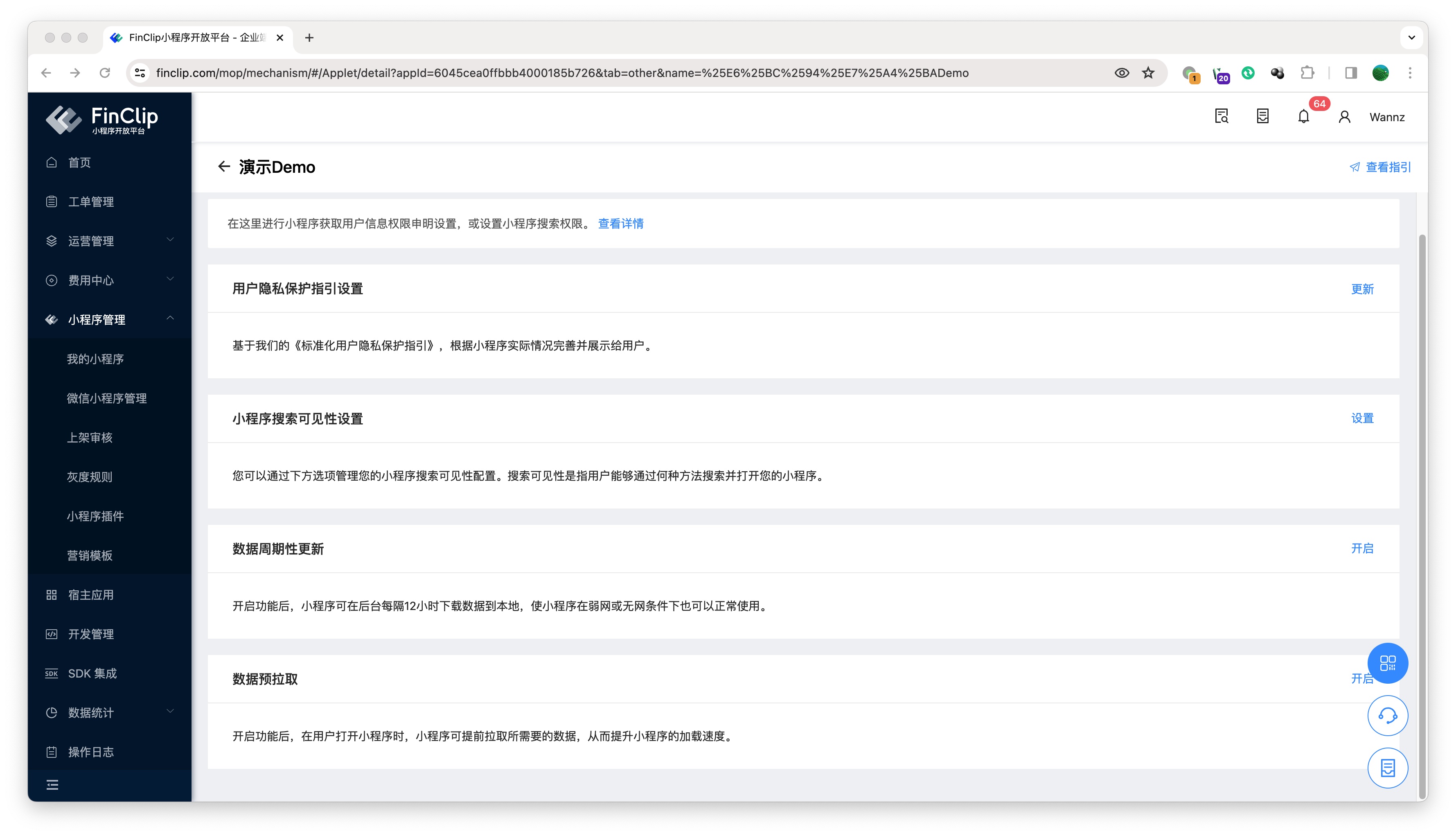 To ensure that users can open the Mini-Program more smoothly under weak network or other conditions, we have added two functions, "Data Periodic Update" and "Data Preload", on the Mini-Program details page.
The Data Periodic Update function allows users to render pages faster when opening the Mini-Program, reducing user waiting time and enhancing usability under weak network conditions. The Data Preload function can pre-fetch business data from a third-party server through the Mini-Program Management Console when the Mini-Program is cold-started. When the code package is loaded, the page can be rendered faster, reducing user waiting time and thus improving the Mini-Program opening speed.
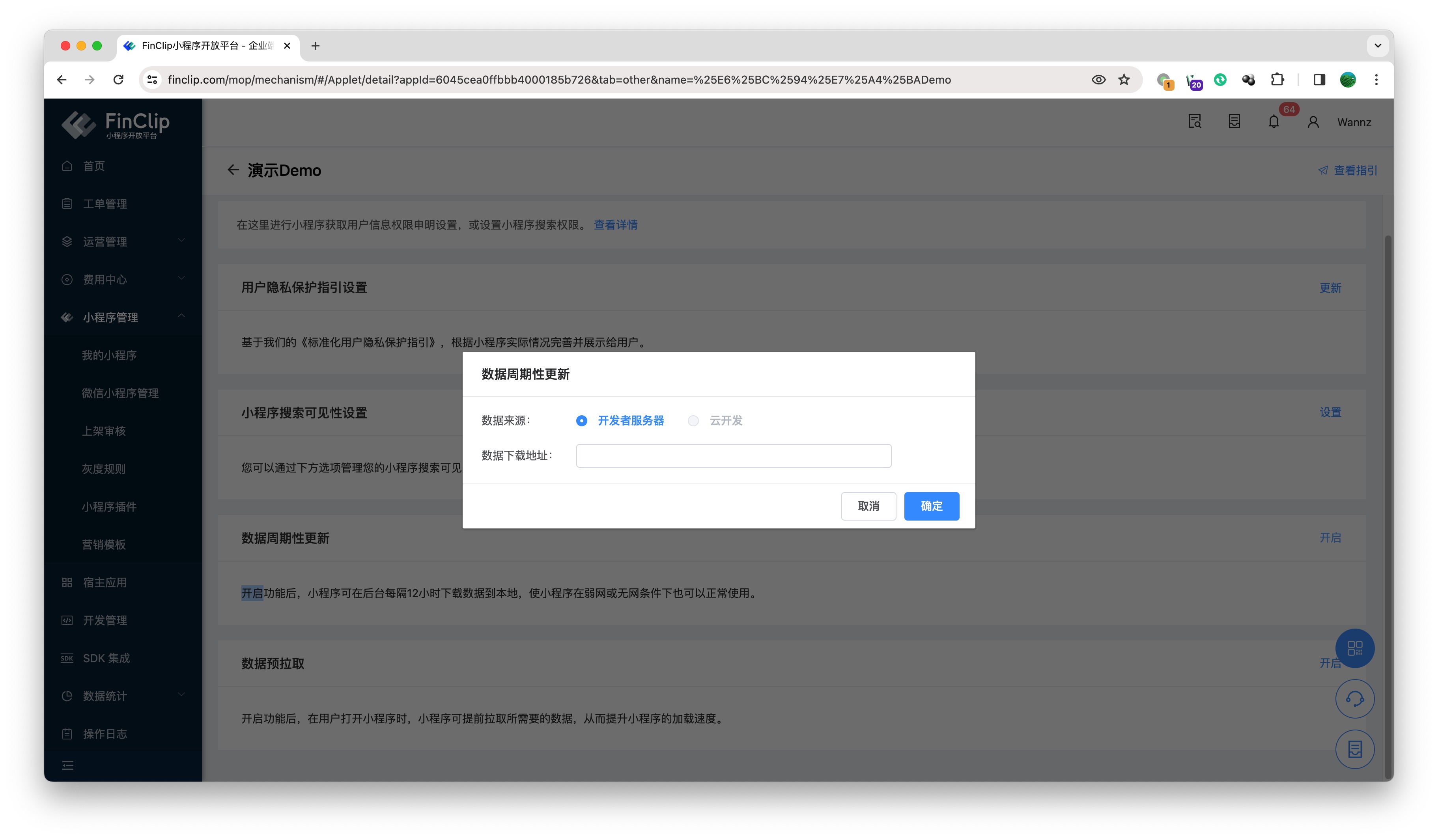 When you click "Enable" on the right side of the Data Periodic Update card, you can configure the corresponding data download address. After saving the configuration, the Mini-Program Management Console will send an HTTP GET request to the configured data download address every 12 hours (based on the time of the last successful update) under certain network conditions. The request includes the following query parameters. After the data is obtained, the entire HTTP body will be cached locally.
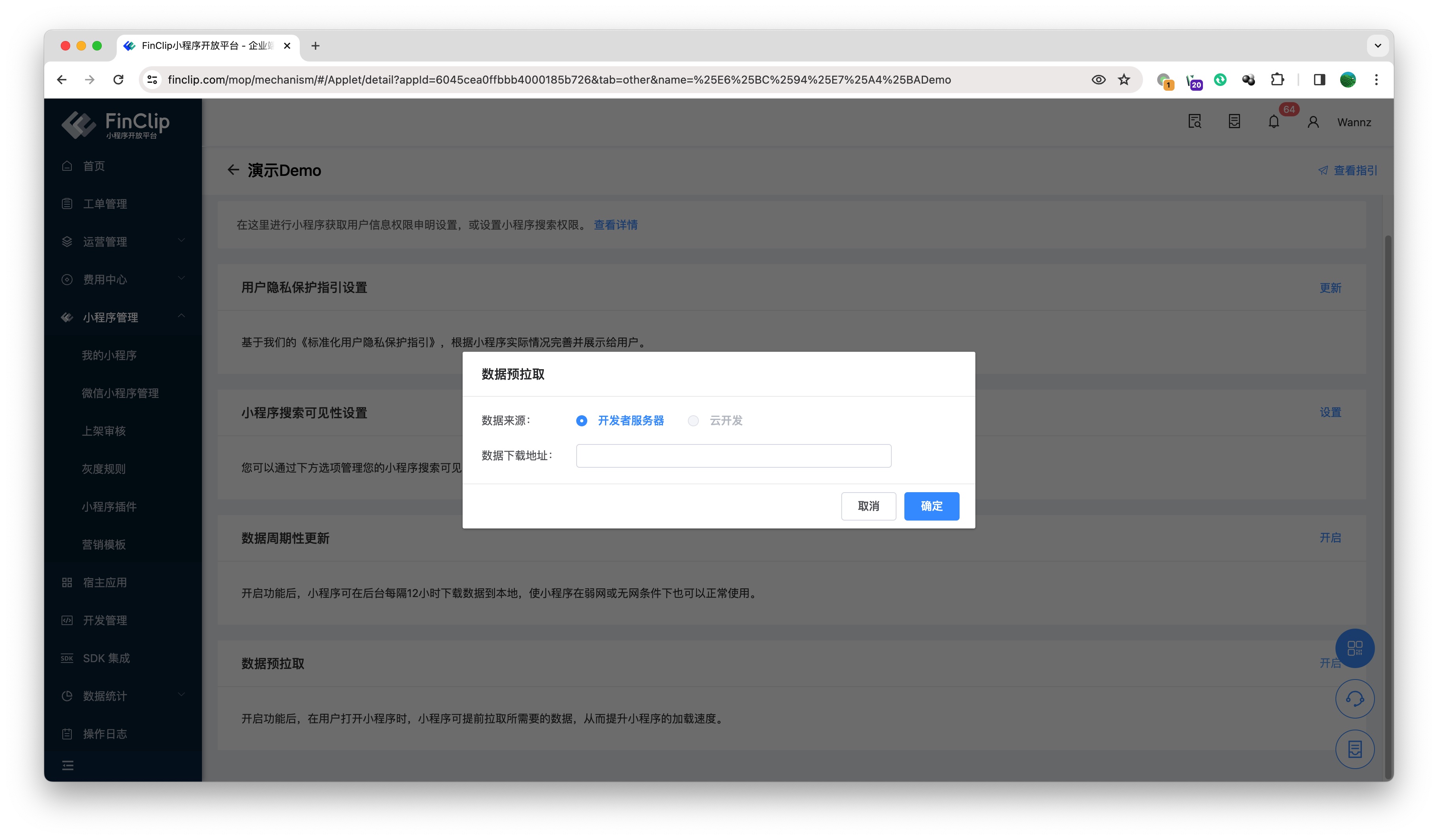 When you click "Enable" on the right side of the Data Preload card, you can configure the corresponding data download address. After saving the configuration, the Mini-Program Management Console will send an HTTP GET request to the developer's server (the data download address configured here). The request includes the following query parameters. After the data is obtained, the entire HTTP body will be cached locally.
For technical instructions on this function, please click here (opens new window)
# 3. Feature and Environment Comparison
Current features may have differences and limitations in different environments. For details, please refer to the table below. If you need to further understand the differences and introductions between different versions, you can click here (opens new window).
| Community Edition Environment | SaaS Environment | Enterprise Edition (Annual Payment or One-time Purchase) | |
|---|---|---|---|
| Mini-Program Management | ✅ | ✅ | ✅ |