
# 1. Product Introduction
FinClip is a mini-program runtime SDK. Whether it's a mobile app or devices such as computers, TVs, in-vehicle hosts, etc., after integrating the FinClip Mini-Program SDK, they can quickly acquire the ability to run mini-programs.
FinClip provides a mini-program SDK and a mini-program Administration Portal. Developers can migrate and deploy existing mini-programs in their own apps, thereby obtaining a sufficiently flexible mini-program development and management experience.
FinClip not only is compatible with WeChat Mini Program syntax but also provides a full set of Mini Program development and management toolkits. Developers do not need to learn new syntax and frameworks, and can use FinClip IDE, Mini Program Administration Portal, Mini Program Development Documentation, and FinClip App to complete all tasks from development and testing to preview and deployment at low cost and high quality.
FinClip can help enterprises quickly integrate their own and third-party business applications; assist enterprises in building super apps to achieve loose coupling of complex lines of business; and help enterprises develop platform-based operational thinking and organizational structure.
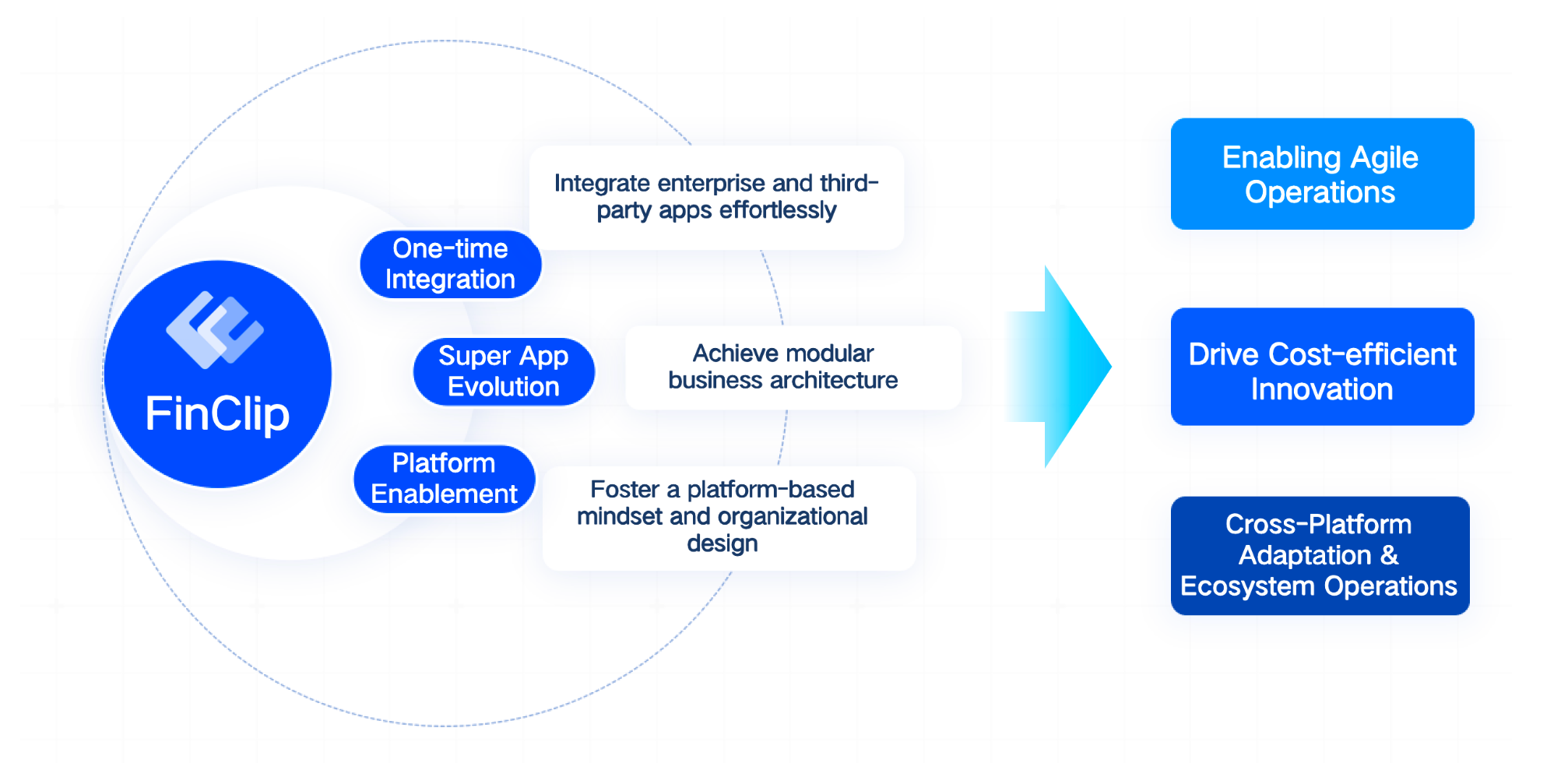
# 1.1 Purpose of POC
This POC Guide is designed to help you understand the main functions and advantages of the FinClip Mini Program Open Platform Management System through hands-on operations. Through this process, you can assess whether the product meets the actual needs of your enterprise, whether the real functions or performance of the product are consistent with the vendor's claims, evaluate the compatibility of the system with your business requirements, and use it as a basis for procurement decisions.
# 1.2 POC Objectives
The goal of this POC is to help you successfully experience the core functions of the FinClip Mini Program Open Platform Management System, including functional modules such as the FinClip Mini Program Container SDK, FinClip Mini Program Administration Portal, FinClip Ecosystem Building, and FinClip Mini Games. Through this process, it is expected to help you confirm the feasibility of the project, evaluate project performance, and assess project potential, providing important basis for subsequent decision-making.
# 2. Preparation Phase
# 2.1 Requirements
To ensure that this POC can achieve the expected goals, a cross-functional team is required to work together, as the combination of professional knowledge and skills from different fields is crucial for improving the overall verification work and feasibility of the project. We need you to arrange the following roles to participate in testing:
| No. | Role | Number of people | Function |
|---|---|---|---|
| 1 | Project Manager | 1 | 1. Responsible for overall project control, including the formulation, execution, and monitoring of the POC solution, to ensure the smooth implementation of the entire POC solution and achieve the expected results. 2. Responsible for testing the core functions of FinClip Mini Program Platform. 3. Responsible for tasks such as organizing, summarizing, and reporting on the POC experience. |
| 2 | App Developer | 2~3 | 1. Responsible for testing the FinClip Mini Program Container SDK, including iOS SDK, Android SDK, PC SDK, etc., and outputting SDK test reports. 2. Responsible for outputting installation packages for experience, demonstration, and reporting, including but not limited to apk, ipa, exe, dmg, etc. |
| 3 | Front-end Developer | 1 | 1. Responsible for testing the FinClip Studio Mini Program power builder and outputting the FinClip Studio test report. 2. Responsible for outputting an experienceable Mini Program, ensuring that the Mini Program runs correctly on FinClip Studio, and publishing it on the system Administration Portal of the FinClip Mini Program Platform. |
# 3. Access the System
You can access the system and experience its features through the following link
| Website Name | Access Link | Account/Password |
|---|---|---|
| Developer Portal | https://super-apps.ai/finclip/login/?app_type=dev | Self-registration |
# 4. Verification Steps
You need to prepare the following materials and content to complete the POC verification of FinClip.
# 4.1 Verification Preparation
# 4.1.1 Account Preparation
# 4.1.1.1 Register an Account
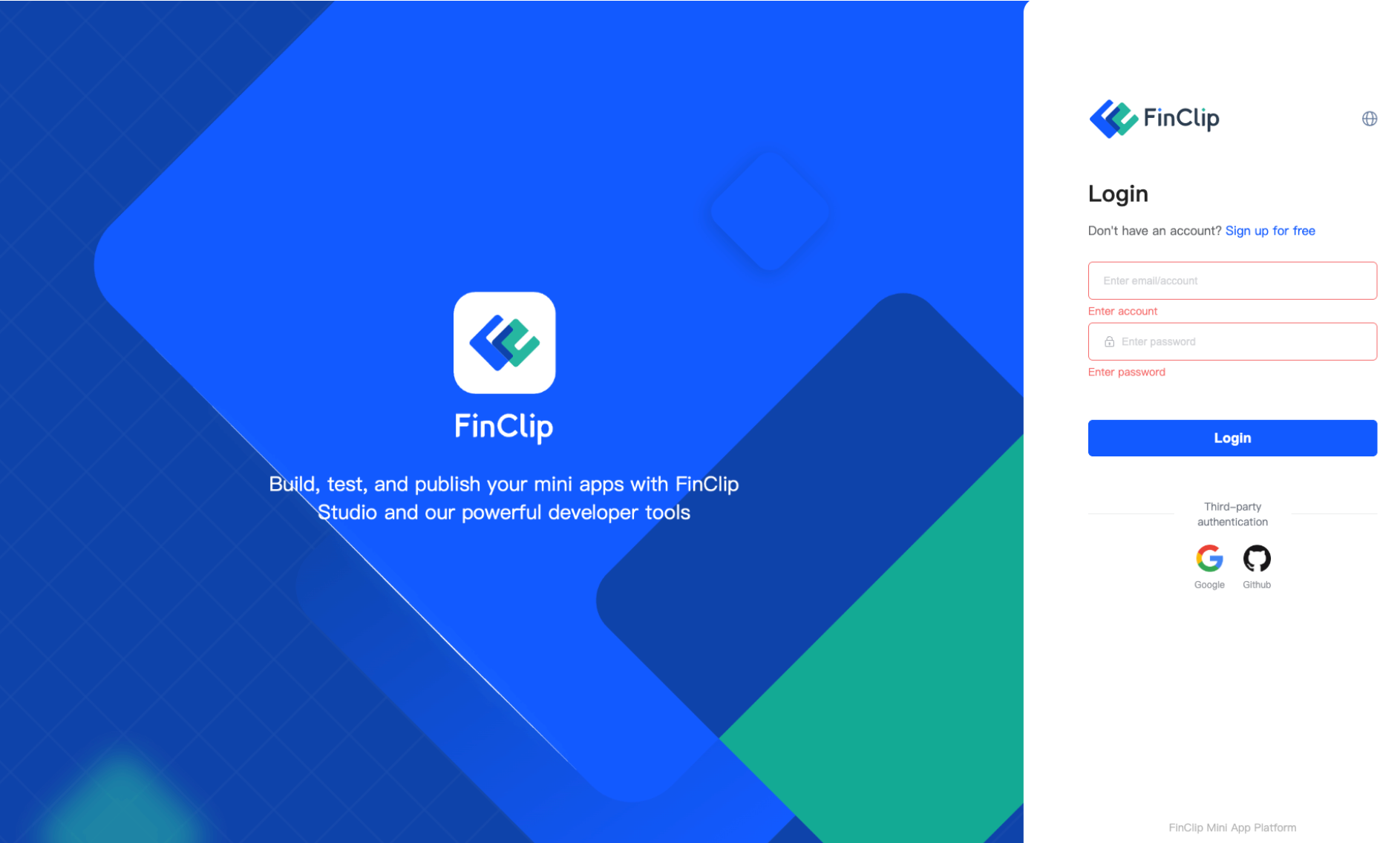
- ① Enter the Developer Portal, and click "Sign up for free" on the page
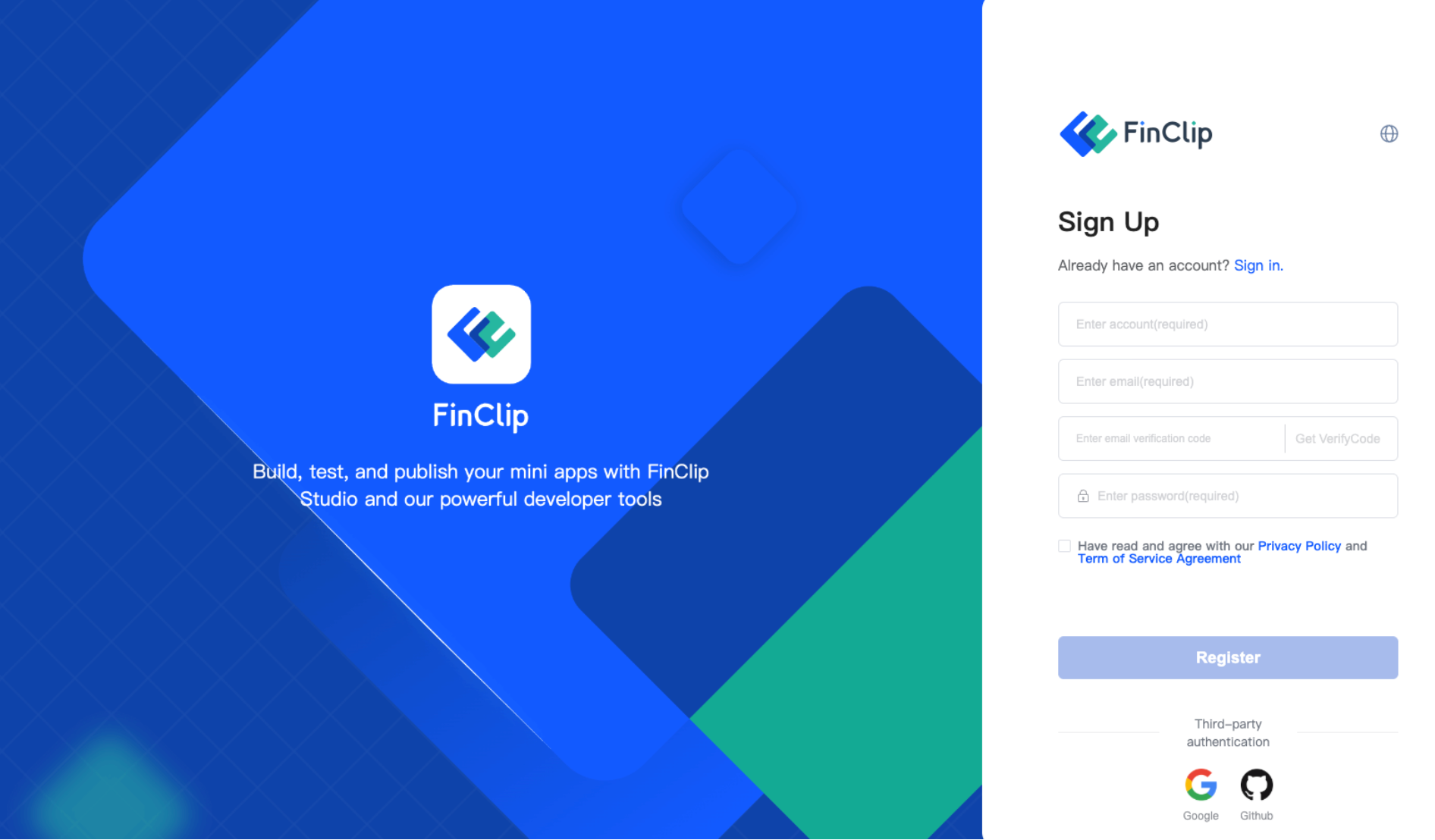
- ② Enter your mobile number, verification code, and email, set your login password, and then click "Register" to successfully register.
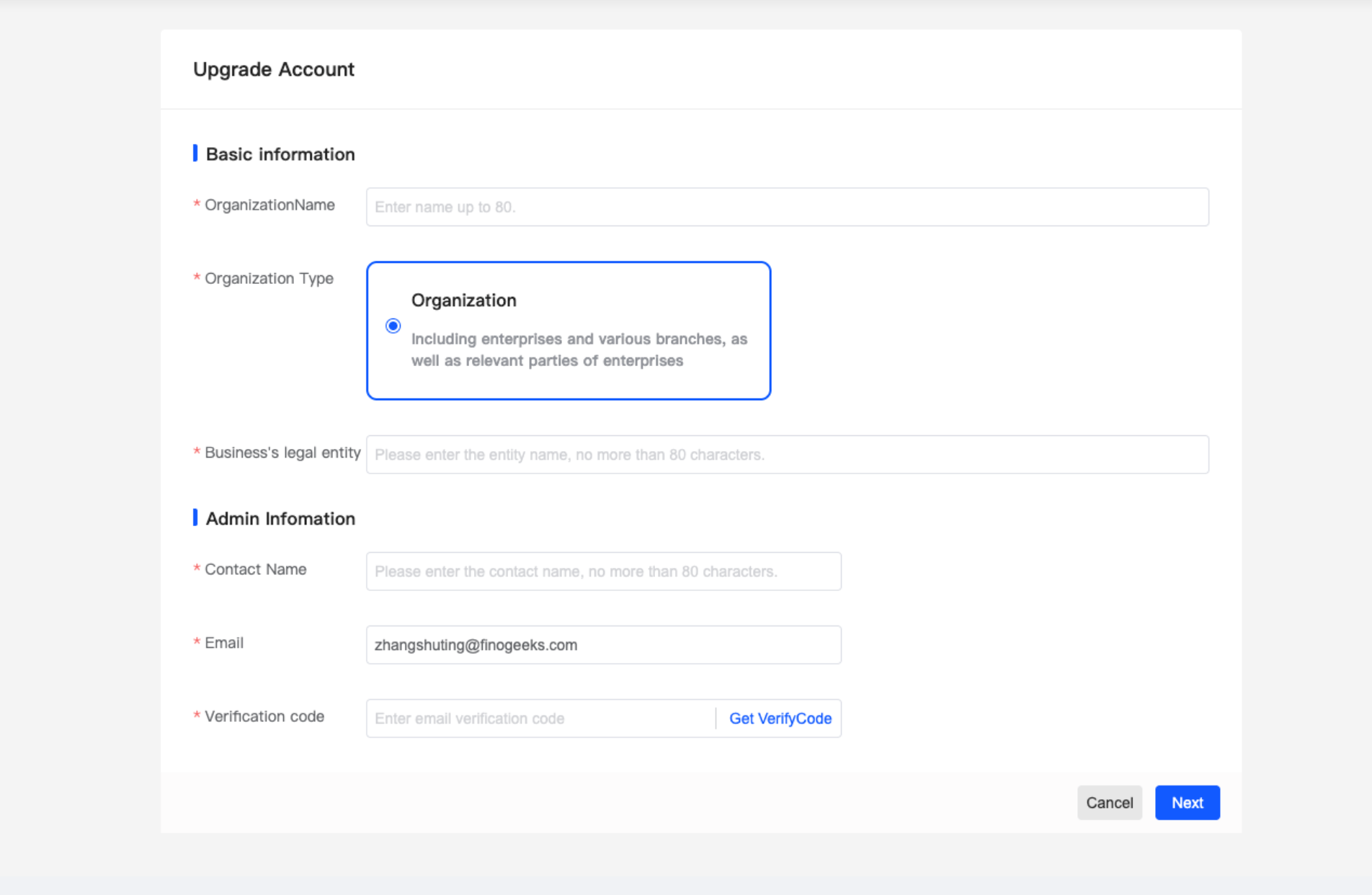
# 4.1.1.2 Upgrade to Business Account
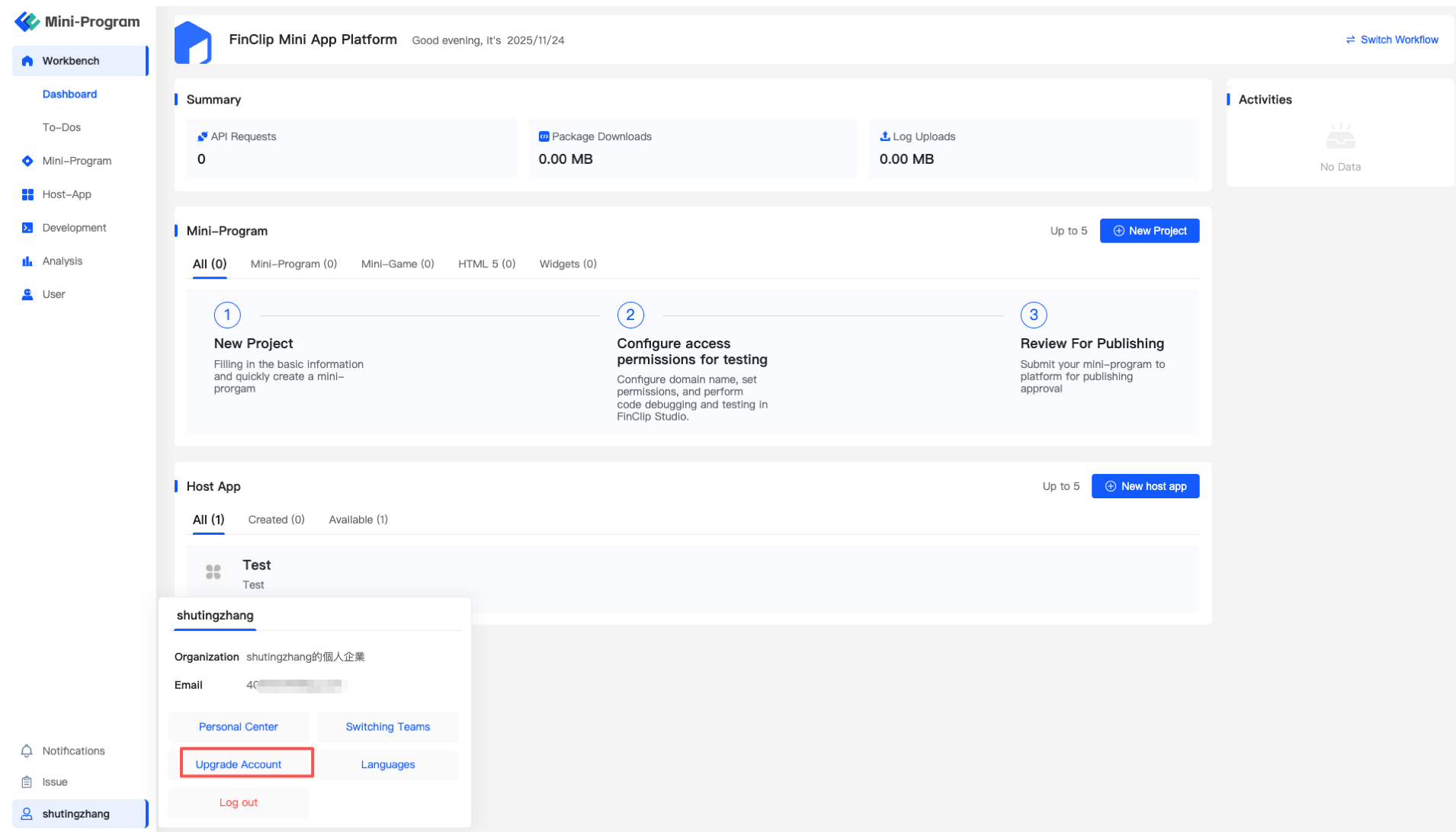
- ① Enter the Developer Portal, click sequentially on the bottom left corner "Username - Upgrade Account", and enter the enterprise certification page
- ② Fill in the enterprise entity information and administrator information respectively (during the testing phase, the following information will not be verified, and you can fill it in at will, including materials such as the enterprise's business license)
- ⑤ After successful submission, a page indicating successful submission will appear.
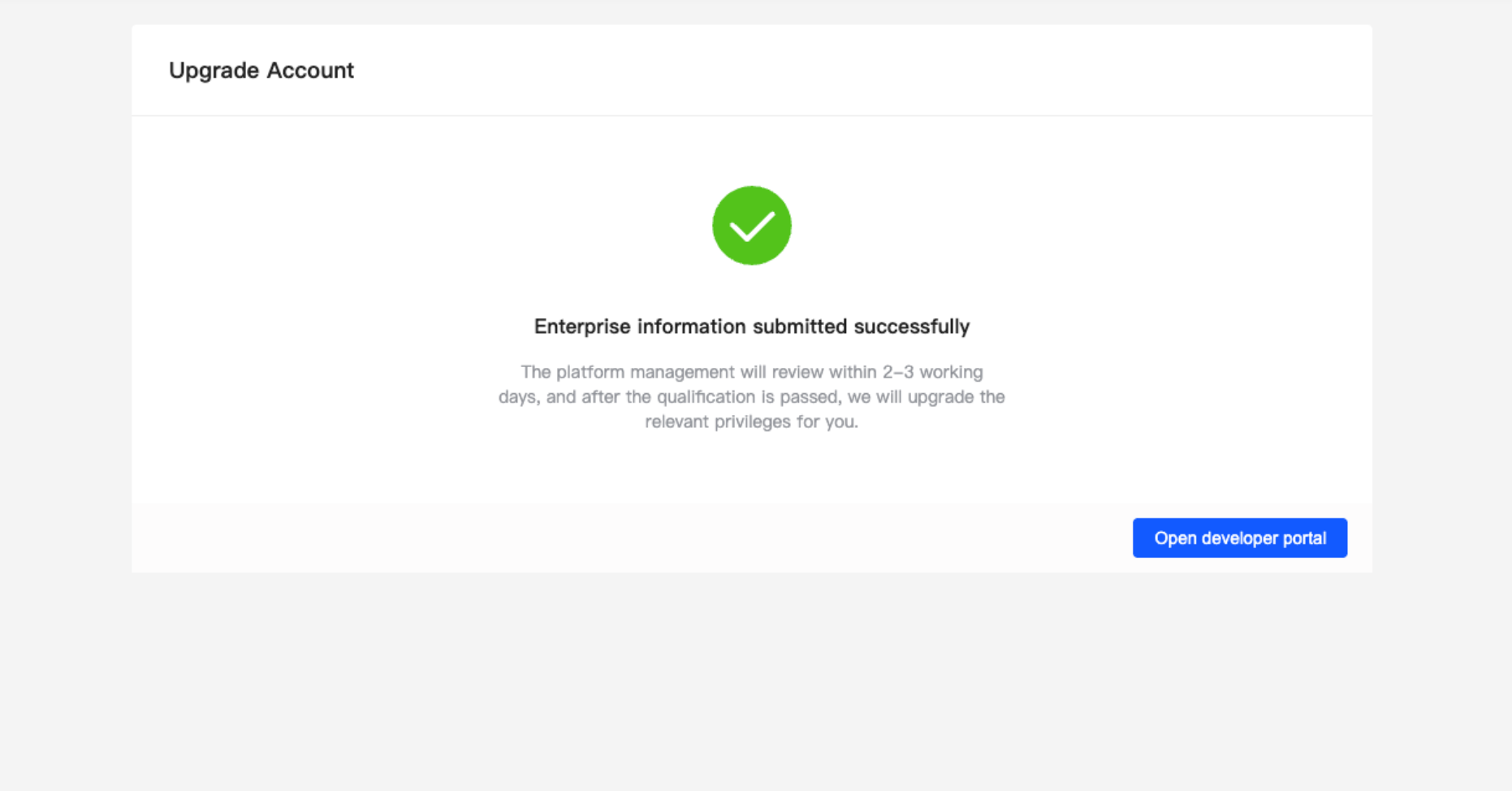
- ⑥ You can contact with Finogeeks POC PM or business for review.
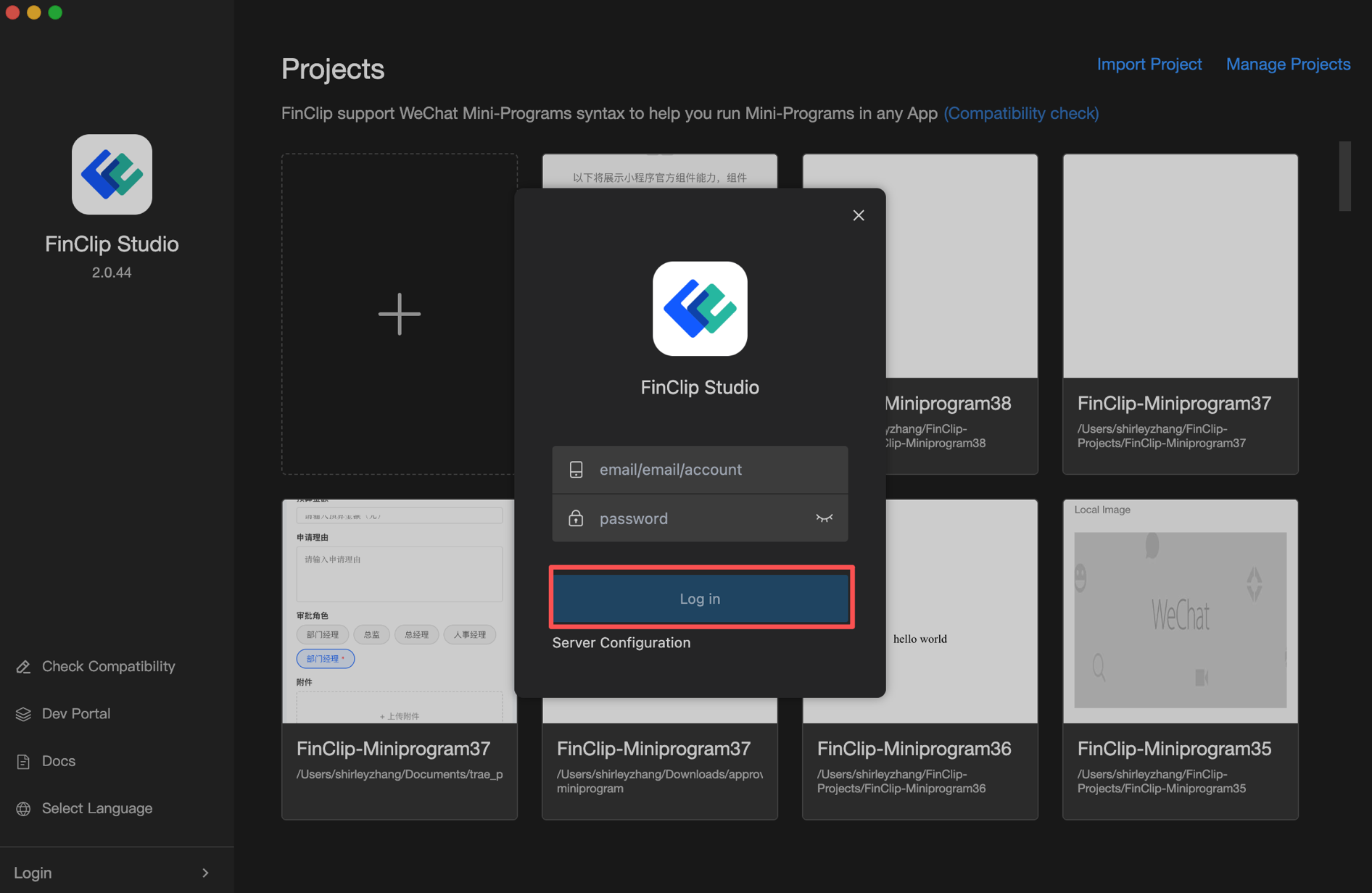
# 4.1.2 Log in to FinClip Studio
- ① Download Please ensure that your version of FinClip Studio is the latest version (opens new window). If not, you can download our latest version of FinClip Studio (opens new window).
- ② Log in to the account: Enter the account and password prepared in "Section 4.1.1", click "Log in", and you can complete the login to FinClip Studio.
# 4.1.3 Log in to FinClip App
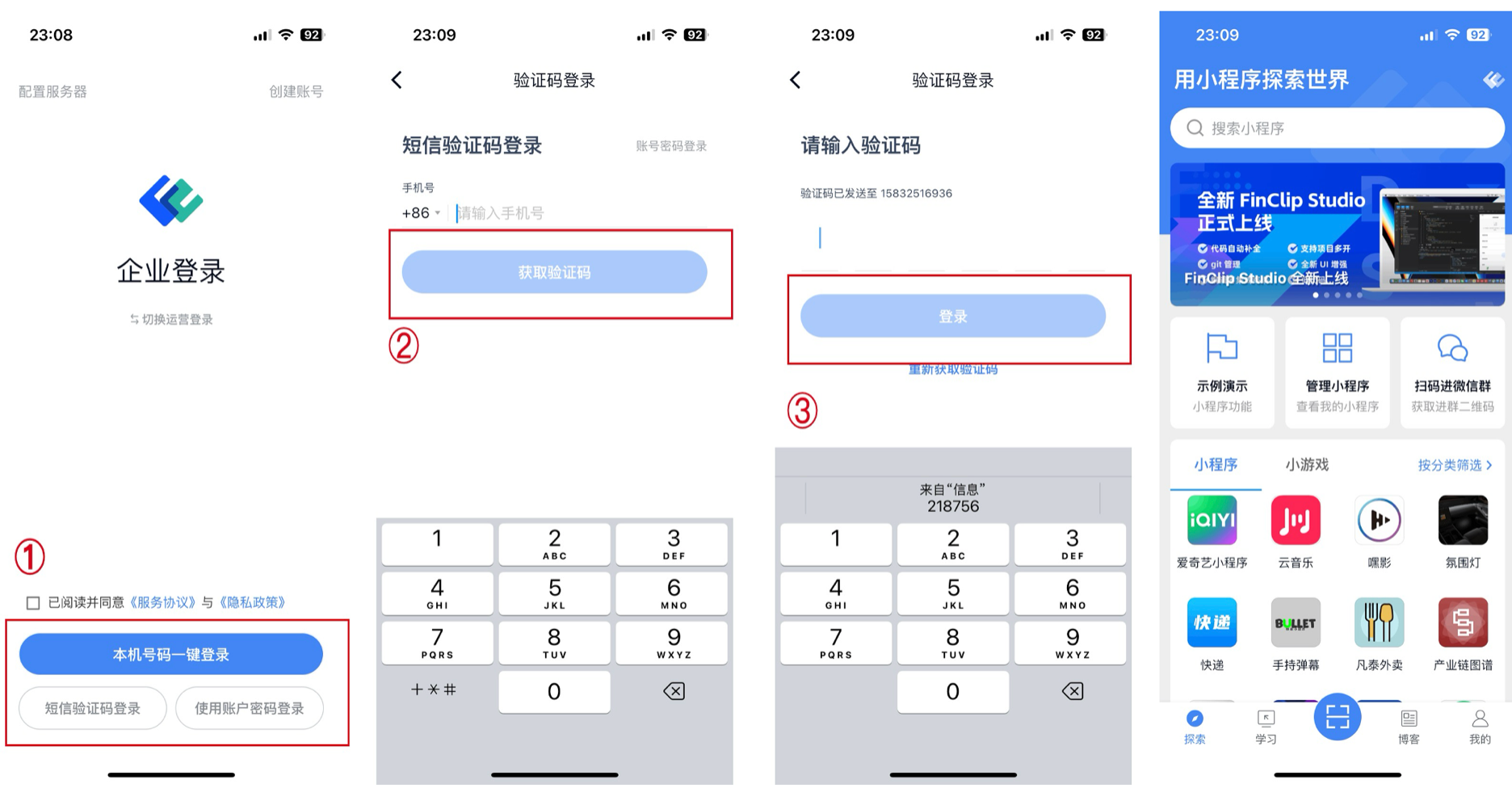
- ① Download iPhone users please log in to the App Store and search for 「 FinClip Superapp (opens new window) 」 to download. Android users please click 「 Download Link (opens new window) 」 , 「Google Play Store」 to download the latest version of the FinClip APP.
- ② Download Enter the account and password prepared in "Section 4.1.1"/use the mobile phone verification code to complete the login to the FinClip APP. The operations are as follows:
# 4.1.4 Demo
If you wish to obtain some demo , you can download it via the following method; otherwise, you can skip this step
| Type | Name | Development Language | Download URL | Notes |
|---|---|---|---|---|
| Mini Program | Example Mini Program | WeChat Native | https://gitee.com/finclip/miniprogram-demo | FinClip Sample Mini Program, which can be used to test the capabilities of relevant APIs and components in Mini Programs |
| SDK | Android SDK | Java | https://gitee.com/finclip/android-demo | Android demo(implementation of initialization, opening Mini Programs, custom APIs, etc.) |
| iOS SDK | https://gitee.com/finclip/ios-demo | iOS demo(implementation of initialization, opening Mini Programs, custom APIs, etc.) | ||
| PC SDK | https://gitee.com/finclip/finclip-desktop-demo | PC-side demo(implementation of initialization, opening Mini Program, custom API, etc.) |
# 4.2 Verification Plan
For the POC verification process, verifying the main process first helps to identify major issues that may affect the entire project at an early stage. After confirming the feasibility of the main process, conducting functional verification can avoid wasting resources on testing specific functions when the basic process is not feasible. Therefore, the verification plan for this POC provides a detailed description of the verification of the main process.
# 4.2.1 Main Process Verification
To ensure the completeness of the main process verification, in this step, please first use our demo mini-program. Run our sample code mini-program in your App to ensure the integrity of the main process, then replace it with your own mini-program, and finally perform the corresponding functional verification.
# 4.2.2 Verification Objectives
Run the FinClip Mini Program Demo correctly on the target software App through the capabilities provided by the FinClip Mini Program Open Platform system.
# 4.2.3 Verification Process
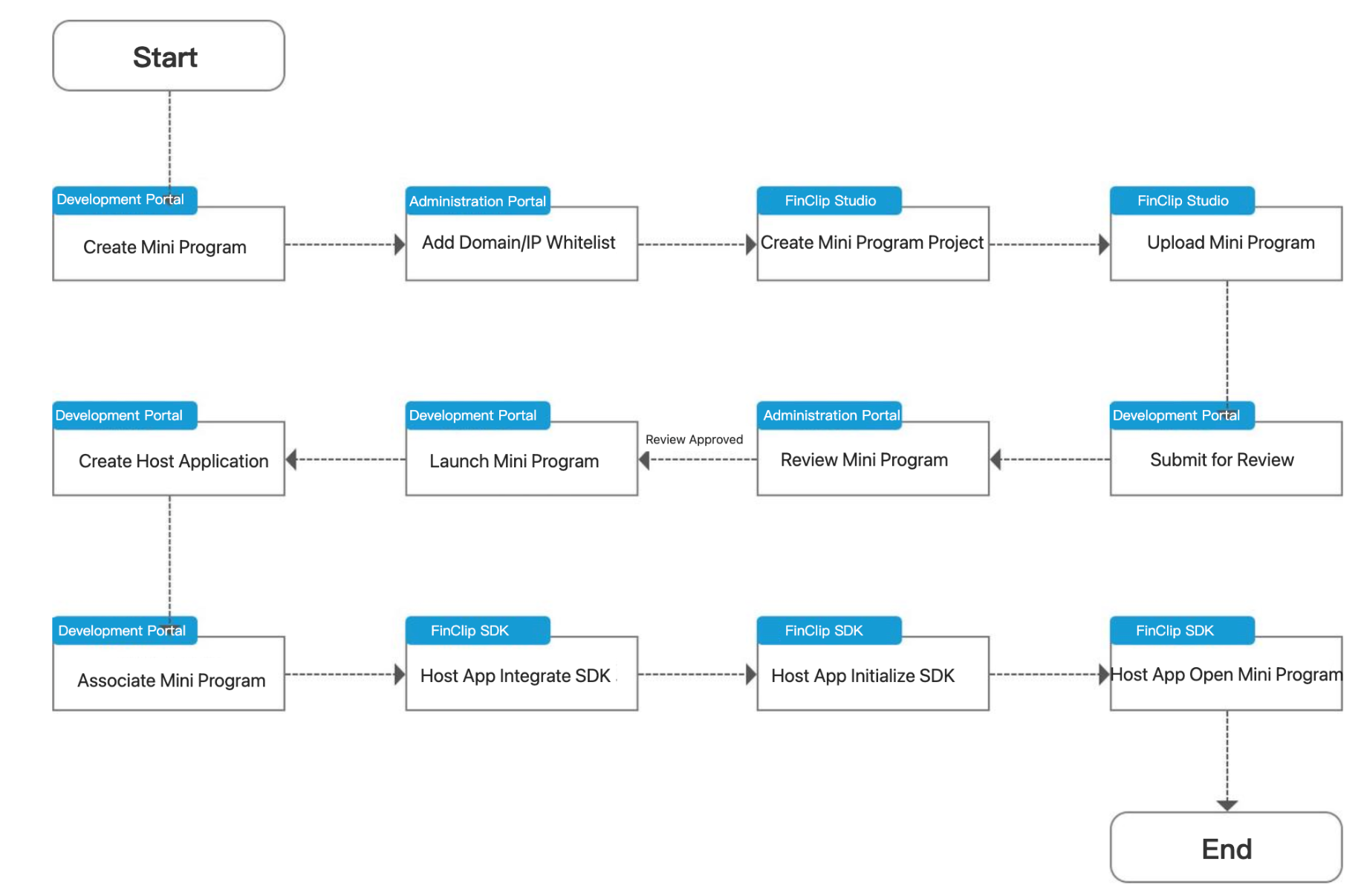
# 4.2.4 Verification Steps
# 4.2.4.1 Create Mini Program
| Category | Content |
|---|---|
| Test Number | M0001 |
| Test Item | FinClip Mini Program Platform - Developer Portal |
| Test Function | Create Mini Program |
| Precondition | On the browser, open the FinClip Mini Program Platform - "Developer Portal" and log in successfully. |
| Test Steps | 1. Enter the "Mini Program" directory, click the "New" button, and a Mini Program text box will pop up. 2. Fill in the information such as "Mini Program Name", "Project Type: Select Mini-Program", "Category: Select Tool", "Project Summary", "Project Description", "Icon" in sequence, and click "Confirm" to create a Mini Program. 3. Click the newly created Mini Program, view the details, enter "Information Details" - "Privacy Setting" - "Configure", and a Mini Program Data Policy will pop up. 4. Select "No information of users will be processed in any way" and click "Confirm" . |
| Expected Effect | 1. After successfully creating a Mini Program, enter the "Mini Program" directory, and you can view the Mini Program you just created from the list. 2. Click on the corresponding Mini Program to view its basic information, including the name, AppID, and other details. |
# 4.2.4.2 Add Domain Name/IP Allowlist
| Category | Content |
|---|---|
| Test Number | M0002 |
| Test Project | FinClip Mini Program Platform - Developer Portal |
| Test Function | Add domain name/IP allowlist |
| Preconditions | On the browser, open the FinClip Mini Program Open Platform - "Development" and log in successfully. |
| Test Steps | 1. Enter the "Development - Domain" directory, click the "Domain Configuration" button, and a domain name management input box will pop up. 2. In the allowlist input box, enter the business domain name or IP that the Mini Program needs to access, and click "Confirm" . |
| Expected Effect | 1. The domain name allowlist has been successfully configured. Navigate to the "Development - Domain " directory to view the corresponding domain name and the allowlist/blocklist. |
# 4.2.4.3 Create a Mini Program Project
| Category | Content |
|---|---|
| Test Number | M0003 |
| Test Project | FinClip Mini Program Open Platform Management System - FinClip Studio |
| Test Function | Create a Mini Program Project |
| Preconditions | Open FinClip Studio and complete the login. |
| Test Steps | 1. Open FinClip Studio, click the 「+」 button, and a page for creating a mini-program will pop up. 2. Enter 「Project Name」, select 「Project Directory」, choose 「Mini-program」 for the type, select 「Template」 for the project template, and click the 「Create」 button in the lower right corner. |
| Expected Effect | 1. FinClip Studio automatically creates projects and compiles them. 2. In FinClip Studio, you can preview the mini-program example template. |
# 4.2.4.4 Upload Mini Program Code Package
| Category | Content |
|---|---|
| Test Number | M0004 |
| Test Item | FinClip Mini Program Open Platform Management System - FinClip Studio |
| Test Function | Upload Mini Program code package |
| Precondition | Open FinClip Studio and complete the login. |
| Test Steps | 1. Click the "Upload" button at the top of FinClip Studio to pop up the Mini Program upload page. 2. Select the AppID, which is the Mini Program ID created in Step 1, enter the "Version", enter the "Description", and click "Confirm" . |
| Expected Effect | Mini Program uploaded successfully, and a "Upload Success" prompt message popped up. |
# 4.2.4.5 Submit Mini Program for Review
| Category | Content |
|---|---|
| Test Number | M0005 |
| Test Item | FinClip Mini Program Open Platform Management System - Developer Portal |
| Test Function | Review Mini Program |
| Precondition | On the browser, open the FinClip Mini Program Open Platform - "Development" and log in successfully. |
| Test Steps | 1. Enter the "Mini Program" directory, click on the newly created Mini Program, view details, and enter "Information Details" - "Version" - "Review Version". 2. Follow the steps of "Submit for review" - "Fill in review information (optional)" - "Confirm information" - "Next " - "Confirm" to submit for review. |
| Expected Effect | In the review version, you can view the review version information and submission information. |
# 4.2.4.6 Review Mini Program
| Category | Content |
|---|---|
| Test Number | M0006 |
| Test Item | FinClip Mini Program Open Platform Management System - Developer Portal |
| Test Function | Submit Mini Program for review |
| Precondition | On the browser, open the FinClip Mini Program Open Platform - "Developer Portal" and log in successfully. |
| Test Steps | 1. Enter 「Home」 - 「To-Dos」 - 「Review Status」, find the Mini Program submitted for review in the above steps, click 「Details」, and the Mini Program review page will pop up. 2. Check the Mini Program information, and after confirmation, click the 「Pass」 button at the bottom of the page, and the review is successful (Good to go). |
| Expected Effect | 1. The Mini Program has passed the review, and the above Mini Program pending review will be removed from the to-do list. 2. Enter the "Developer Portal", go to the "Mini Program" directory, click on the Mini Program to view details, and the Mini Program will show as Good to go. |
# 4.2.4.7 Launch Mini Program
| Category | Content |
|---|---|
| Test Number | M0007 |
| Test Item | FinClip Mini Program Open Platform Management System - Developer Portal |
| Test Function | Launch Mini Program |
| Precondition | On the browser, open the FinClip Mini Program Open Platform - "Developer Portal" and log in successfully. |
| Test Steps | 1. Enter the <Mini Program> directory, click on the newly created mini program, view details, enter <Information Details> - <Version> - <Review Version>, click <Publish to Online Version>, and a release pop-up window will appear. 2. Select <Full Release>, click <Confirm>, and the release of the mini program is completed. |
| Expected Effect | Refresh the page, and the status of the mini-program changes to - Published. |
# 4.2.4.8 Create Host Application
If you do not have a host App, you can skip this step and go directly to Section 4.2.4.12 , open the [Method 2] FinClip App to preview the Mini Program.
| Category | Content |
|---|---|
| Test Number | M0008 |
| Test Item | FinClip Mini Program Open Platform Management System - Developer Portal |
| Test Function | Create Host Application |
| Precondition | On the browser, open the FinClip Mini Program Open Platform - "Developer Portal" and log in successfully. |
| Test Steps | 1. Enter the "Host-App" directory, click the "New" button, and a new application input box will pop up. 2. Fill in the information such as "App Name", "Affiliation Organization", "Summary", "The other teams can see it - No", "Application automatically associates with mini programs - Yes", "Upload Icon" in sequence, and click "Confirm" to create the application. 3. Enter the "Host-App" directory, click the "Host App Name ", enter "BundleID" - "Add the BundleID", and a pop-up window for adding a BundleID will appear. 4. Select the BundleID application platform, here choose "Android"/"iOS ", enter the App's BundleID, and click "Confirm" to complete the addition. |
| Expected Effect | Enter the "Host App" directory, click on "Host App Name ", enter "BundleID", and you can see a new piece of data added, where you can view information such as API Server, SDK Key, and SDK Secret. |
# 4.2.4.9 Binding Mini Programs
| Category | Content |
|---|---|
| Test Number | M0009 |
| Test Item | FinClip Mini Program Open Platform Management System - Developer Portal |
| Test Function | Binding Mini Programs |
| Precondition | On the browser, open the FinClip Mini Program Open Platform - "Developer Portal" and log in successfully. |
| Test Steps | 1. Enter the "Host-App" directory, click on "Host App Name ", enter "Binding Mini Programs" - "Configure Mini Programs", and a pop-up window for editing the mini program will appear. 2. Check the published mini program, click "Confirm" to complete the mini program association. |
| Expected Effect | Enter the "Host-App" directory, click on "Host App Name ", enter "Binding Mini Programs", and you can see a new piece of data added, and view the list of Binding Mini Programs. |
# 4.2.4.10 Integrated SDK
| Category | Content |
|---|---|
| Test Number | M00010 |
| Test Item | FinClip Mini Program Open Platform Management System - FinClip SDK |
| Test Function | Integration of FinClip SDK |
| Precondition | Owns the host App and has runnable source code. |
| Test Steps | 1. Android App Integration :Android Integration Guide 2. iOS App Integration :iOS Integration Guide 3. HarmonyOS App Integration:HarmonyOS Integration Guide 4. Desktop App Integration :PC Integration Guide For more FinClip SDK guides, please refer to :FinClip SDK Documentation Center |
| Expected Effect | App successfully integrated the SDK, and after integration, the code compiled without errors, with processes such as App compilation and packaging passing. |
# 4.2.4.11 Initialize the SDK
| Category | Content |
|---|---|
| Test Number | M0011 |
| Test Item | FinClip Mini Program Open Platform Management System - FinClip SDK |
| Test Function | Integration of FinClip SDK |
| Precondition | App successfully integrated with FinClip SDK |
| Test Steps | 1. Android SDK Initialization:Android Initialization Guide 2. iOS SDK Initialization:iOS Initialization Guide 3. HarmonyOS SDK Initialization :HarmonyOS Initialization Guide 4. Desktop SDK Initialization :PC Initialization Guide For more FinClip SDK initialization guides, please refer to :FinClip SDK Documentation Center |
| Expected Effect | FinClip SDK initialization succeeded. Through the API callback information of initializing the SDK, it returns that the initialization was successful. |
# 4.2.4.12 Open Mini Program
| Category | Content |
|---|---|
| Test Number | M0012 |
| Test Item | FinClip Mini Program Open Platform Management System - FinClip SDK |
| Test Function | Integration of FinClip SDK |
| Precondition | 1. Mini Program successfully launched. 2. App integrated with FinClip SDK and initialized successfully. 3. [Optional] Downloaded and logged in to FinClip App |
| Test Steps | [Method 1] Open the Mini Program via the Host App 1. Steps to open the Mini Program on Android App:Guide to opening the Mini Program on Android 2. Steps to open the Mini Program on iOS App:Guide to opening the Mini Program on iOS 3. Steps to open the Mini Program on HarmonyOS App:Guide to opening the Mini Program on HarmonyOS 4. Steps to open the Mini Program on Desktop:Guide to opening the Mini Program on PC For more guides on opening the Mini Program with FinClip SDK, please refer to :FinClip SDK Documentation Center [Method 2] Open the Mini Program by scanning the QR code via FinClip App 1. Obtain the Mini Program QR code: Go to 「FinClip Management Console - Developer Portal - Mini Program - Version」 to view the QR code. 2. Open the FinClip App, go to the home page, click the QR code scanning button, and you can open the Mini Program. |
| Expected Effect | Open the Mini Program in the App and preview it |
# 5. References
| Category | Material Name | Material Link |
|---|---|---|
| Developer Portal | Operation Manual | Operation Manual (opens new window) |
| Operation Video | Operation Video (opens new window) | |
| FinClip SDK | iOS SDK Guide Documentation | SDK Guide Documentation (opens new window) |
| iOS SDK Integration Video | SDK Integration Video (opens new window) | |
| Android SDK Guide Documentation | SDK Guide Documentation (opens new window) | |
| Android SDK Integration Video | SDK Integration Video (opens new window) | |
| Desktop SDK Guide Document | SDK Guide Documentation (opens new window) | |
| FinClip Studio | Mini Program Development Guide | Mini Program Development Guide (opens new window) |
| User Manual | User Manual (opens new window) | |
| Instructional Video | Instructional Video (opens new window) | |
| FinClip App | Operation Manual | Operation Manual (opens new window) |
| Frequently Asked Questions | Frequently Asked Questions | Frequently Asked Questions (opens new window) |
# 6. Conclusion
Thank you for your experience. Now the POC main process testing of the FinClip Mini Program Management Platform system has been done, and you can continue to conduct functional verification of the FinClip Mini Program Management Platform system.
