
# Generate HarmonyOS App from Mini-Program
Feature Background
The "Generate HarmonyOS App from Mini-Program" feature is an additional function within the Developer Tools, designed to assist Mini-Program application developers in quickly converting existing Mini-Programs into mobile Apps that can be published to app stores or run locally. This significantly reduces development costs and improves development efficiency.
# 1. Feature Overview
The "Generate HarmonyOS App from Mini-Program" feature helps developers export existing Mini-Program code into a HarmonyOS project. Developers no longer need to master comprehensive mobile application development and packaging skills. By focusing their main efforts on product design and functional implementation within the Mini-Program, they can obtain an App that can be published to app stores or installed directly on smart devices like mobile phones.
Here, the exported HarmonyOS application acts merely as a "shell application" for the Mini-Program. The actual business logic and related requests are all handled by the Mini-Program. Updates and upgrades for the App can also be performed through the Mini-Program.
Furthermore, users can customize the App's icon, name, and permissions to meet more diverse usage requirements.
# 2. Operation Instructions
Users can generate a HarmonyOS App from a Mini-Program by following these steps:
- Configure HarmonyOS App Settings
- Generate the HarmonyOS App
# 2.1 Configure HarmonyOS App Settings
You can access the relevant functions via the "Generate App" menu in the upper right corner of the interface.
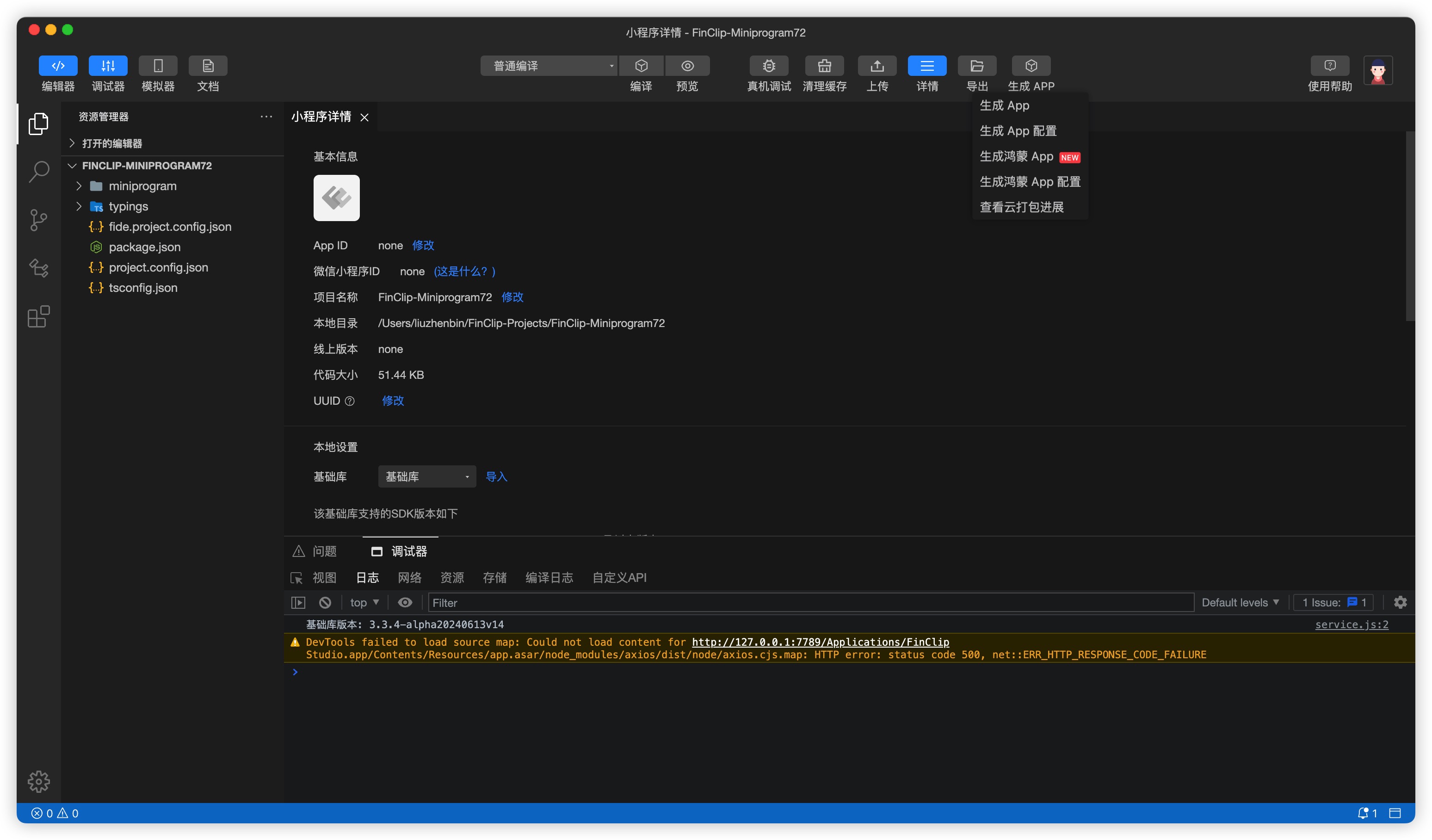 Click on the Developer Tools menu bar -> Generate App -> Configure HarmonyOS App to set up the relevant content.
# 2.1.1 Basic App Configuration
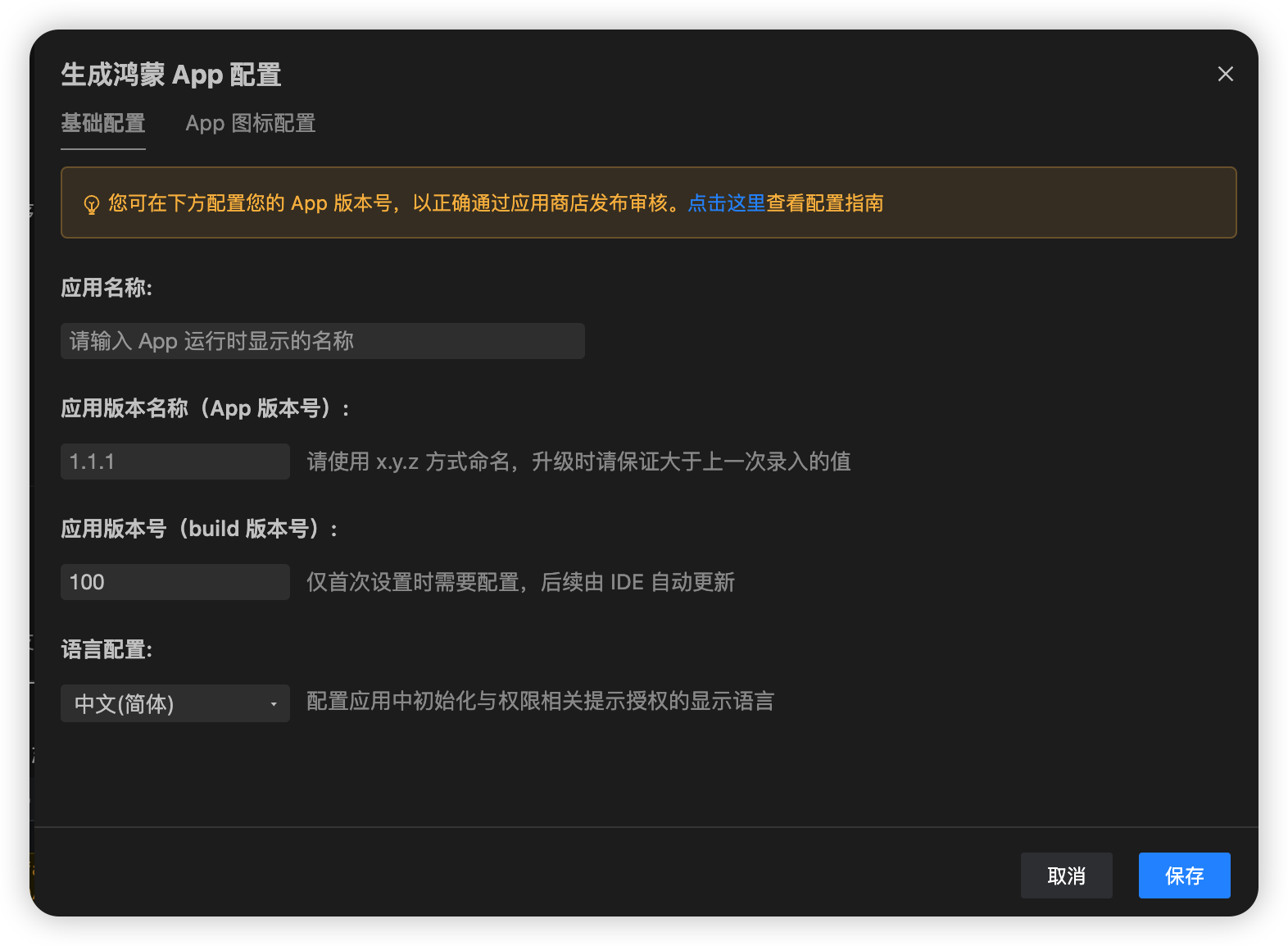
HarmonyOS Basic App Configuration: Configure the application name, application version number, and application build version number for the app that needs to be packaged.
- The App version number should be filled in using the x.y.z format.
- The application build version number will be generated automatically.
# 2.1.2 App Icon Configuration
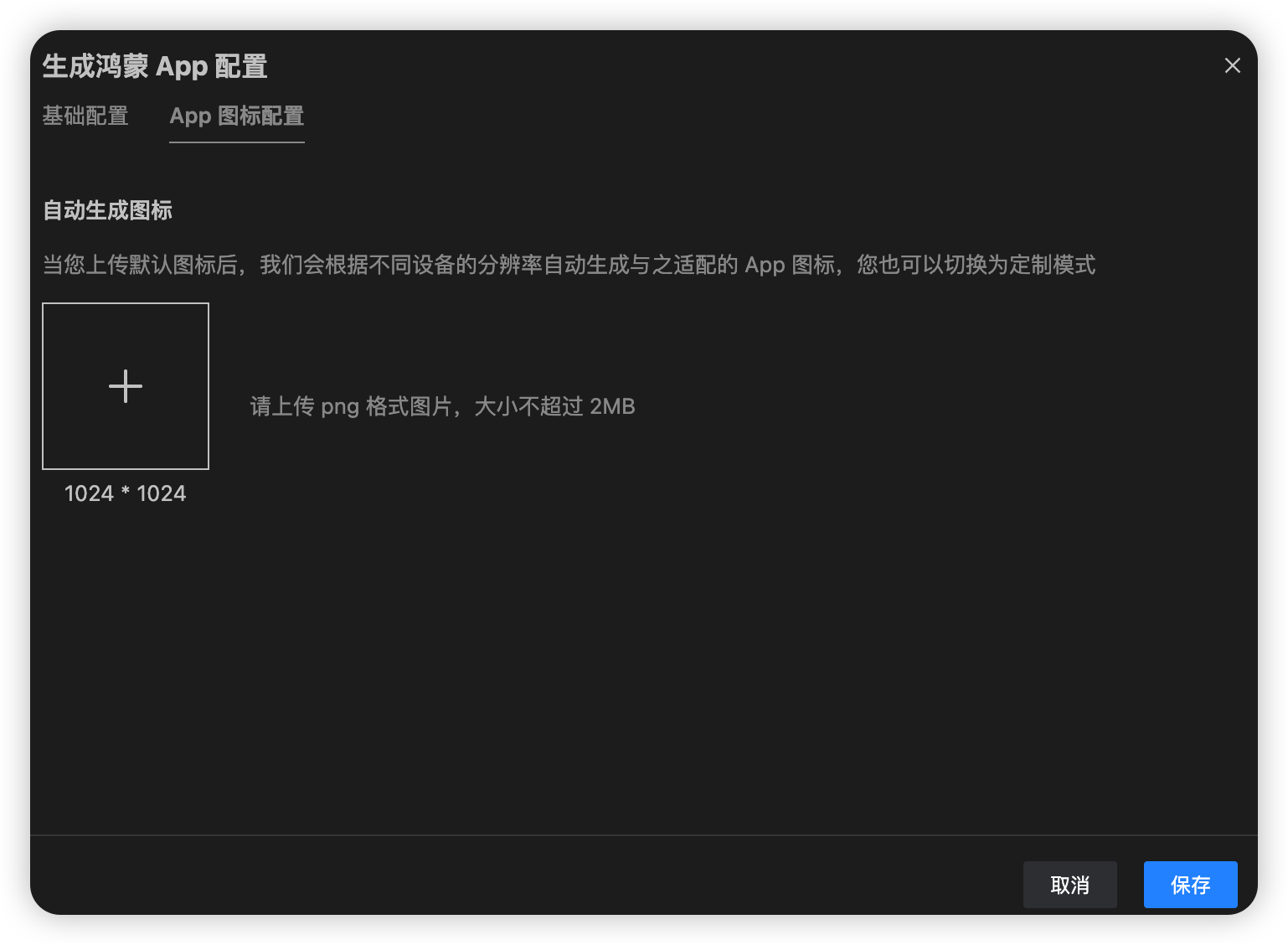
App Icon Configuration: Developers only need to configure one icon image (1024 * 1024, PNG format). The Developer Tools will automatically generate the images required for HarmonyOS device configurations.
# 2.2 Generate HarmonyOS App Package
# 2.2.1 Preparations
Before packaging the App, some preparatory work is required, as detailed below:
- The user needs to have a Mini-Program package for packaging and a FinClip SaaS account. If not, please refer to: Platform Registration.
- Create a Mini-Program on the SaaS platform and upload the Mini-Program via the Developer Tools. Refer to: Create a Mini-Program.
- After uploading the Mini-Program code package, submit the Mini-Program for review and release. Refer to: Mini-Program Review and Release. At this point, you have a released Mini-Program. Remember the AppId of this Mini-Program, as it will be used later.
- Configure the associated application, add a bundleId, and associate the Mini-Program. Refer to Associate Application and bundleId. In the step for associating the Mini-Program, associate the Mini-Program released above. Remember the newly added bundleId, as it will be useful later.
With this, the preparatory work is complete. Next, proceed with HarmonyOS App packaging.
# 2.2.2 Local Compilation (Export Project)
Step 1: Configure Mini-Program Information 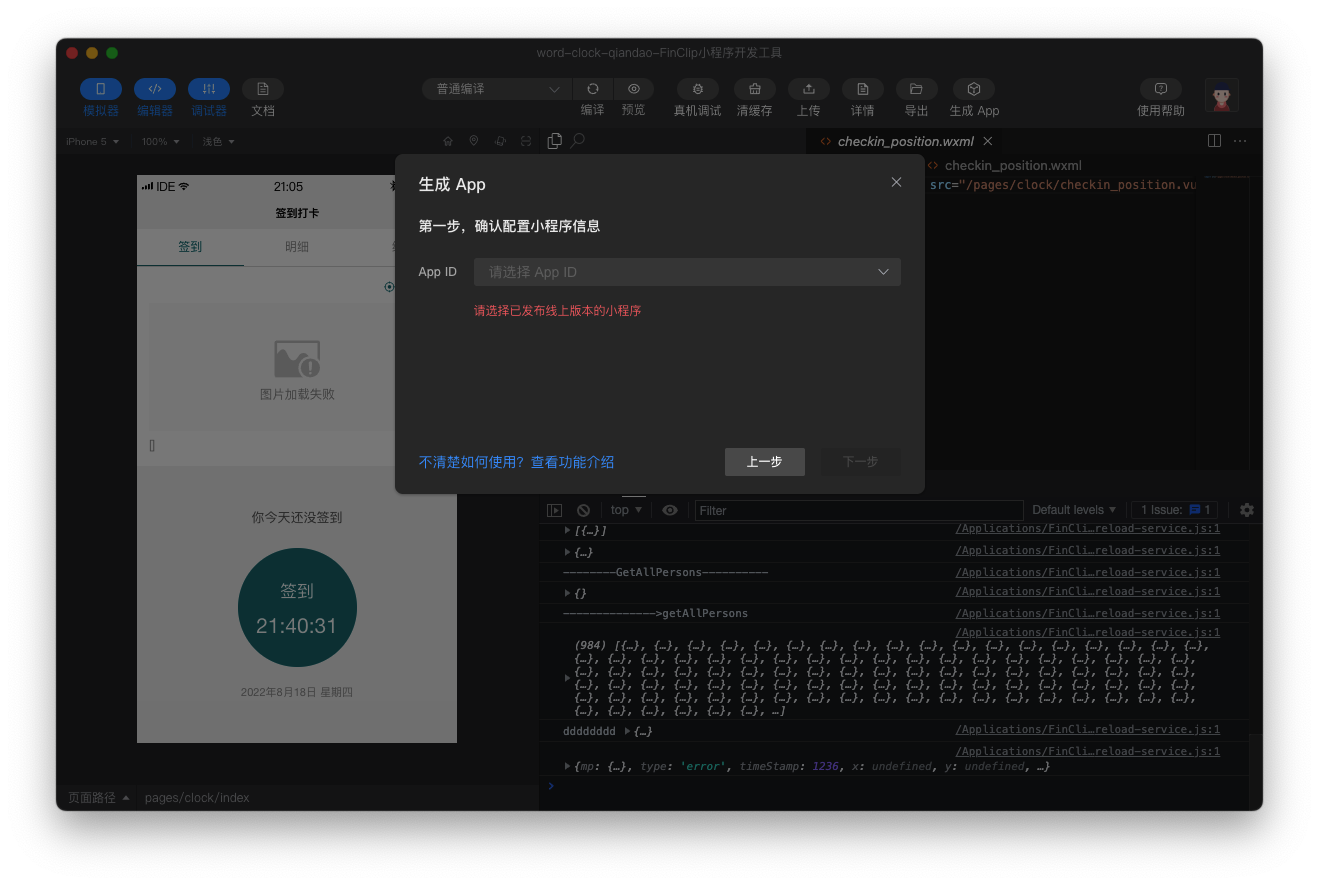
Step 2: Select Associated Application and BundleID 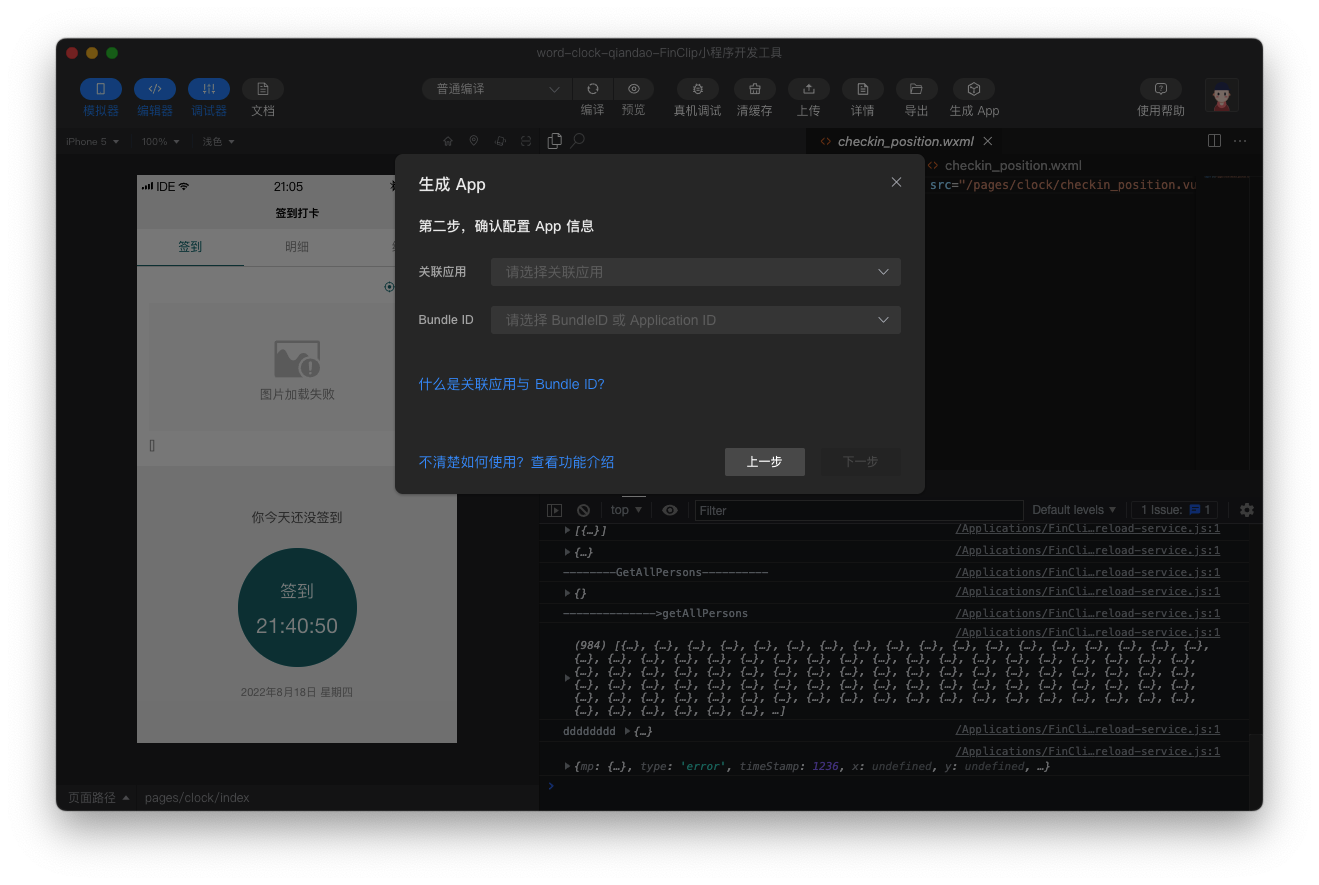
Step 3: Configure Export Directory 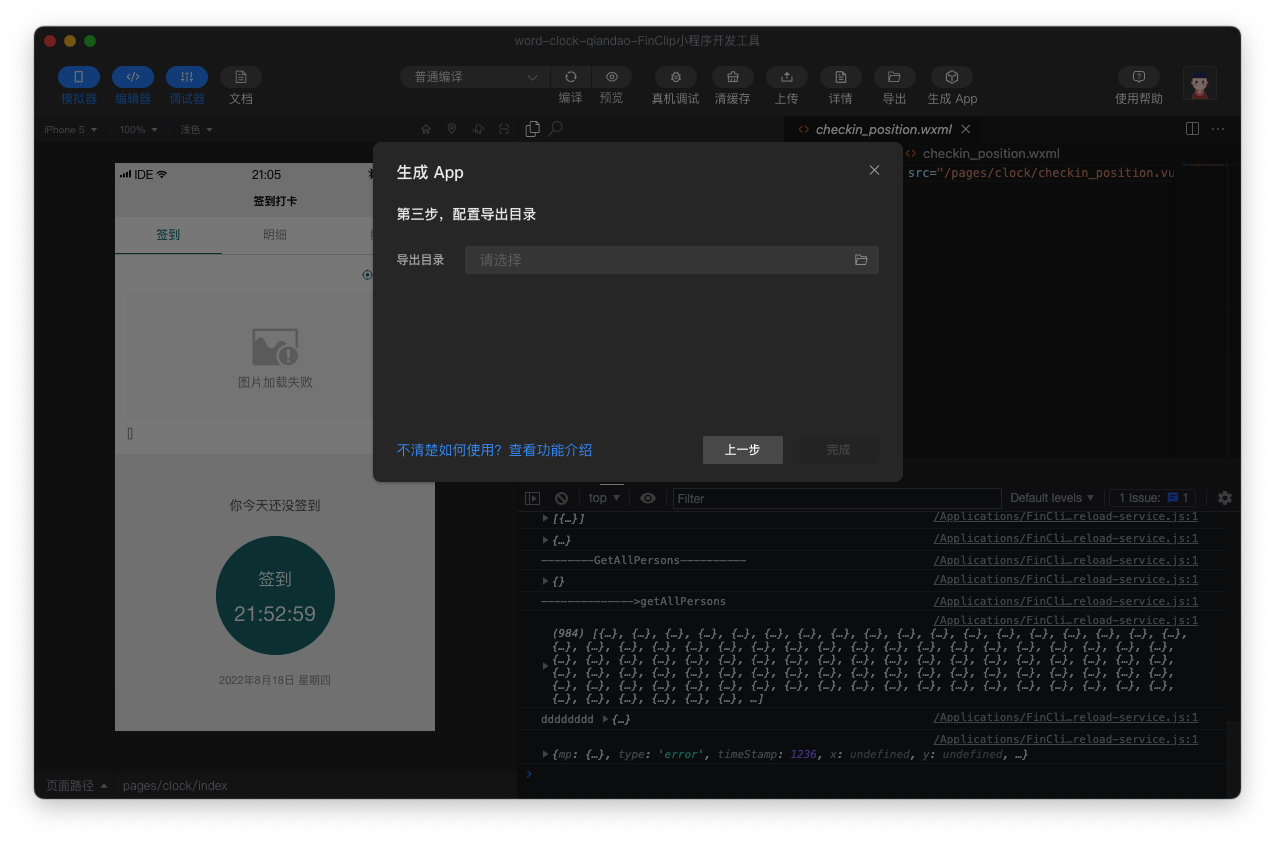
Step 4: Export Successful 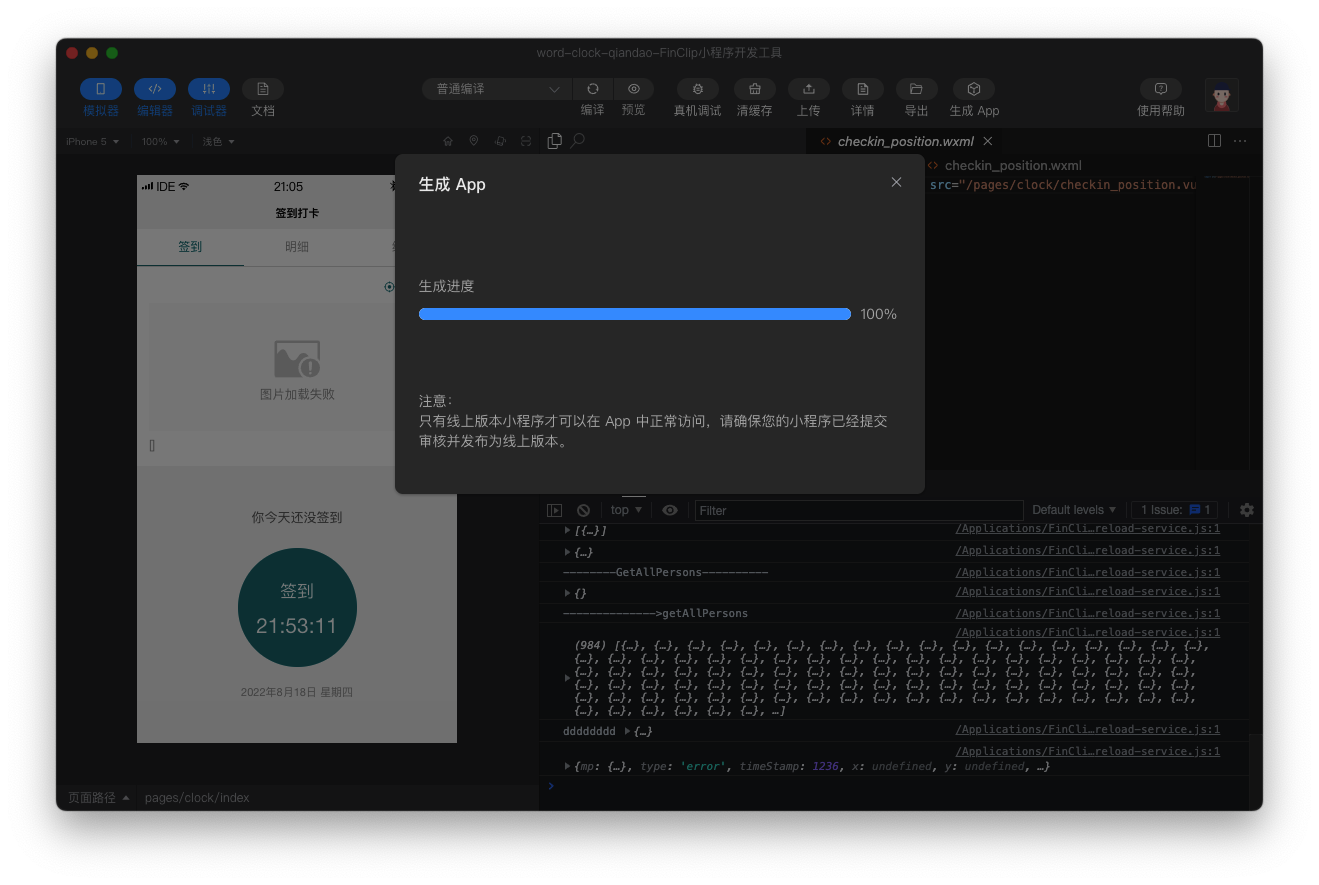
# 2.3 Local Project Configuration
For local project file configuration, please see Local Project File Configuration