
# Local Project File Configuration
# 1. HarmonyOS Project Configuration
# 2.1 Prepare the Project
- Install DevEco Studio, download address: HarmonyOS Developer Official Website (opens new window)
# 2.2 Configure the Project
Open the exported HarmonyOS project using DevEco Studio:
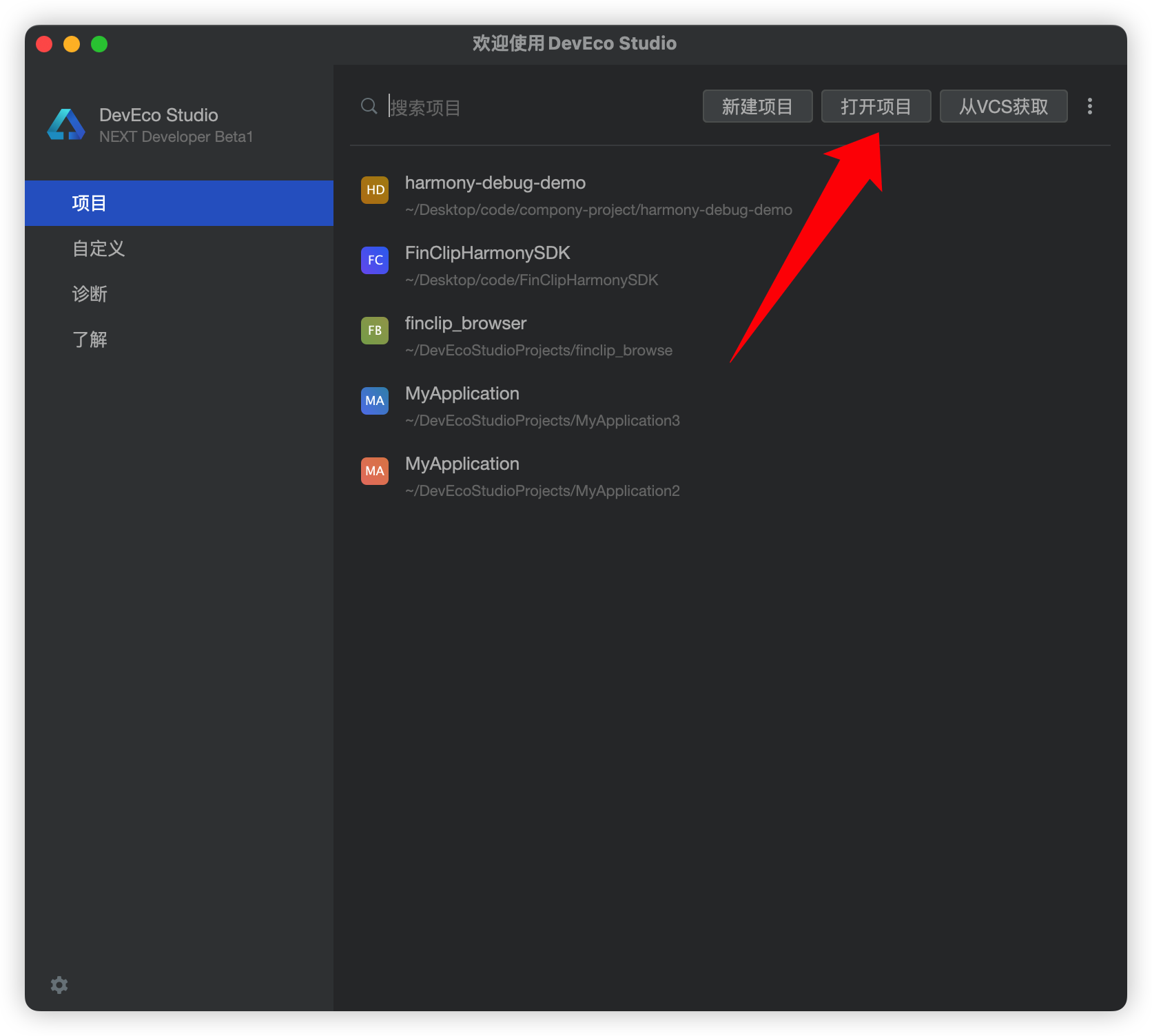
Select the directory where the HarmonyOS App was exported.
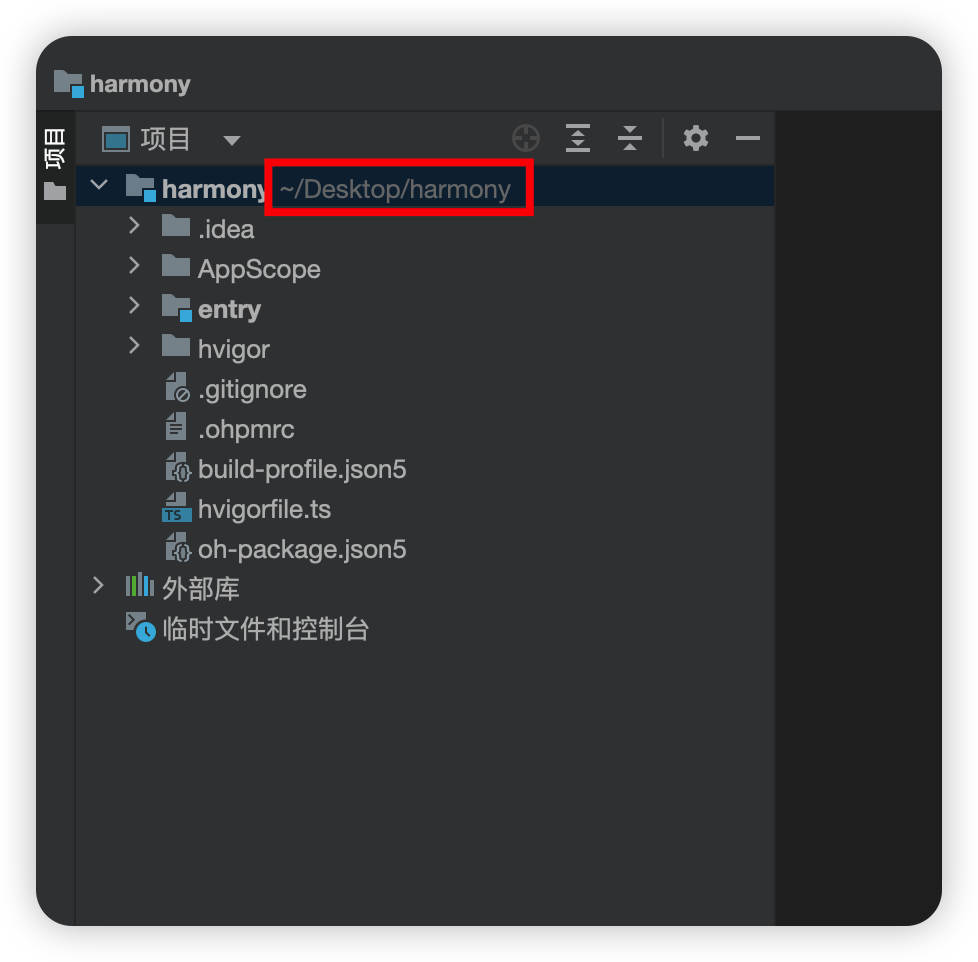
The first time you open the project may take longer, as DevEco Studio needs to automatically download the dependency libraries.
# 2.2.1 AppScope/app.json5
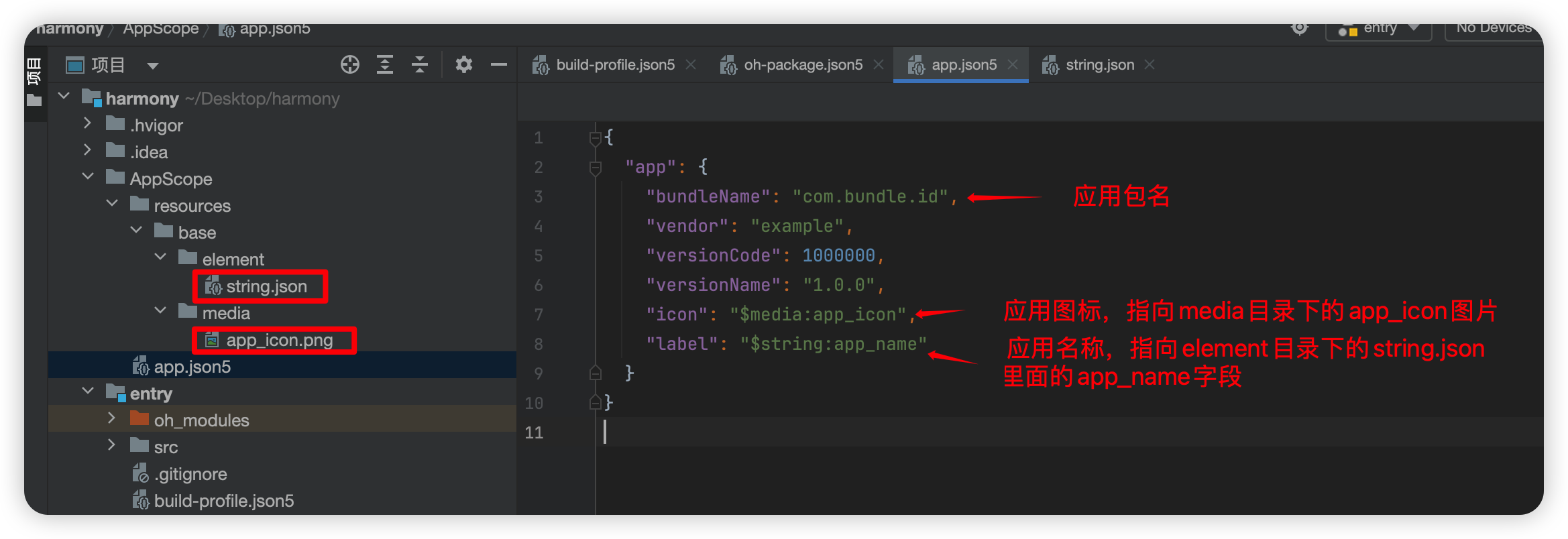
# 2.2.2 entry/src/main/module.json5
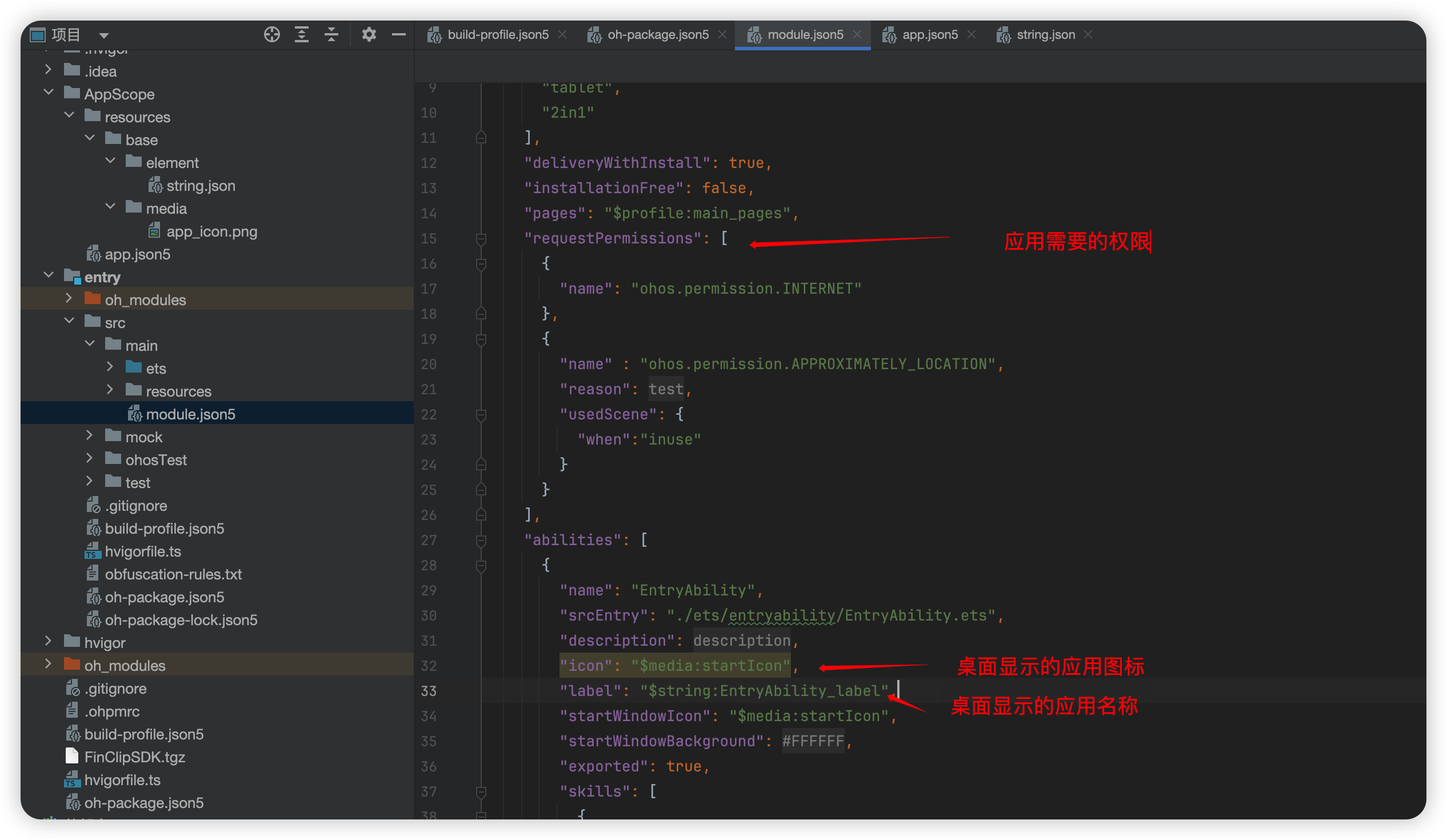
You can view the permissions required by the app declaration, and add or remove them as needed.
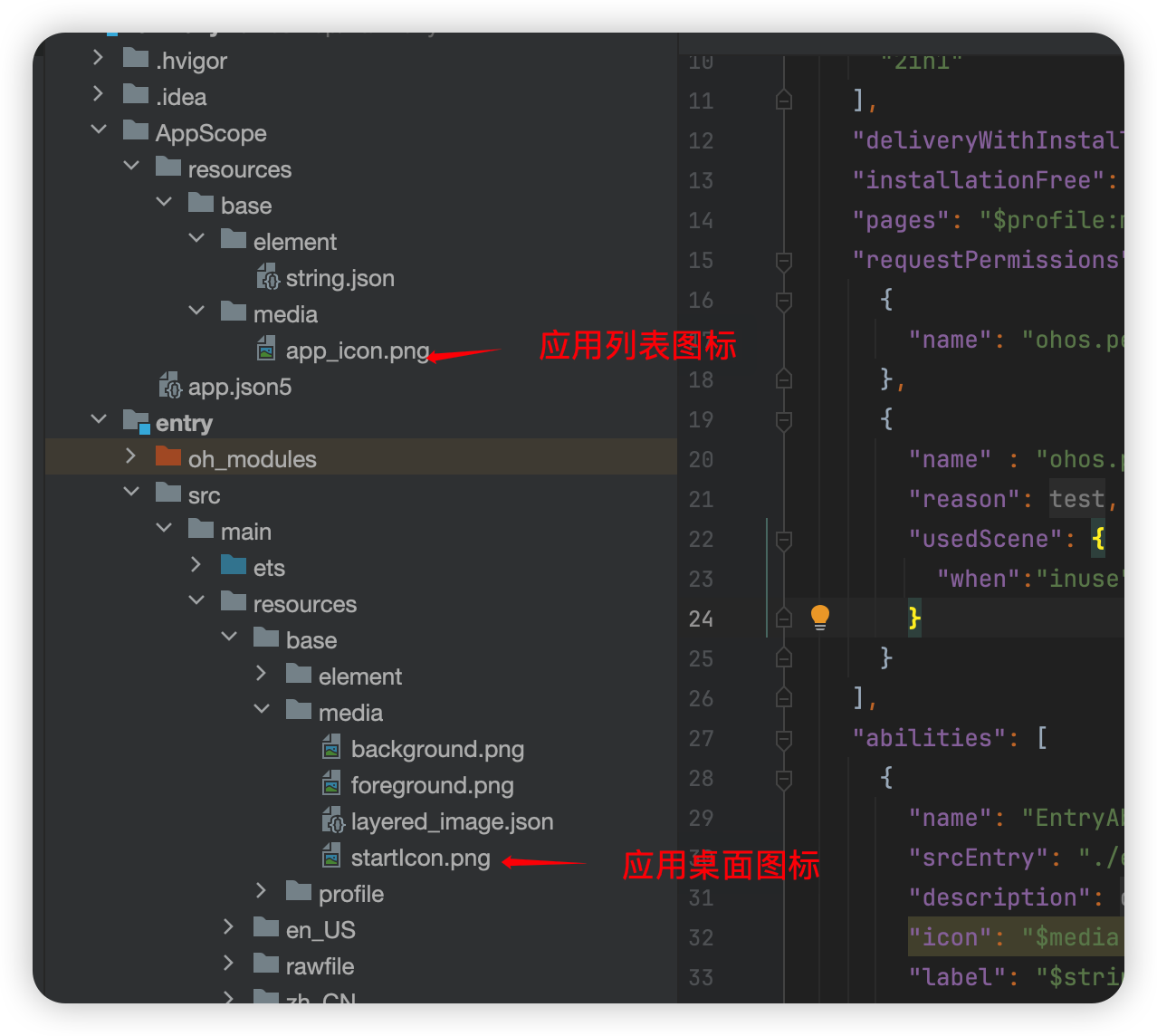
# 2.2.3 Application Icon
Application icon file, replace it as needed.
# 2.3 Run the Project
# 2.3.1 Enable Developer Mode on the Phone
The method to enable developer mode may vary for different phone brands. For most devices, you can enable it by tapping the version number five times in the device details interface.
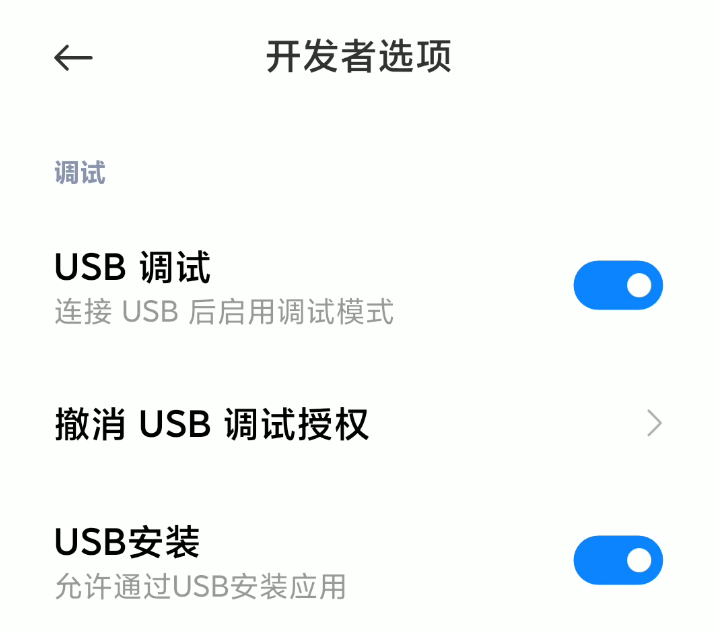
Then go to the developer options interface and enable USB debugging. (If there is a USB installation option, enable that as well.)
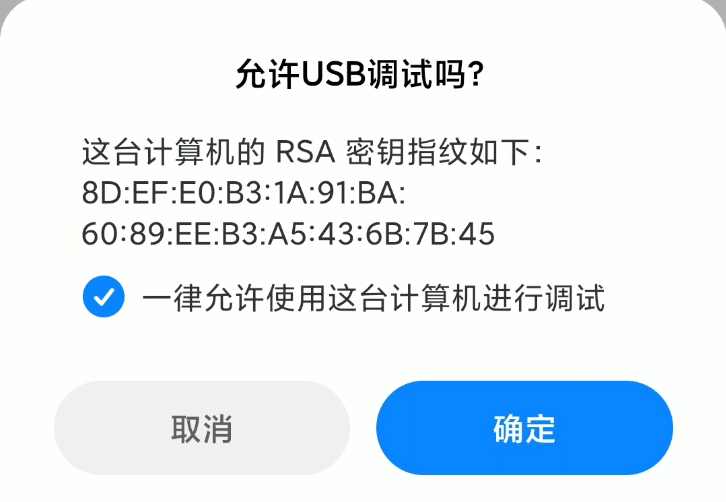
Connect the phone to the computer using a USB cable. A debugging authorization window will pop up on the phone; click Allow.
# 2.3.2 Run the Application
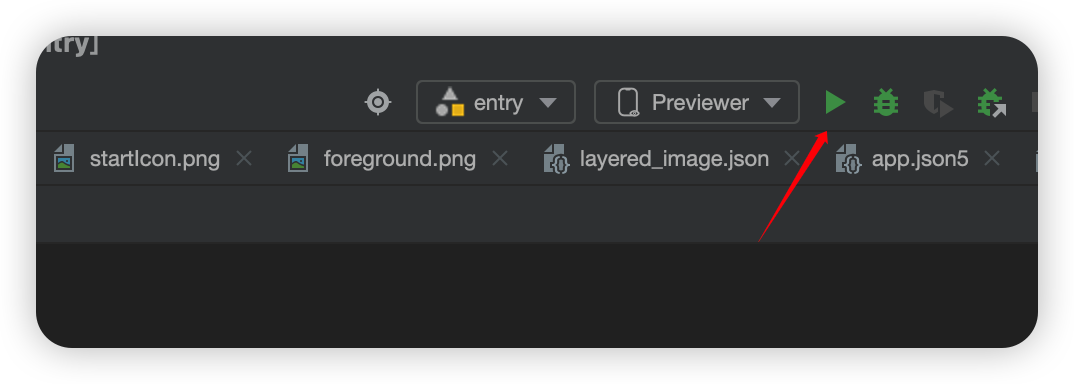
Finally, return to DevEco Studio and click the run icon in the upper right corner to directly run the debug version of the application on the phone.
# 2.4 Publish HarmonyOS Application
You can refer to the HarmonyOS official website documentation Publish HarmonyOS Application (opens new window) to publish the application.