
# HarmonyOS Common Issues
# 1. Common Issues During Integration
# 1.1 When using the system map, the map component and chooseLocation display blank pages.
Answer: Please check the configuration according to the documentation. You can also create a new HarmonyOS project, use the same certificate and configuration to create a map component, and check if it displays correctly.
# 1.2 What information does the SDK collect and what permissions are involved?
Collected information: System type, system version, phone manufacturer, phone model, network information.
Specific permissions used: Refer to the documentation.
# 2. Common Issues During Usage
# 2.1 How to open a native page using a custom API?
Answer: Depending on the scenario, there are different implementations. Below is an example using the Navigation launch method:
- Only opening the native page without needing to receive return parameters:
import { router } from '@kit.ArkUI'
function navigateToAPP(args: IApiManager.IInvokeArgs, apiManager: ApiManager) {
  const params = args.params
  const callback = args.callback
  router.pushUrl({
    url:'CustomApiPage'
  })
  callback.onSuccess({ data: 'navigateToAPP success !!' })
}
- Navigating to a native page and needing to receive return data to pass back to the Mini-Program:
function navigateToAPP(args: IApiManager.IInvokeArgs, apiManager: ApiManager) {
  const params = args.params
  const callback = args.callback
  FinAppClient.getInstance()?.getEntryInfo().routerState?.pushPath({
    name: 'CustomApiPage',
    onPop:(info)=>{
      callback.onSuccess({ data: info.result })
    }
  })
}
# 2.2 How to implement a custom splash screen and inform users of custom privacy agreements in advance?
Answer: You can use a custom loading page, refer to the documentation.
Refer to the following code; specific business logic should be implemented based on actual needs:
import { FinAppProxyHandlerManager, IFinProxyHandlerItem } from '@finclip/sdk'
import { CustomLoadingLayout } from '../customLayout/LoadingLayout'
import { common } from '@kit.AbilityKit'

class CustomLayoutHandler extends IFinProxyHandlerItem.CustomLayoutHandler {
  context:common.UIAbilityContext
  onLoadingLayoutReadyResolve?:()=>void
  agreed:boolean = false

  constructor(context:common.UIAbilityContext) {
    super()
    this.context= context
    this.context.eventHub.on('agree',()=>{
      if( this.onLoadingLayoutReadyResolve){
        this.onLoadingLayoutReadyResolve()
        this.onLoadingLayoutReadyResolve = undefined
      }
      this.agreed = true
    })
  }


  onLoadingLayoutReady(): Promise<void> {
    return new Promise((resolve) => {
      if(this.agreed){
        resolve()
      }else{
        this.onLoadingLayoutReadyResolve = resolve
      }
    })
  }

  getCustomLoadingLayout(): (() => void) | void {
    return CustomLoadingLayout
  }
}

@Builder
export function CustomLoadingLayout() {
  CustomViewComponent()
}

@Component
struct CustomViewComponent {
  context = getContext(this) as common.UIAbilityContext


  aboutToAppear() {
    if(this.getPreferencesFromStorage()){
        this.onAgree()
    }
  }

  // Retrieve cached data from storage
  async getPreferencesFromStorage() {

  }
  // Cache user agreement
  async putPreference() {

  }
  // Get cached data
  async getPreference(){

  }

  onCancel() {
  }

  // Agree to privacy policy
  async onAgree() {
    this.context.eventHub.emit('agree')
    this.putPreference()
  }

  build() {
    Column(){
      Button('Agree').onClick(()=>{this.onAgree()})
      Button('Cancel').onClick(()=>{this.onCancel()})
    }
    .width('100%')
    .height('100%')
  }
}

export function initCustomLayoutHandler(context:common.UIAbilityContext) {
  FinAppProxyHandlerManager.customLayoutHandler = new CustomLayoutHandler(context)
}
# 2.3 APIs like recording do not work?
Answer: Please check if the corresponding permissions are declared and if the certificate includes the required permissions.
# 2.4 Using the Router method to start a Mini-Program, then using router to navigate pages, the Mini-Program cannot be closed after returning.
Answer: Due to the HarmonyOS router mechanism issue, when the page returns, no parameters are carried by default, causing the Mini-Program page logic to fail. You need to add the following code to handle the return event yourself in the custom page:
@Entry
@Component
struct Page {

  onBackPress(): boolean | void {
    const uiRouter = this.getUIContext().getRouter()
    const length = parseInt(uiRouter.getLength())
    const lastPageParams = uiRouter.getStateByIndex(length - 1)
    uiRouter.back(length - 1, lastPageParams?.params)
    return true
  }

  build() {
    // ...
  }
}
# 2.5 How to add a Mini-Program shortcut to the desktop?
Answer: Due to the HarmonyOS system mechanism, this feature cannot be implemented internally by the SDK. The Host-App can refer to the following methods:
- Add a custom more menu button, refer to documentation.
- According to the documentation (opens new window), bind the method to add a shortcut to the desktop for the custom button.
- In the corresponding Ability lifecycle, ensure SDK initialization is done, then call the method to open the Mini-Program based on the passed-in events.
Example code:
// Omitted part of the code
export default class EntryAbility extends UIAbility {
  onCreate(want: Want, launchParam: AbilityConstant.LaunchParam): void {
    // If the app is cold-started, clicking the shortcut will not trigger onNewWant but instead receive want data here. Ensure proper SDK initialization before calling the method to open the Mini-Program.
  }

  onNewWant(want: Want, launchParam: AbilityConstant.LaunchParam): void {
    const shortCutKey = want.parameters?.shortCutKey as string
    if (shortCutKey === 'startApplet') {
      this.startApplet(want);
    }
  }

  startApplet(want: Want) {
    const appId = want.parameters?.appId as string
    const apiServer = want.parameters?.apiServer as string

    if (appId && apiServer) {
      FinAppClient.getInstance()?.startApplet({
        appId,
        apiServer
      })
    }
  }
}
# 2.6 Does it support real device debugging? How should it be used?
Answer: Real device debugging is supported in version 1.3.5 of the SDK. You can refer to the documentation, generate a real device debugging QR code for Android systems, and call the API to scan and open the Mini-Program. Note that at least API20 version is required to enable real device debugging. If the API version is below 20, it will be treated as a regular preview Mini-Program.
# 2.7 After introducing the sharing SDK or implementing the sharing delegate, the sharing panel does not appear.
Answer: Since the sharing panel is hidden by default, after introducing the sharing SDK, you need to configure the hideShareAppletMenu parameter in UIConfig to false to display the sharing panel.
# 2.8 Incorrect keyboard push position or cursor position when focusing on the input box.
Answer: The input box on the HarmonyOS side uses the same-layer rendering, and the SDK internally adapts to immersive layout. In some scenarios, issues such as incorrect keyboard push position or cursor position may occur. This issue has been communicated with HarmonyOS, and they confirmed it's by design. It is recommended that the Host-App use setWindowLayoutFullScreen() (opens new window) to enable immersive layout as a workaround.
# 2.9 Mini-Program page content does not avoid the bottom navigation bar.
Answer: Since the Mini-Program SDK overall adapts to immersive layout, if the Mini-Program or WebView H5 content (such as custom TabBar) wants to avoid the bottom navigation bar, style adaptation can be added to the corresponding container.
.page {
  padding-bottom: env(safe-area-inset-bottom);
}
# 2.10 How to internationalize the SDK?
Answer: The SDK already supports internationalization, currently supporting Chinese and English. If the SDK needs to support other languages, it can be achieved through the following methods:
- Locate all English resource files of the core SDK
@finclip/sdk-corein the project as shown in the figure:
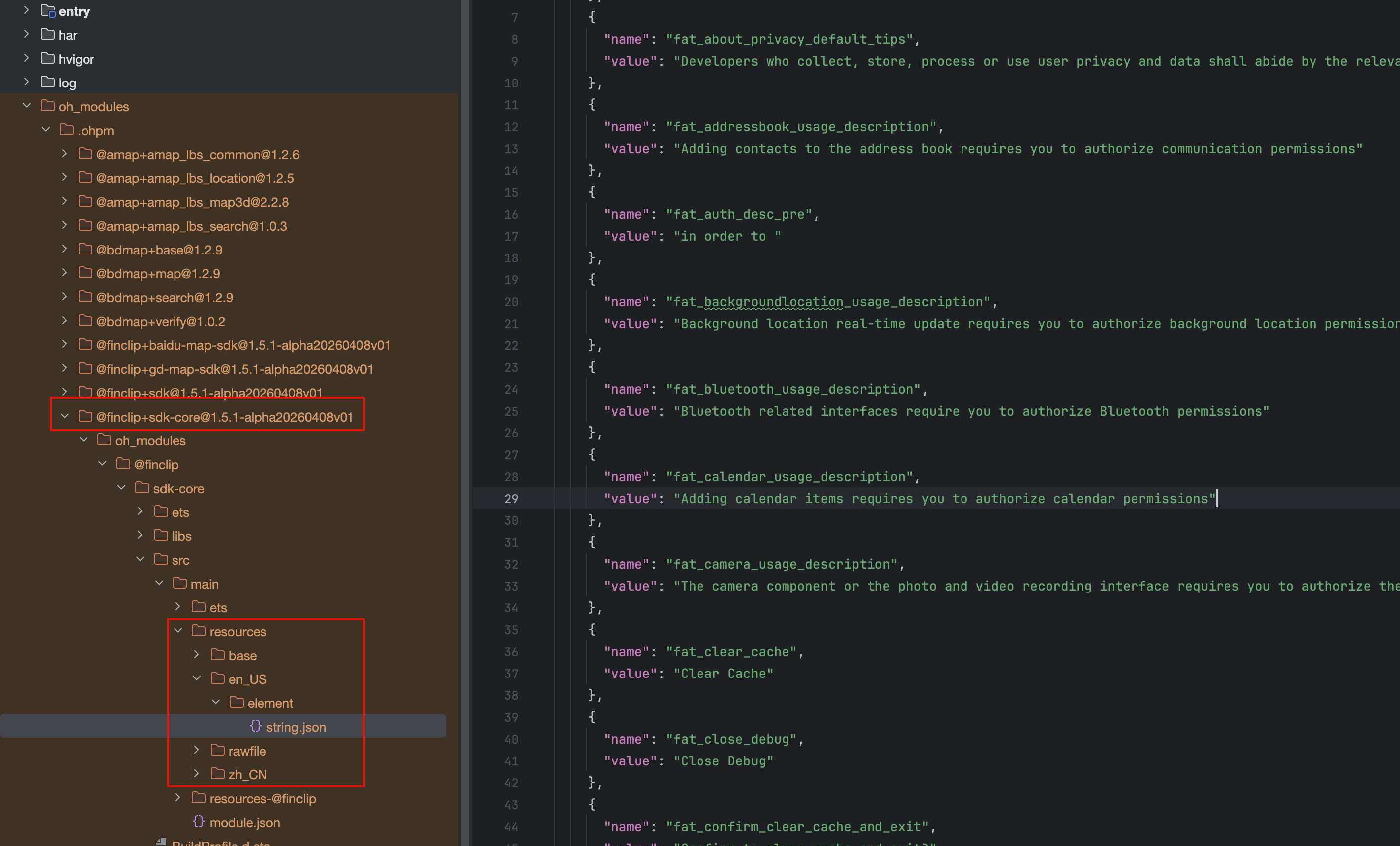
Declare the keys that need to be replaced in the corresponding resource file in the host project to override them.
If you need to extend to other languages, copy a resource file, modify the corresponding language, and place the file in the corresponding language directory. Then specify the language during initialization through the
localeparameter inIFinAppConfig.localecan refer to the official documentation (opens new window).
# 3. Debugging
# 3.1 How to debug a Mini-Program?
- When initializing the SDK in the application, set the
enableWebviewDebugparameter in the initialization configuration itemIFinAppConfigtotrue. - Enable debugging according to the documentation (opens new window).
- Then, in the browser debugging page, select the list of Mini-Program opened pages, select the currently opened page, and you can review page elements, view network calls, and some log logs.
# 3.2 How to enable vConsole?
If you need to debug the Mini-Program, there are multiple ways to enable vConsole to see the logs in the Mini-Program.
Three ways to enable vConsole:
- When initializing the SDK in the application, set the
appletDebugModeparameter in the initialization configuration itemIFinAppConfigtoenable. - For non-release versions of the Mini-Program and when the
appletDebugModeparameter is the default value, enable vConsole debugging from the "Open Debugging" menu item in the more panel. - Inside the Mini-Program, you can call the Mini-Program API (
ft.setEnableDebug) to enable vConsole.
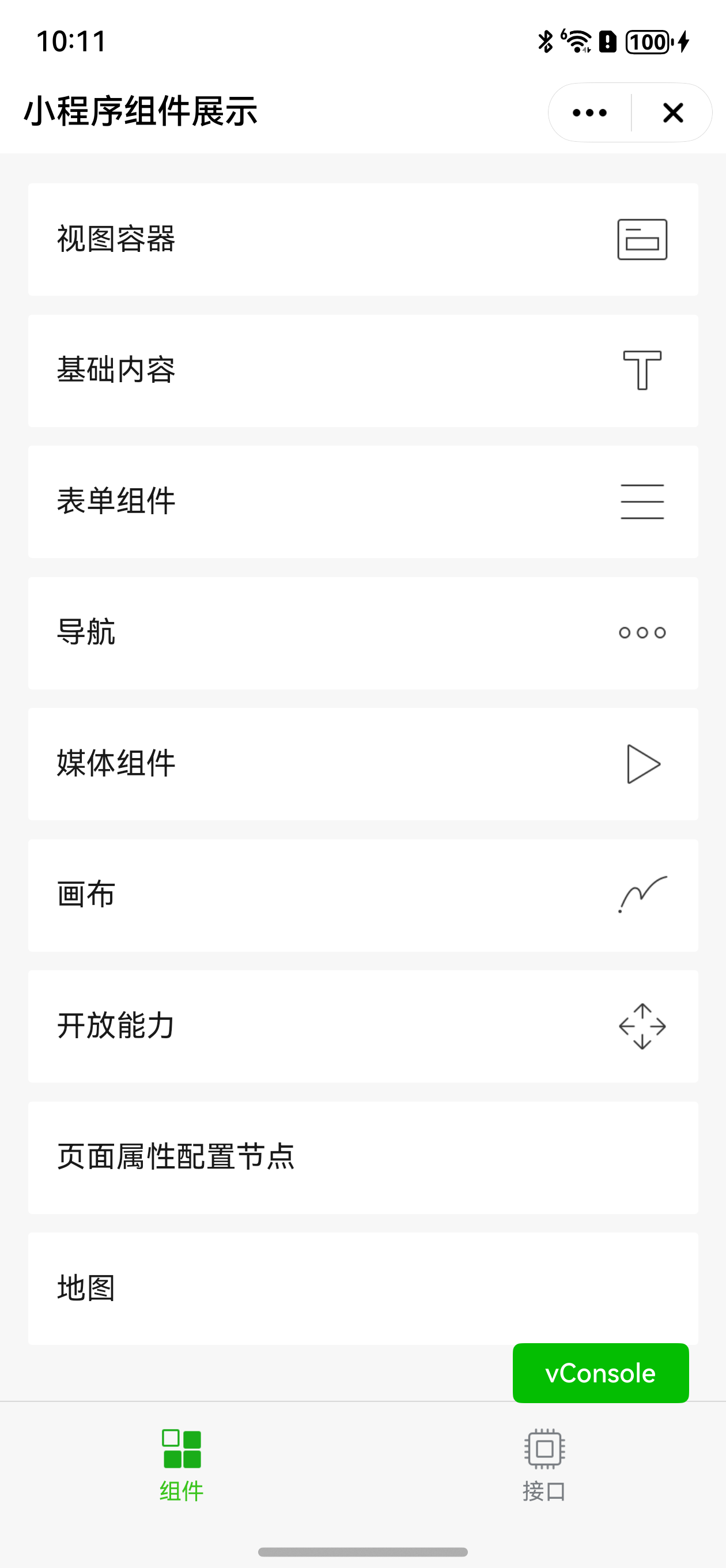
The effect after enabling vConsole is shown in the figure below:
The role of each enumeration value of appletDebugMode:
| appletDebugMode | Description |
|---|---|
| default | Default value, final effect consistent with WeChat's vConsole control. Non-release versions will show the "Open Debugging" button in the more menu. |
| enable | Force all Mini-Programs (all versions) to enable vconsole, and cannot be turned off via setEnableDebug or the debugging menu in the more menu. |
| forbidden | Force all Mini-Programs (all versions) to disable vconsole, and cannot be turned on via setEnableDebug or the debugging menu in the more menu. |
| forbiddenRelease | Force all release versions of Mini-Programs to disable vconsole, other versions behave the same as 'default'. |
Note
- The Mini-Program's debug mode is stored persistently, meaning that after calling
ft.setEnableDebugto enable vConsole, the next time you open the same Mini-Program, vConsole will also be enabled. - The debug mode of the same Mini-Program remains consistent, meaning that if the experience version calls
ft.setEnableDebugto enable vConsole, opening the same Mini-Program ID's release version will also enable vConsole. - If
appletDebugModeis set to'enable'or'forbidden', theft.setEnableDebuginterface will not take effect.
Finally, it is recommended to set config.appletDebugMode to enable during app development; then change it to default when submitting the app for review.
Because setting it to default, the release version of the Mini-Program will not show the "Open Debugging" and "Close Debugging" buttons, but vconsole can still be enabled via the API (ft.setEnableDebug).
Non-release versions of the Mini-Program can enable vconsole via "Open Debugging" and ft.setEnableDebug.
# 3.3 How to check the Harmony SDK version number and Base Library version number?
Answer: There are multiple ways: from the Mini-Program vConsole, from the application's oh-package.json5 file, from the oh-package.json5 file inside the integrated har, and from the application itself.
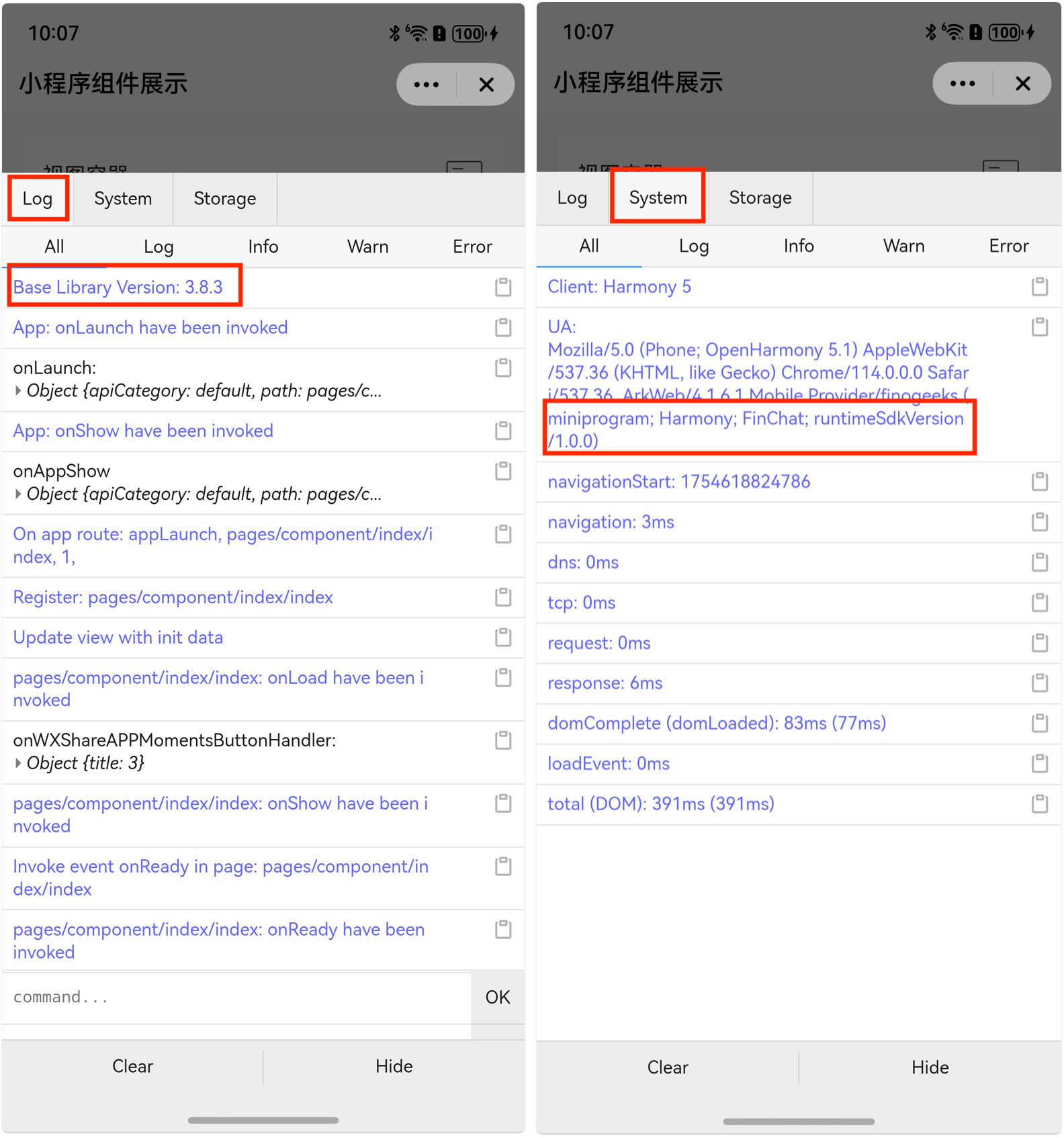
- If the Mini-Program has vConsole enabled, you can see the SDK version number and Base Library version number from vConsole. After opening vConsole, the first few lines of the Log tab show the Base Library version number; the userAgent in the System tab shows the SDK version number.
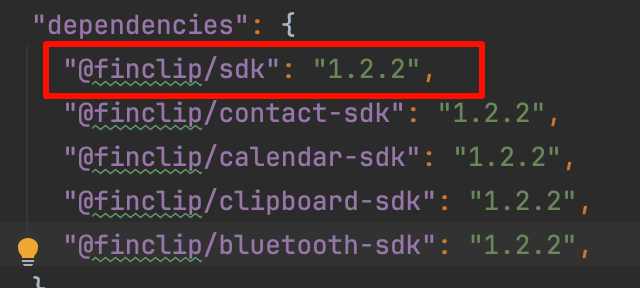
- Check the SDK version number from the application's oh-package.json5 file.
- Check the SDK version number from the oh-package.json5 file inside the integrated har.
If manually integrating har, open the FinClipSDK.har file inside the har, find the oh-package.json5 file.
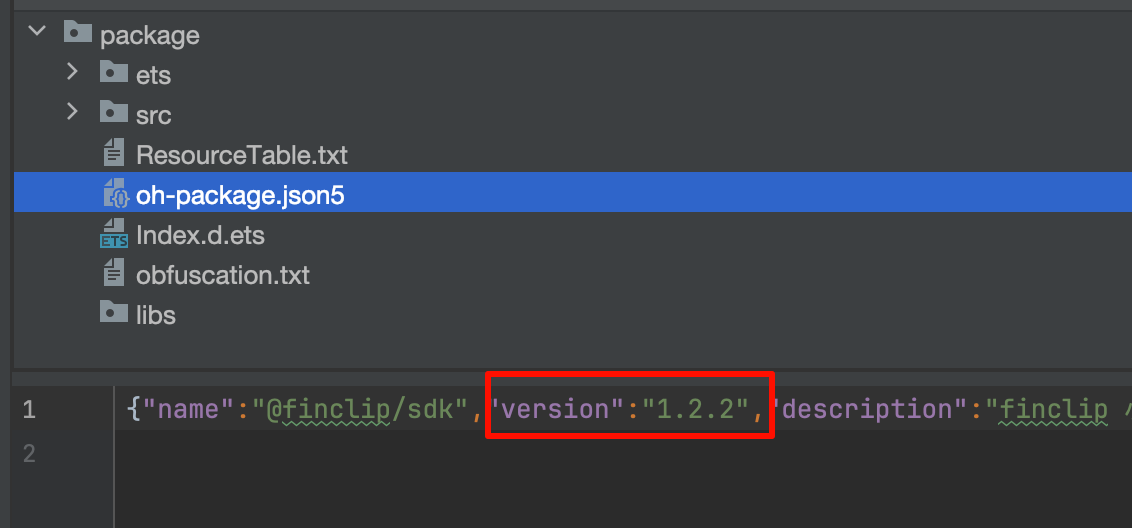
- You can get the SDK version number from the application through the following code:
import { FinAppClient } from '@finclip/sdk'
FinAppClient.getSDKVersion()
# 4. Adaptation
# 4.1 How to adapt for HarmonyOS PC?
Answer: No additional handling is needed. It is recommended to use the Ability method to start, allowing the Mini-Program to run in an independent window. Since on the PC side, the capsule button position will have two additional maximize and minimize buttons, the capsuleWidth in uiConfig.capsuleConfig will default to *2. For example, if capsuleWidth is set to 88, it will display two buttons' width on mobile and PAD, while on PC, no changes are needed, the SDK will use 88 * 2 width to display four buttons.
# 4.2 How to adjust the Mini-Program window size on HarmonyOS PC?
Answer: If the Ability method is not used to start, due to system mechanism issues, it is impossible to control only the Mini-Program without affecting the Host-App. If using the Ability method to start, you can get the window object in the corresponding Ability's onWindowStageCreate. Refer to the table below for adjustments; for specifics, refer to the documentation (opens new window).
| Function | Method of window object |
|---|---|
| Set window aspect ratio | setAspectRatio |
| Hide default navigation bar | setWindowDecorVisible |
| Hide control buttons | setWindowTitleButtonVisible |
| Disable drag resizing | setResizeByDragEnabled |
# 4.3 Is OpenHarmony compatible? What adaptations are needed?
Answer: HarmonyOS is developed based on OpenHarmony, with additional services provided by Huawei, such as map services, location services, etc. Currently, our SDK is developed based on HarmonyOS and cannot be used directly. If you wish to run Mini-Programs on OpenHarmony devices, please contact our staff. We can provide an SDK that removes dependencies on Huawei services (corresponding functions will be unavailable). We have tested running on standard OpenHarmony versions above 5.0 (recommended above 5.1), but due to differences in device hardware and possible customized modifications to the OpenHarmony system, hardware joint debugging may be involved.