
# Host-App
Feature Background
The Host-App (formerly: Application Management) allows you to associate specified Mini-Programs with applications, completing the management operations of linking Mini-Programs to applications and applications to BundleIDs. Through the application management function, you can prevent unauthorized apps from opening Mini-Program applications that belong to you.
# 1. Feature Description
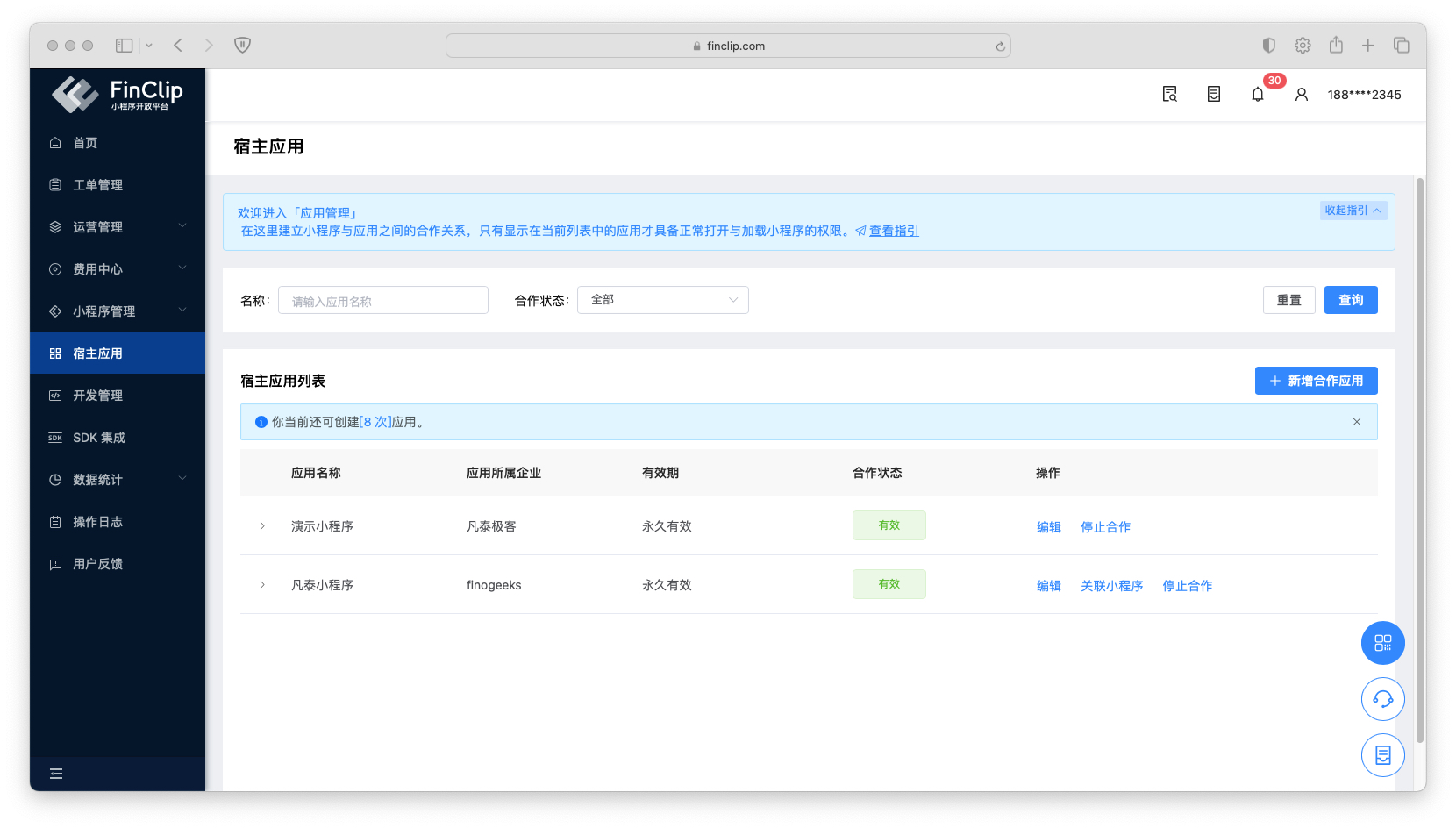 FinClip Mini-Programs can be used within applications that have integrated the FinClip Mini-Program SDK. However, for security and permission control purposes, it is necessary to perform an association operation between the Mini-Program and the application.
Please Note
The SDK KEY and SDK SECRET obtained after associating a Mini-Program with an Application need to be configured during the SDK integration process to ensure proper validation and initialization of the Mini-Program environment. Incorrect entries will cause SDK initialization to fail, preventing the Mini-Program from opening.
# 2. Usage Instructions
You can refer to the following steps to complete the relevant operations.
# 2.1 Create a New Application
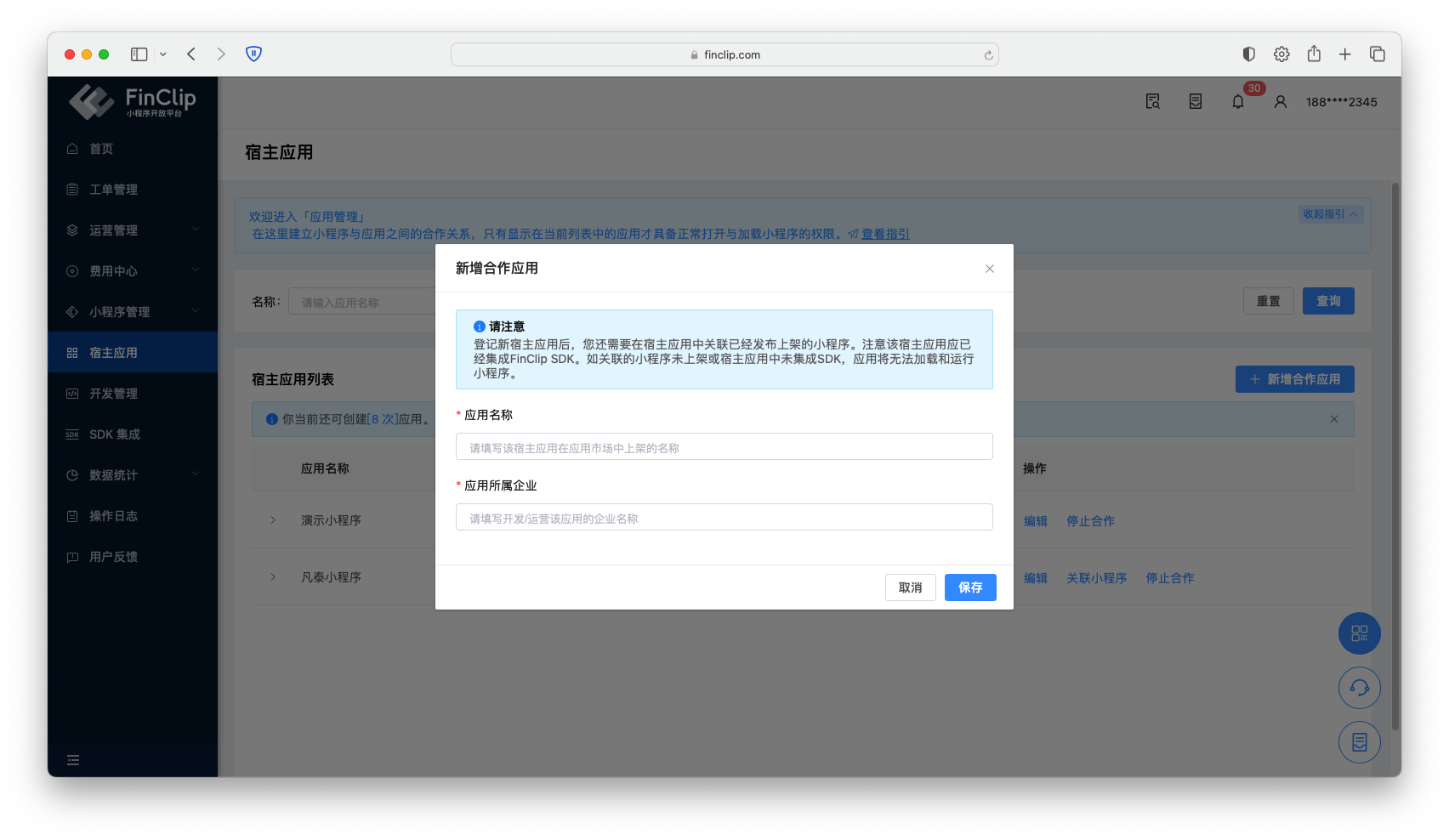
Navigate to the 「Host-App」 page, click the 「Create Partner Application」 button on the right, and fill in the corresponding application name and the enterprise information the application belongs to. Specifically:
- Application Name: Used to label the name of the application to be created, avoiding discrepancies when adding BundleIDs later.
- Enterprise Owning the Application: Used to label the enterprise to which the new application belongs, serving as a mnemonic for subsequent usage management.
# 2.2 Configure BundleID
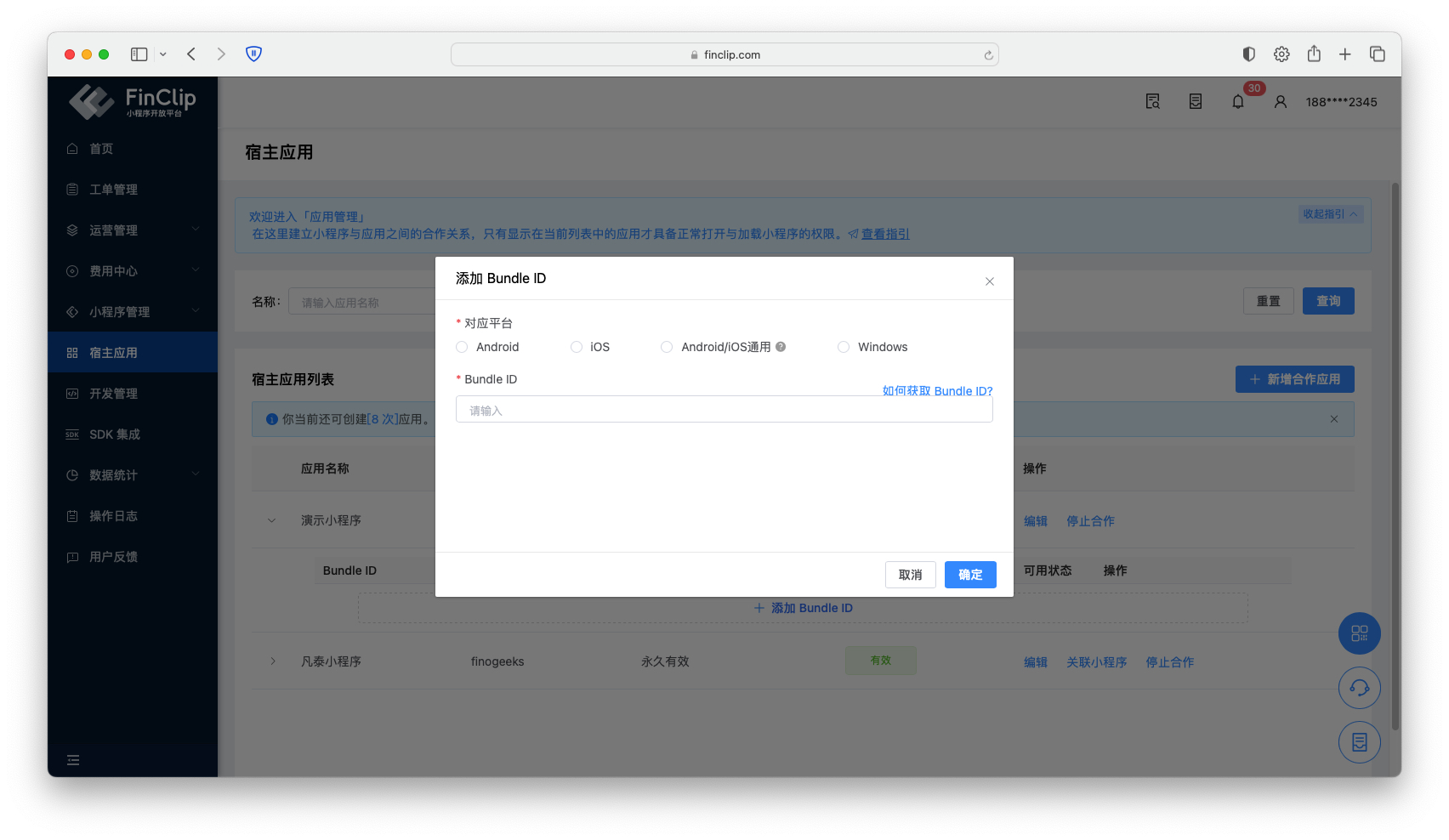
After adding the application, you can expand the application name and click 「Add BundleID」 in the list below. In the pop-up window that appears, enter the BundleID that needs to be bound to the application. If you are unsure how to obtain the BundleID, please click here.
Please Note
During SDK initialization, the BundleID of the current application is verified for consistency. Please ensure the BundleID you enter matches the actual one.
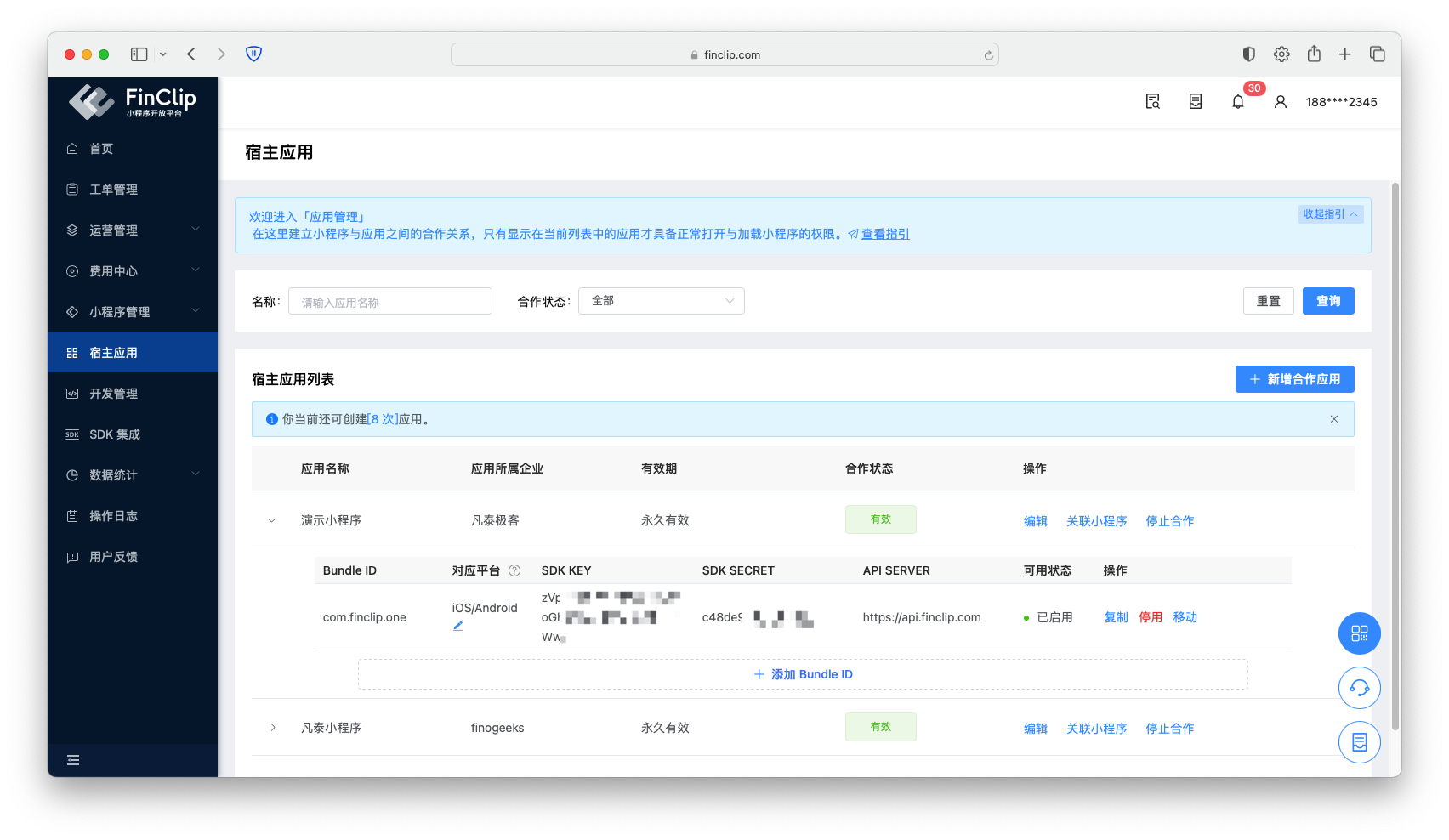
After completing the BundleID entry and clicking the OK button, you will see an interface as shown above. The SDK KEY, SDK SECRET, and API SERVER displayed are the credentials you will need when integrating the Mini-Program SDK.
# 2.3 Associate Mini-Program
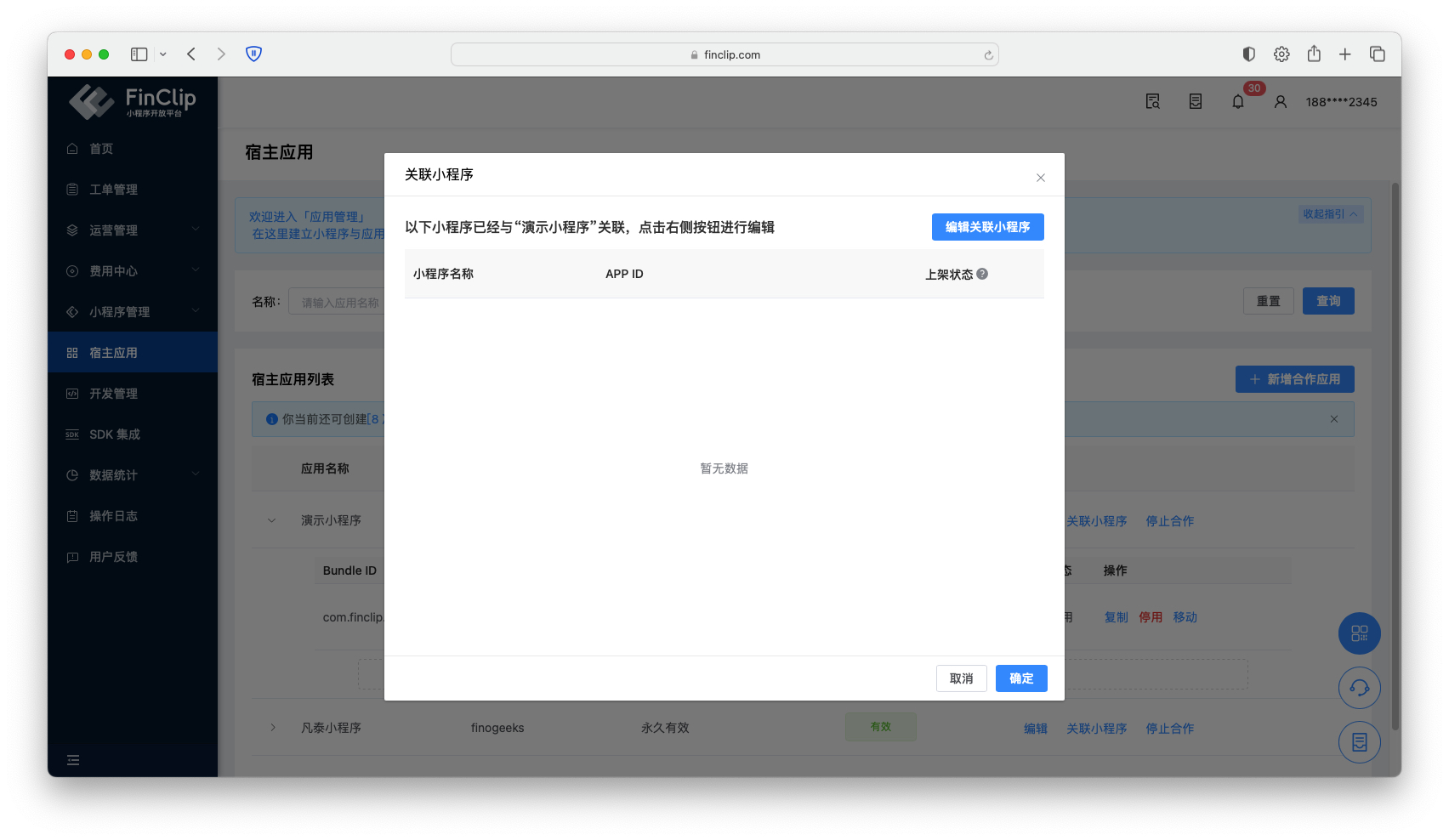
After completing the binding of the application and BundleID, you need to bind the already published Mini-Program to the application. Once this operation is complete, the Mini-Program can be opened within the associated application.
Click the 「Associate Mini-Program」 button to the right of the application name, then click the 「Edit Associated Mini-Programs」 button.
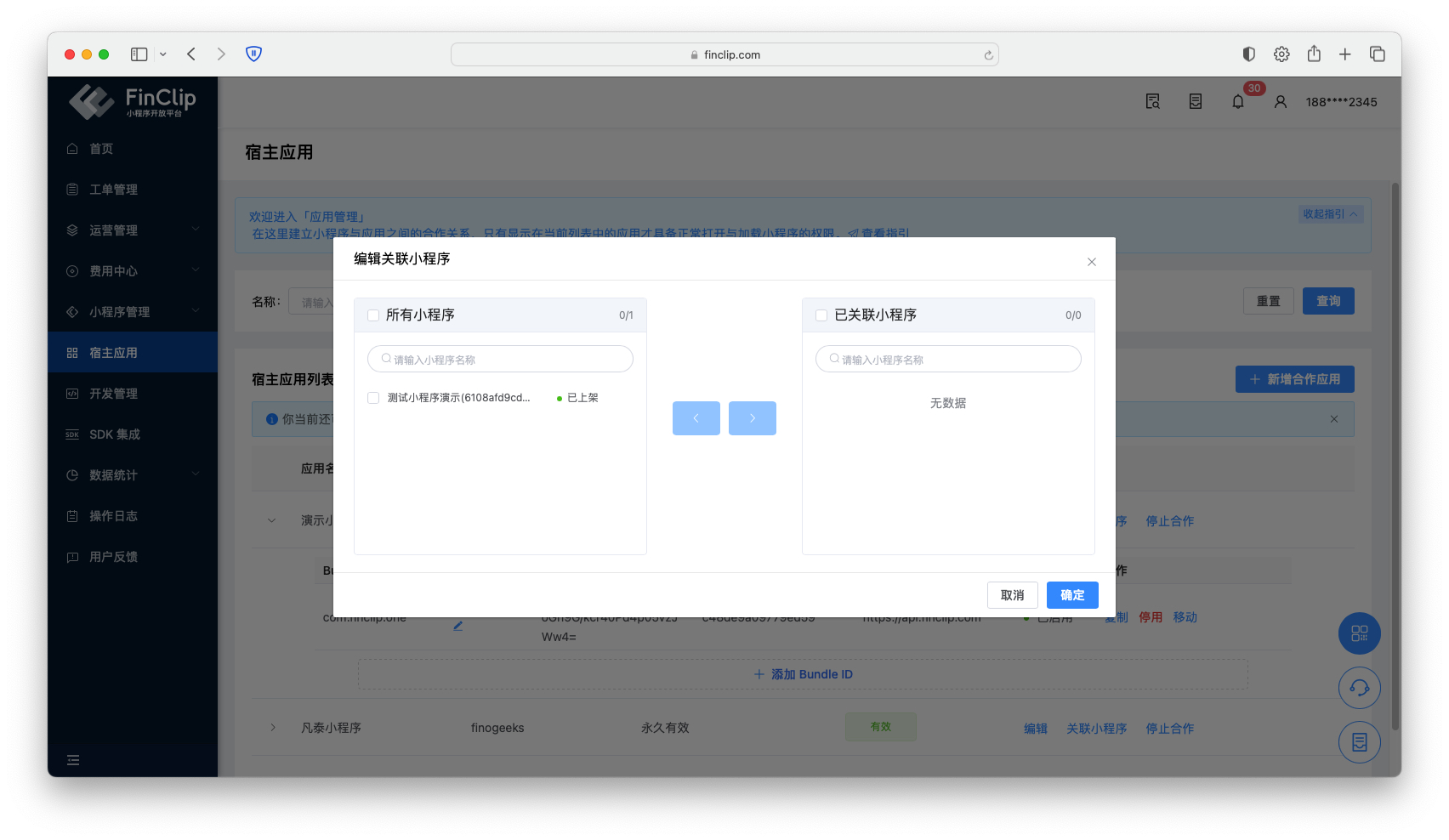
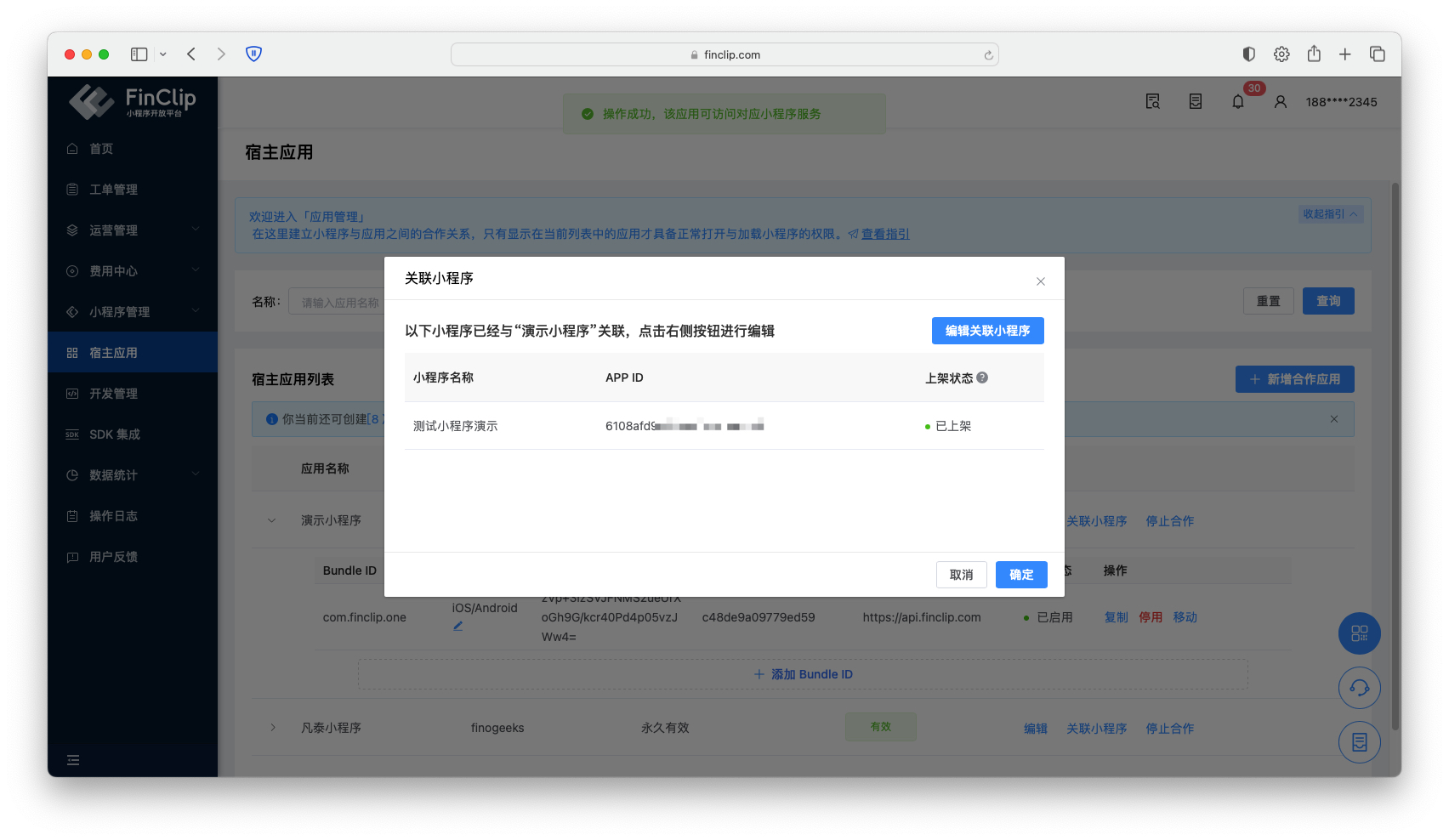
In the newly opened pop-up window, select the corresponding Mini-Program from the list on the left, click the ">" button in the middle to move it to the list of associated Mini-Programs on the right, and click OK to complete the Mini-Program association operation (the interface after successful association is shown above).
# 2.5 Disable Mini-Program or Application
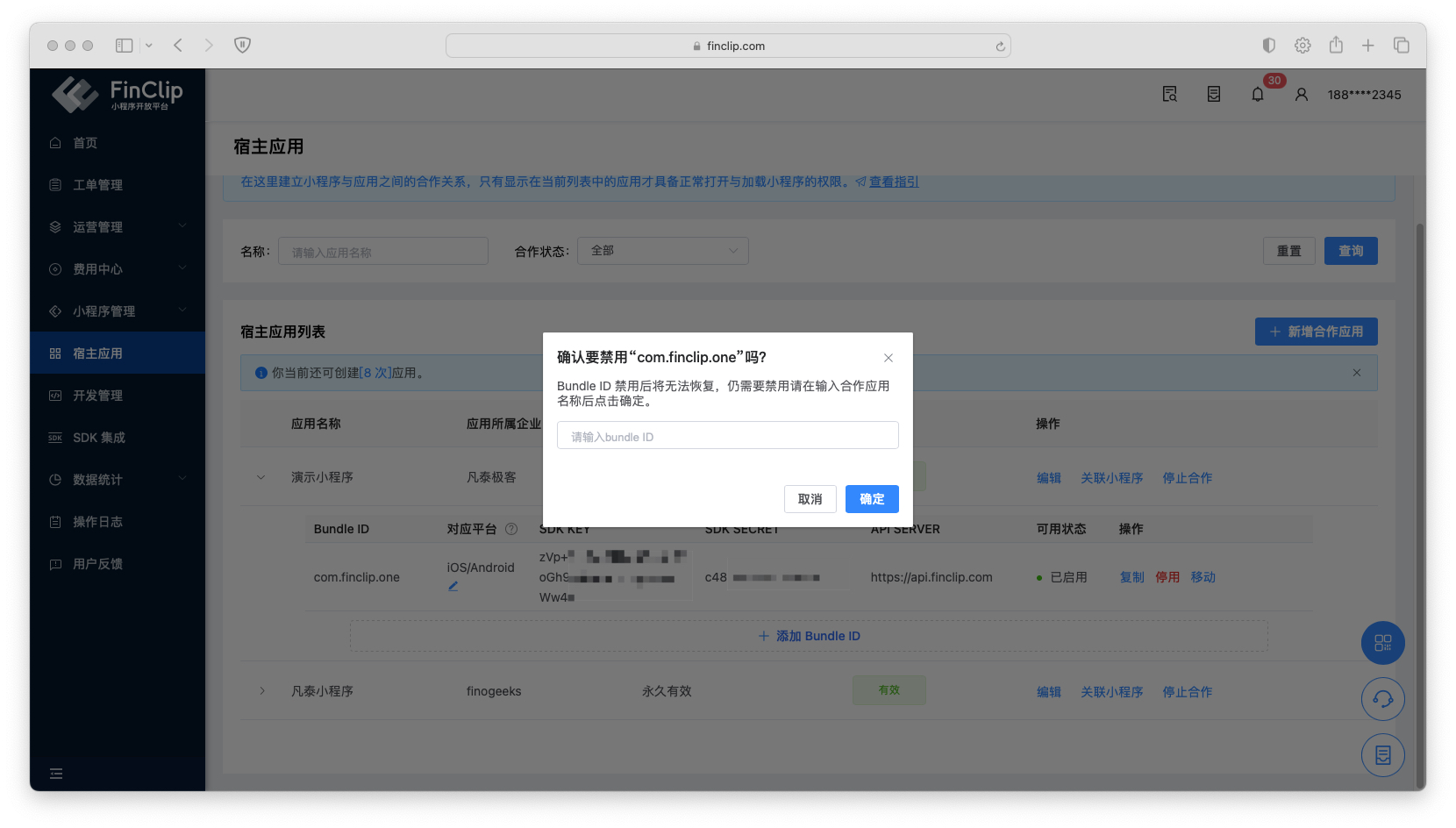
If you wish to stop a specific Mini-Program from running in the application, you can deselect the corresponding Mini-Program in the 「Associate Mini-Program」 pop-up window. If you wish to disable the ability to run Mini-Programs in a particular application altogether, you can also click the 「Disable」 or 「Stop Partnership」 button at the end.
# 3. Feature and Environment Comparison
The current feature may have differences and limitations across different environments. Please refer to the table below for specifics. To learn more about the differences and introductions between versions, you can click here (opens new window).
| Feature / Environment | Community Edition | SaaS Environment | Enterprise Edition (Annual Subscription or One-time Purchase) |
|---|---|---|---|
| Application Management | ✅ | ✅ | ✅ |