
# Setting Loading Page UI
# 1. Effect Demonstration
The FinClip Mini-Program SDK supports personalized configuration of loading pages and error pages. Specifically:
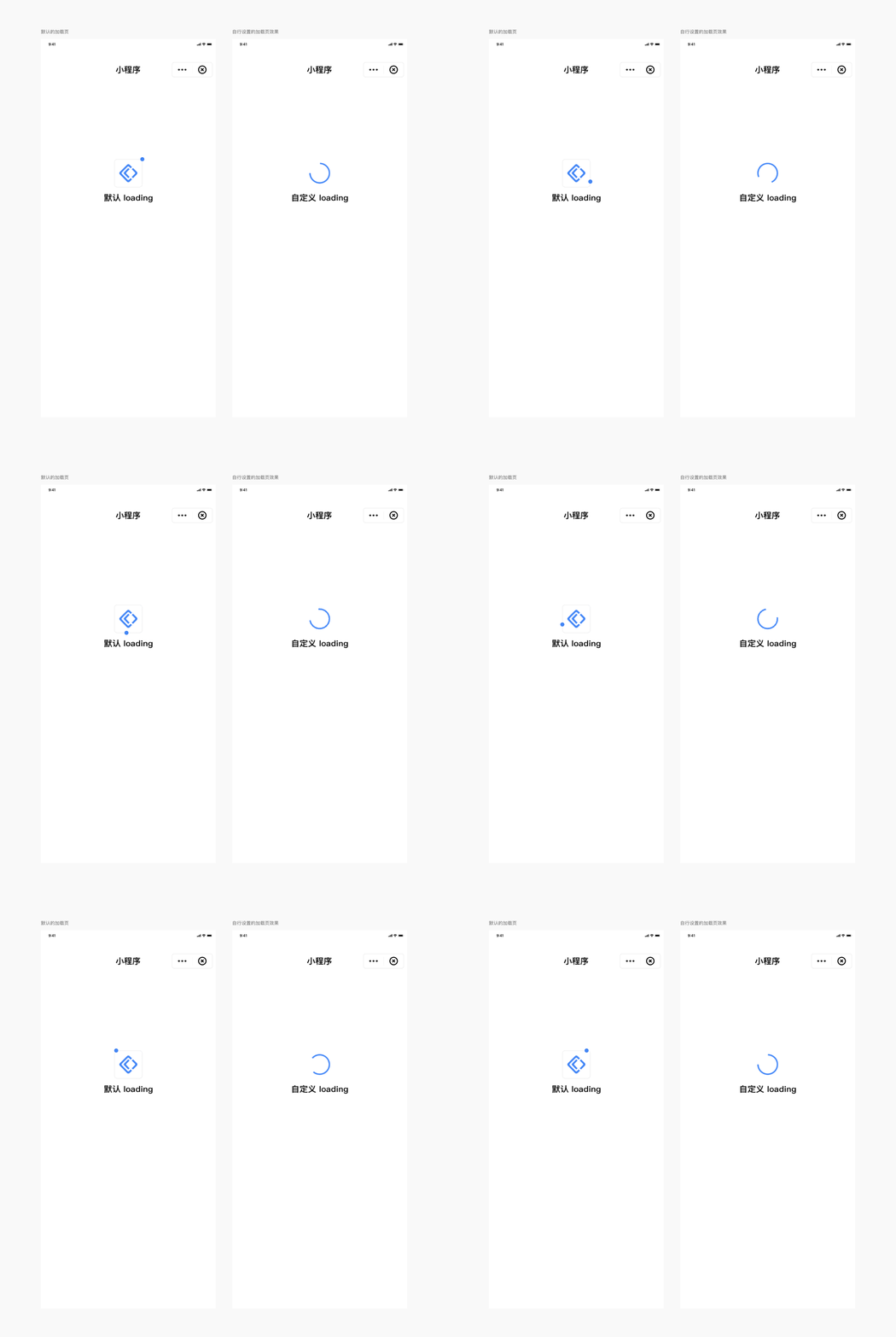
- Loading Page: When launching a Mini-Program, if the Mini-Program is not downloaded to the device, the Mini-Program container will display a loading page prompting the user to wait. Once the Mini-Program is installed on the device, the loading page closes and redirects to the Mini-Program. The loading page will remain visible for a relatively longer time when the user opens the Mini-Program for the first time or after a Mini-Program version update.
- Error Page: The page displayed to the user when the Mini-Program fails to load or encounters other unknown errors.
Refer to the image below for specific UI effects:
# 2. Scope
This setting is implemented by the App and allows configuration of the loading page and error page views. Once set, all Mini-Programs, Mini-Games, and H5 applications within the App will adopt this effect.
# 3. iOS Configuration Method
# 3.1 Implementing a Custom Loading Page
For iOS Mini-Programs, the SDK allows developers to customize the loading page content. Follow these steps to configure:
Modify the loading page style in a subclass inheriting from
FATBaseLoadingView.Code example for versions prior to 2.45.7:
@interface LoadingView : FATBaseLoadingView
@end
@implementation LoadingView
- (instancetype)initWithFrame:(CGRect)frame {
    if ([super initWithFrame:frame]) {
        self.loadingView.padding = 20;
        self.loadingView.dotView.backgroundColor = [UIColor blackColor];
        self.loadingView.animation.duration = 5;
        self.titleLabel.textColor = [UIColor redColor];
    }
    return self;
}
- (void)layoutSubviews
{
    [super layoutSubviews];

    // To modify the logo, it must be done here.
    // Modifying the Mini-Program logo should be done by uploading a new Mini-Program icon via the Management Console, as the More panel and About page also display the Mini-Program logo. Changing it here only affects the loading page.
    self.loadingView.iconImageView.image = [UIImage imageNamed:@"mini_logo"];
}
@end
Note
Because the Mini-Program may update the loading page's background color, Mini-Program title, Mini-Program icon, and the frame of various controls during the loading process, modifications to these properties should be placed within layoutSubviews. It is recommended to modify the Mini-Program title and icon via the custom menu feature in the Management Console.
For version 2.45.7 and later, since Mini-Programs support theme mode settings, the custom loading page content differs slightly. Code example:
@interface LoadingView : FATBaseLoadingView
@end
@implementation LoadingView
- (instancetype)initWithFrame:(CGRect)frame {
    if ([super initWithFrame:frame]) {
        self.loadingView.padding = 20;
        self.loadingView.dotView.backgroundColor = [UIColor blackColor];
        self.loadingView.animation.duration = 5;
        self.titleLabel.textColor = [UIColor redColor];
    }
    return self;
}
- (void)updateThemeStyle:(BOOL)isDarkTheme
{
    [super updateThemeStyle:isDarkTheme];

    // To modify the logo, it must be done here.
    // Modifying the Mini-Program logo should be done by uploading a new Mini-Program icon via the Management Console, as the More panel and About page also display the Mini-Program logo. Changing it here only affects the loading page.
    self.loadingView.iconImageView.image = [UIImage imageNamed:@"mini_logo"];
}
@end
- Set the
baseLoadingViewClassproperty of theFATConfigobject to the class name of your custom loading page.
FATConfig *config = [FATConfig configWithStoreConfigs:storeConfigs];
config.baseLoadingViewClass = @"LoadingView";
[[FATClient sharedClient] initWithConfig:config error:nil];
# 3.2 Implementing a Custom Loading Failure Page
The implementation is similar to the custom loading page. Specific steps are:
- Modify the loading failure page style in a subclass inheriting from
FATBaseLoadFailedView.
@interface LoadFailedView : FATBaseLoadFailedView
@end
@implementation LoadFailedView
- (instancetype)initWithFrame:(CGRect)frame {
    self = [super initWithFrame:frame];
    if (self) {
        self.errorLabel.textColor = [UIColor redColor];
    }
    return self;
}
- (void)layoutSubviews {
    [super layoutSubviews];
    CGFloat bottom = self.fat_height;
	self.errorImageView.fat_bottom = bottom - 110;
	self.errorLabel.fat_top = self.errorImageView.fat_bottom + 30;
	self.detailLabel.fat_top = self.errorLabel.fat_bottom + 15;
}
@end
- Set the
baseLoadingViewClassproperty of theFATConfigobject to the class name of your custom loading failure page.
FATConfig *config = [FATConfig configWithStoreConfigs:storeConfigs];
config.baseLoadFailedViewClass = @"LoadFailedView";
[[FATClient sharedClient] initWithConfig:config error:nil];
# 4. Android Configuration Method
The SDK provides the abstract class IFinAppletLoadingPage. Developers can inherit this class to implement their own loading page view and failure page view, and configure the implementation class during SDK initialization.
# 4.1 Description of IFinAppletLoadingPage Abstract Methods
/**
 * Layout resource ID for the Mini-Program loading page
 */
abstract fun getLoadingLayoutRes(): Int

/**
 * Layout resource ID for the Mini-Program loading failure page
 */
abstract fun getFailureLayoutRes(): Int

/**
 * Callback for Mini-Program loading failure
 *
 * @param msg   Error message
 */
@Deprecated("No longer called since version 2.36.3, please use onLoadingFailure(title: String, msg: String)")
abstract fun onLoadingFailure(msg: String)

/**
 * Callback for Mini-Program loading failure
 *
 * @param title Error title
 * @param msg   Error message
 */
abstract fun onLoadingFailure(title: String, msg: String)

/**
 * Updates Mini-Program related information. Parameters are basic Mini-Program info, called multiple times.
 * May be null during the initial callback (e.g., when the Mini-Program starts for the first time and basic info hasn't been downloaded yet),
 * developers need to perform null checks.
 *
 * @param appTitle      App name
 * @param appAvatarUrl  App icon URL
 */
abstract fun onUpdate(appTitle: String, appAvatarUrl: String)
This class provides two layout instances:
failureLayout
Corresponds to the error page layout file layout returned by the getFailureLayoutRes method.
loadingLayout
Corresponds to the loading page layout file layout returned by the getLoadingLayoutRes method.
# 4.2 Complete Implementation Example for Custom Loading Page
Note
Because the SDK uses reflection internally to instantiate the implementation class, the loading page implementation class must contain only a constructor that takes Context as a parameter.
Example:
MyCustomLoadingPage:
class MyCustomLoadingPage(context: Context): IFinAppletLoadingPage(context) {
    override fun getFailureLayoutRes(): Int {
        // Error page layout resource file
        return R.layout.loading_failure_layout
    }

    override fun getLoadingLayoutRes(): Int {
        // Loading page layout resource file
        return R.layout.loading_layout
    }

    override fun onLoadingFailure(msg: String) {
        // This method is deprecated, leave it empty. Please use the onLoadingFailure(title: String, msg: String) below.
    }

    override fun onLoadingFailure(title: String, msg: String) {
        // Error page error message body
        failureLayout.findViewById<TextView>(R.id.tvLoadingFailedTitle).text = title
        failureLayout.findViewById<TextView>(R.id.tvLoadingFailed).text = msg
    }

    override fun onUpdate(appTitle: String, appAvatarUrl: String) {
        // Mini-Program name
        loadingLayout.tvTitle.text = appTitle
        // Mini-Program avatar
        if (appAvatarUrl.isNotNullNorEmpty()) {
            ImageLoader.get(context).load(appAvatarUrl, finAppInfo, object : BitmapCallback {
                override fun onLoadSuccess(r: Bitmap) {
                    // Use runOnUiThread to avoid using Handler.post, preventing tasks from being posted to Handler for execution even when already on the main thread.
                    context.runOnUiThread {
                        loadingLayout.ivAvatar.setImageBitmap(r)
                    }
                }

                override fun onLoadFailure() {
                }
            })
        }
    }
}
loading_failure_layout:
<?xml version="personalized configuration of loading pages and error pages. Specifically:" encoding="utf-8"?>
<RelativeLayout xmlns:android="http://schemas.android.com/apk/res/android"
    xmlns:tools="http://schemas.android.com/tools"
    android:layout_width="match_parent"
    android:layout_height="match_parent">

    <RelativeLayout
        android:id="@+id/rlLoadingFailed"
        android:layout_width="match_parent"
        android:layout_height="wrap_content"
        android:layout_gravity="center"
        android:layout_marginTop="50dp">

        <ImageView
            android:id="@+id/ivLoadingFailed"
            android:layout_width="60dp"
            android:layout_height="60dp"
            android:layout_centerHorizontal="true"
            android:src="@drawable/fin_applet_loading_error"
            tools:ignore="ContentDescription" />

        <TextView
            android:id="@+id/tvLoadingFailedTitle"
            android:layout_width="wrap_content"
            android:layout_height="wrap_content"
            android:layout_below="@+id/ivLoadingFailed"
            android:layout_centerHorizontal="true"
            android:layout_marginTop="25dp"
            android:gravity="center"
            android:textColor="@color/fin_color_text_auto"
            android:textSize="18sp"
            android:textStyle="bold" />

        <TextView
            android:id="@+id/tvLoadingFailed"
            android:layout_width="wrap_content"
            android:layout_height="wrap_content"
            android:layout_below="@+id/tvLoadingFailedTitle"
            android:layout_centerHorizontal="true"
            android:layout_marginTop="15dp"
            android:gravity="center"
            android:textColor="@color/fin_color_secondary_text_auto"
            android:textSize="15sp"
            tools:text="Error Message" />
    </RelativeLayout>

    <!--  Note: fin_btn_fail_reload_margin_bottom margin differs between portrait and landscape orientation. -->
    <TextView
        android:id="@+id/btnFailReload"
        android:layout_width="wrap_content"
        android:layout_height="40dp"
        android:layout_below="@+id/rlLoadingFailed"
        android:layout_centerHorizontal="true"
        android:layout_marginTop="@dimen/fin_btn_fail_reload_margin"
        android:background="@drawable/fin_applet_btn_reload_blue"
        android:gravity="center"
        android:minWidth="200dp"
        android:text="@string/fin_applet_load_again"
        android:textColor="@android:color/white"
        android:textSize="15sp" />

</RelativeLayout>
loading_layout:
<?xml version="personalized configuration of loading pages and error pages. Specifically:" encoding="utf-8"?>
<LinearLayout xmlns:android="http://schemas.android.com/apk/res/android"
    xmlns:app="http://schemas.android.com/apk/res-auto"
    xmlns:tools="http://schemas.android.com/tools"
    android:layout_width="match_parent"
    android:layout_height="match_parent"
    android:orientation="vertical">

    <FrameLayout
        android:id="@+id/flAvatar"
        android:layout_width="match_parent"
        android:layout_height="0dp"
        android:layout_weight="0.66">

        <com.finogeeks.lib.applet.modules.appletloadinglayout.FinAppletLoadingSurfaceView
            android:id="@+id/finAppletLoadingView"
            android:layout_width="72dp"
            android:layout_height="72dp"
            android:layout_gravity="bottom|center_horizontal" />

        <com.finogeeks.lib.applet.externallib.makeramen.roundedimageview.RoundedImageView
            android:id="@+id/ivAvatar"
            android:layout_width="50dp"
            android:layout_height="50dp"
            android:layout_gravity="bottom|center_horizontal"
            android:layout_marginBottom="11dp"
            android:src="@color/color_ebeced"
            app:fin_applet_riv_corner_radius="100dp" />
    </FrameLayout>

    <FrameLayout
        android:layout_width="match_parent"
        android:layout_height="0dp"
        android:layout_weight="1">

        <TextView
            android:id="@+id/tvTitle"
            android:layout_width="wrap_content"
            android:layout_height="wrap_content"
            android:layout_gravity="center_horizontal"
            android:layout_marginTop="4dp"
            android:ellipsize="end"
            android:gravity="center"
            android:maxLines="2"
            android:textAlignment="center"
            android:textColor="@color/fin_color_text_auto"
            android:textSize="18sp"
            android:textStyle="bold"
            tools:text="Default loading" />

        <ImageView
            android:id="@+id/ivTechSupport"
            android:layout_width="wrap_content"
            android:layout_height="wrap_content"
            android:layout_gravity="bottom|center_horizontal"
            android:layout_marginBottom="45dp"
            android:src="@drawable/fin_applet_tech_support"
            android:visibility="gone"
            tools:visibility="visible" />

    </FrameLayout>
</LinearLayout>
# 4.3 Configuring the Loading Page During SDK Initialization
val uiConfig = FinAppConfig.UIConfig()
// Configure custom loading page
uiConfig.setLoadingLayoutCls(CustomLoadingPage::class.java)

val config = FinAppConfig.Builder()
        // Other configuration items omitted
        .setUiConfig(uiConfig)
        .build()

FinAppClient.init(application, config, object : FinCallback<Any?> {
    override fun onSuccess(result: Any?) {

    }

    override fun onError(code: Int, error: String) {

    }

    override fun onProgress(status: Int, error: String) {
    }
})
# 5. HarmonyOS Configuration Method
# 5.1 Implementing a Custom Loading Page
Add the delegate method before SDK initialization. Refer to CustomLayoutHandler for specific parameters.
Example code:
import { FinAppProxyHandlerManager, IFinProxyHandlerItem } from '@finclip/sdk'

class CustomLayoutHandler extends IFinProxyHandlerItem.CustomLayoutHandler {
   // If the Mini-Program startup depends on asynchronous data for rendering (e.g., requests), and the Mini-Program might still be in a no-data state, you can delay the destruction of the loading page by delaying the resolve call.
    onLoadingLayoutReady(): Promise<void> {
    return new Promise((resolve) => {
      setTimeout(() => {
        resolve()
      }, 200)
    })
  }

  getCustomLoadingLayout(): (() => void) | void {
    return CustomLoadingLayout
  }
}

FinAppProxyHandlerManager.customLayoutHandler = new CustomLayoutHandler()

@Builder
function CustomLoadingLayout() {
  CustomViewComponent()
}

// This component will be rendered on the entire loading page
@Component
struct CustomViewComponent {
  @Consume layoutParams: IFinAppProxy.ICustomLoadingLayoutParams

  build() {
    Column() {
      Image(this.layoutParams.logo)
      Text(this.layoutParams.name)
    }
  }
}
# 5.2 Implementing a Custom Loading Failure Page
Add the delegate method before SDK initialization. Refer to CustomLayoutHandler for specific parameters.
Example code:
import { FinAppProxyHandlerManager, IFinProxyHandlerItem } from '@finclip/sdk'

class CustomLayoutHandler extends IFinProxyHandlerItem.CustomLayoutHandler {
   // If the Mini-Program startup depends on asynchronous data for rendering (e.g., requests), and the Mini-Program might still be in a no-data state, you can delay the destruction of the loading page by delaying the resolve call.
    onLoadingLayoutReady(): Promise<void> {
    return new Promise((resolve) => {
      setTimeout(() => {
        resolve()
      }, 200)
    })
  }

  getLoadFailedLayout(): ((appId: string, apiServer: string, title: string, label: string) => void) | void {
    return LoadFailedLayout
  }
}

FinAppProxyHandlerManager.customLayoutHandler = new CustomLayoutHandler()

 // Mini-Program page information will be passed here
@Builder
function LoadFailedLayout(appId: string, apiServer: string,title: string, label: string) {
  CustomViewComponent({ appId,
    apiServer,
    title,
    label
  })
}

@Component
struct CustomViewComponent {
  @Prop appId: string
  @Prop apiServer: string
  @Prop title: string
  @Prop label: string

  build() {
    Flex({
      alignItems: ItemAlign.Center,
      justifyContent: FlexAlign.Center,
      direction: FlexDirection.Column
    }) {
      Column() {
        Text('appletName: ' + this.title)
        Text('label: ' + this.label)
        Text('apiServer: ' + this.apiServer)
        Text('appId: ' + this.appId)
      }
    }
    .backgroundColor(Color.Green)
  }
}