
# Marketing Template Feature
Feature Background
The Marketing Template feature supports developers in quickly creating Mini-Programs with marketing capabilities through FinClip.
# 1. Feature Description
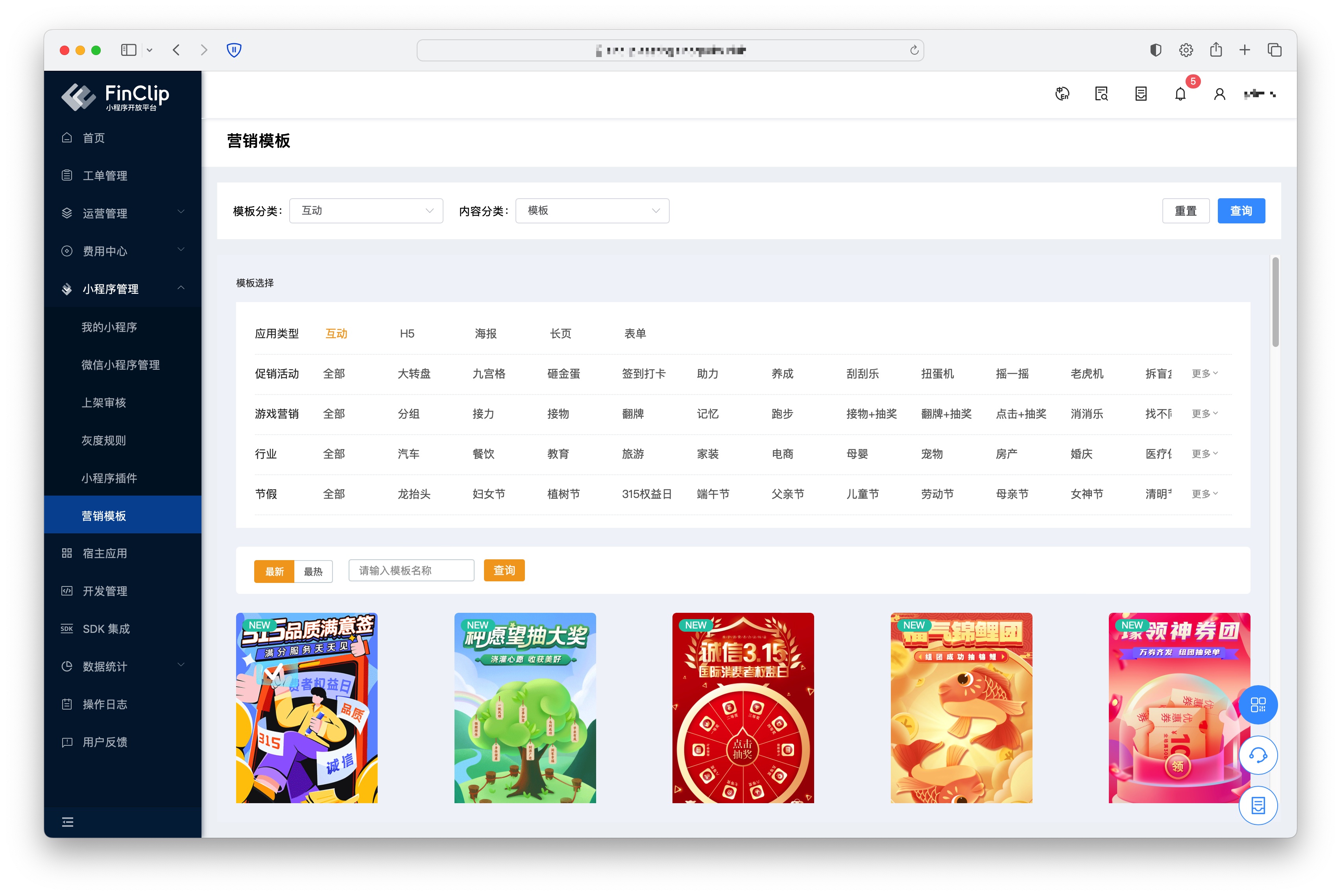 Developers can use the Marketing Template feature to quickly create Mini-Programs with marketing capabilities, and then leverage FinClip's related features to rapidly deploy these Mini-Programs into their own Host-Apps for users.
Please Note
To ensure that the related content in the marketing pages functions correctly, it is recommended that you perform related operations using the Chrome browser. Click here (opens new window) to download it.
# 2. Usage Process
First, log in to FinClip and navigate to the current page via "Mini-Program Management -> Marketing Templates". You can click "Marketing Category" in the top filter card to switch the related content displayed in the marketing pages. The content is specifically divided into five types: "Interactive, H5, Poster, Long Page, Form". You can also click "Content Category" on the right to switch between page templates and already created content.
# 2.1 Creating a Marketing Page
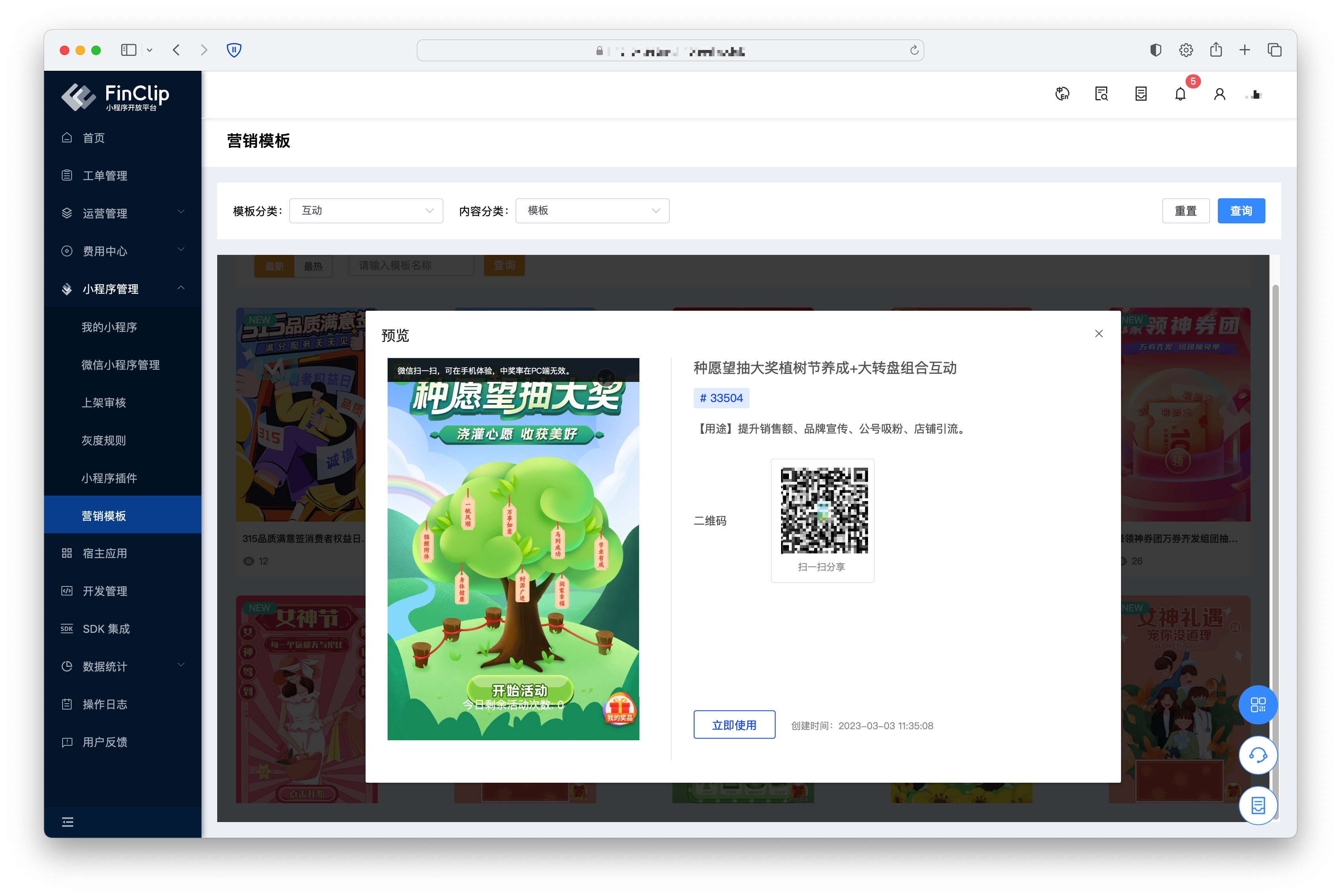
Select the content you wish to use from the template market, then click the "Use Now" button in the pop-up window.
Subsequently, complete the tagging and configuration of the relevant content on the new page. You can edit and modify any content on the page by dragging and dropping elements, then click the "Publish" button in the upper right corner to complete the creation.
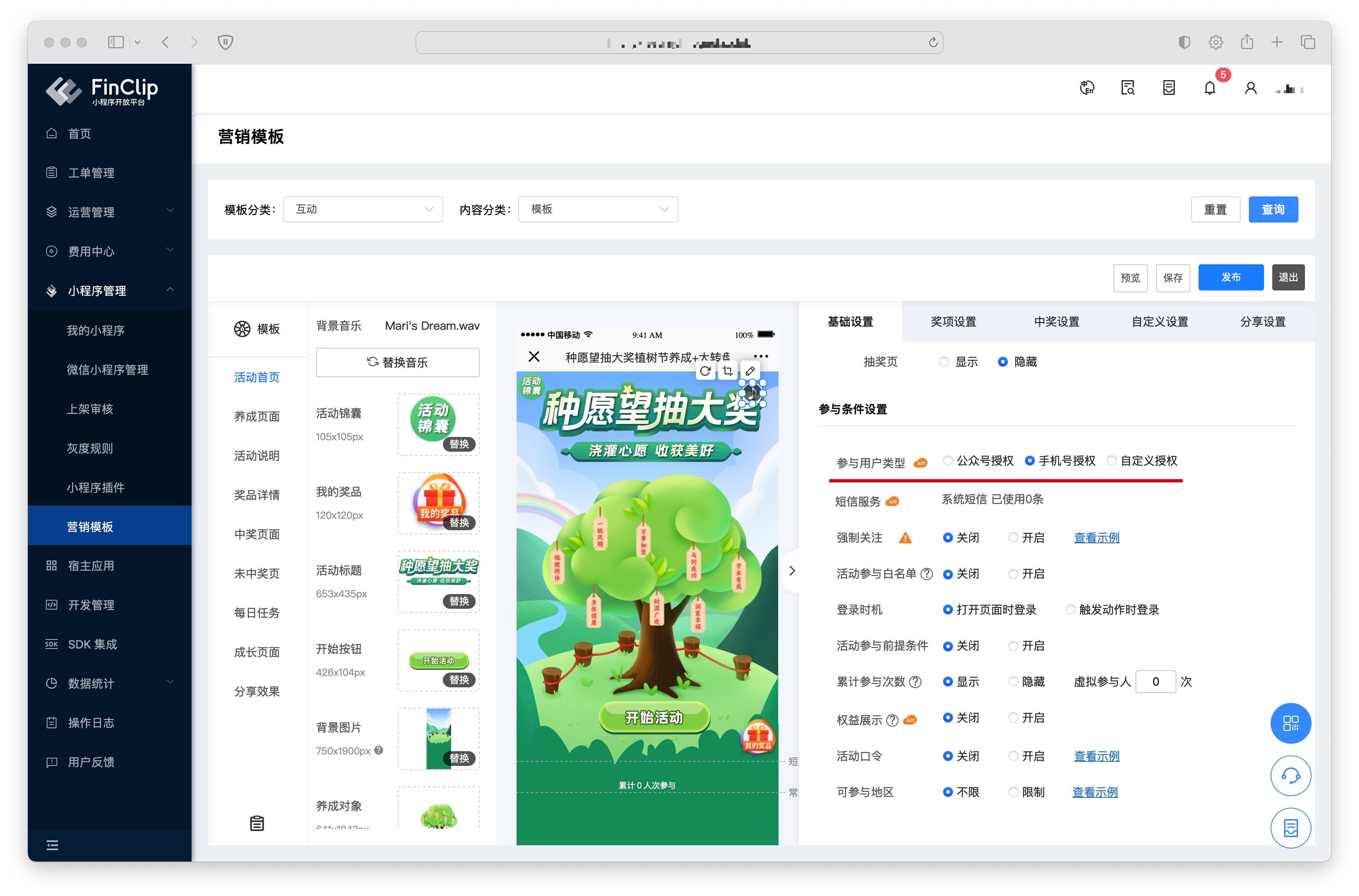
Since FinClip Mini-Programs cannot be used within the WeChat environment, please set the "Participant User Type" in the participation conditions to "Mobile Number Authorization" or "Custom Authorization".
# 2.2 Associating Marketing Templates with Mini-Programs
After creating the marketing template, you can choose to upload the created marketing content to an existing Mini-Program or create a new Mini-Program to add the content. When selecting to add content to a new Mini-Program, the name from the marketing page will be automatically reused.
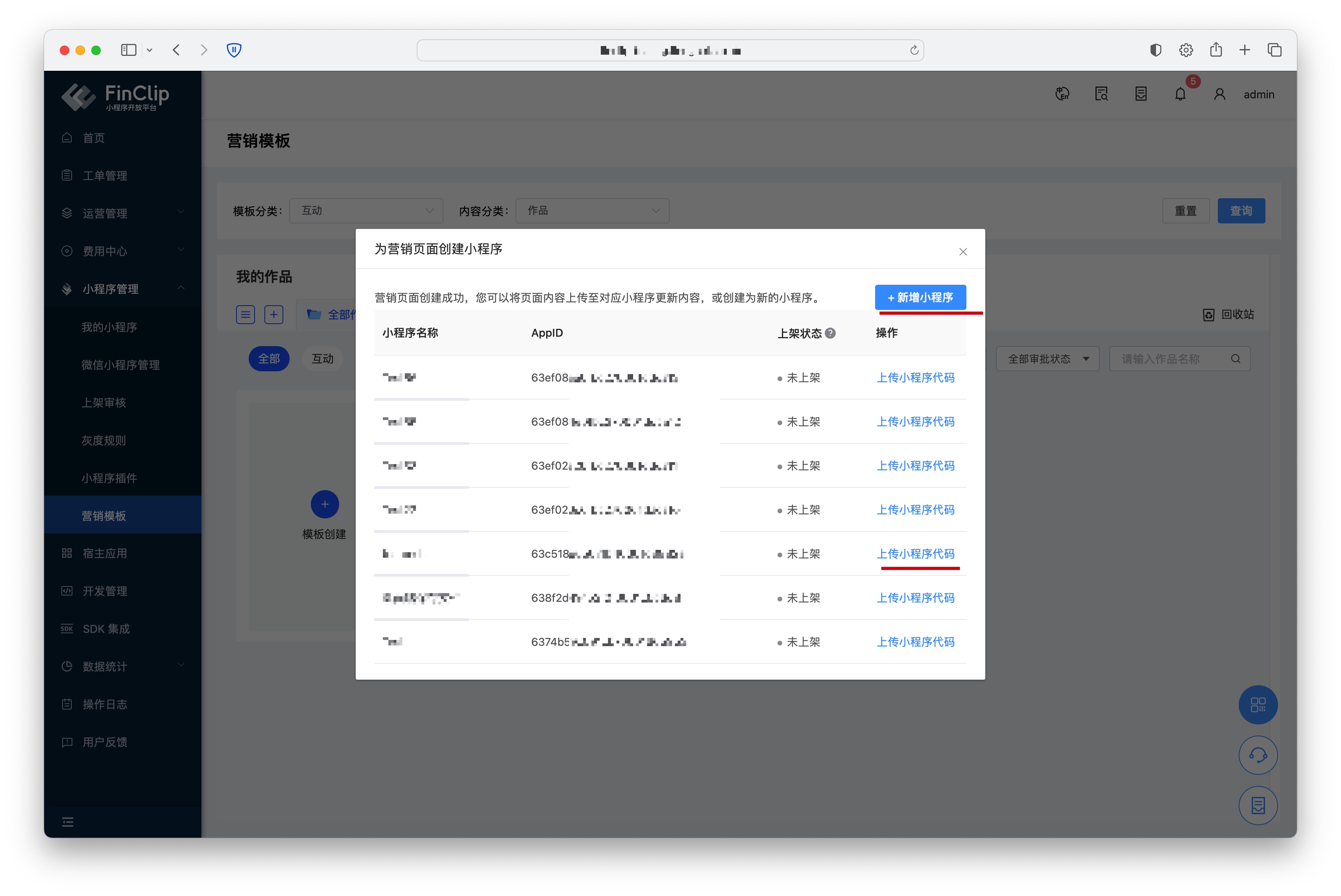
After confirmation, the current version of the marketing content is uploaded to the corresponding Mini-Program. You can then set the corresponding version content as an Experience Version, Release Version, or perform a Gray Release. This enables the Mini-Program to directly gain the corresponding marketing page capabilities.

# 3. Feature and Environment Comparison
This feature may have differences and limitations in different environments. Please refer to the table below for specifics. To learn more about the differences and descriptions between different versions, click here (opens new window).
| Community Edition Environment | SaaS Environment | Enterprise Edition (Annual Payment or One-time Purchase) | |
|---|---|---|---|
| Marketing Template | ❌ | ✅ | Available upon request |