
# Branding and Security Settings
Please Note
FinClip SaaS edition does not currently support custom settings. This feature is only available as an optional purchase in the Enterprise Edition. If you require this feature, please contact FinClip's business team.
# 1. Feature Description
After purchasing and deploying FinClip Enterprise Edition, you can log in to the Operation Center to customize the branding UI and security-related content within the Management Console.
# 2. Usage Instructions
After successfully deploying and configuring the FinClip product, please log in to the Operation Center using the default administrator account. The configuration process is as follows:

- Click "Custom Settings" in the upper right corner to open the custom settings pop-up window;
- Modify the relevant functions and content flexibly according to your configuration needs;
- After configuration is complete, click the "Confirm" button in the pop-up window to save the changes. Refresh the relevant pages to see the updated effects.
# 3. Configuration Content Description
The currently configurable content is described below:
| Field | Description | Configurable Content |
|---|---|---|
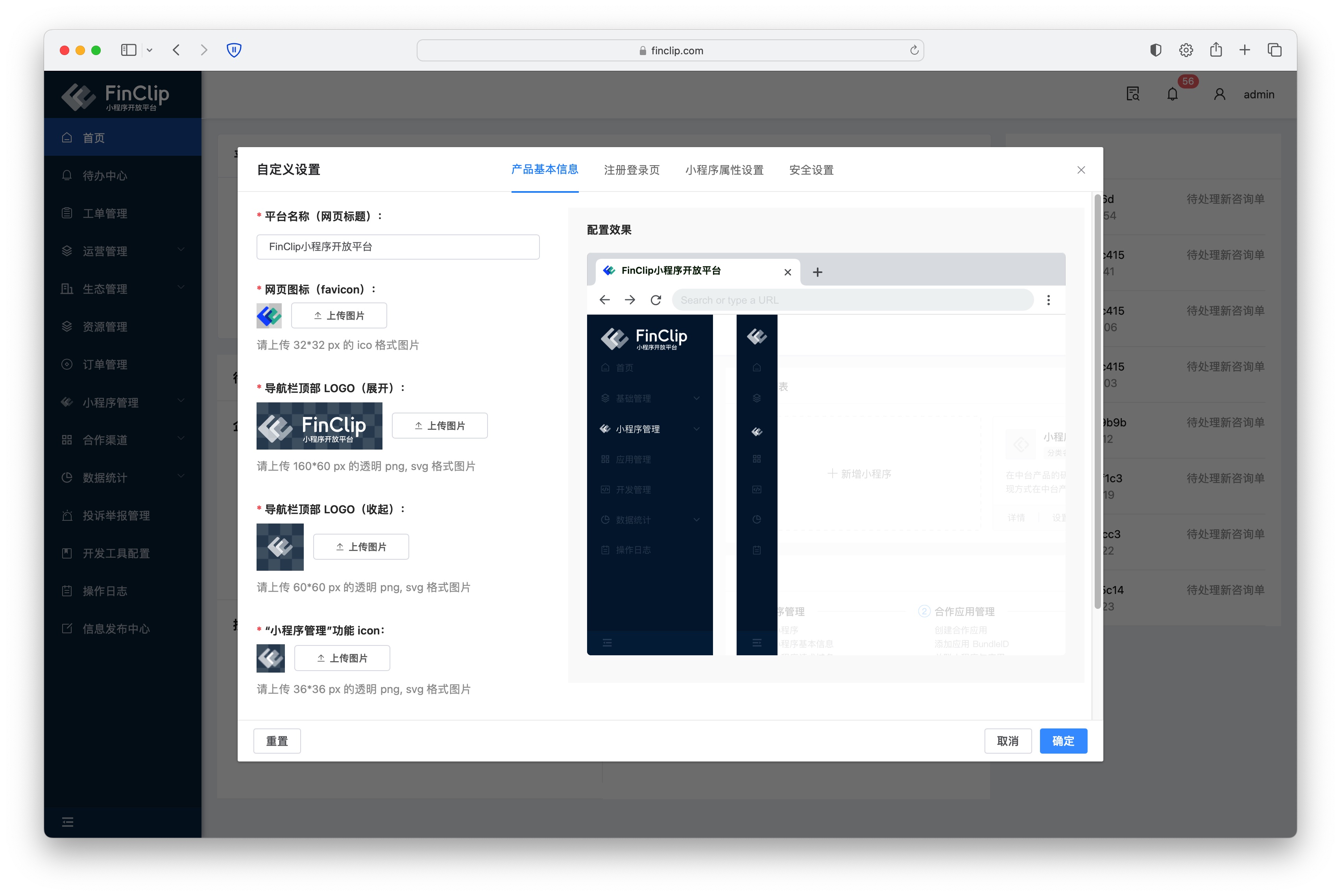
| Platform Name | The page title text displayed in the browser when users open the Mini-Program Open Platform | Text |
| Website Icon (favicon) | The LOGO image displayed in the top left corner of the navigation bar when users open the Mini-Program Open Platform | Image |
| Top Navigation Bar LOGO (Expanded) | The icon LOGO displayed when the left navigation bar is expanded | Image |
| Top Navigation Bar LOGO (Collapsed) | The icon LOGO displayed when the left navigation bar is collapsed | Image |
| Mini-Program Management Function ICON | The function icon LOGO for "Mini-Program Management" in the left navigation | Image |
| Login/Registration Interface Image | The display image on the left side of the page when logging in or registering for the Mini-Program Open Platform | Image |
| Login End Name | The display name on the left side of the page when logging in or registering for the Mini-Program Open Platform | Text |
| Login and Registration Page LOGO | The display icon on the left side of the page when logging in or registering for the Mini-Program Open Platform | Image |
| Copyright Notice | The copyright information at the bottom of the page when logging in or registering for the Mini-Program Open Platform | Text |
| Terms of Use | The Terms of Use link at the bottom of the page when registering for the Mini-Program Open Platform | Link |
| Privacy Policy | The Privacy Policy link at the bottom of the page when registering for the Mini-Program Open Platform | Link |
| Mini-Program Categories | The selectable Mini-Program categories when creating a Mini-Program; categories can also be created manually via text input | Text |
| Mini-Program Tags | The selectable Mini-Program tags when creating a Mini-Program; tags can also be created manually via text input | Text |
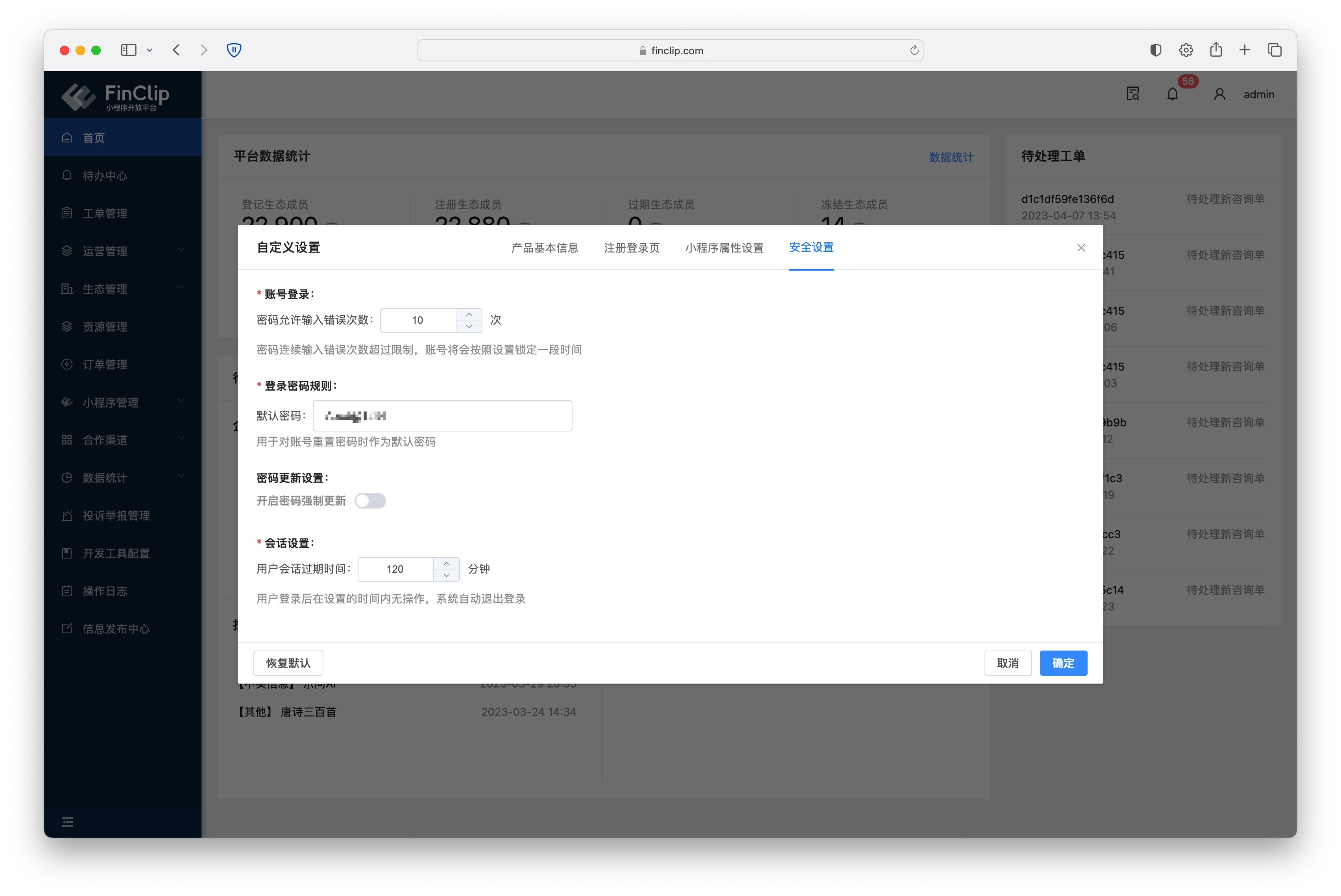
| Account Login | Number of allowed password entry errors | Number |
| Login Password Rules | Default rules for passwords after reset | Text |
| Password Update Settings | Whether passwords are forced to expire and require renewal based on time | Number |
| Session Settings | Automatic logout after a user remains inactive for the set duration following login | Number |
# 4. Feature and Environment Comparison
The availability of this feature may vary or be limited across different environments. Please refer to the table below for specifics. To learn more about the differences and details between versions, click here (opens new window).
| Community Edition Environment | SaaS Environment | Enterprise Edition (Annual Subscription or One-time Purchase) | |
|---|---|---|---|
| Custom Settings | ❌ | ❌ | Available upon purchase |