# User - Digital Center
Only available in Private Deployment Edition and Community Edition
# 1. Role Management
# 1.1 Feature Overview
In the "Role Management" menu, you can:
- Manage roles: Create custom roles, edit role permissions, delete roles
- Manage members under roles: Add and remove members
# 1.2 Terminology Definition
None
# 1.3 Usage Instructions
# Managing Roles
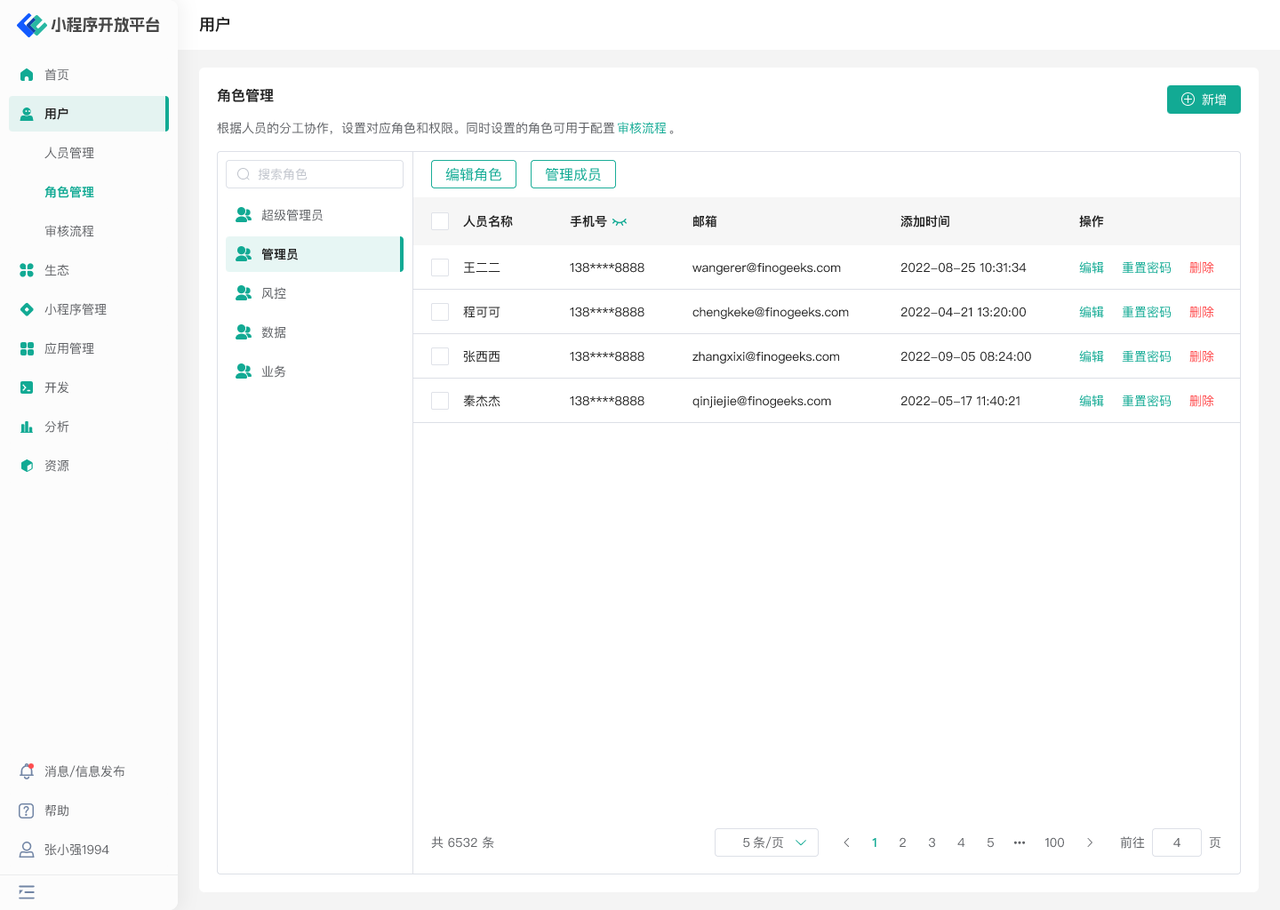
- The "Administrator" role is the system default role, which includes all permission functions and allows adjustment of page permissions.
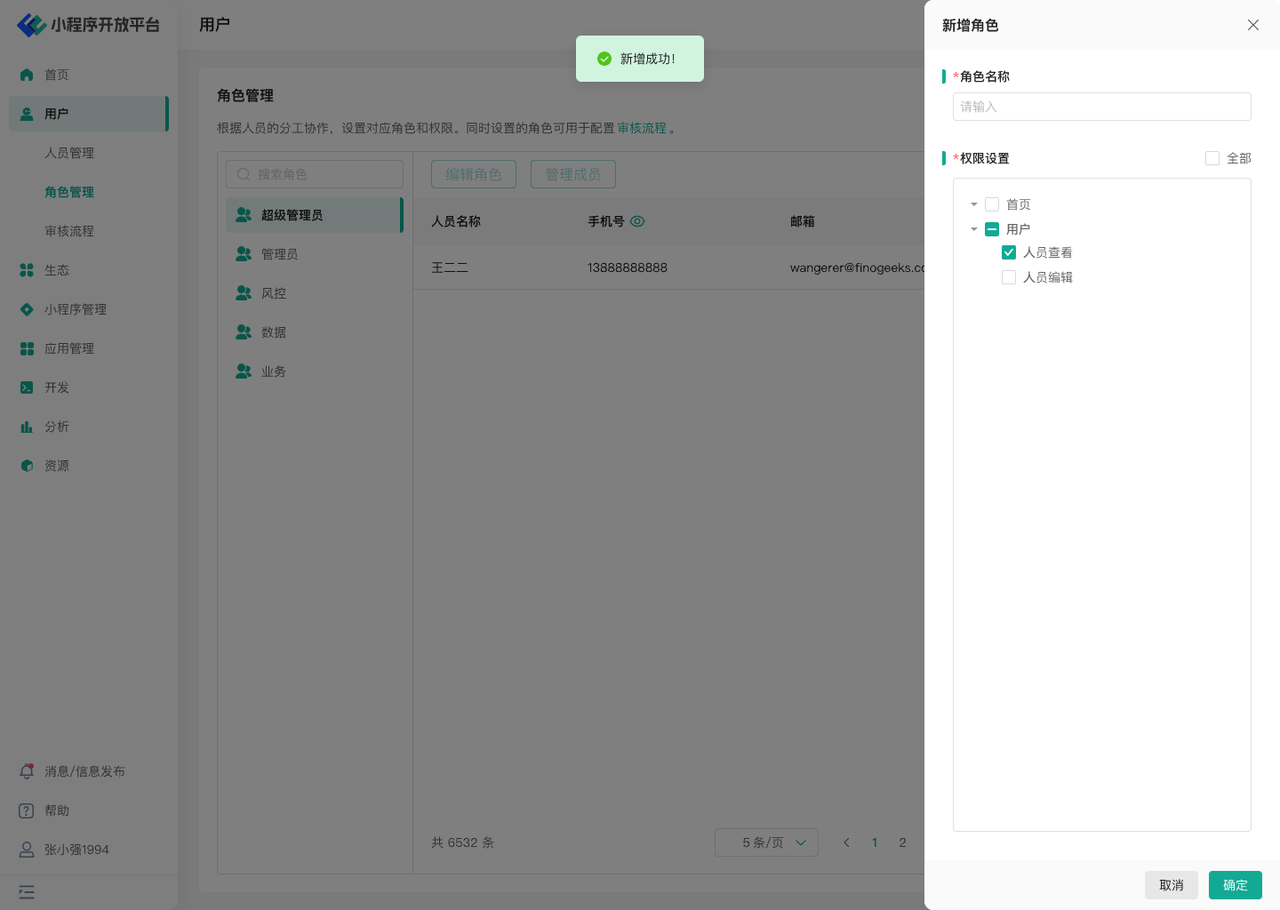
- You can create custom roles using the "Add" function and configure corresponding page permissions.
- After successful creation, you can adjust specific permission details using the "Edit Role" function. The role name cannot be changed.
# Managing Members Under Roles
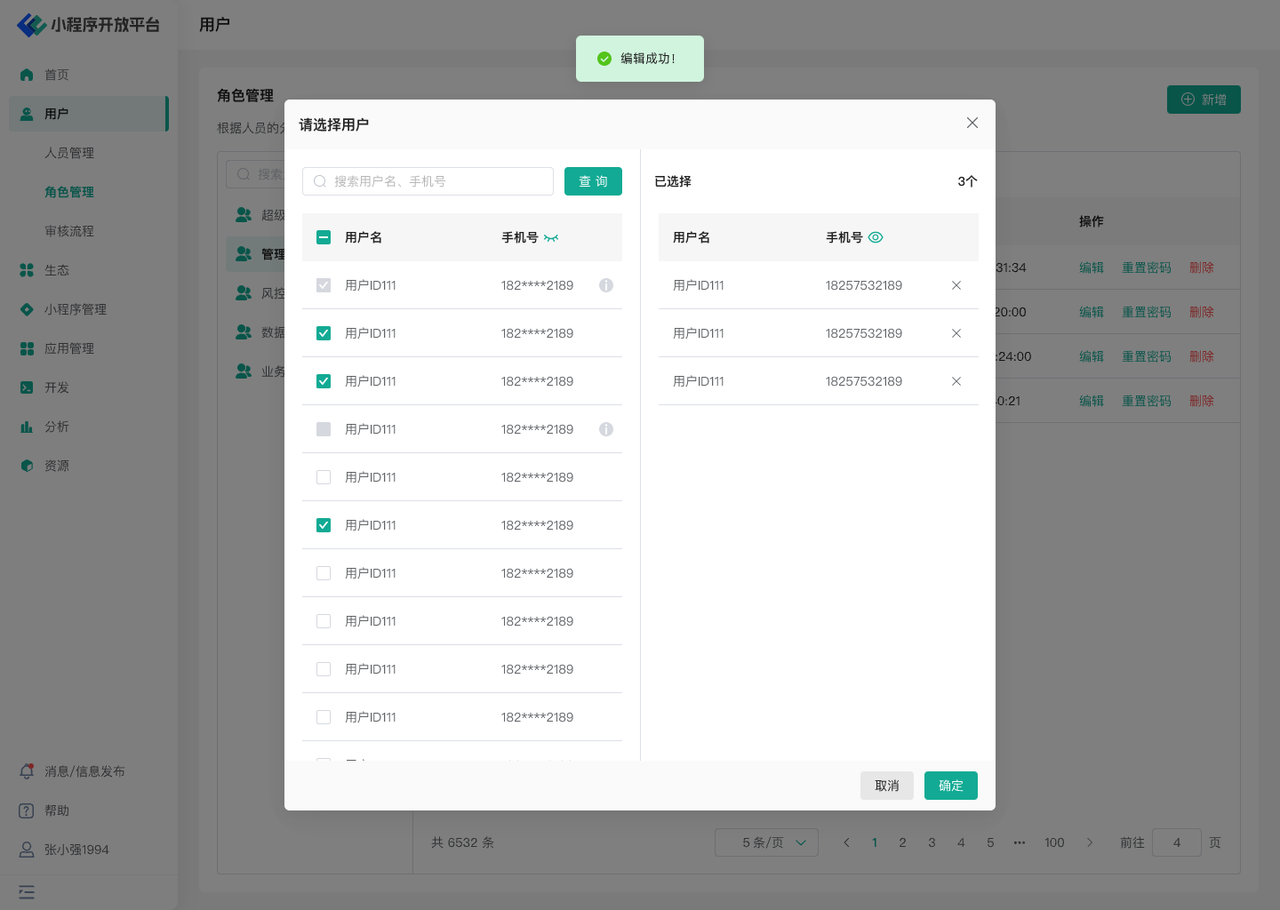
- Using the "Manage Members" function, you can quickly assign corresponding role permissions to multiple users or revoke their permissions.
- It also supports "Editing" individual users to modify their role permissions.
# 2. User Management
# 2.1 Feature Overview
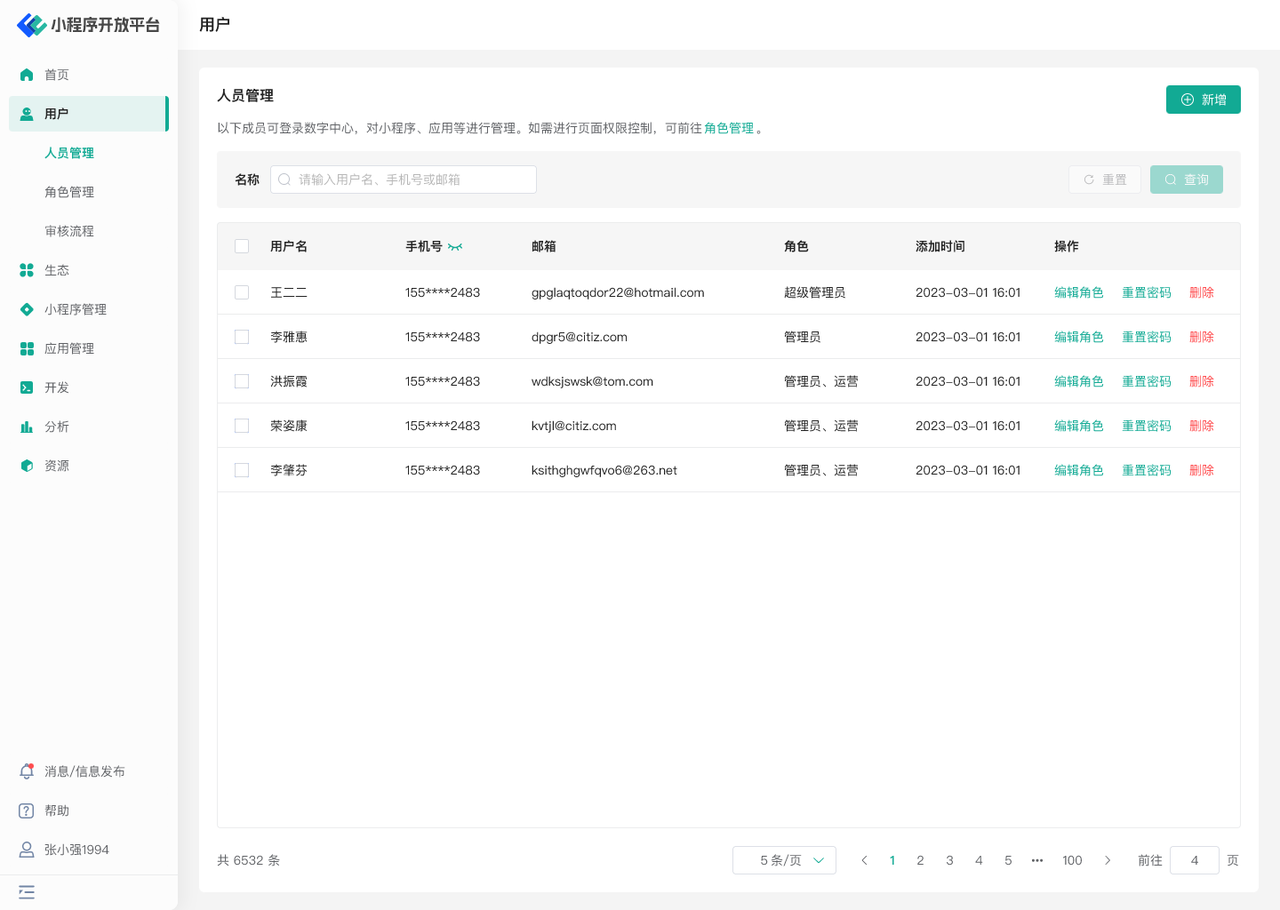
In the "User Management" menu, you can:
- Add users
- Edit user roles
- Delete/Batch delete users
- Reset user passwords
# 2.2 Terminology Definition
None
# 2.3 Usage Instructions
# Adding Users/Editing User Roles
- Different from the Developer Center, users in the Digital Center are added through a "manual registration" process, where administrators manually create accounts for users to log in and use.
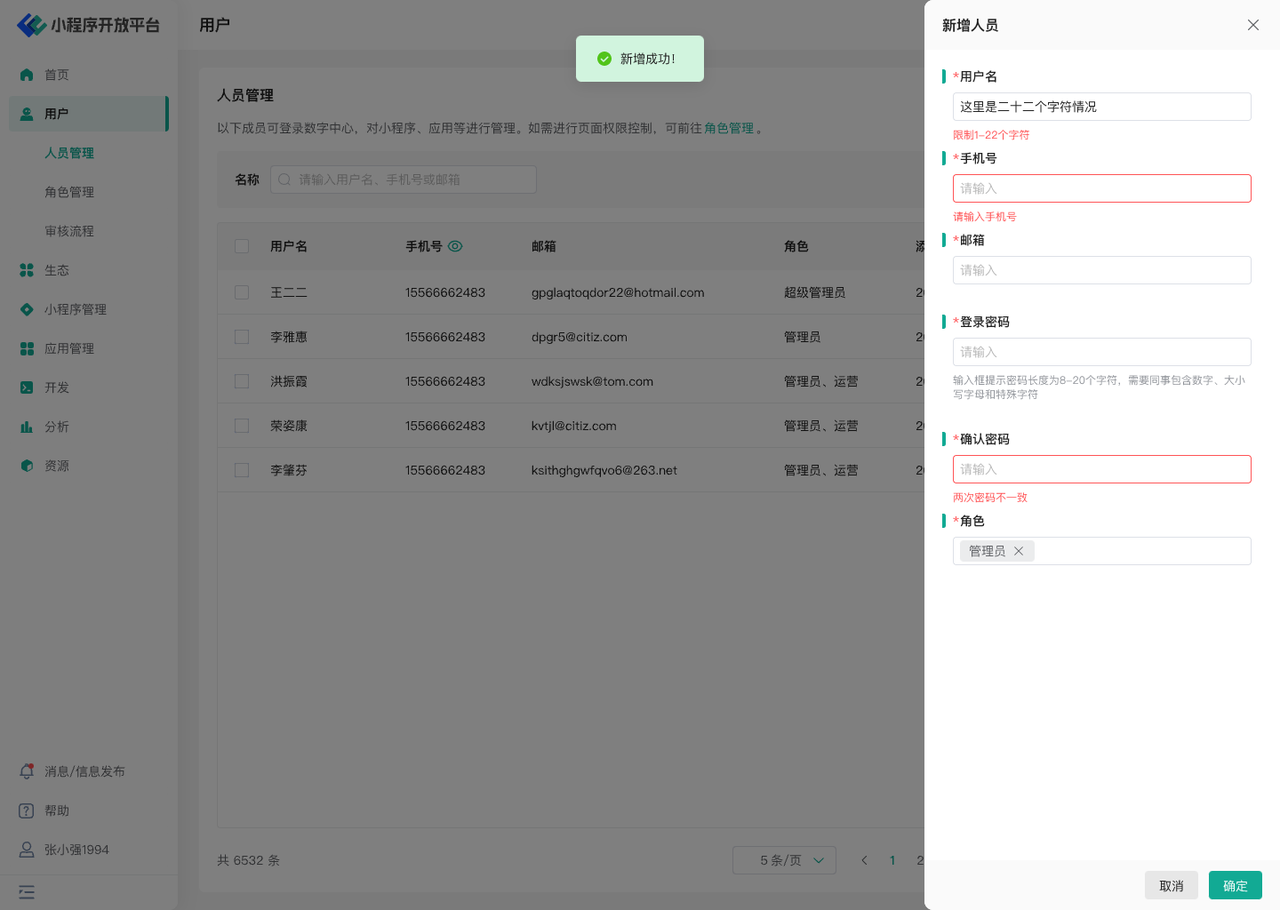
- Use the "Add" function to open the addition page, where administrators fill in the user's name, phone number, email, password, and other information, and pre-configure the role.
- Once successfully added, administrators can modify their roles. Other information can only be modified by the users themselves.
# Deleting/Batch Deleting Users
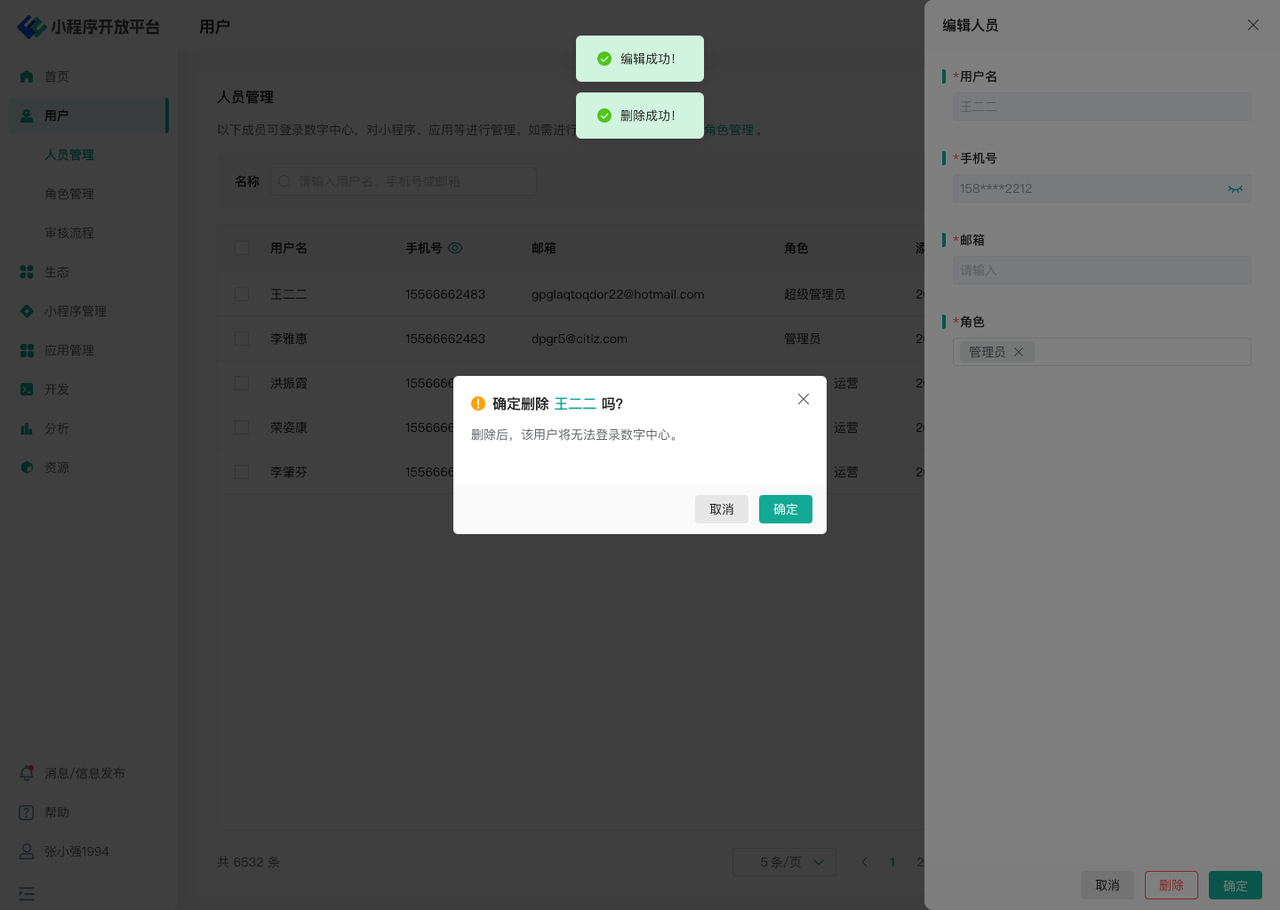
- Once a user is deleted from the Digital Center, that user can no longer log in to the Digital Center. This operation cannot be undone.
# Resetting User Passwords
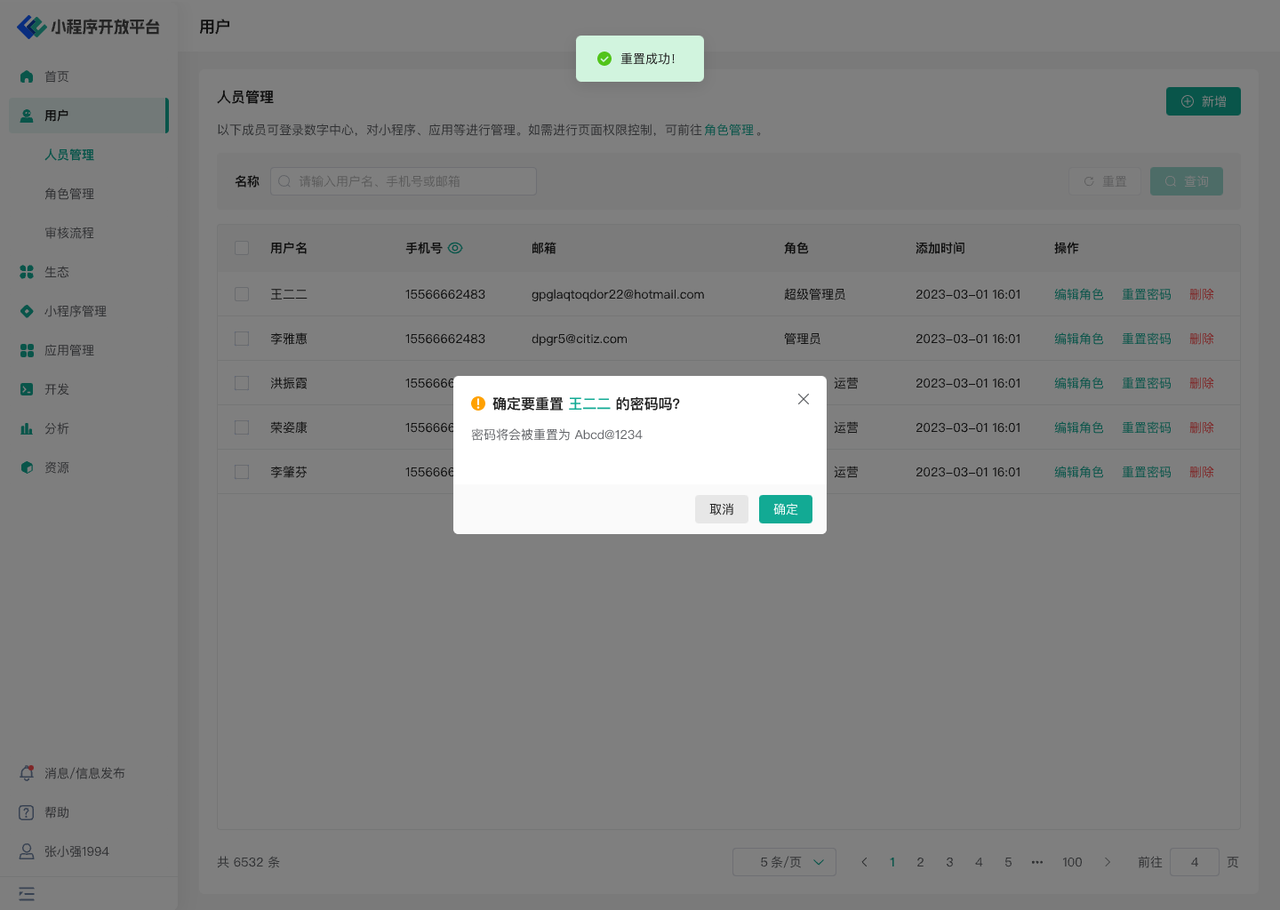
- When a user forgets their password, administrators can reset the user's password using the "Reset Password" function.
# 3. Approval Process
# 3.1 Feature Overview
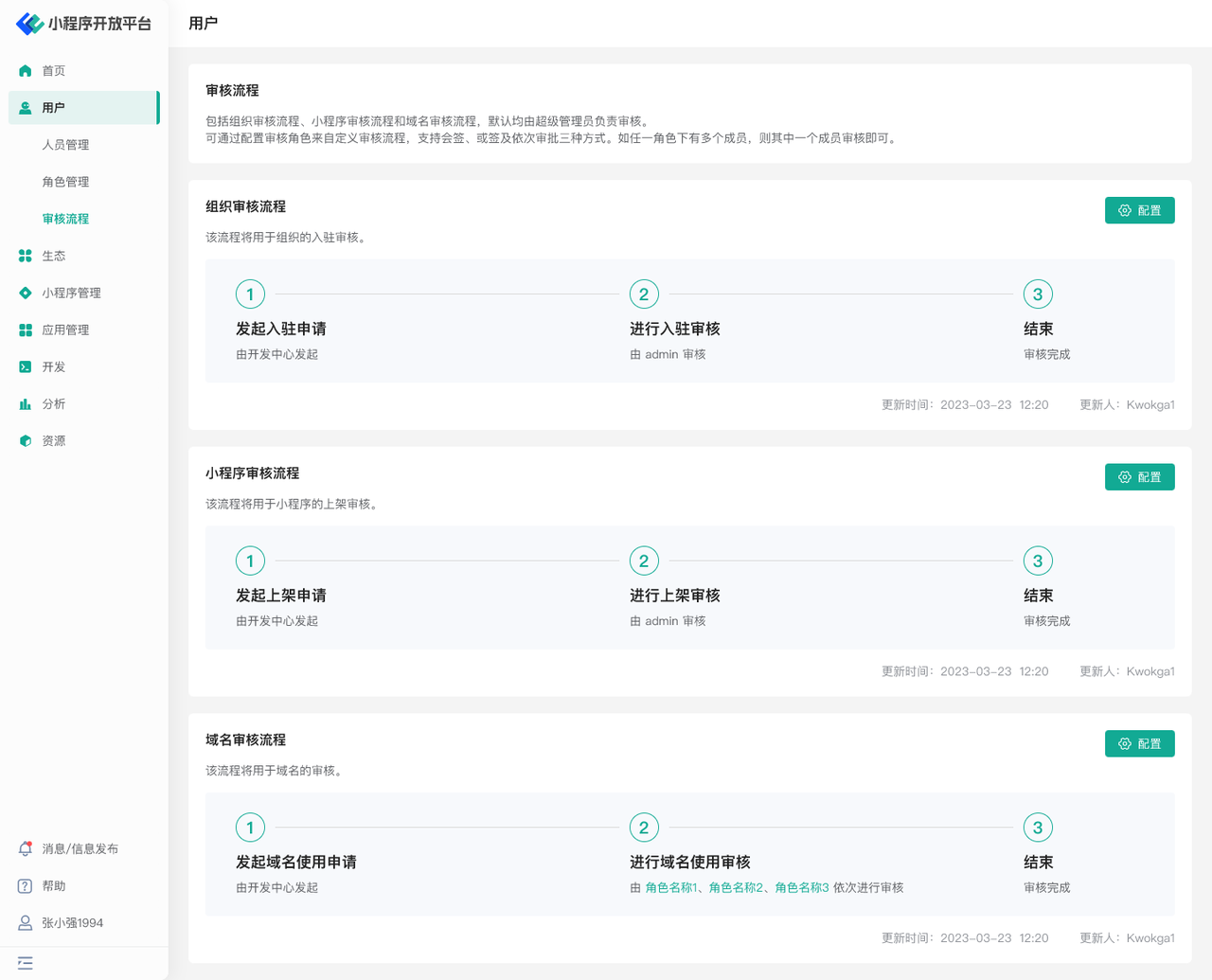
In the "Approval Process" menu, you can customize approval processes by configuring approval roles, supporting three methods: joint approval, or-approval, and sequential approval. The approval processes that support configuration include:
- Enterprise registration approval
- Mini-Program release approval
- Domain usage approval
# 3.2 Terminology Definition
None
# 3.3 Usage Instructions
# Mini-Program Release Approval
Taking Mini-Program release approval as an example:
- Default approval is handled by the admin account.
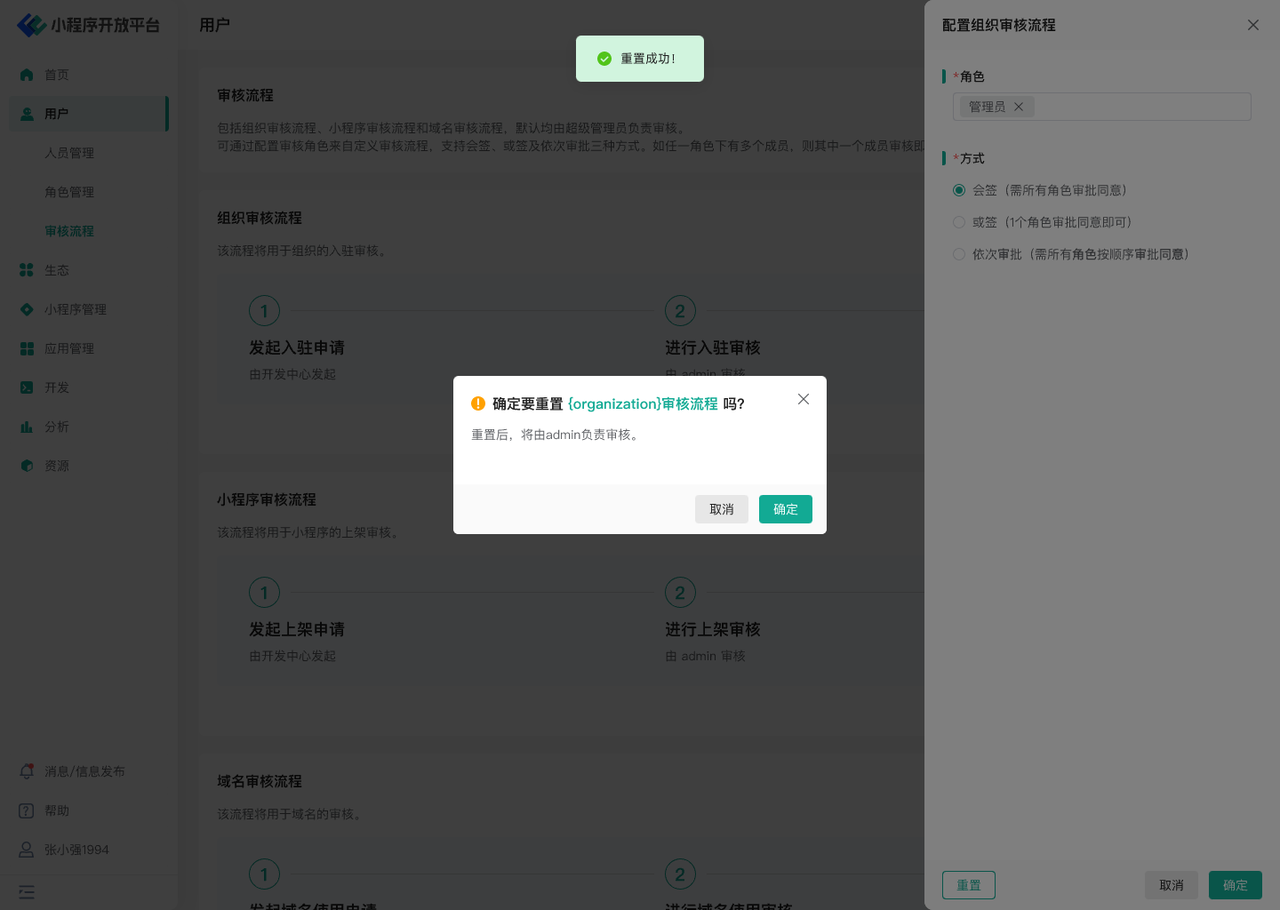
- Custom process: Use the "Configure" function to enter the configuration page, select approval roles and approval methods. The changes take effect immediately after submission.
- If a role has multiple members, approval by one member is considered as approval by that role.
- Joint approval: Requires approval consent from all roles.
- Or-approval: Approval consent from any one role is sufficient.
- Sequential approval: Requires approval consent from all roles in sequence.
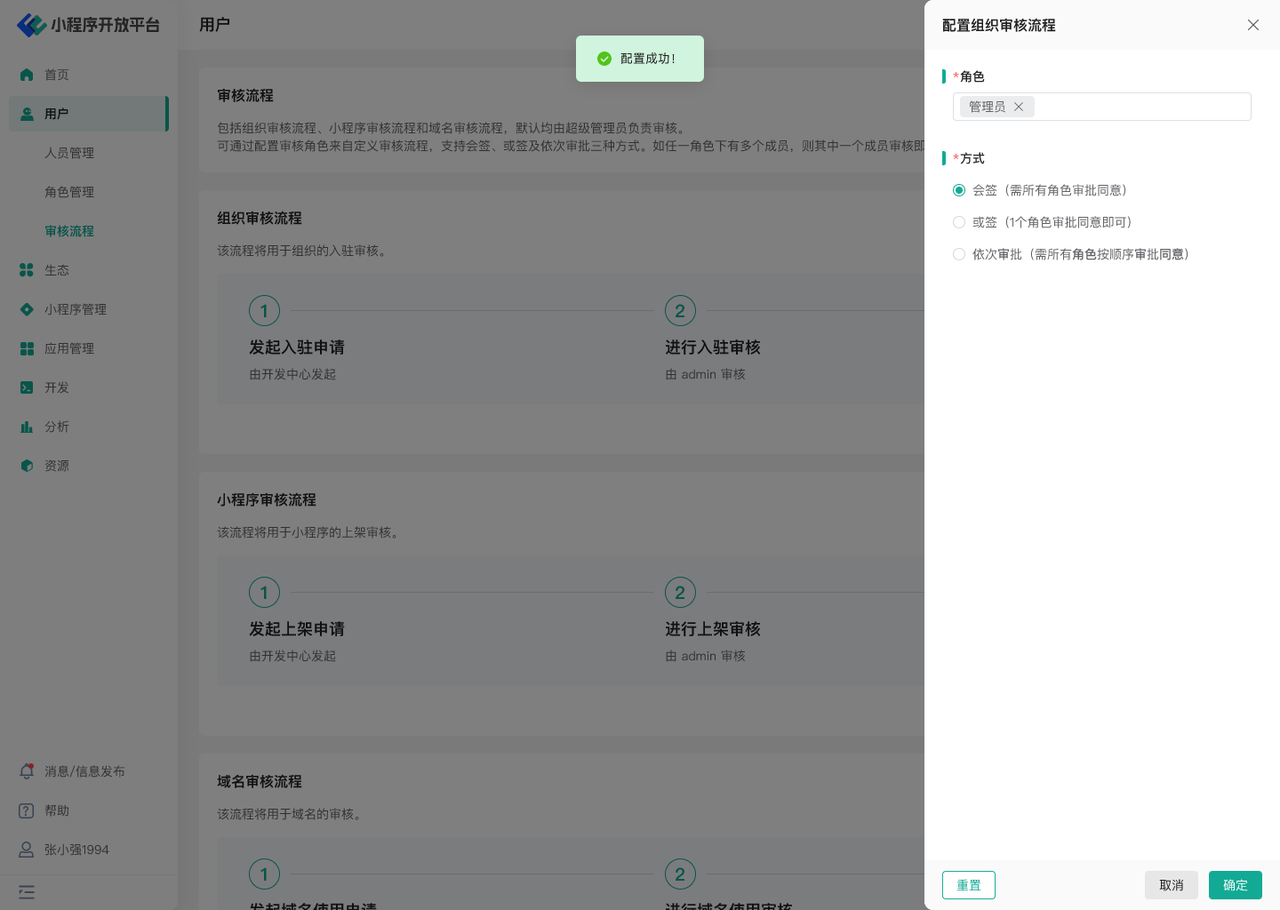
- Reset: Supports resetting the approval process to 'Approval by admin account'.