
# Digital Center - Application Management
# 1. Applications
# 1.1 Feature Description
On the "Applications" page, you can perform the following operations:
- Add Application: Create a new Host-App and configure related basic information (name, icon, whether to automatically associate Mini-Programs, etc.)
- View Application: View details of applications created from the Digital Center or Developer Center
- API Management: Configure custom APIs and manage their basic information and invocation review status
- Menu Management: Configure custom menus and manage their basic information and invocation review status
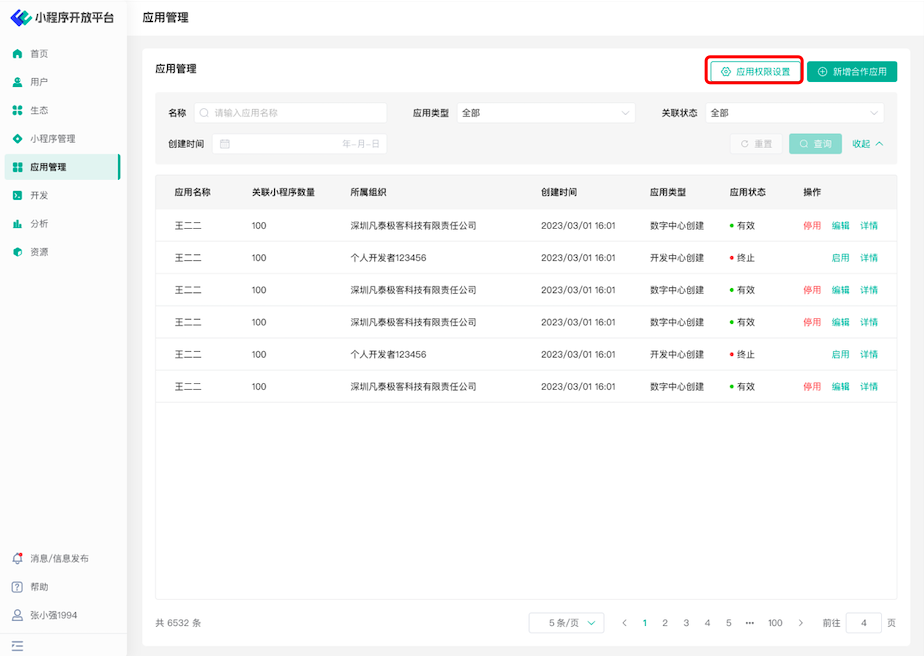
- Application Permission Settings: Configure "Developer Center Application Settings" and "Review Application Settings"
# 1.2 Terminology Definition
None
# 1.3 Usage Instructions
# Adding Applications
Navigate to the "Application Management" page, click the "Add Partner Application" button above the list, and fill in the corresponding basic application information:
- Application Name: Used to label the name of the application to be created, avoiding discrepancies when adding BundleIDs;
- Description: Briefly introduce the application in one sentence;
- Icon: Used to identify the application, serving as a mnemonic aid for subsequent usage management;
- Bundle ID: Set the Bundle ID for this application, up to 2 can be added;
- Automatically Associate Mini-Programs: If set to "Yes", this application will automatically associate Mini-Programs;
- Display Application Bundle ID to Enterprise: If set to "Yes", the application's Bundle ID will be displayed in the Developer Center;
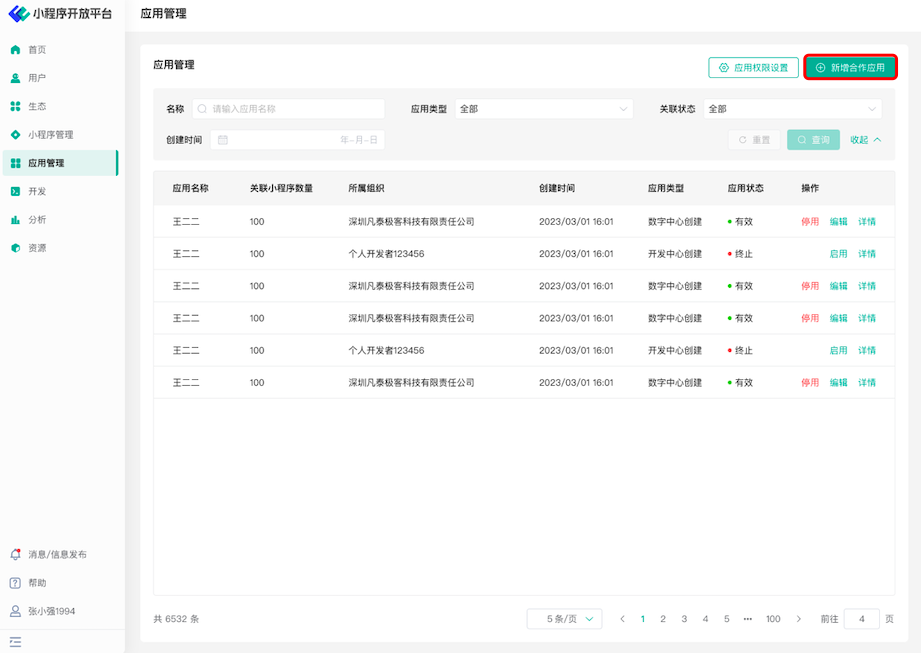
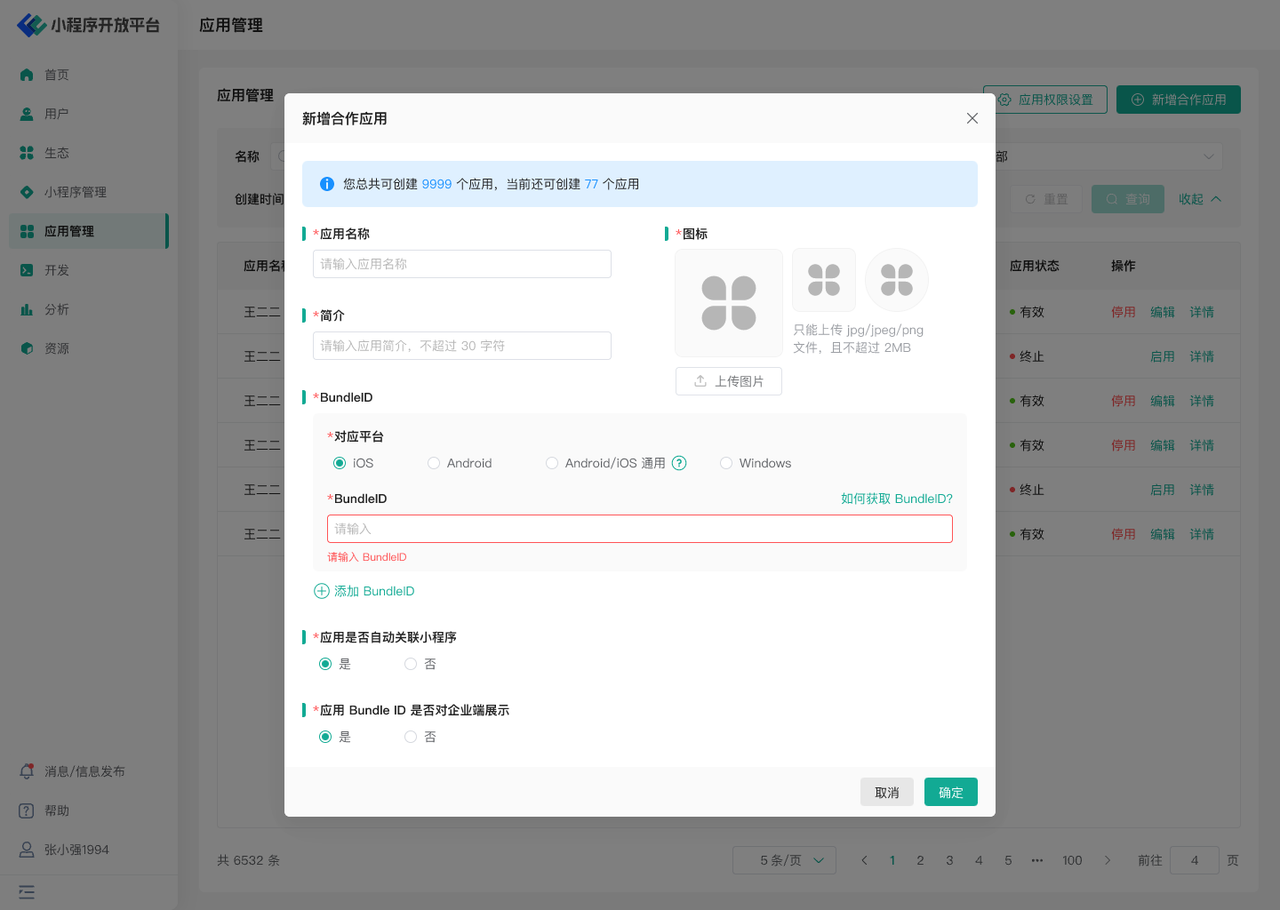
After successful creation, the application will be displayed in the list below. If you wish to disable the capabilities within a specific application, you can click "Disable" in the operations column.
# Viewing and Operating Application Details
The Digital Center can view global application information. You can query the application information you need to manage using filter criteria.
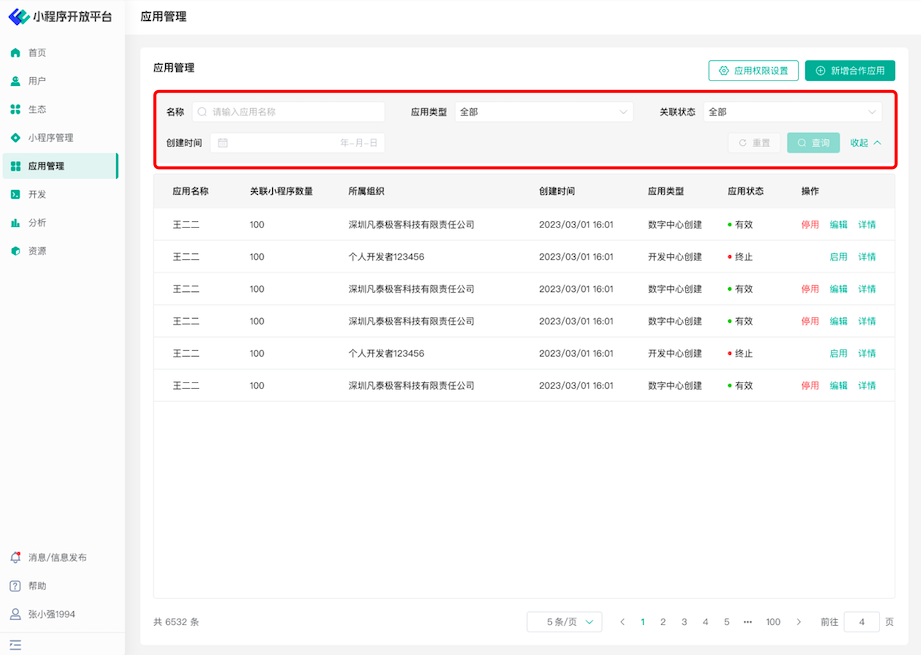
However, depending on the creation source of the application, the corresponding operations available in the Digital Center differ as follows:
| Operation | Application Created in Digital Center | Application Created in Developer Center |
|---|---|---|
| Enable/Disable Application | ✅ | ✅ |
| View Mini-Program Info/API Info/Menu Info | ✅ | ✅ |
| Add Bundle ID | ✅ | ❌ |
| Disable Bundle ID | ✅ | ✅ |
| Add/Edit API | ✅ | ❌ |
| Disable API | ✅ | ✅ |
| Stop Invocation of Approved APIs | ✅ | ❌ |
| Add/Edit Menu | ✅ | ❌ |
| Disable Menu | ✅ | ✅ |
| Stop Invocation of Approved Menus | ✅ | ❌ |
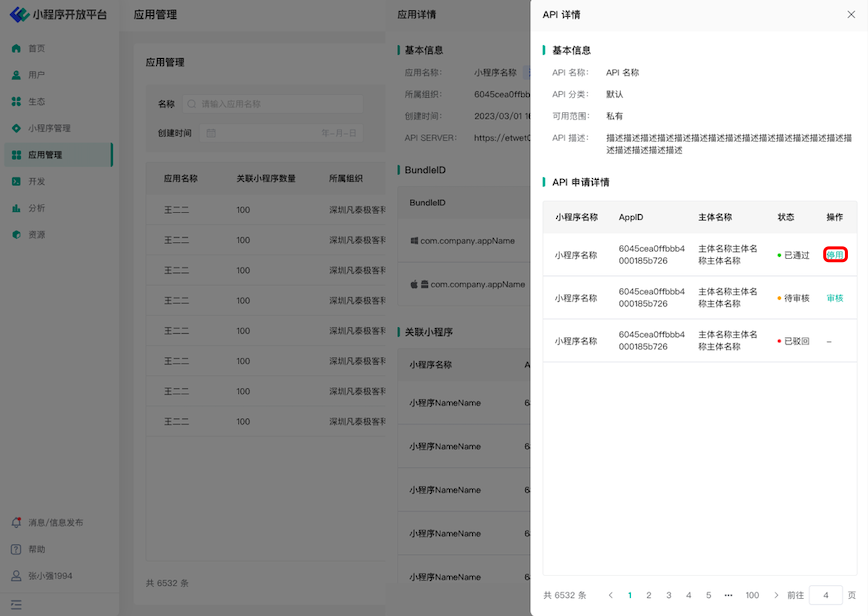
Additional Note: Applications created in the Digital Center support creating and managing custom APIs and menus. If Mini-Programs under other applications wish to apply to invoke these APIs/menus, review operations can be performed on the specific API/menu (reviews can also be handled in the Pending Center). Furthermore, if a previously approved API/menu needs to have its invocation stopped, navigate to the application's API/Menu details and click "Disable".
# Application Permission Settings
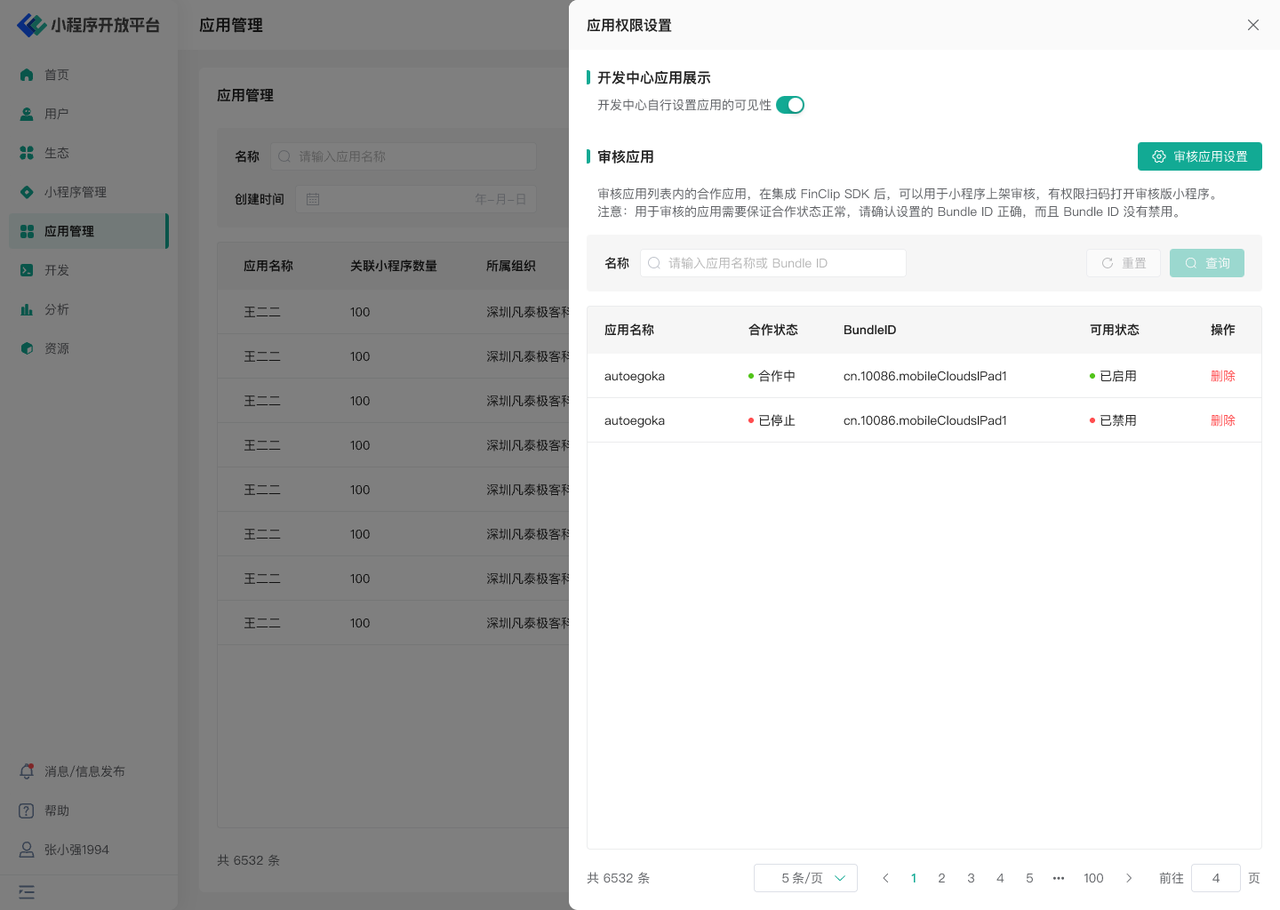
Click "Application Permission Settings" on the application list page to configure "Developer Center Application Settings" and "Review Application Settings".
- Developer Center Application Settings: After enabling this switch, the Developer Center side can independently configure the application's visibility and Bundle ID display settings.
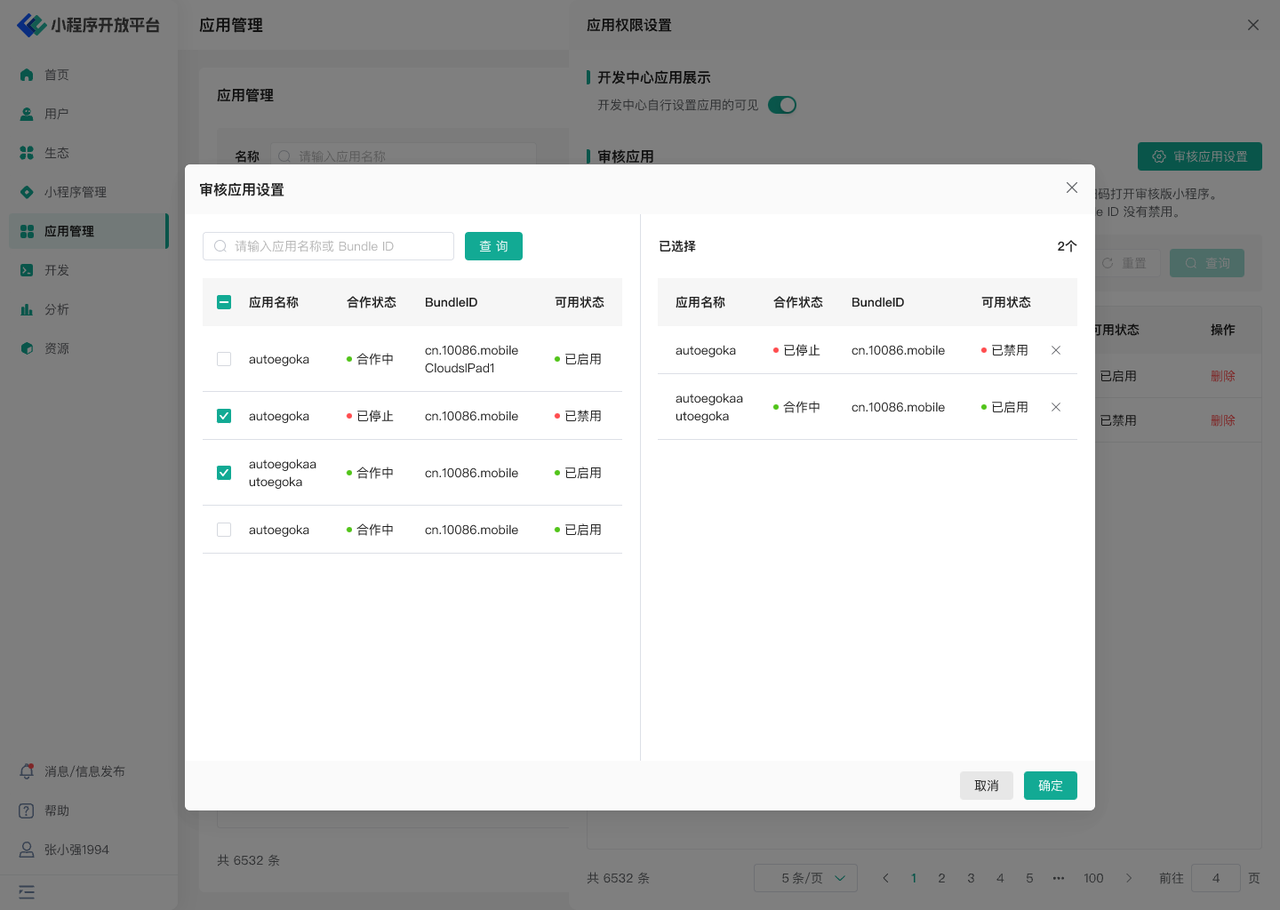
- Review Application Settings: Here, you can select some applications created in the Digital Center and designate them as review applications. After integrating the FinClip Mini-Program SDK, review applications can be used for Mini-Program submission reviews and have permission to scan QR codes to open review version Mini-Programs. Applications used for review must maintain a normal partnership status. If you need to use a review application, please ensure the configured Bundle ID is correct and that the Bundle ID is not disabled.
# 1.4 Environment Specifications
| Edition | Community Edition | SaaS Edition | Enterprise Edition (Annual Subscription or One-time Purchase) |
|---|---|---|---|
| Role Management | ✅ | ✅ | ✅ |
# 2.Bundle ID
# 2.1 Feature Description
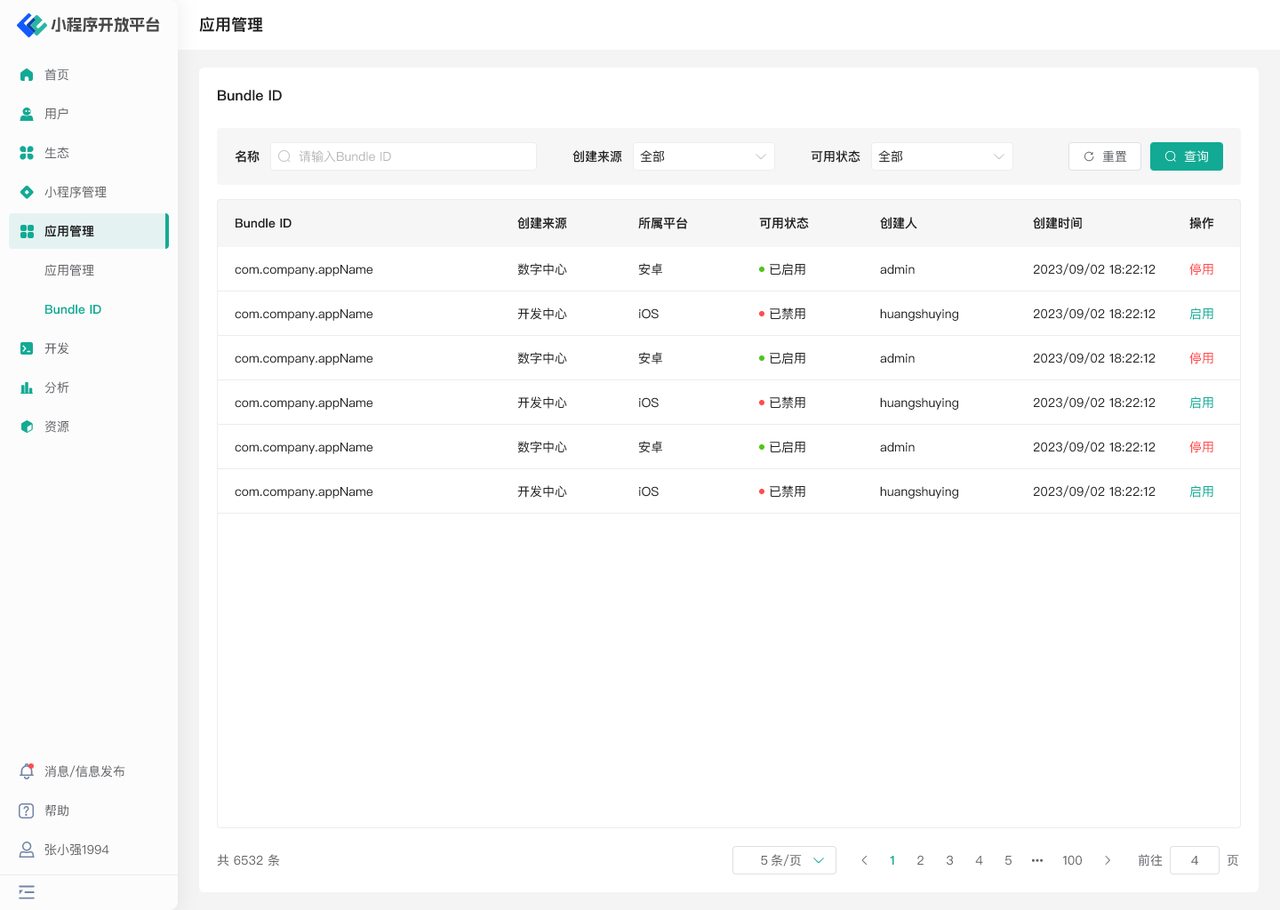
On the "Bundle ID" page, you can perform the following operations:
- Enable/Disable Bundle ID: Click the button in the operations column to enable or disable
# 2.2 Terminology Definition
None
# 2.3 Usage Instructions
Here you can manage Bundle IDs created from the Digital Center or Developer Center, performing operations such as disabling and enabling them.
# 2.4 Environment Specifications
| Edition | Community Edition | SaaS Edition | Enterprise Edition (Annual Subscription or One-time Purchase) |
|---|---|---|---|
| Role Management | ✅ | ✅ | ✅ |