
# Digital Center - Development
Only available in Private Deployment Edition and Community Edition
# 1. Domain Management
# 1.1 Feature Description
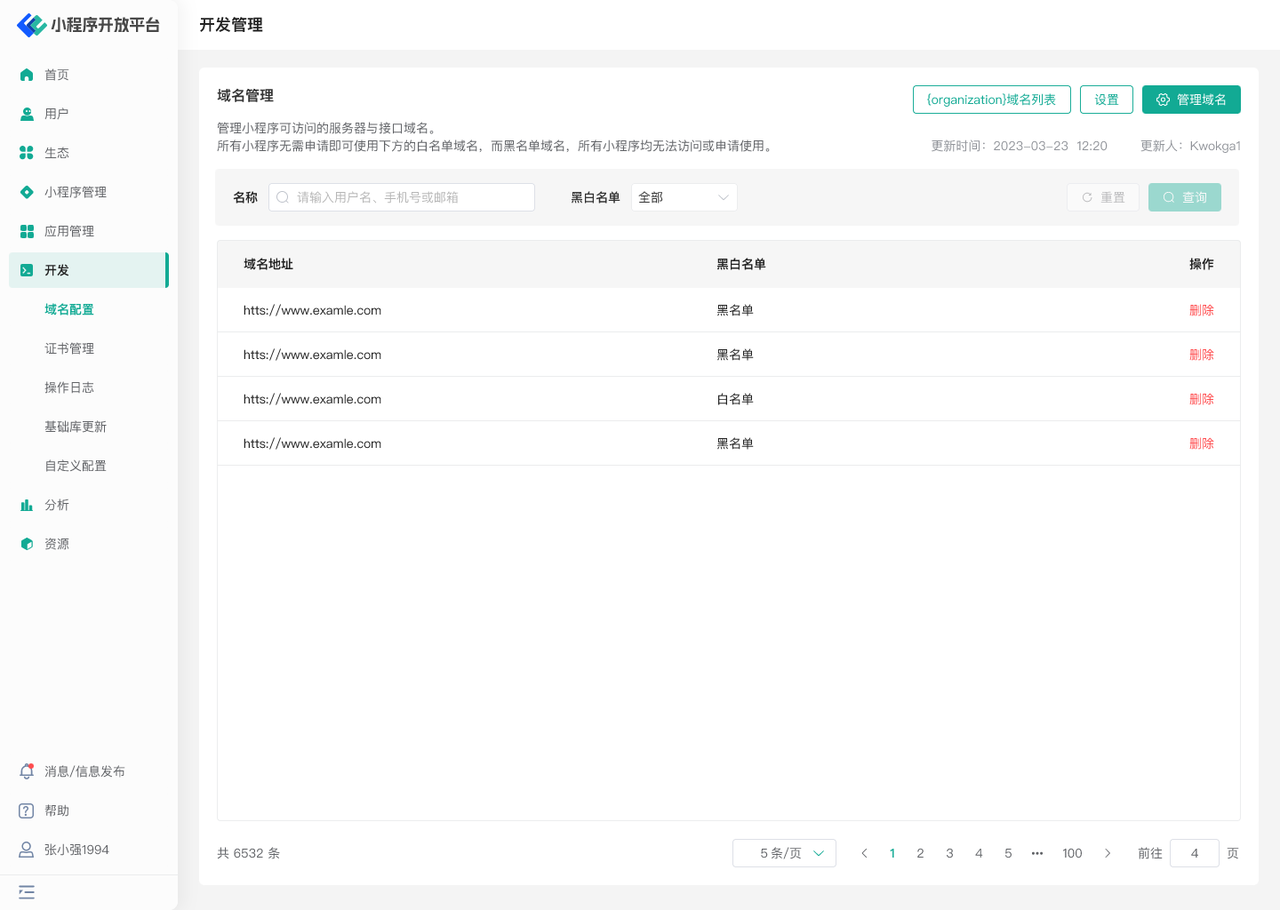
In the "Domain Management" menu, you can:
- Configure global blacklist/whitelist domain names, effective for all Mini-Programs
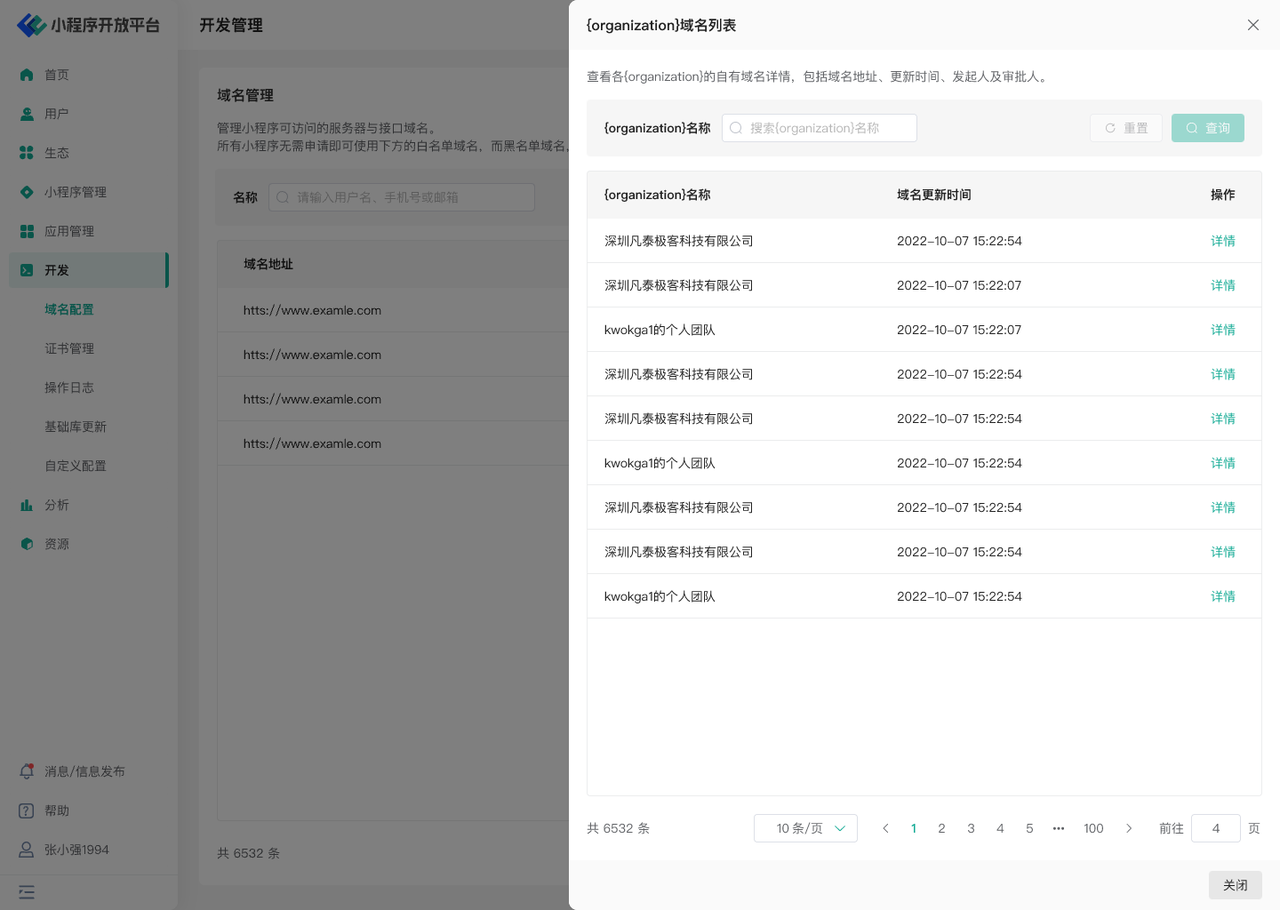
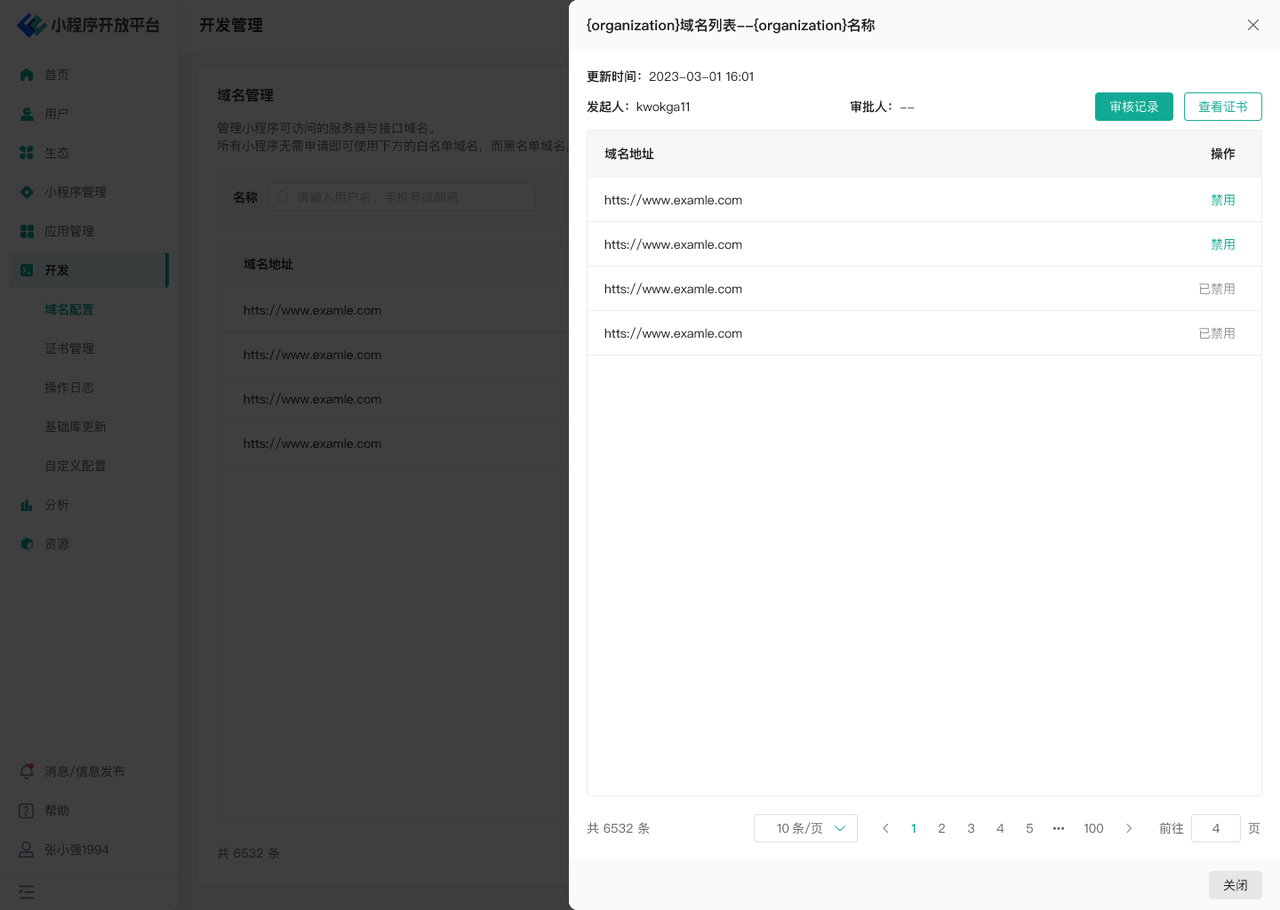
- View the domain name list of all organizations in the Developer Center
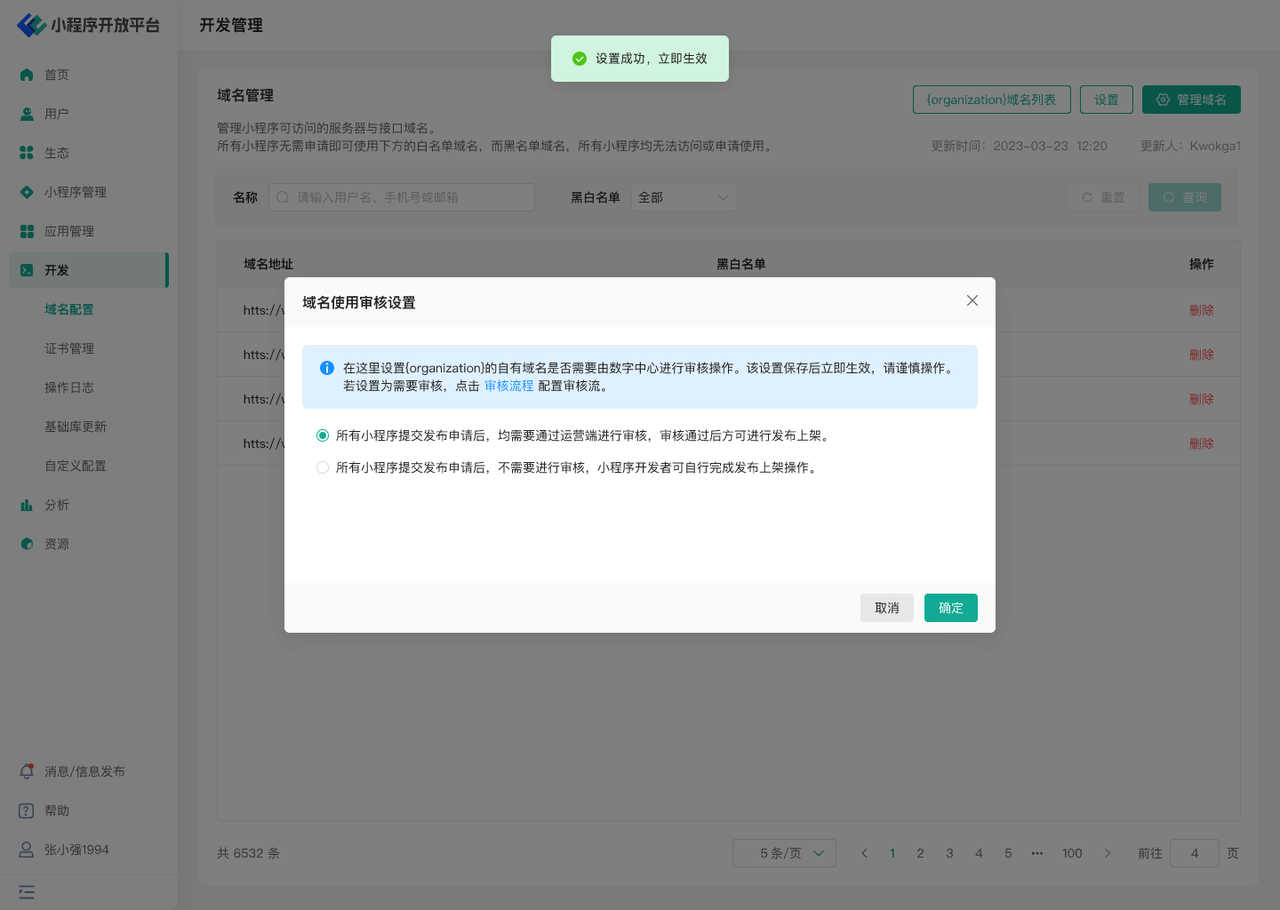
- Set whether domain name usage by all organizations in the Developer Center requires approval from the Digital Center
# 1.2 Terminology Definition
None
# 1.3 Usage Instructions
# Configuring Blacklist/Whitelist
- Use the "Manage" function to open the configuration window. Currently supports HTTP protocol (http/https) and WebSocket protocol (ws/wss). Asterisks can be used to configure effectiveness for second-level and above domain names;
- Domain name configurations typically take effect within 10 minutes.
# Viewing Organization Domain List
- Access the organization list page through "Organization Owned Domains". Click on the domain details of any organization to view all domain names.
# Setting Whether Organization Domain Usage Requires Digital Center Approval
- Use the "Settings" function to configure whether domain name usage by organizations in the Developer Center requires approval from the Digital Center. The default setting is no approval required.
# 2. Certificate Management
# 2.1 Feature Description
In the "Certificate Management" menu, you can:
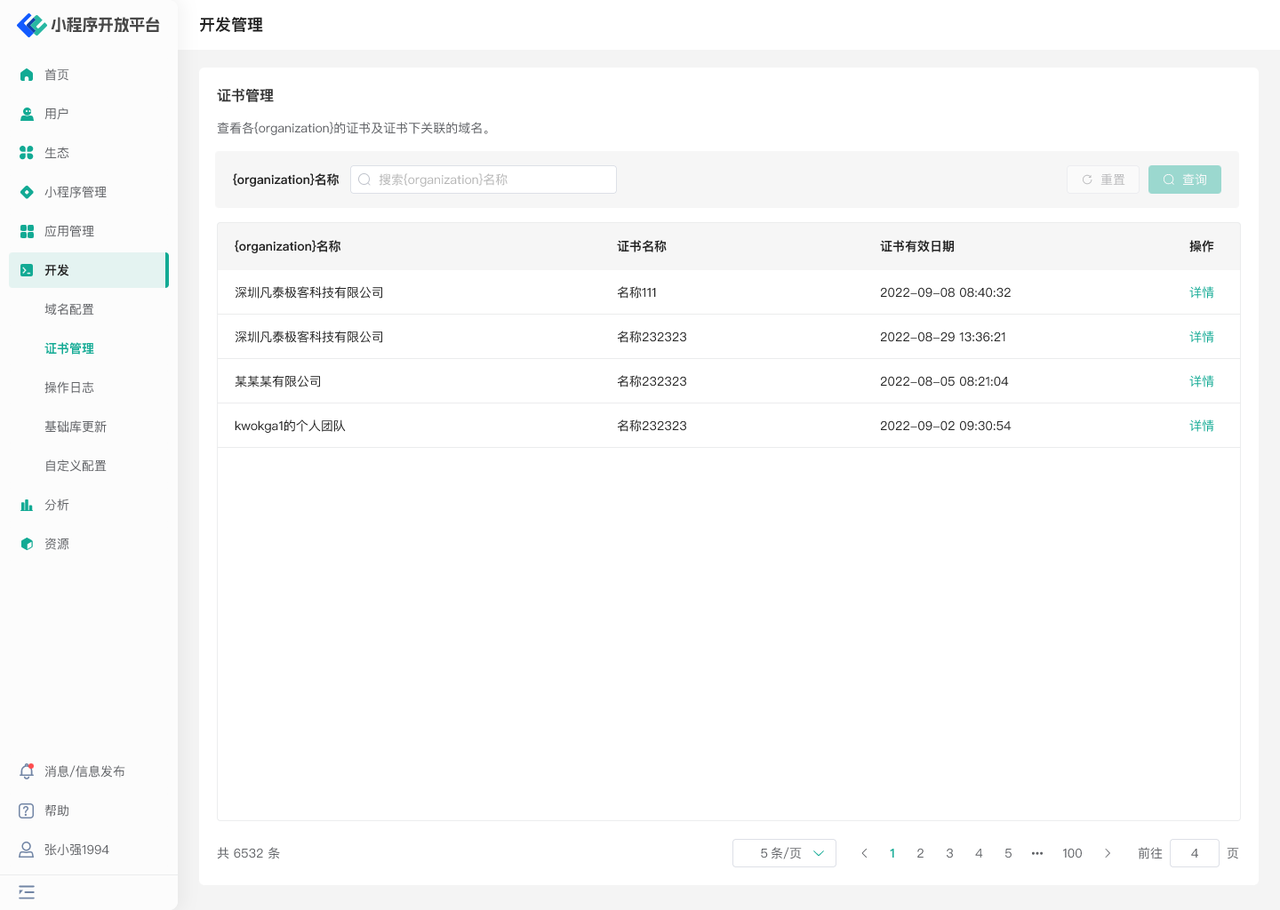
- View the certificates of various organizations in the Developer Center and their associated domain names.
# 2.2 Terminology Definition
None
# 2.3 Usage Instructions
- View certificates of each organization, with filtering support by organization name.
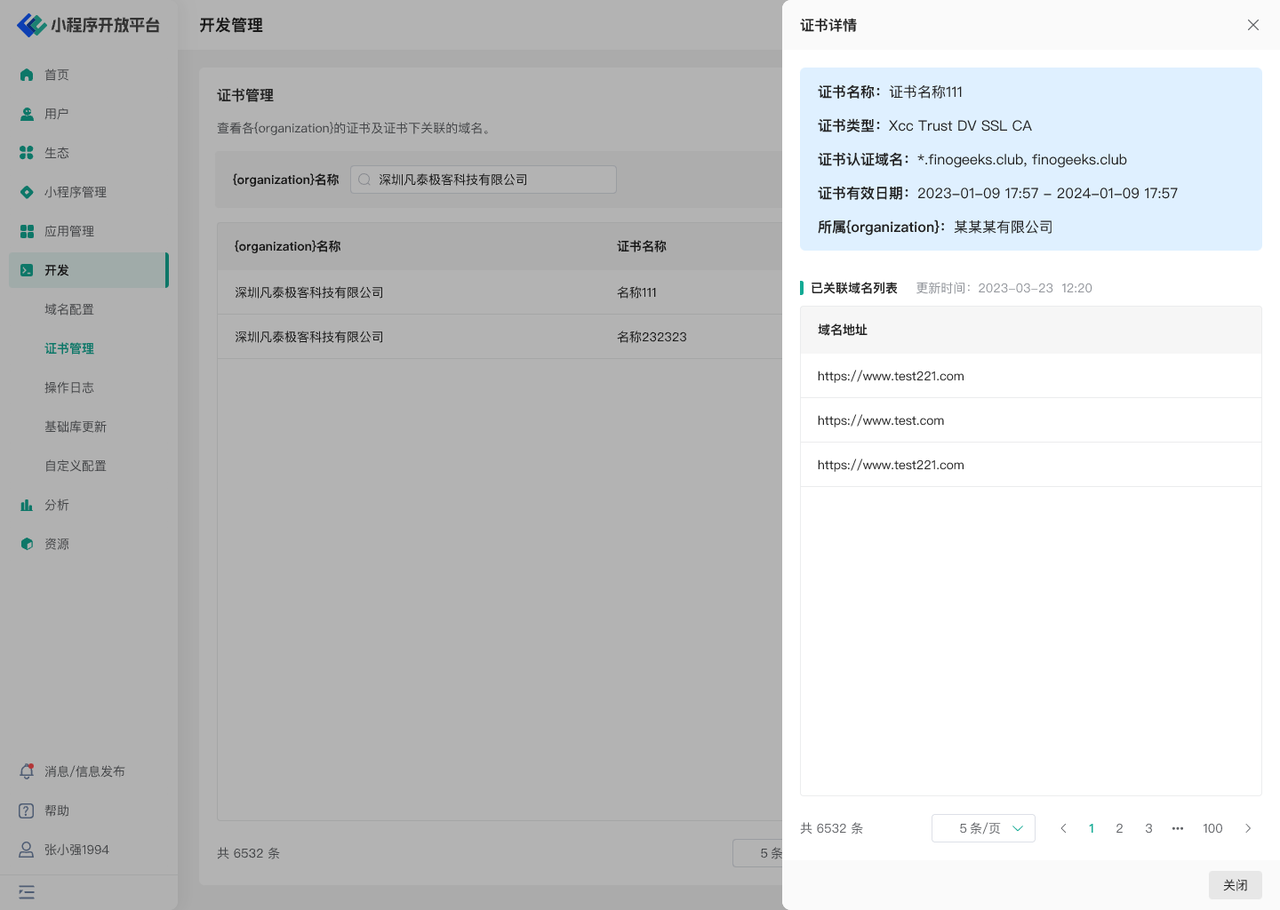
- Use "Details" to view the corresponding certificate content and its associated domain names.
# 3. Privacy Management
# 3.1 Feature Description
The Privacy Management function is primarily designed to help Mini-Program ecosystem platform operators better manage the privacy permissions that Mini-Programs can invoke. Platform administrators can configure the privacy permission content and application methods that may be included in the Host-App according to actual needs, thereby facilitating better privacy permission management.
# 3.2 Terminology Definition
- Permission Field: Configures field information related to privacy permissions, specifically including "Permission ID, Permission Name, Permission Type, Permission Description, Permission Validity Period," etc.;
- Authorization Grant: Users operate through pop-up menus and authorization grants within the Mini-Program;
# 3.3 Usage Instructions
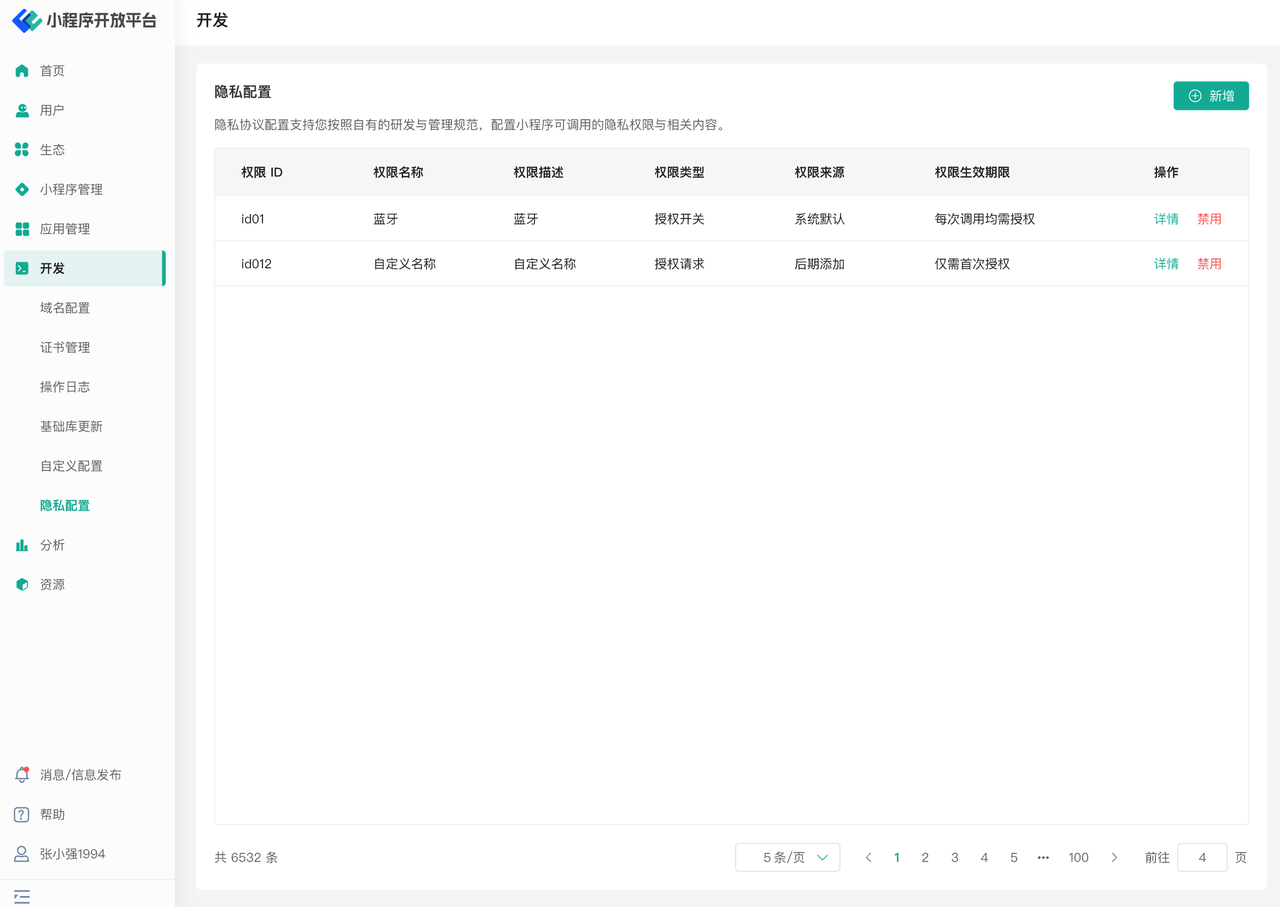
First, access the privacy permission configuration page through the "Digital Center - Development - Privacy Configuration" menu.
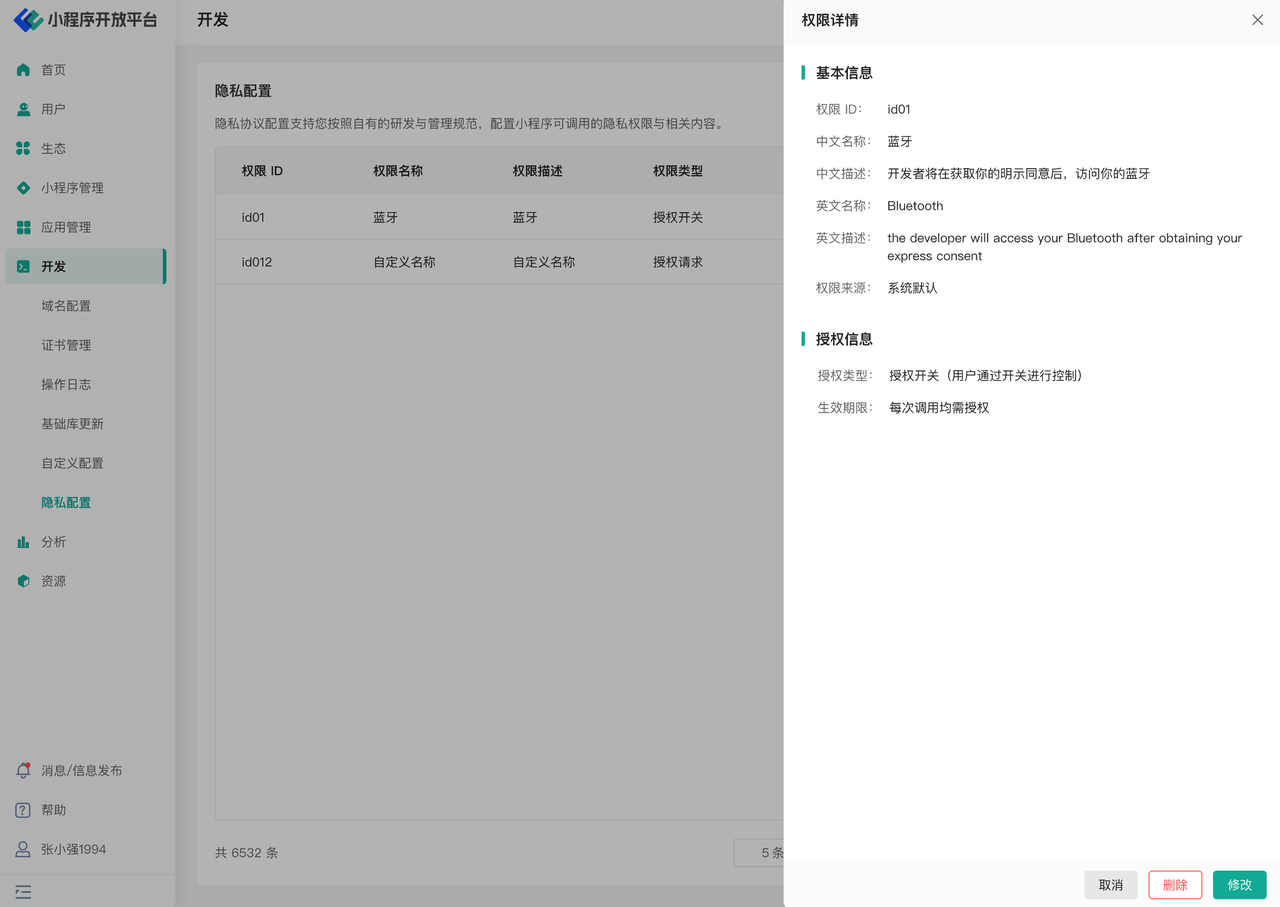
Click the details button on the right side of the page to view privacy configuration details, including basic permission information and authorization information.
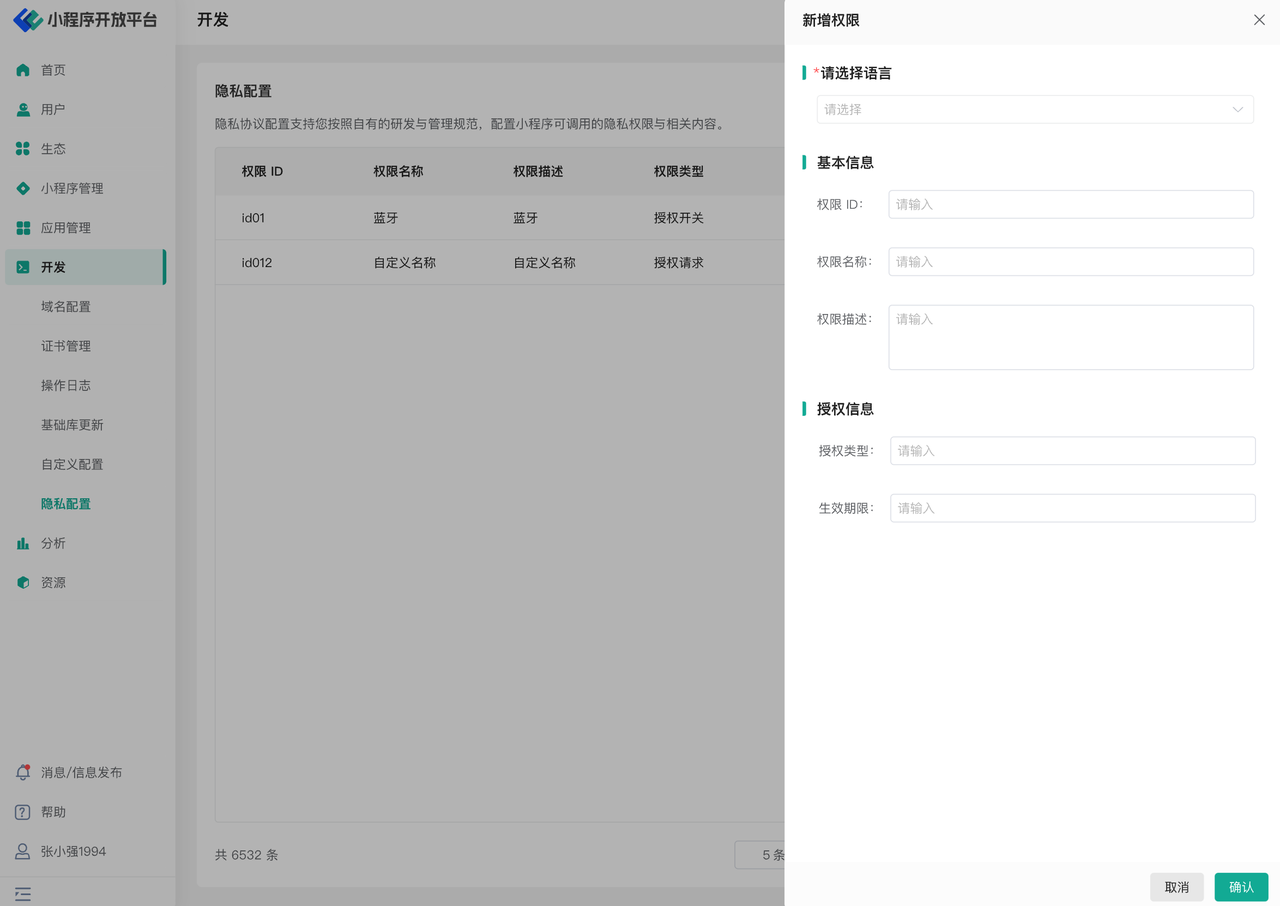
If it is necessary to configure relevant privacy agreements according to the actual situation, you can add privacy permissions available in the Mini-Program.
Please note that when adding privacy permissions, they must not conflict with existing privacy permissions.
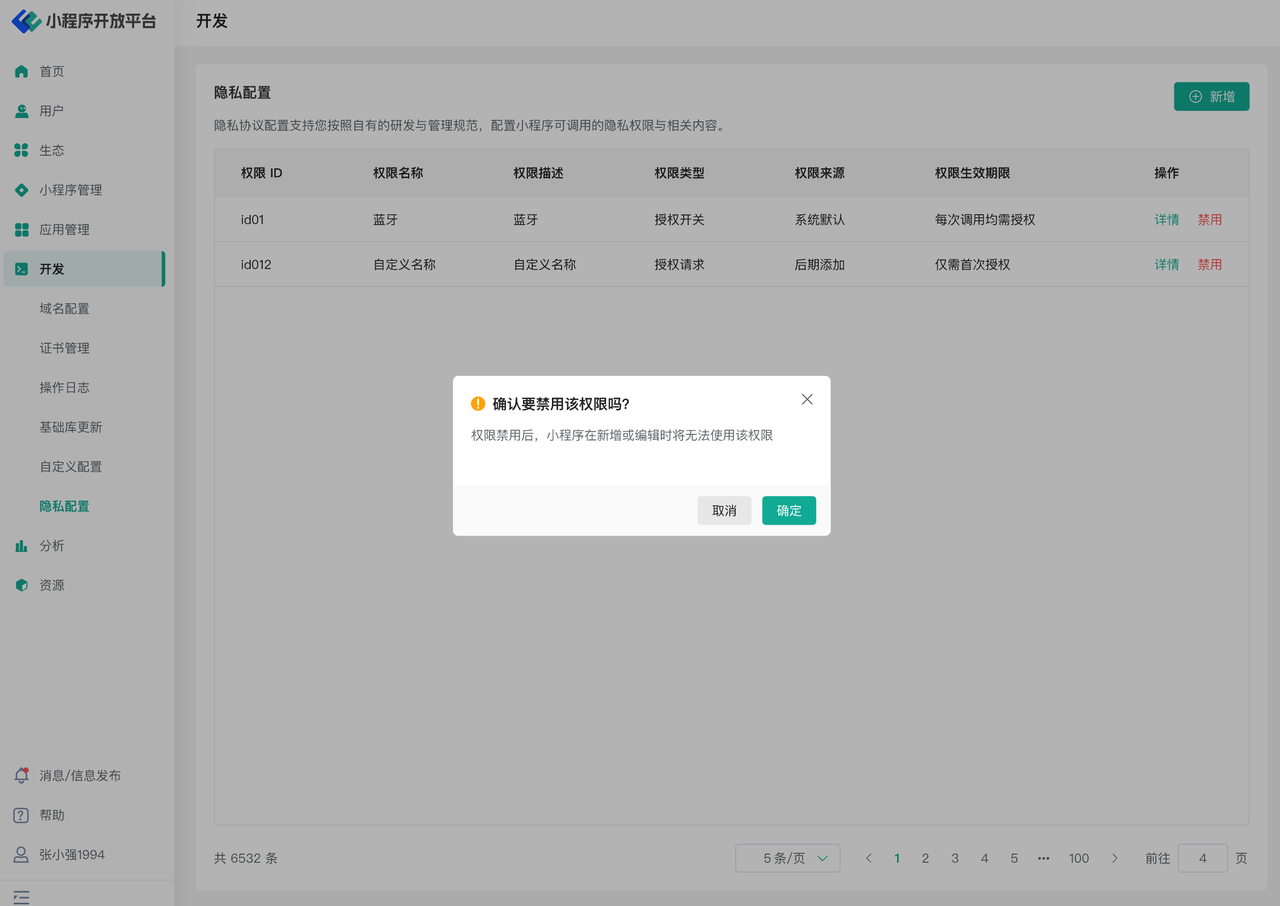
If you need to disable an existing permission, you can do so by clicking the "Disable" button on the right.
# 4. Custom Configuration
# 4.1 Feature Description
Custom Configuration provides a unified UI customization entry point for Mini-Program ecosystem platform builders. Platform builders can flexibly customize elements such as titles, names, logos, default images, etc., within the Mini-Program ecosystem platform according to corporate branding and identity needs. They can also modify the website's registration and login pages, default Mini-Program categories, and security-related configurations.
# 4.2 Terminology Definition
None
# 4.3 Usage Instructions
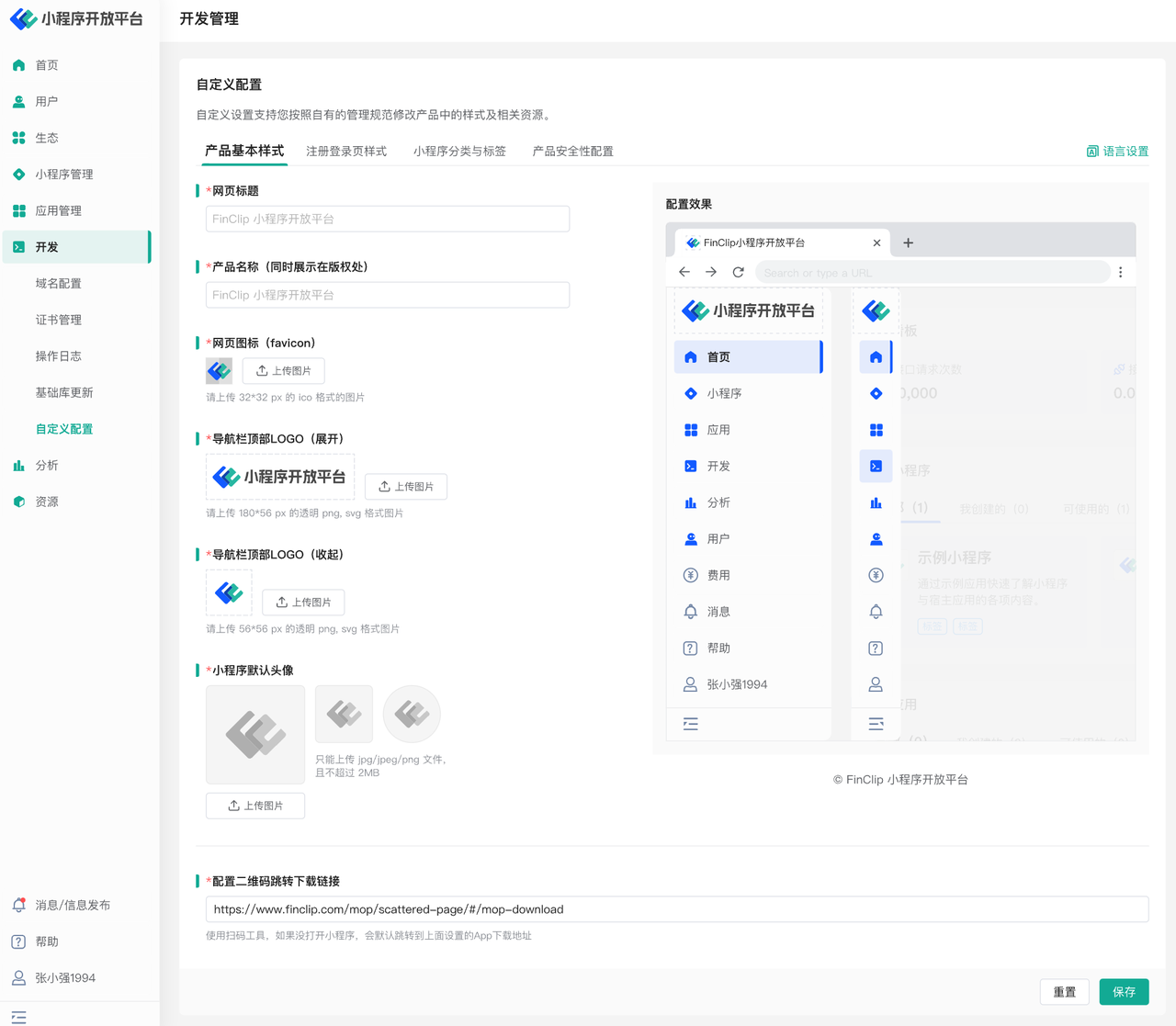
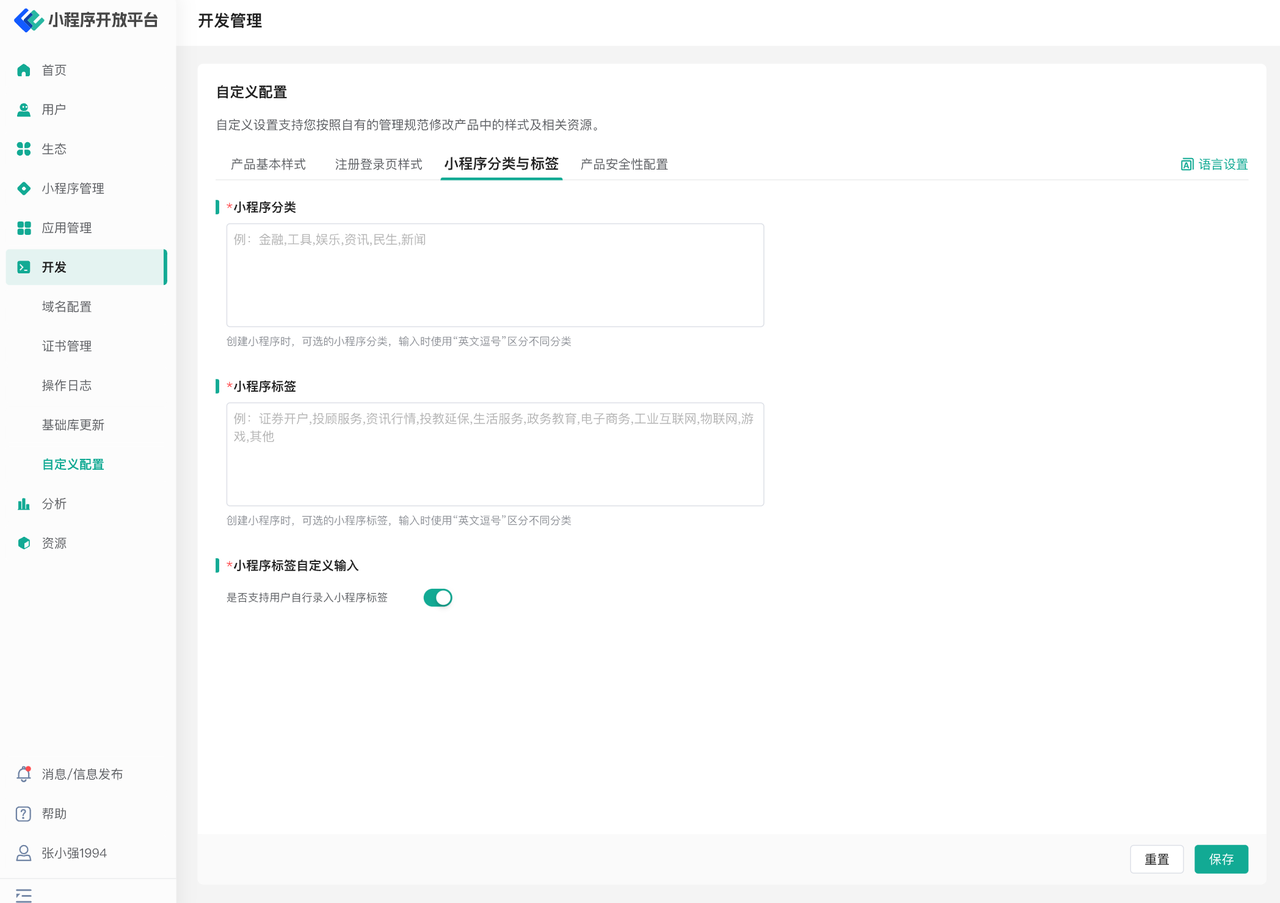
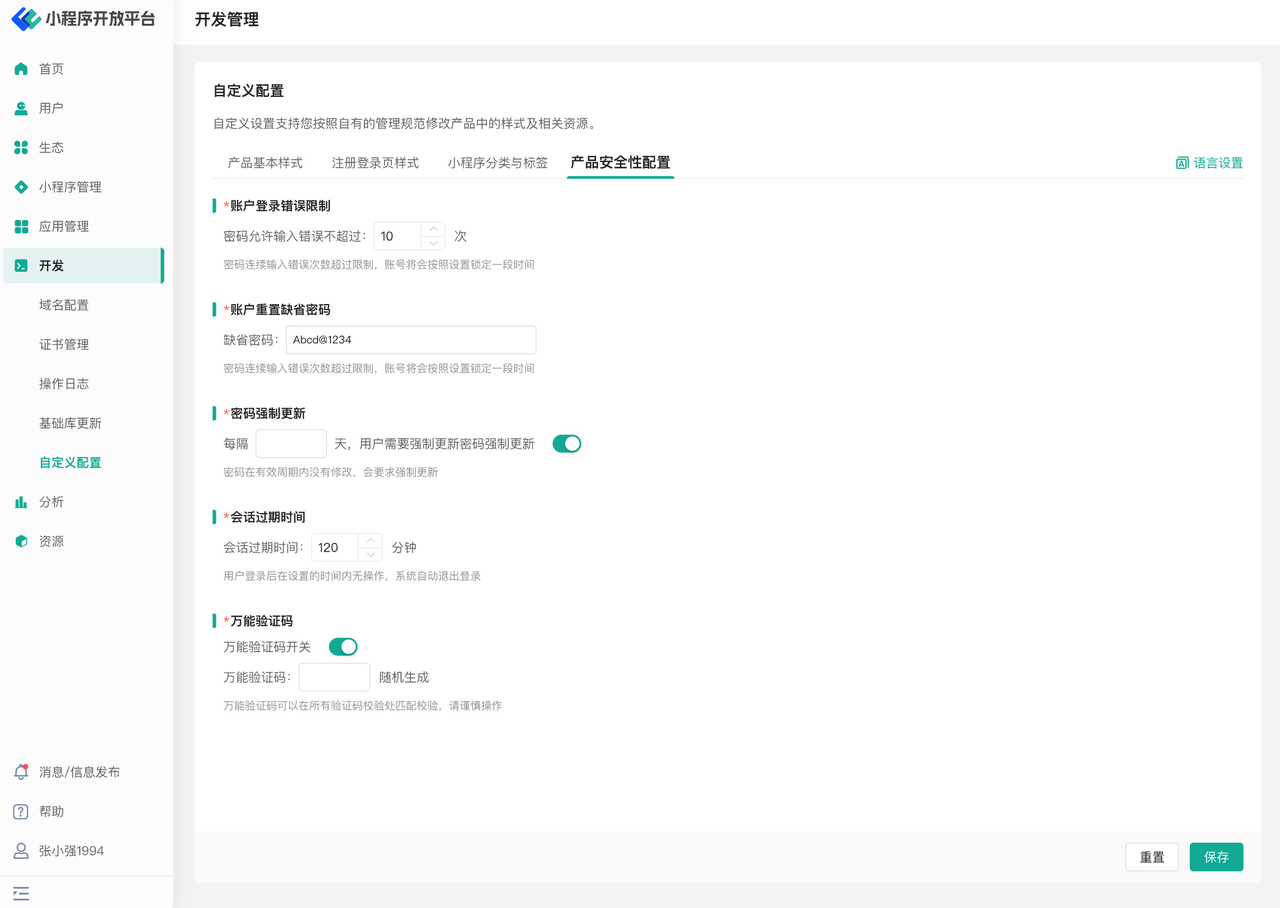
Access the Custom Configuration page through the "Development - Custom Configuration" menu. The page includes four tabs: "Basic Product Style," "Registration/Login Page Style," "Mini-Program Categories and Tags," and "Product Security Configuration."
On the Basic Product Style page, you can modify and configure the webpage title in the browser, product name, favicon, navigation bar top logo, default Mini-Program avatar, and the redirect link for Mini-Program QR code scanning.
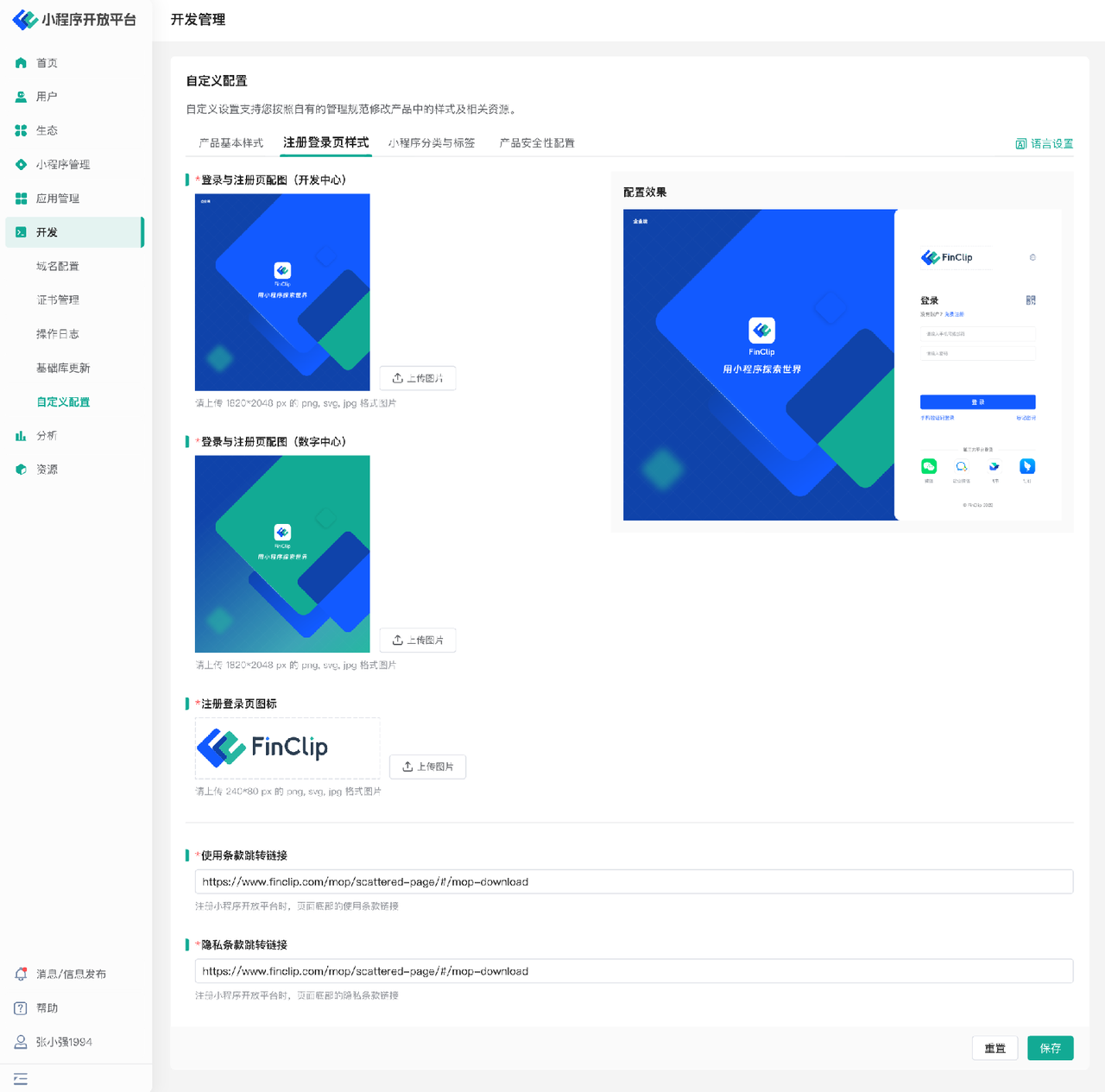
In the Registration/Login Page Style section, you can configure and modify the images used in the Mini-Program Open Platform and the redirect links for the Terms of Use and Privacy Policy.
In the Mini-Program Categories and Tags tab, you can modify the default categories used during Mini-Program creation and editing.
On the Product Security Configuration page, you can configure security-related requirements for the platform, such as the limit for incorrect login attempts, the default password for account reset, mandatory password update requirements, session expiration time, and the universal verification code toggle.
# 5. Base Library Update
# 5.1 Feature Description
"Base Library Update" is a function we provide in the Digital Center, designed to help users manage and update the Base Library versions of Mini-Programs more conveniently. Through this function, users can quickly view the current Base Library version used by the Mini-Program and perform upgrade or downgrade operations when necessary. This eliminates the need for manual downloading and replacing of Base Library files or individually checking and modifying code, greatly simplifying the Base Library management process.
# 5.2 Terminology Definition
None
# 5.3 Usage Instructions
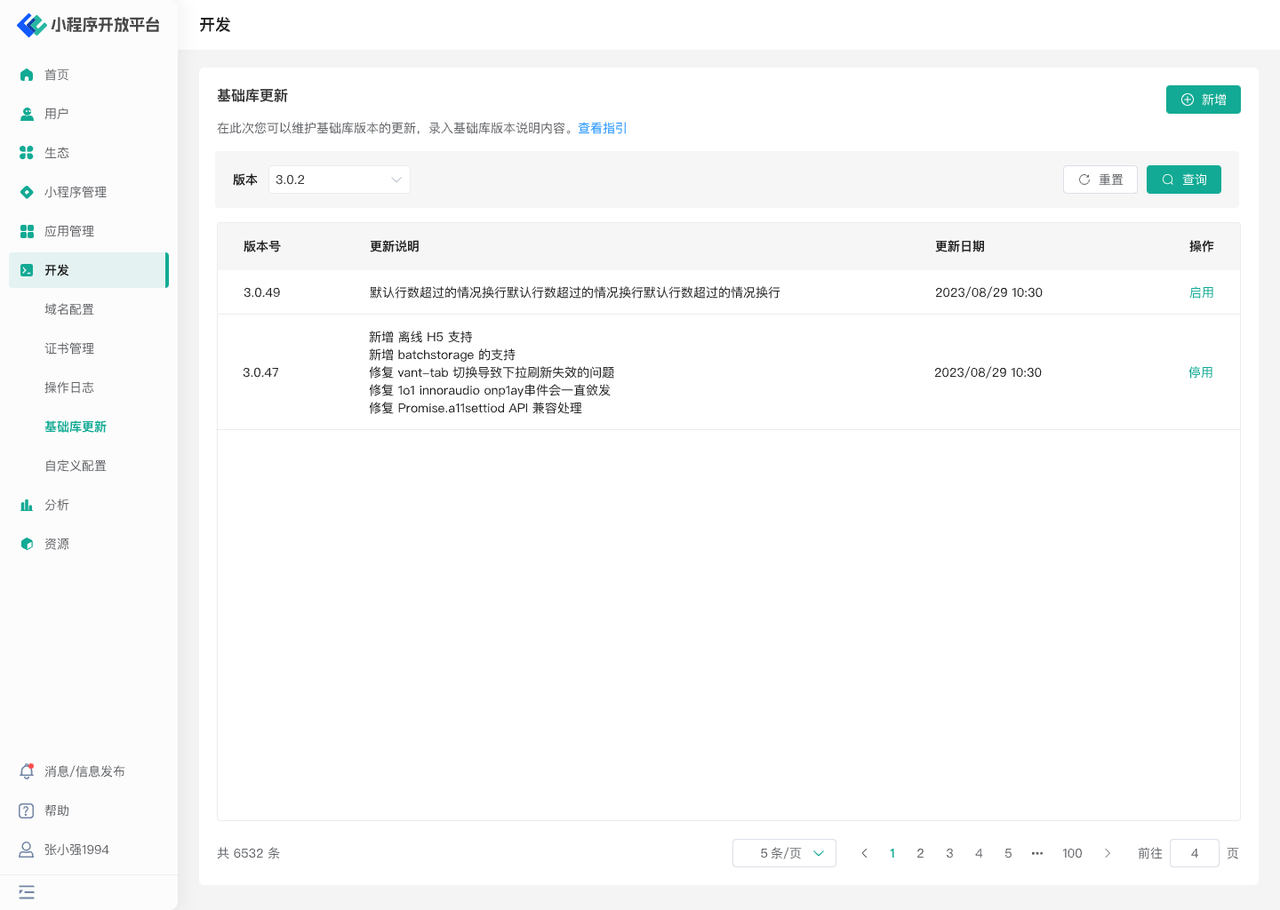
- Updates to the Mini-Program Base Library can be completed on this page. After clicking "Enable," the Base Library update will take effect in real-time.
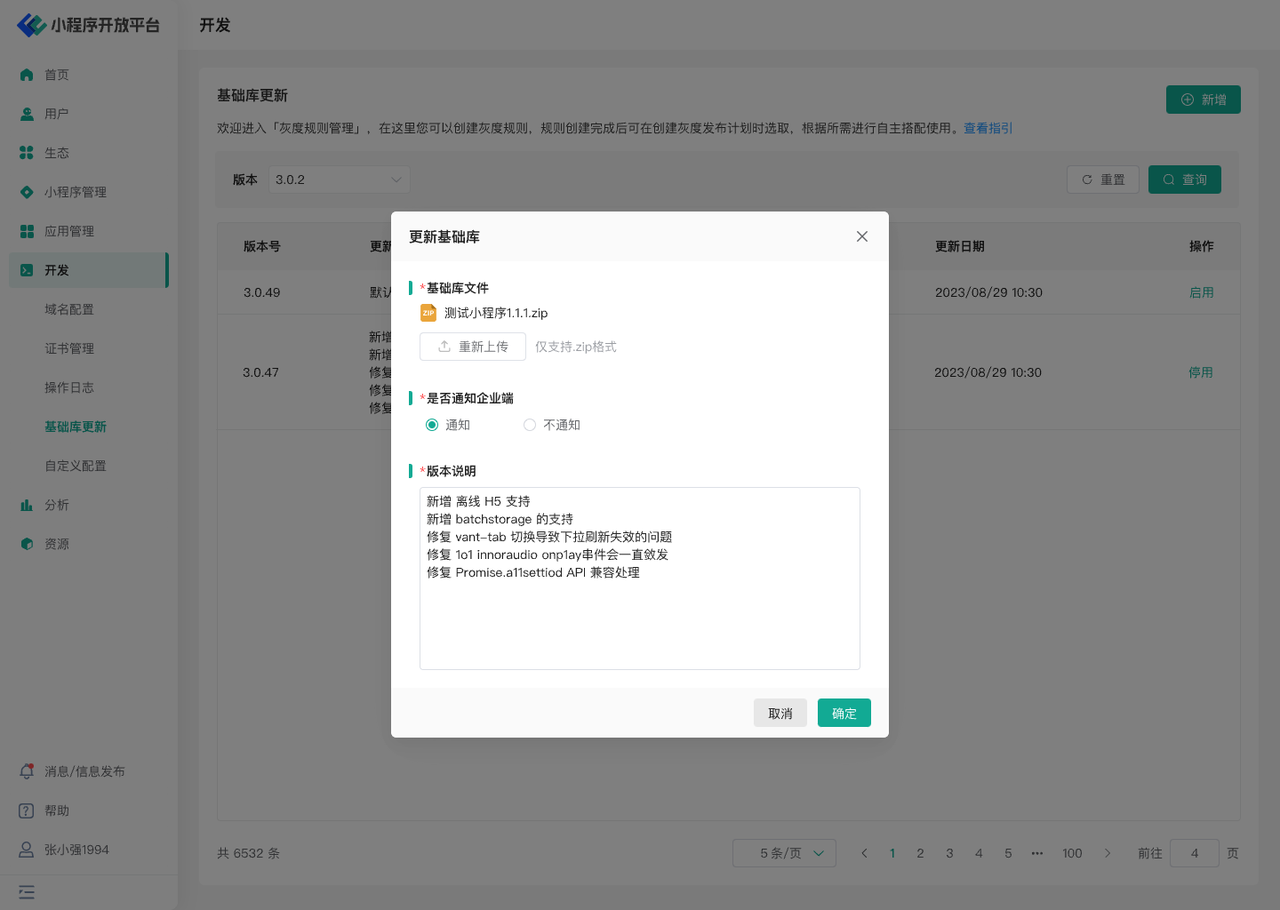
- Click the "Add" button to upload a Base Library code package.
- When uploading a Base Library, simply select the Base Library zip package; there is no need to manually enter the version number (the server will automatically read the version number from the zip package).
# 6. Operation Log
# 6.1 Feature Description
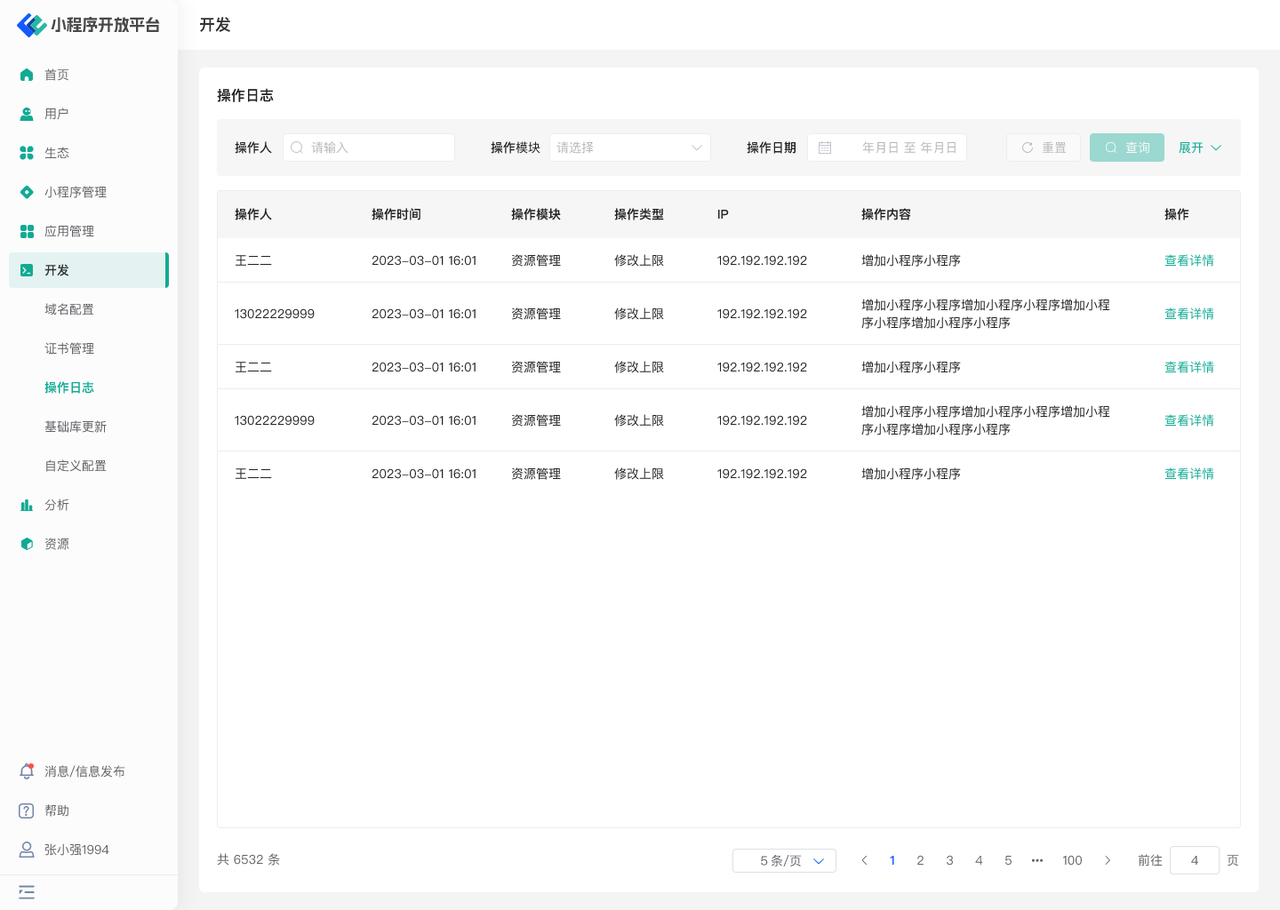
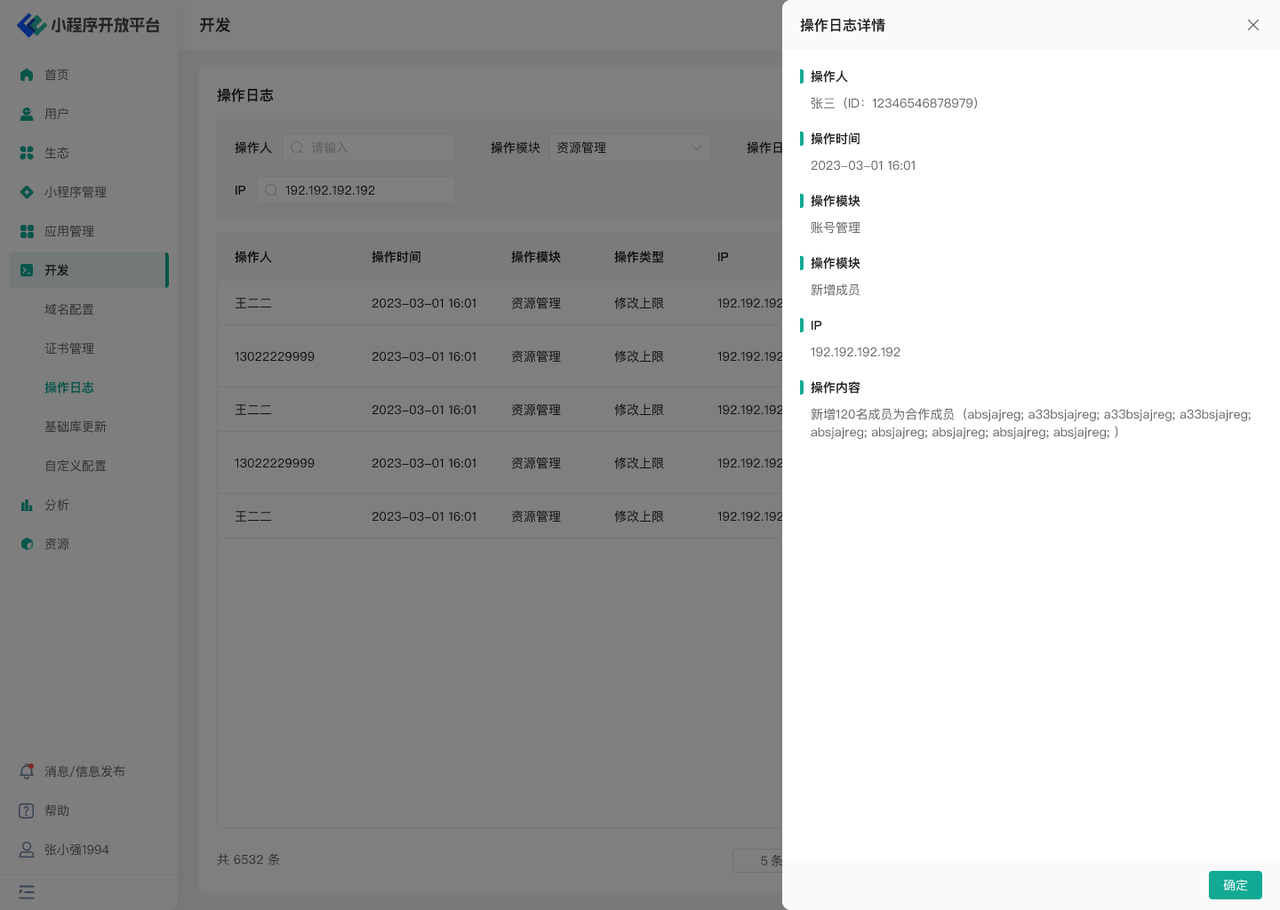
On the "Operation Log" page, you can filter by operator and functional module according to your needs to facilitate the viewing of global operation logs. Additionally, by clicking "Details," you can view specific operation content, including the operation type, time, data changes before and after the operation, and other information. These details help users gain a deeper understanding of the specific content and impact of operations, thereby better facilitating auditing, troubleshooting, or data analysis tasks.
(Note: The Digital Center will additionally record data for certain operations generated in the Developer Center, such as team ownership transfers.)
# 6.2 Terminology Definition
Operator: Refers to the user who performed the operation.
Operation Module: Refers to the specific functional module where the user performed the corresponding operation, mapped to the specific business.
Operation Type: Refers to the specific action performed within the functional module.
Example: If User A created a new Mini-Program in the "Mini-Program Management" module, then: Operator: User A, Operation Module: Mini-Program Management, Operation Type: Create Mini-Program.
# 6.3 Usage Instructions
You can search and query operation logs for specific modules and types. Click "View Details" in the operation column to see the detailed content of the log.
# 7. Environment Specifications
| Feature | Community Edition | SaaS Edition | Enterprise Edition (Annual Payment or One-time Purchase) |
|---|---|---|---|
| Domain Management | ✅ | ✅ | ✅ |
| Certificate Management | ✅ | ✅ | ✅ |
| Privacy Management | ✅ | ✅ | |
| Custom Configuration | ✅ | ||
| Base Library Update | ✅ | ✅ | ✅ |
| Operation Log | ✅ | ✅ | ✅ |