
# Developer Center - Development
# 1. Domain Management
# 1.1 Feature Description
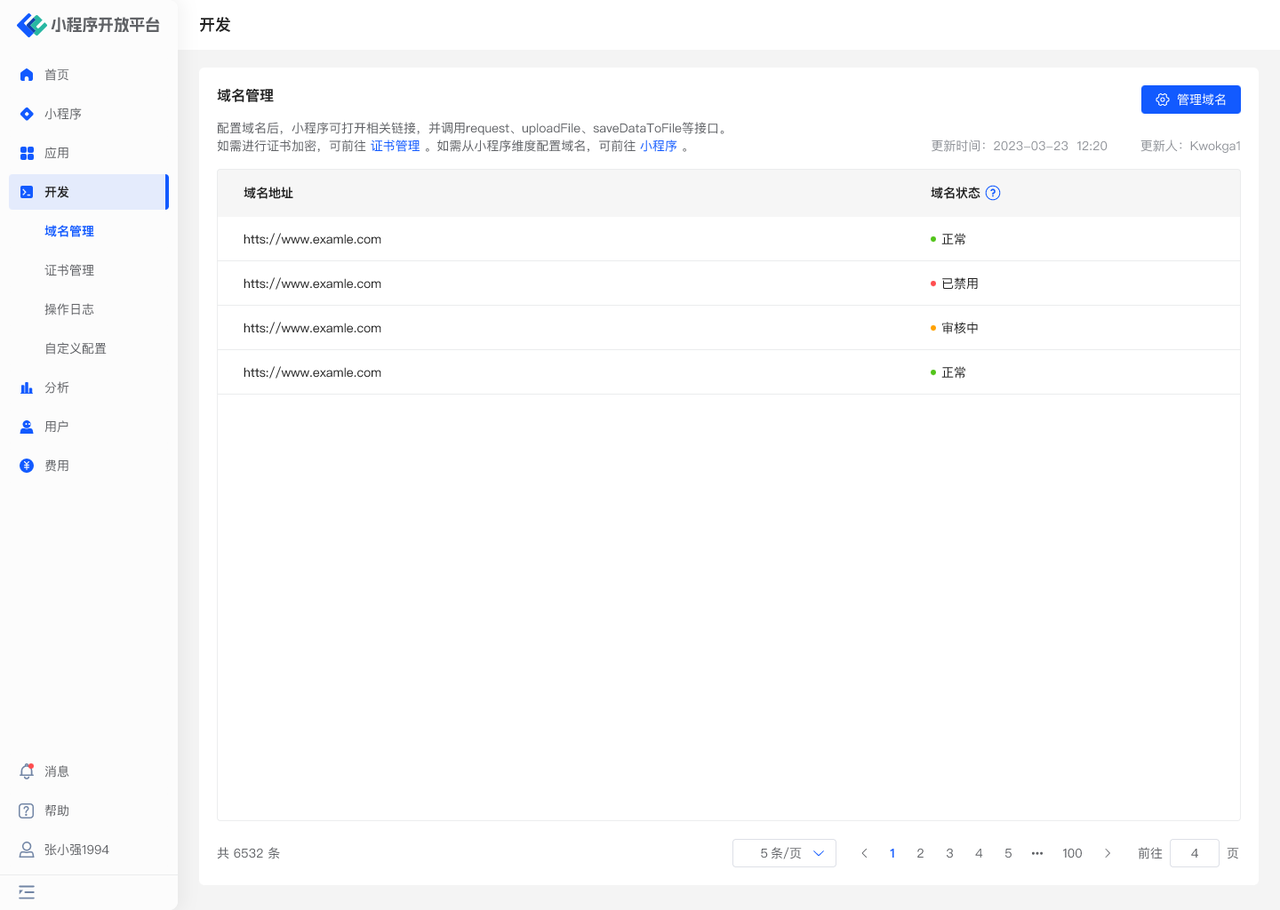
In the "Domain Management" menu, you can:
- Configure organization-level domains: Effective for all Mini-Programs. To configure Mini-Program-level domains, please go to "Mini-Program Management"
# 1.2 Terminology Definition
None
# 1.3 Usage Instructions
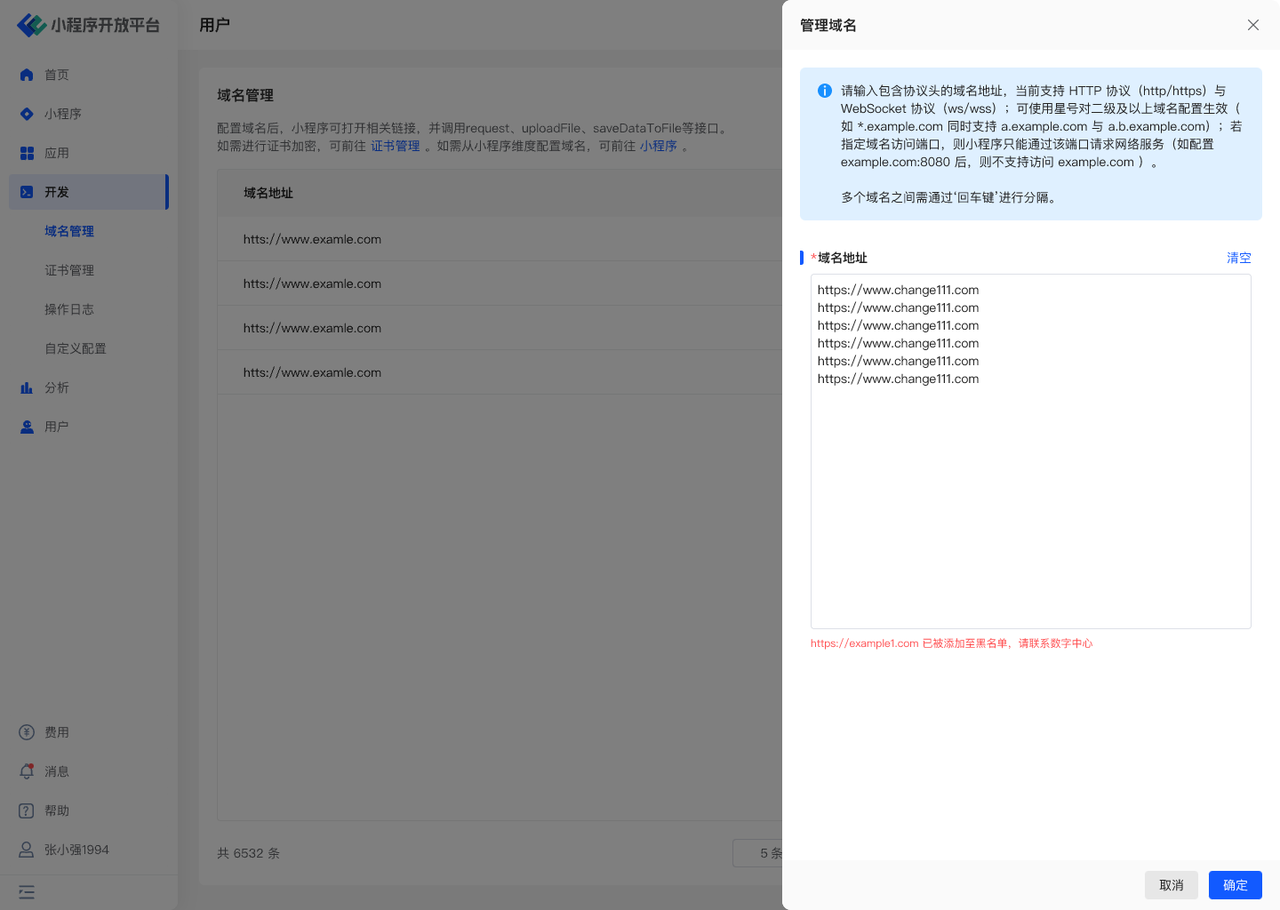
- Use the "Manage Domains" function to edit the domain list. Currently supports HTTP protocol (http/https) and WebSocket protocol (ws/wss). You can use wildcards for second-level and above domains;
- Domain configurations usually take effect within 10 minutes. If the domain requires approval from the Digital Center (controlled by the Digital Center), it will only take effect after approval.
# 1.4 Environment Specifications
| Community Edition | SaaS Edition | Enterprise Edition (Annual Payment or One-time Purchase) | |
|---|---|---|---|
| Domain Management | ✅ | ✅ | ✅ |
# 2. Certificate Management
# 2.1 Feature Description
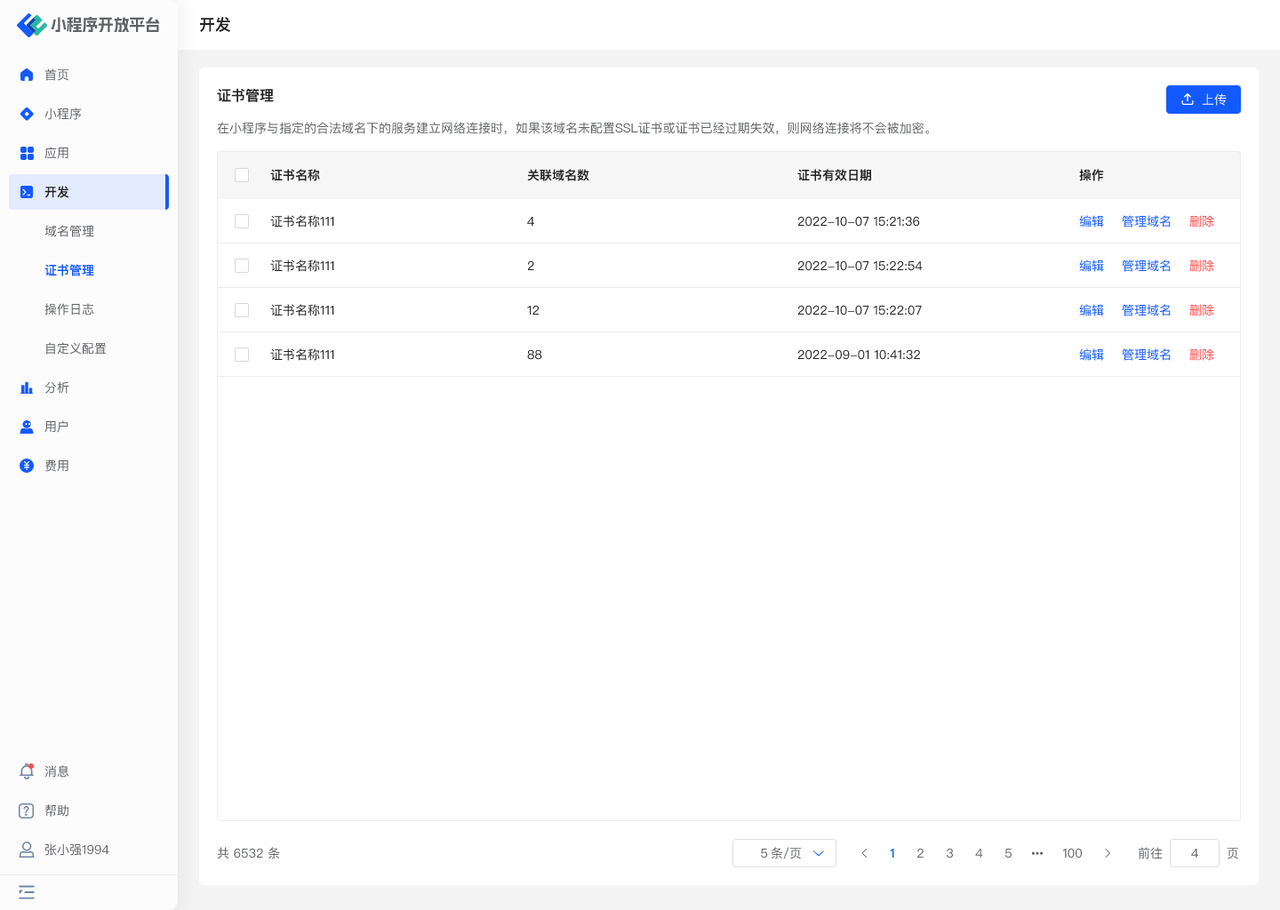
In the "Certificate Management" menu, you can:
- Manage certificates: Upload new certificates, edit certificate names, delete certificates
- Manage domains associated with certificates: Add relevant domains from "Domain Management" to certificates, or remove domains from certificates.
# 2.2 Terminology Definition
None
# 2.3 Usage Instructions
# Upload Certificate
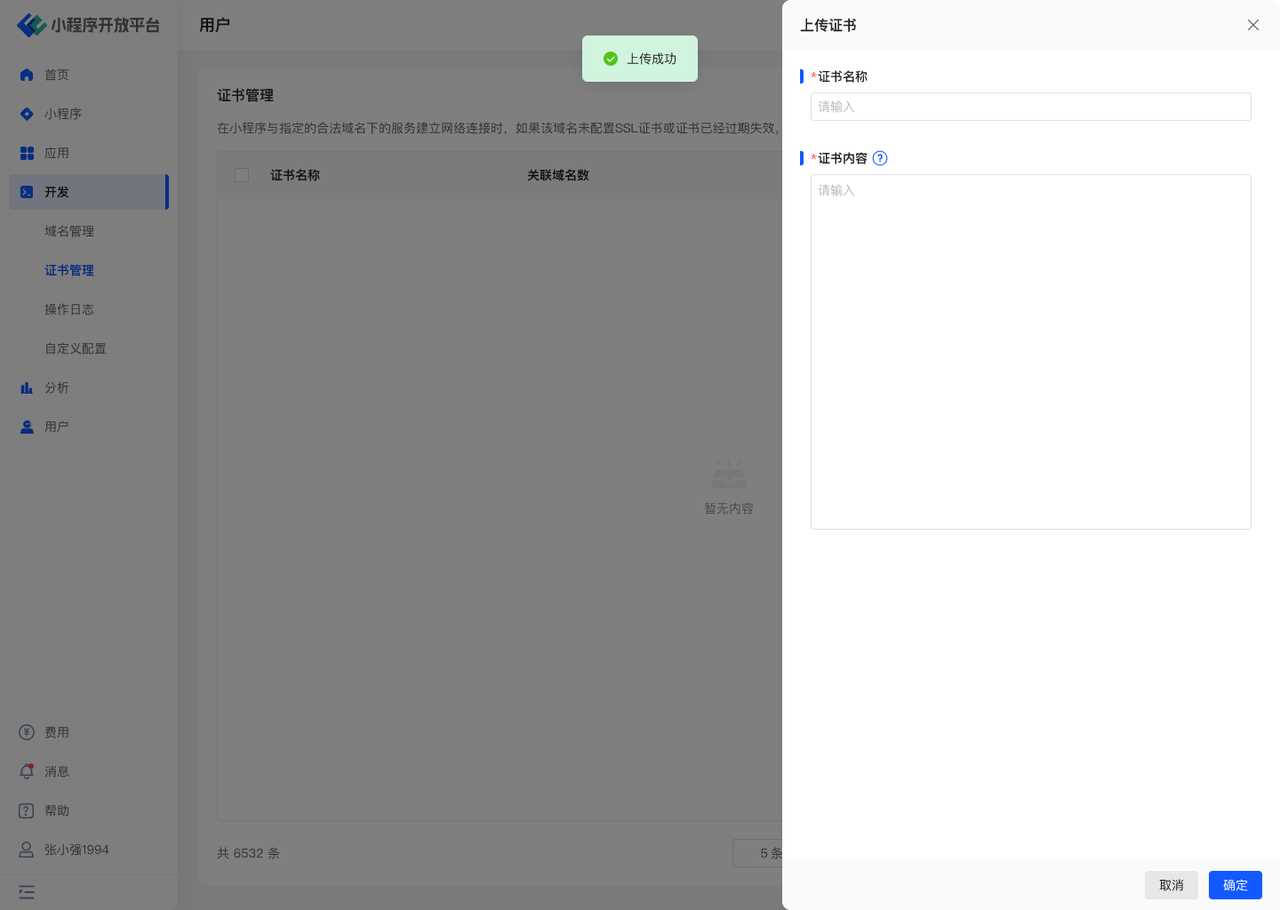
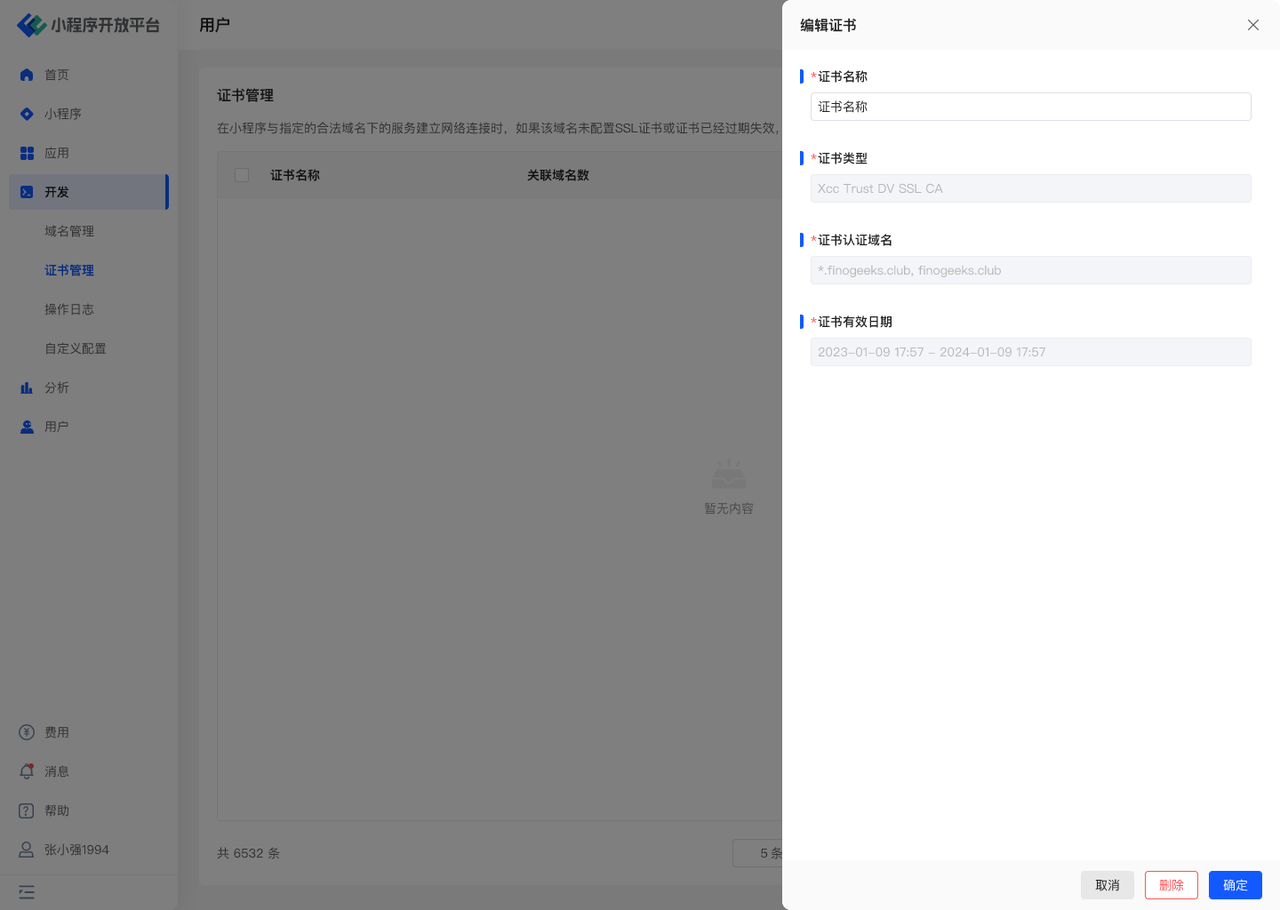
- Use the "Upload" function to update the organization's certificate list
- The certificate name can be modified, but the certificate content is fixed once uploaded and cannot be changed.
# Manage Domains Associated with Certificates
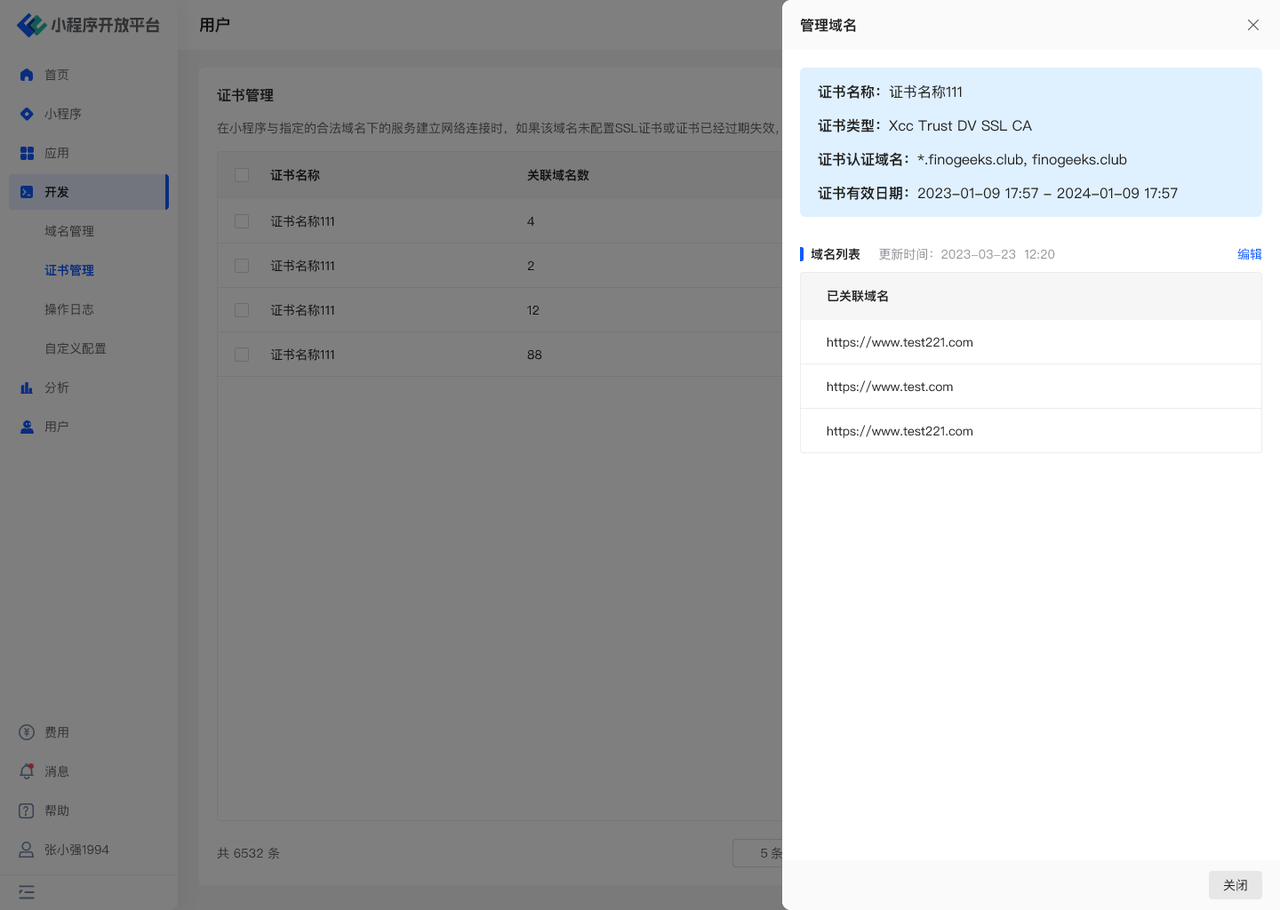
- Use the "Manage Domains" function to quickly associate multiple domains with a specific certificate to ensure access security.
- A domain can only be associated with one certificate, while one certificate can be associated with multiple domains.
# 3. Gray Release Rule Management
# 3.1 Feature Description
Rule configuration is a supporting function for gray release, allowing you to predefine various configuration data required for gray releases. Here, you can:
- Initialize rules: Restore to system default rules, such as "Base Library, System Version, Mini-Program SDK," etc.
- Add new rules: Custom configure required rules
# 3.2 Terminology Definition
None
# 3.3 Usage Instructions
When first entering the rule configuration page, click the "Initialize Rules" button in the upper right corner to import the corresponding gray release rules into the current account. We provide default rules such as "Base Library, System Version, Mini-Program SDK" to facilitate your use of the gray release function. After importing the rules, you can perform detailed configuration and secondary modifications to the existing Mini-Program rules.
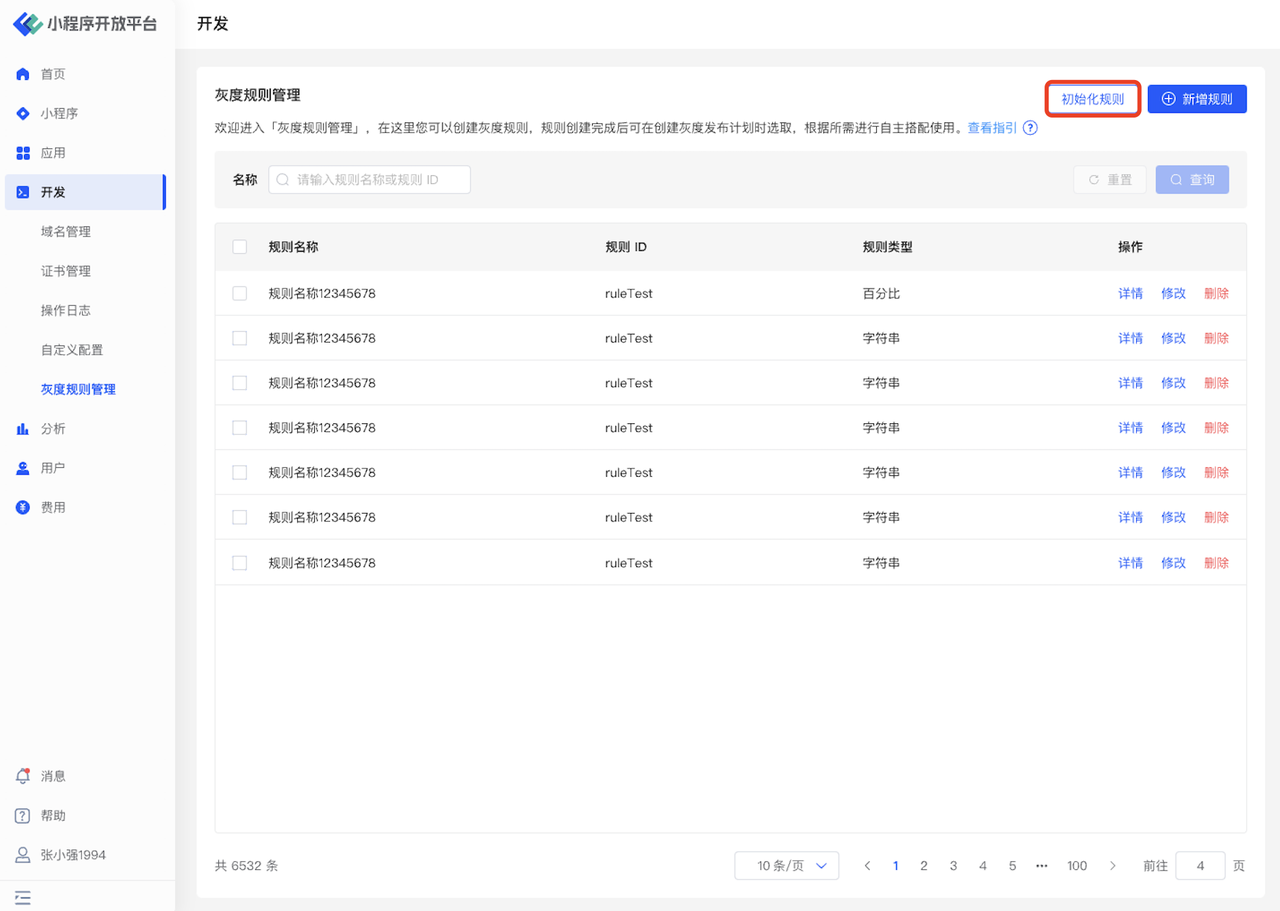
The content in rule configuration includes Mini-Program-related Base Library or Mini-Program SDK versions, or Mini-Program-independent content such as device models and current network status. When adding new rule configurations, you need to configure them reasonably according to your required scenarios. You can click "Add Rule" in the upper right corner to configure the required gray release rules.
Currently, FinClip supports the following types of gray release rules:
- String;
- Number;
- Boolean;
- Regular Expression;
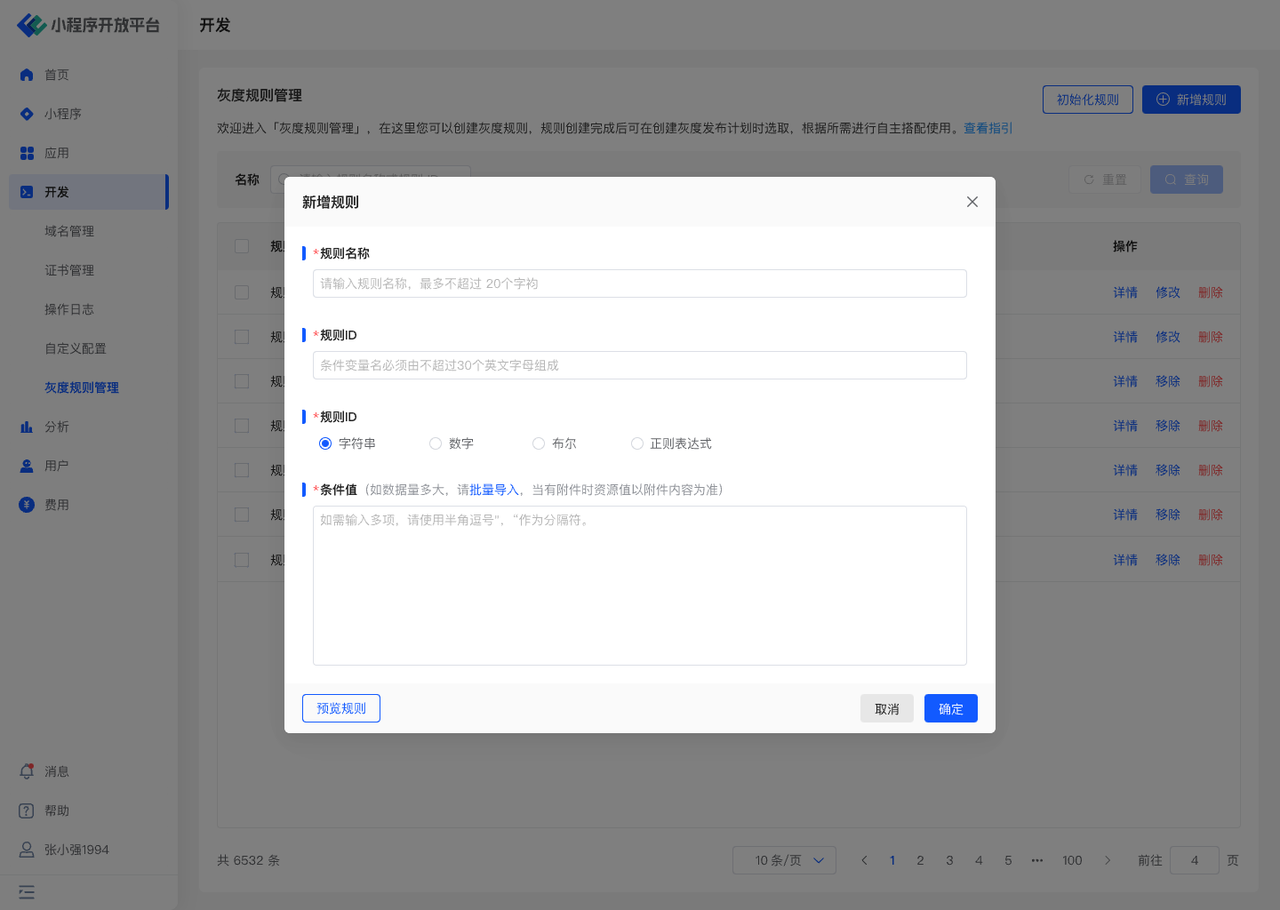
Rule content consists of the following parts:
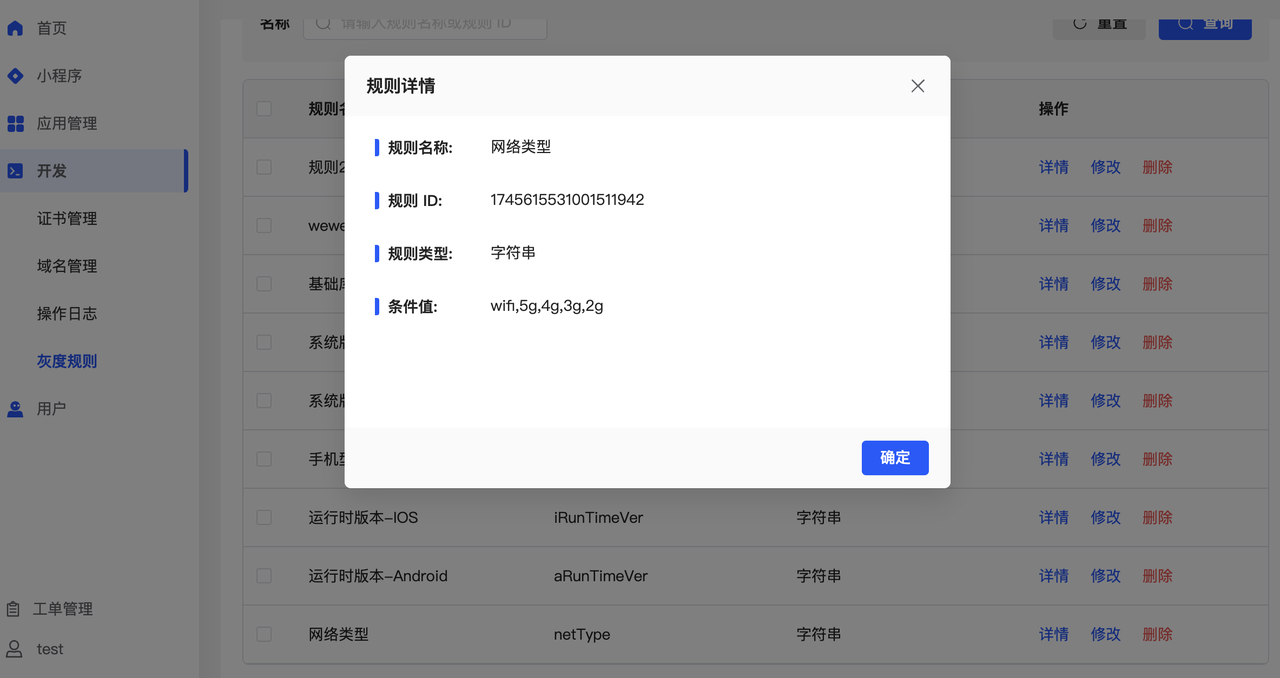
- Rule Name: The name of different gray release rules;
- Rule ID: The unique identifier of the gray release rule;
- Rule Type: To adapt to different customers' gray release needs in their own environments, we provide four rule types: "String, Boolean, Integer, Decimal";
- Resource Value: The corresponding resource value for rule matching.
You can click "Network" and "Device Model" in the rule configuration list to learn how to organize the required rule information, for example:
# 4. Operation Log
# 4.1 Feature Description
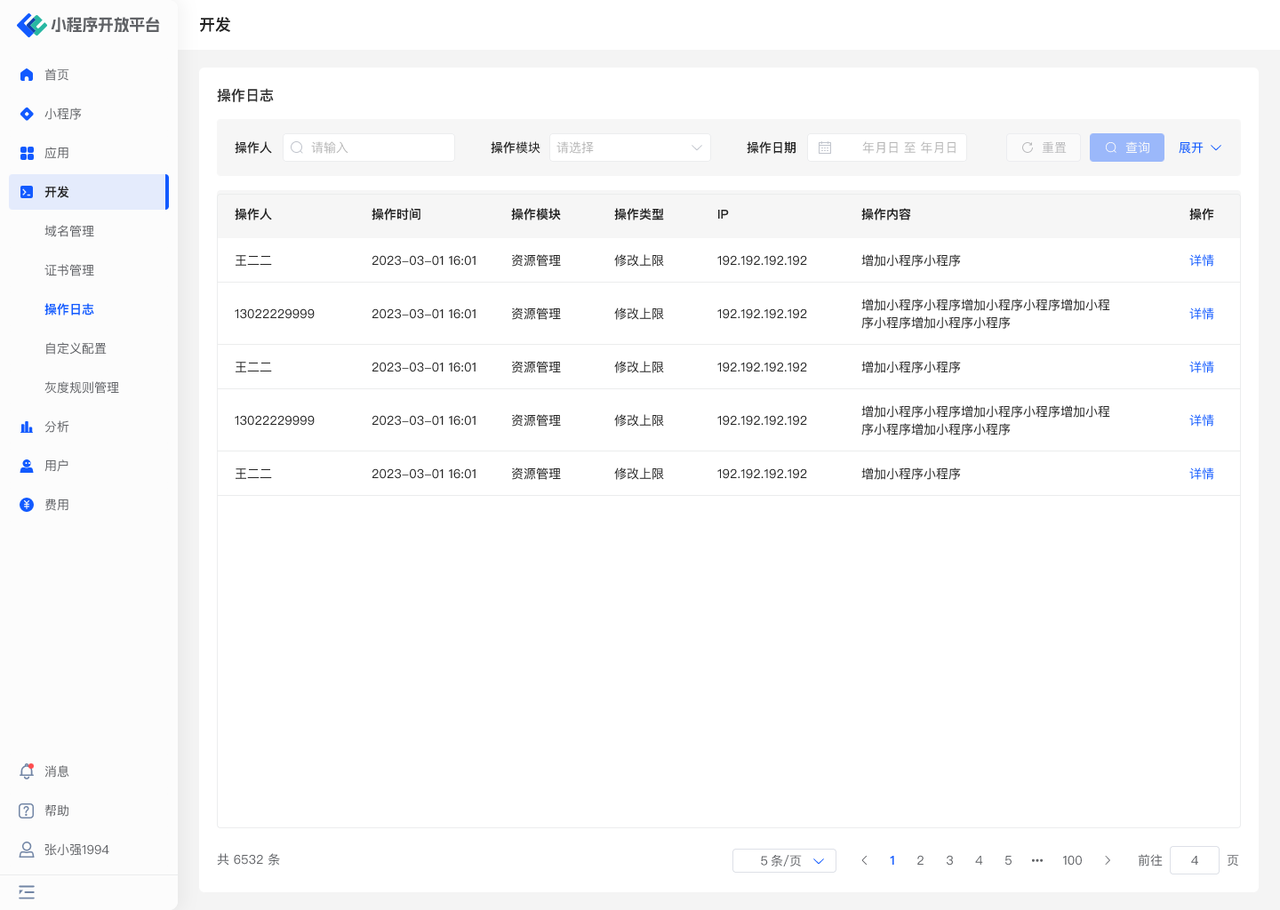
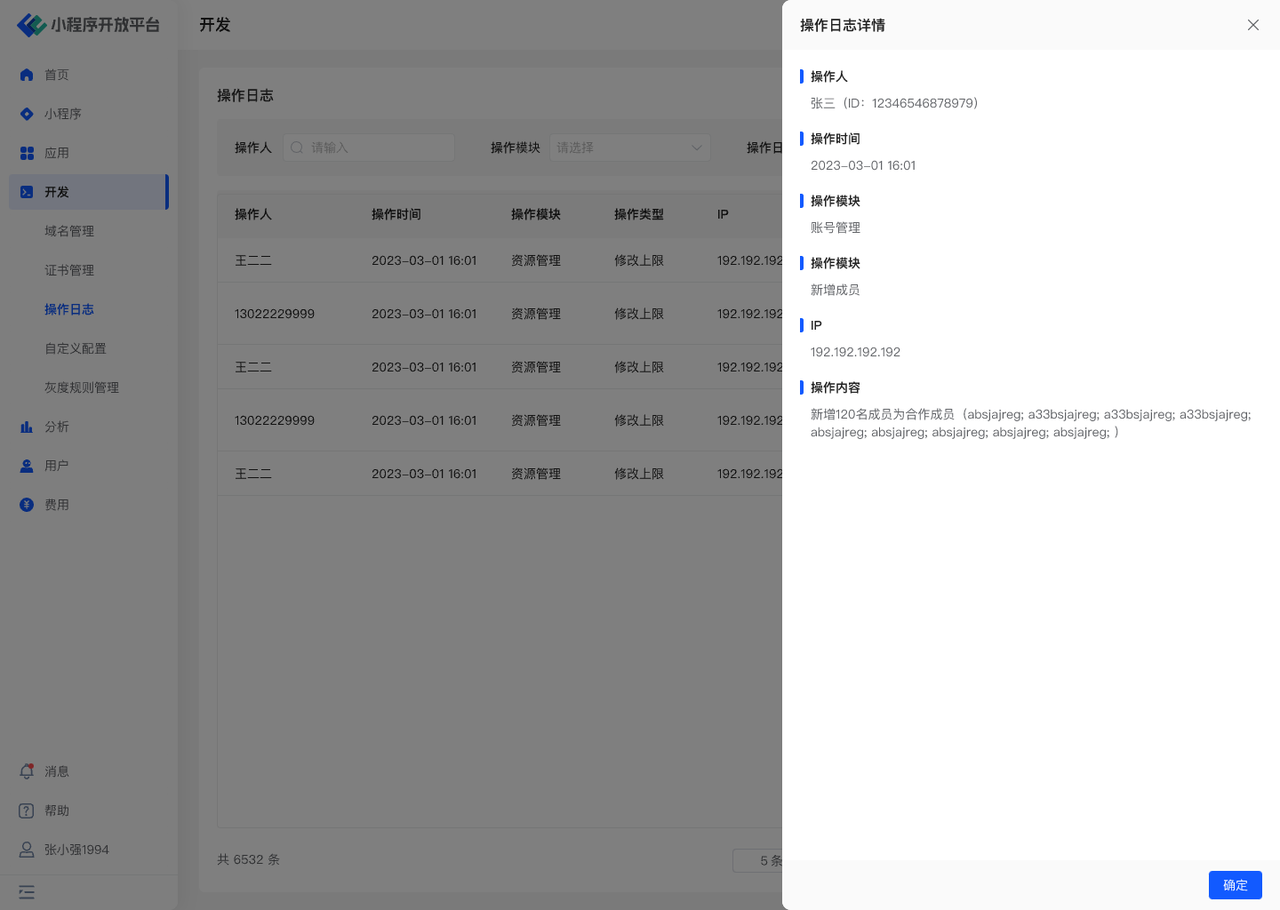
In the "Operation Log" page, you can filter by operator and functional module according to your needs to facilitate global operation log viewing. Additionally, by clicking "Details," you can view specific operation content, including the operation type, time, data changes before and after the operation, and other information. These details help users gain a deeper understanding of the specific content and impact of operations, thereby better performing auditing, troubleshooting, or data analysis tasks.
# 4.2 Terminology Definition
Operator: Refers to the user who performed the operation
Operation Module: The specific functional module where the user performed the corresponding operation, corresponding to specific business
Operation Type: The type of operation performed within the functional module
Example: If User A created a new Mini-Program in the "Mini-Program Management" module, then Operator: User A, Operation Module: Mini-Program Management, Operation Type: Create Mini-Program
# 4.3 Usage Instructions
# 5. Environment Specifications
| Community Edition | SaaS Edition | Enterprise Edition (Annual Payment or One-time Purchase) | |
|---|---|---|---|
| Domain Management | ✅ | ✅ | ✅ |
| Certificate Management | ✅ | ✅ | ✅ |
| Privacy Management | |||
| Gray Release Rule Management | |||
| Operation Log | ✅ | ✅ | ✅ |