
# Developer Center - Ticket Management
# 1. Ticket Consultation
# 1.1 Feature Description
In the "Ticket Consultation" menu, you can perform the following:
- Create a new ticket: Describe the basic information of the issue and submit the ticket
- Reply to a ticket: Provide additional responses or supplementary information for tickets received from the Digital Center
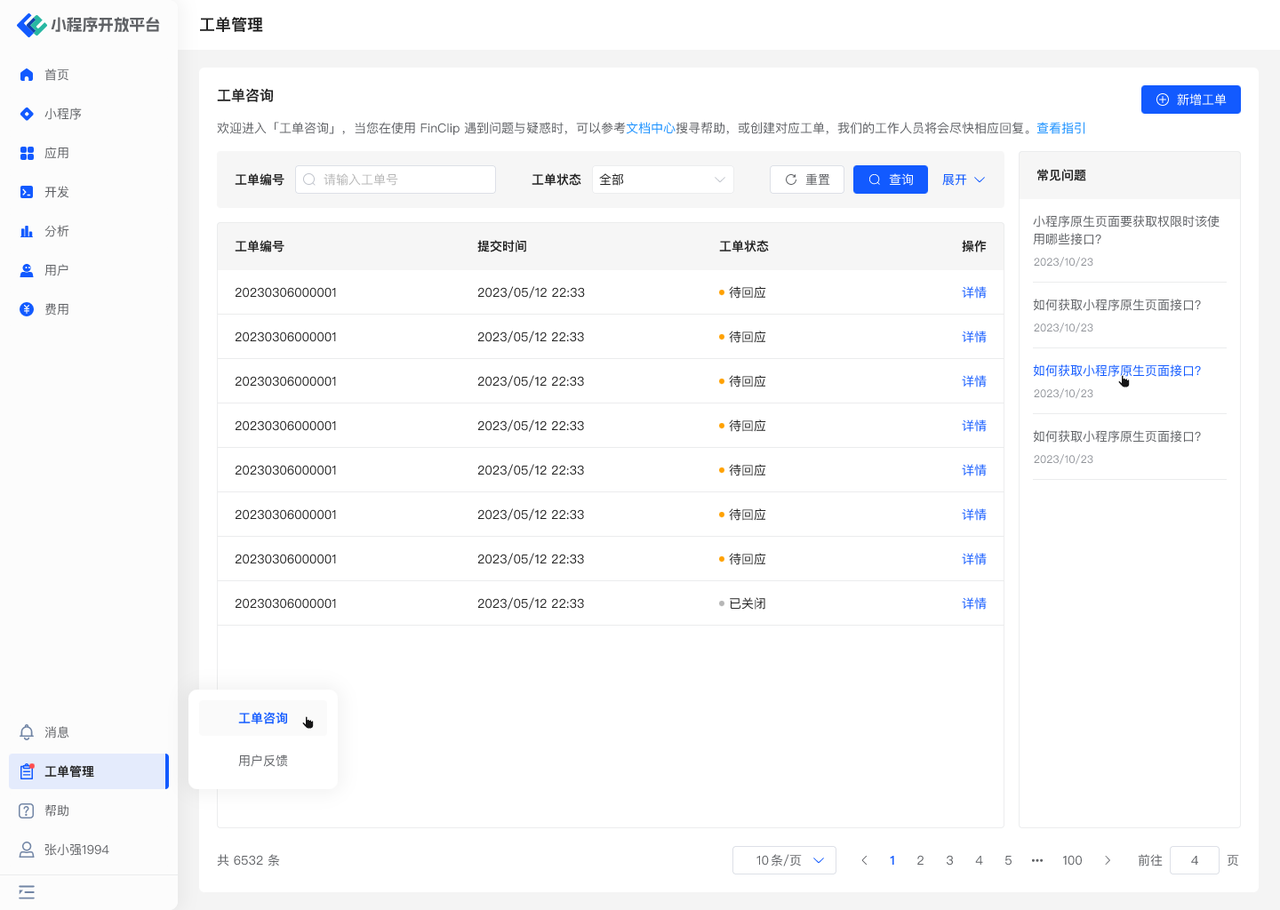
- Quickly view frequently asked questions: The right side of the ticket list displays 10 common questions; click to view the corresponding answers
# 1.2 Terminology Definition
None
# 1.3 Usage Instructions
# Create a New Ticket
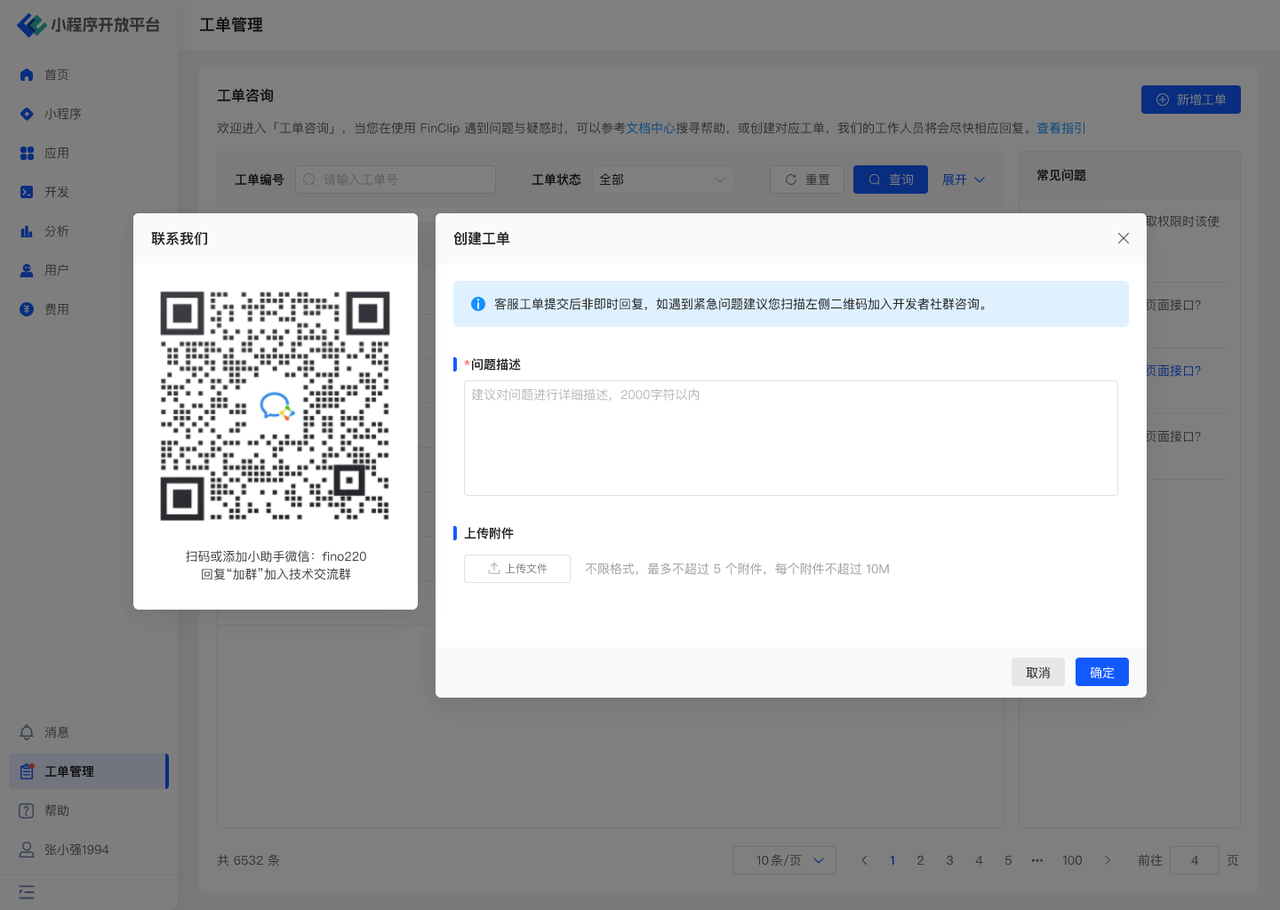
You need to enter the "Ticket Consultation" page and click the "Create Ticket" button on the screen. Provide relevant description information based on the corresponding scenario, or upload screenshots, attachments, etc., to assist in explaining your specific issue.
# Reply to a Ticket
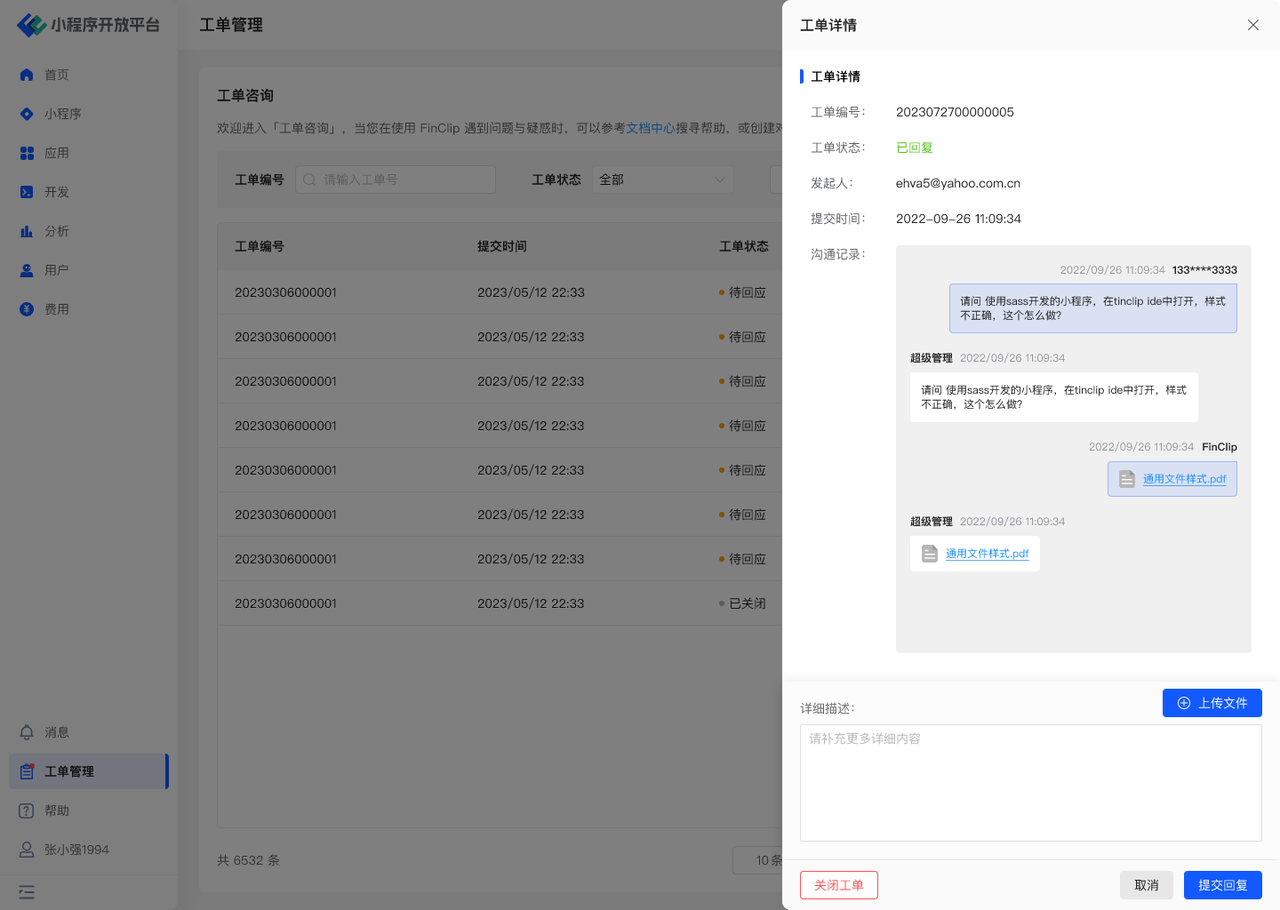
On the ticket list page, click to view details to see the corresponding ticket submission information and reply information. You can reply to or supplement the ticket in the dialog box, and you can also upload additional attachments for further explanation. If the Digital Center's reply has resolved your query, you can click the "Close Ticket" button.
# Quickly View Frequently Asked Questions
The ticket list page displays 10 common questions. You can check whether the answers to these questions can resolve your query.
# 1.4 Environment Description
| Community Edition | SaaS Edition | Enterprise Edition (Annual Payment or One-time Purchase) | |
|---|---|---|---|
| Role Management | ✅ | ✅ | ✅ |
# 2. User Feedback
# 2.1 Feature Description
In the "User Feedback" menu, you can perform the following:
- View feedback: View user feedback regarding product suggestions, functional anomalies, etc., for the Mini-Program
# 2.2 Terminology Definition
None
# 2.3 Usage Instructions
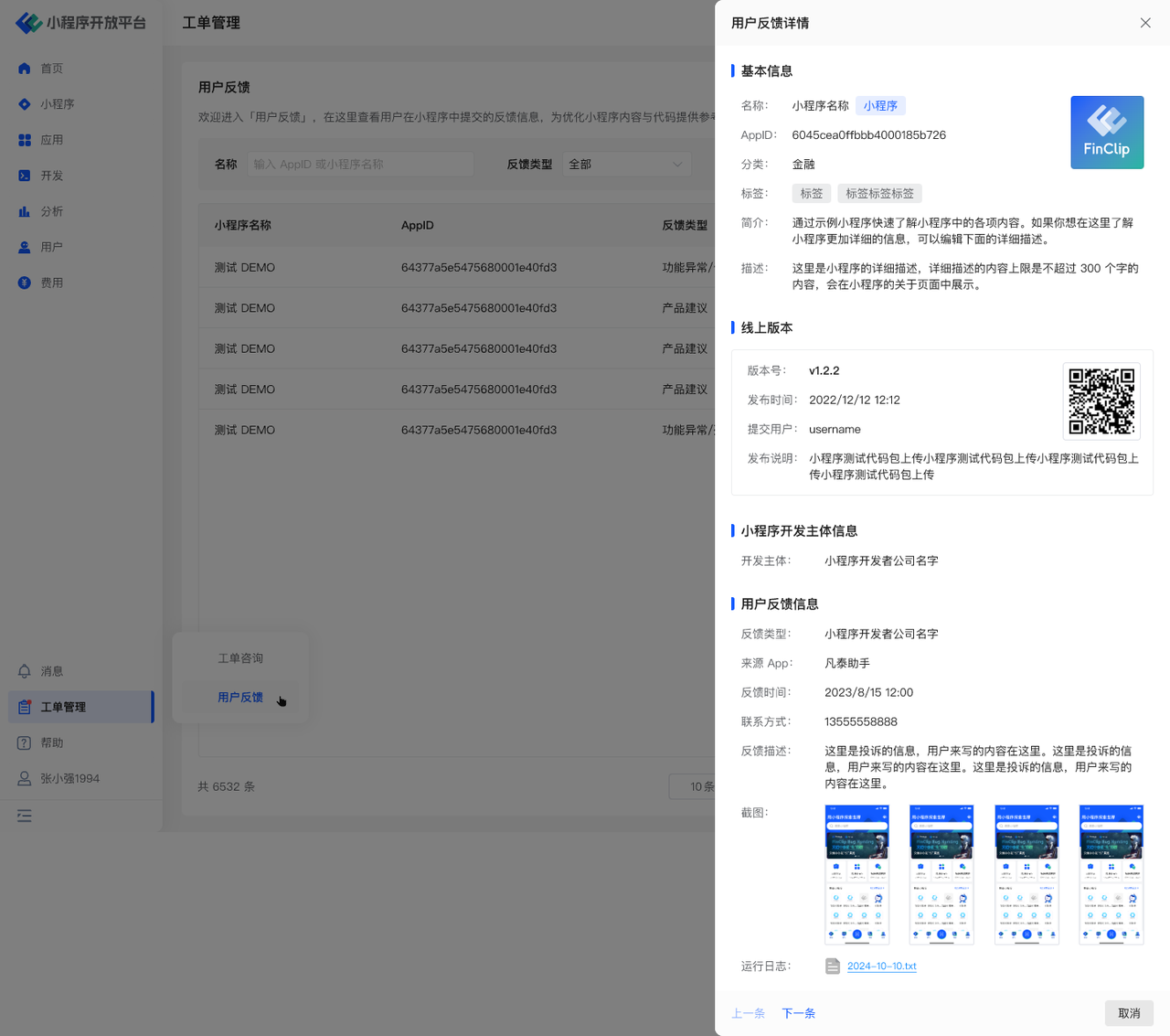
You need to enter the "User Feedback" page and use the filter component to search for the feedback data you need to query. Click "Details" in the operation column to view the corresponding feedback information.
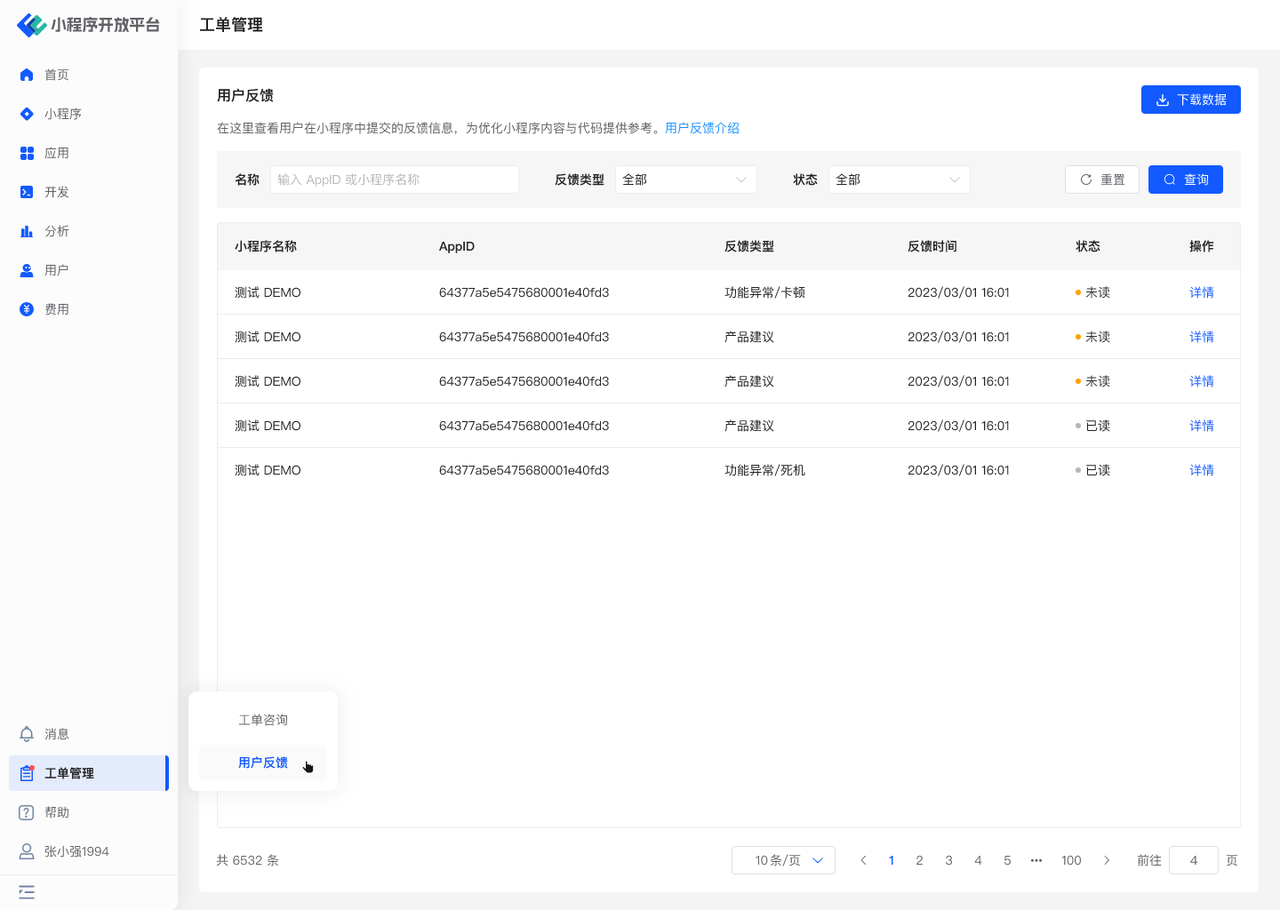
Here, you can view the basic information of the Mini-Program and the details of the user feedback. If the feedback is about functional anomalies, you can download the runtime logs for review, making it easier to quickly locate the issue.
# 2.4 Environment Description
| Community Edition | SaaS Edition | Enterprise Edition (Annual Payment or One-time Purchase) | |
|---|---|---|---|
| Role Management | ✅ | ✅ | ✅ |