
# Login, Registration, and Enterprise Certification
# 1. Function Overview
When users log in to the FinClip Mini-Program Open Platform for the first time, they need to complete account registration first. Only after completing account registration can they use the account to log in to the system.
# 2. Terminology Definitions
- Developer Center: A management backend for Mini-Program developers and Host-App managers, primarily responsible for managing their own Mini-Programs and Host-Apps;
- Digital Center: A management backend for ecosystem platform builders, primarily responsible for viewing and managing all resources within the current ecosystem platform.
# 3. Usage Instructions
# 3.1 User Login
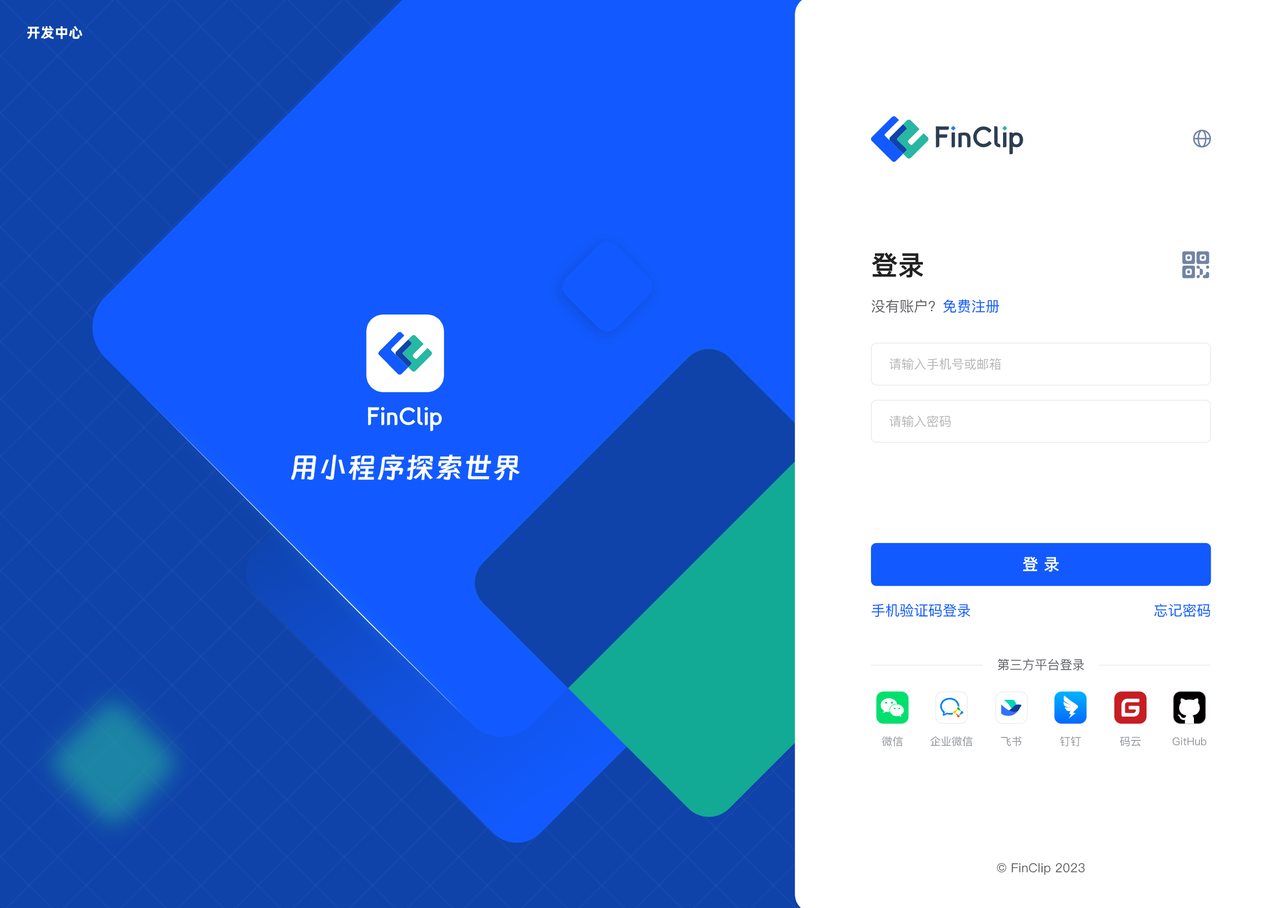
When users log in to the Developer Center for the first time, they will enter the login page as shown below. The login methods displayed on the page include username or email, SMS verification code, third-party platforms, QR code scanning, and other login methods (the specific available login methods depend on the current platform configuration).
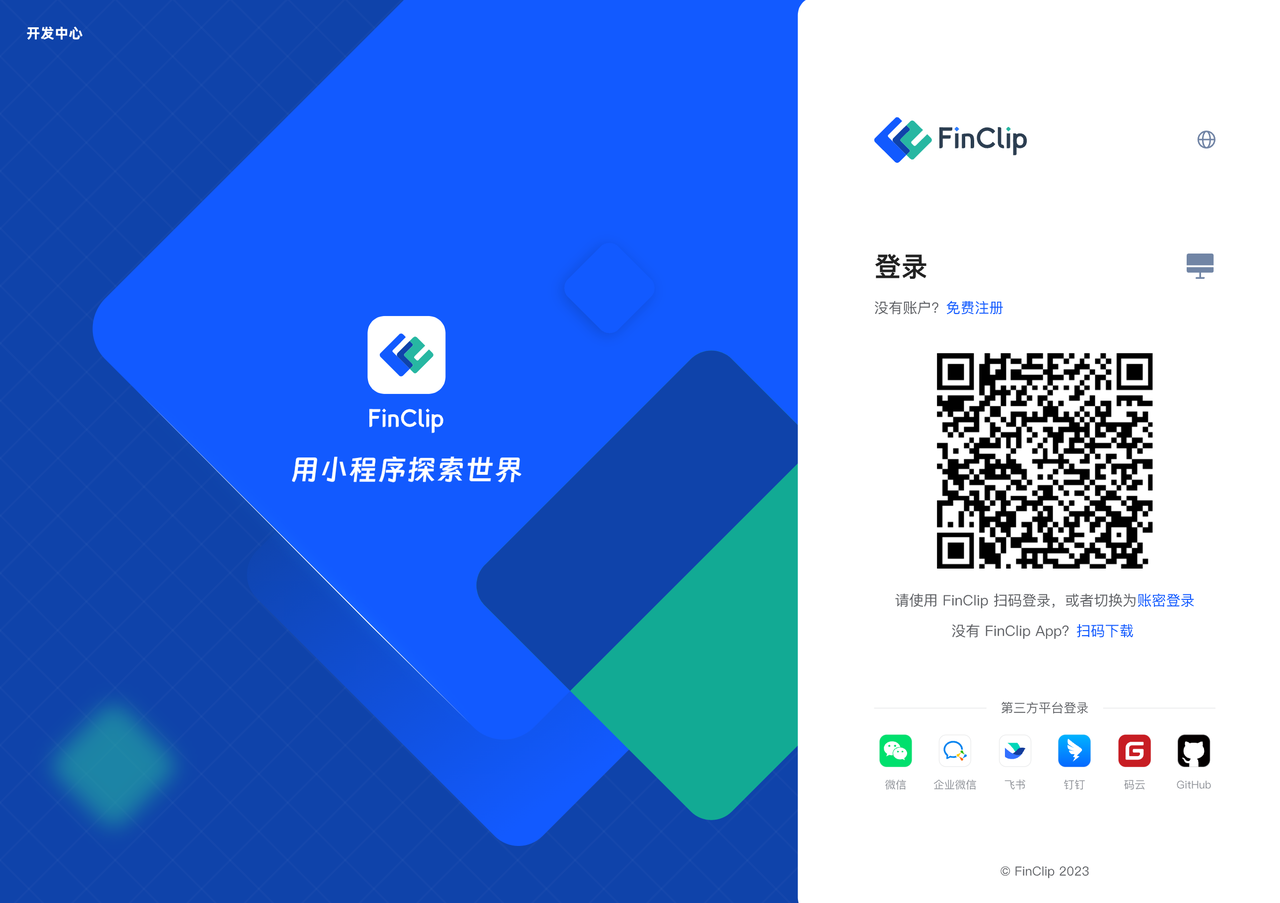
The image below shows the QR code scanning login method. Users need to download the relevant FinClip App to complete the QR code scanning login.
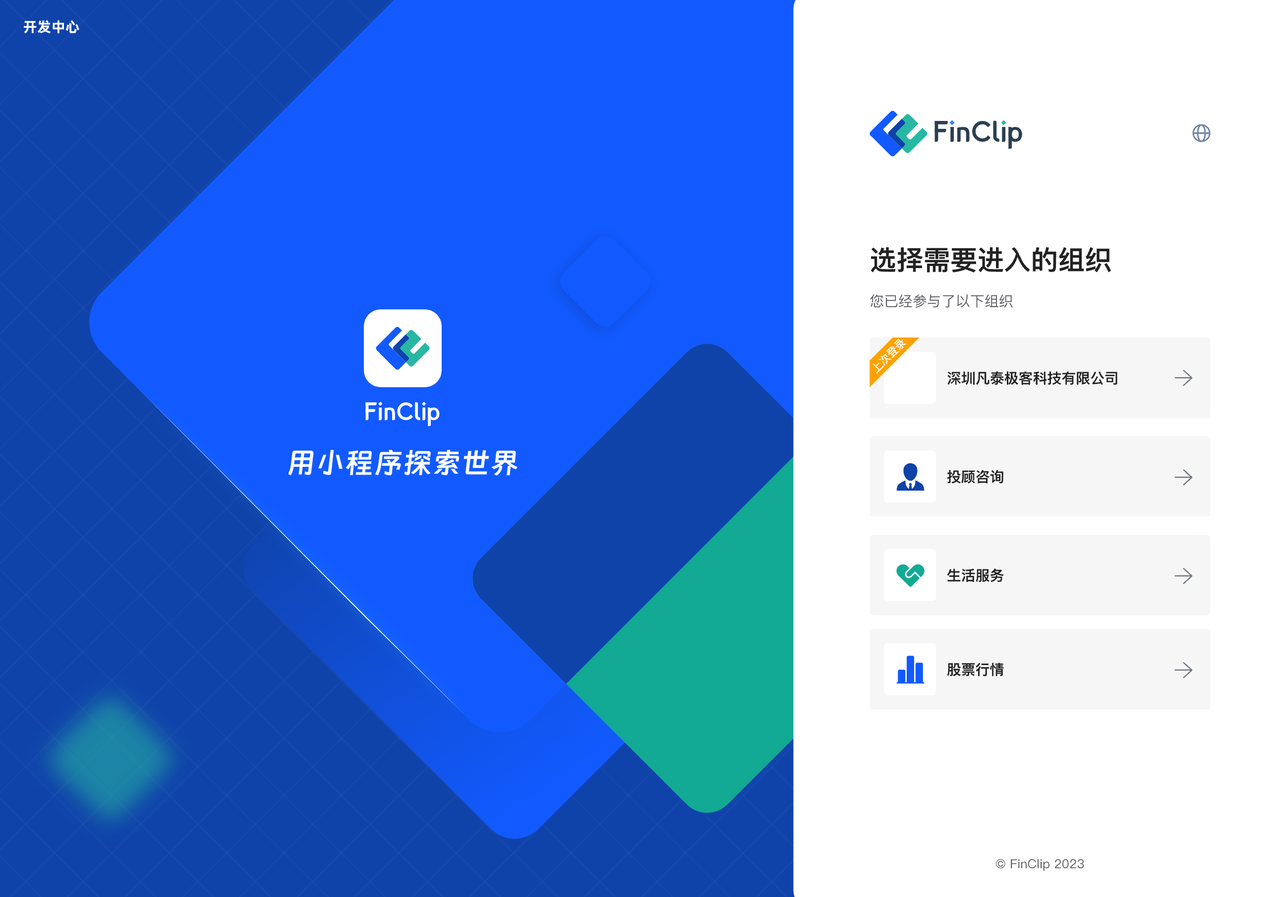
If the current user has joined multiple team organizations, an organization selection page will be displayed after account information verification (as shown below). At this point, click on the team organization you wish to enter to access that team (after entering, you can also switch the current organization in the personal center).
# 3.2 User Registration
If the user has not registered a platform account before, they need to click the "Register" button on the page and then fill in their relevant account information on the subsequent page. After registration, they can use the corresponding username and password to complete the login process.

# 3.3 Password Reset
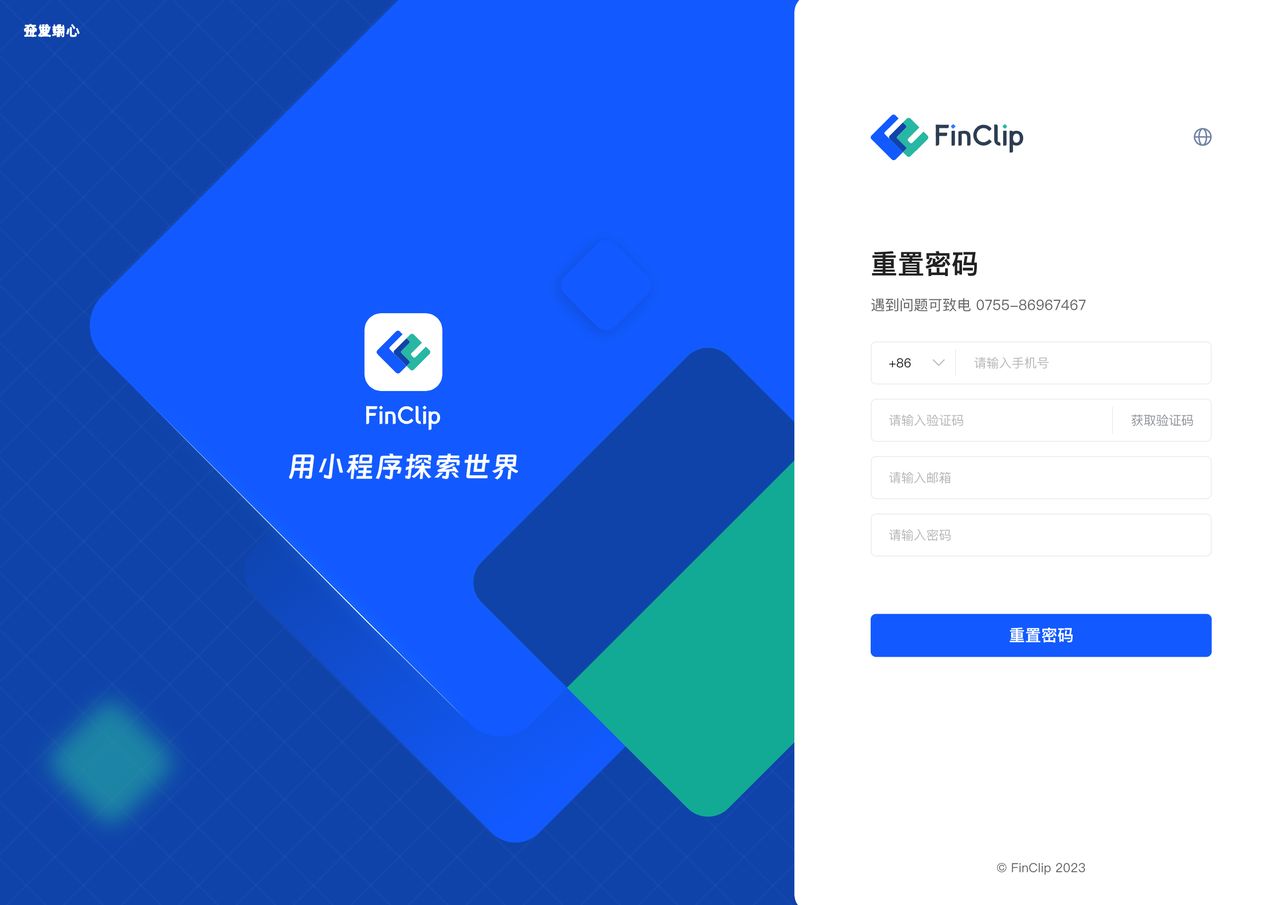
If the user temporarily forgets their password, they can click the "Forgot Password" button on the page and use their registered account on the subsequent page to complete the password reset process. Afterward, they can log in using the reset password.
Please note that due to specific differences in different environments, password reset may require contacting the administrator in a private deployment environment.
# 3.4 Enterprise Certification
After completing user registration and logging into the platform, you will enter the FinClip Mini-Program Open Platform as an "Individual" identity. When operating as an individual, you may encounter limitations in scenarios such as team member size restrictions. At this point, you need to perform enterprise certification, i.e., upgrade the current "Individual" identity to an "Enterprise" identity.
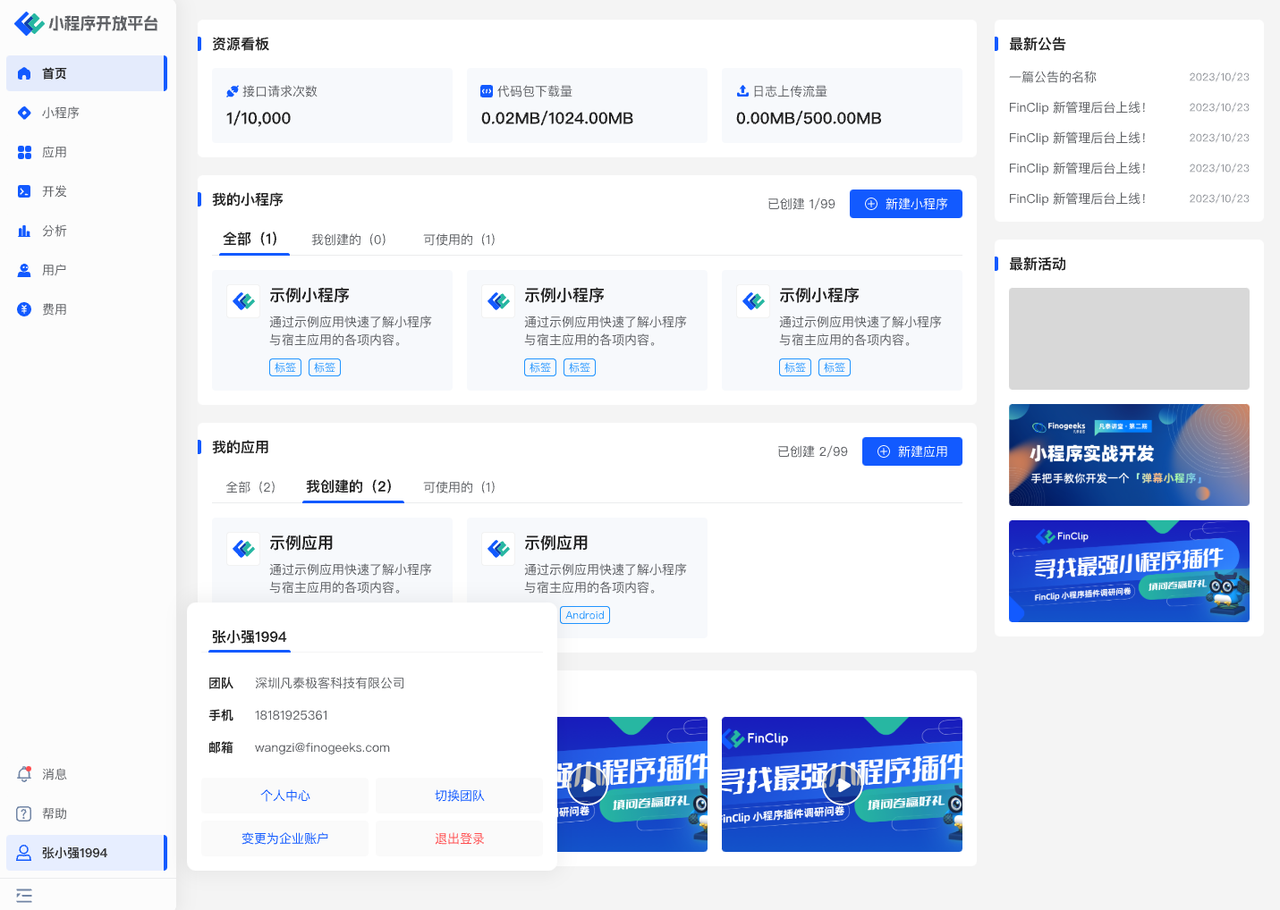
At this point, you need to click on your personal name in the lower left corner, then click the "Change to Enterprise Account" button in the subsequent menu, and fill in the relevant enterprise information on the new page.
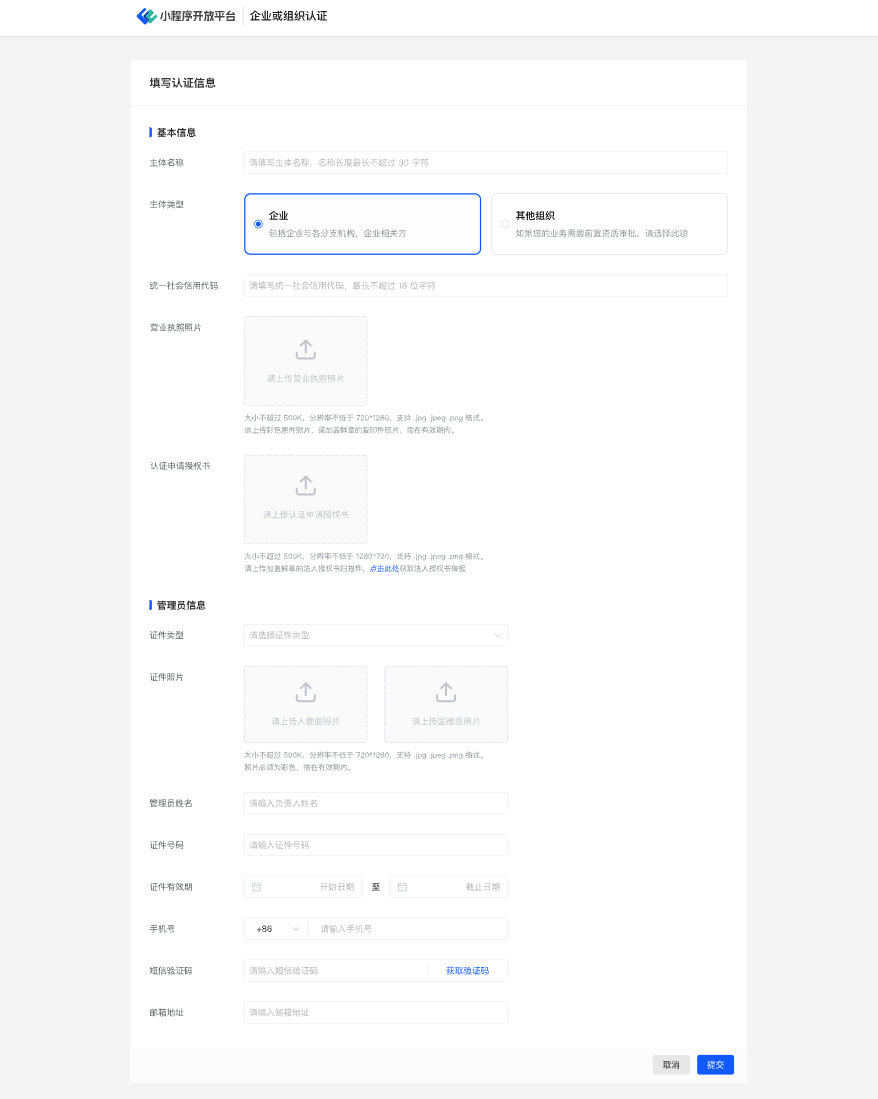
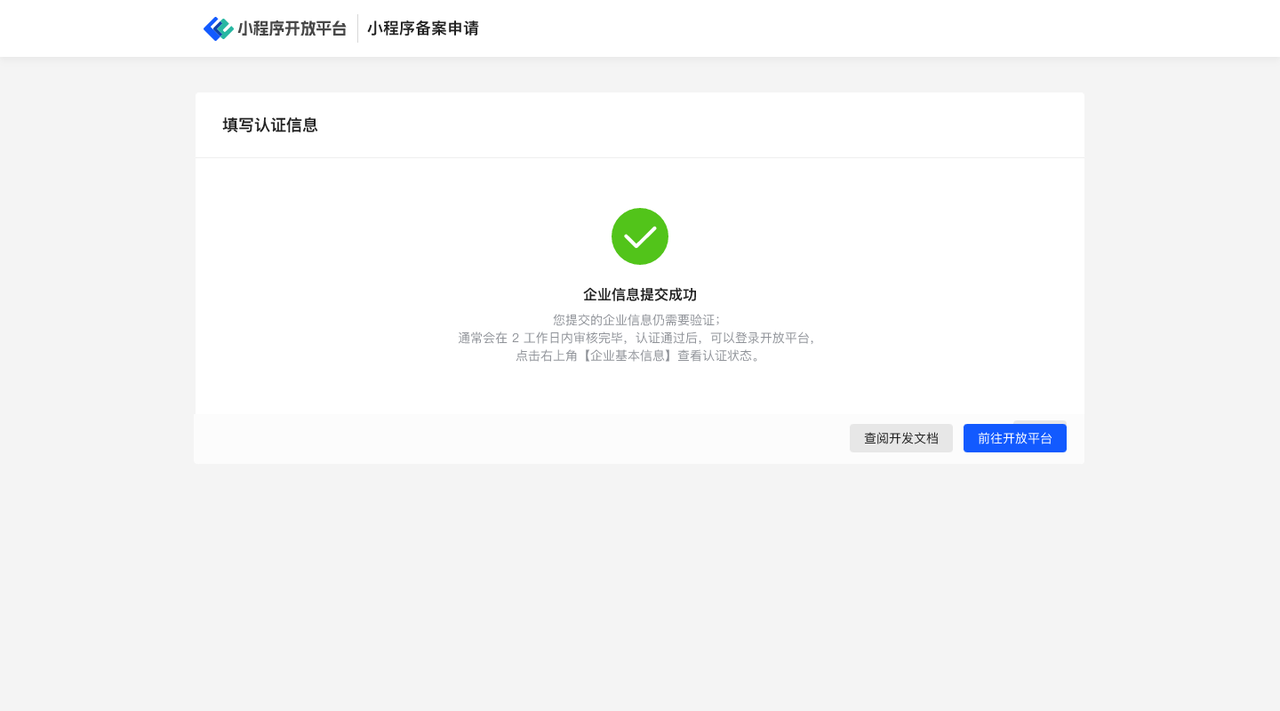
After submitting the enterprise-related information, wait for the enterprise information to be approved, and the current team will be upgraded to an enterprise team.
# 4. Environment Specifications
| Community Edition | SaaS Edition | Enterprise Edition (Annual Subscription or One-Time Purchase) | |
|---|---|---|---|
| Login, Registration, and Enterprise Certification | ✅ | ✅ | ✅ |