
# Task Center - Development Center
# 1. Function Overview
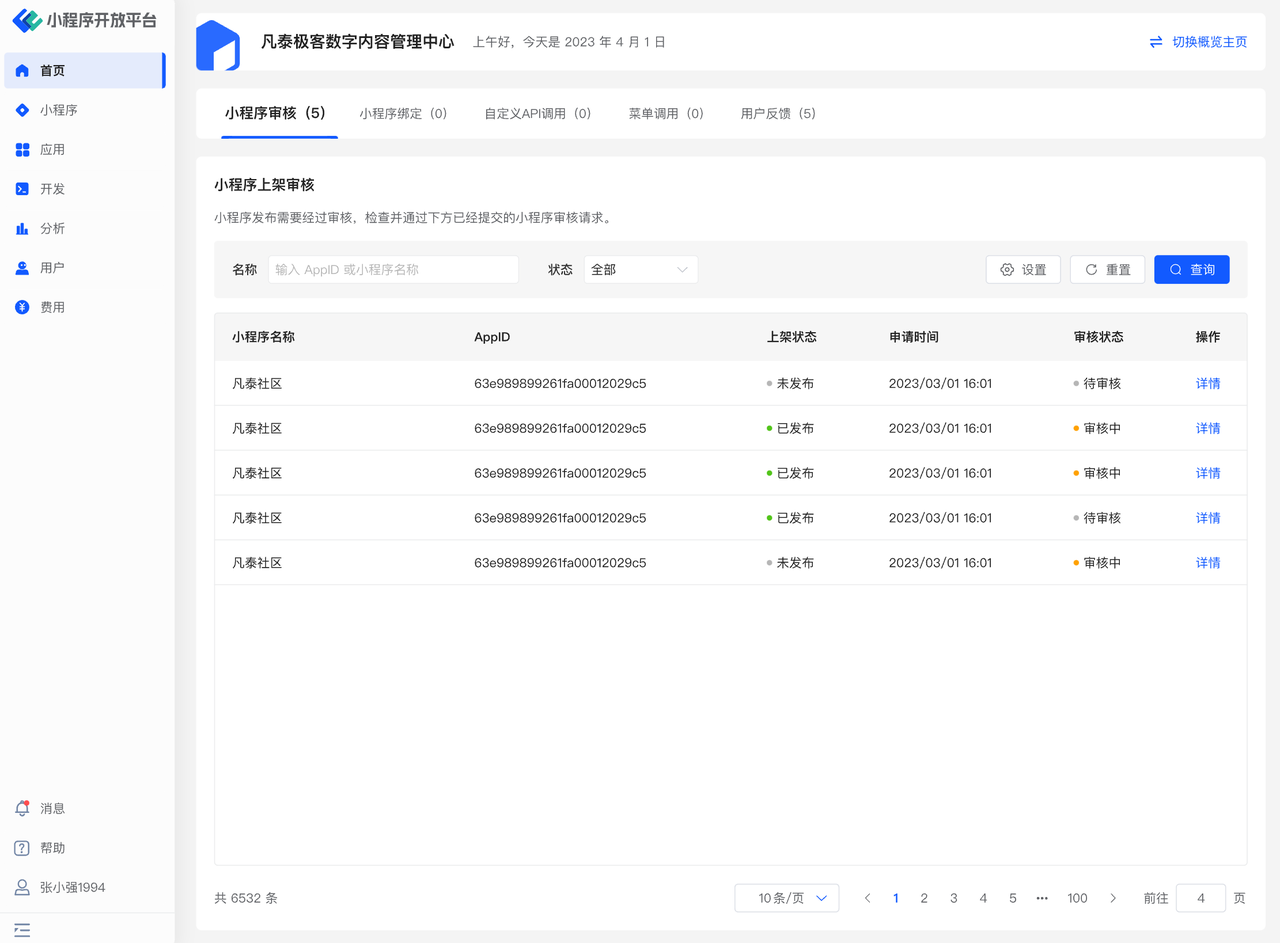
For other pending operations requiring your attention, you can access them via the "Task Center" entry on the homepage. It includes relevant business processes that need to be handled (such as Mini-Program review, Mini-Program binding, custom API calls, etc.). The Task Center allows quick access to business processes requiring attention, facilitating business operations.
# 2. Terminology Definitions
- Overview Homepage: The Overview Homepage is the default homepage of the Development Center. You need to switch to the Task Center using the button in the upper right corner of the page.
- Data Center: The Data Center is the default homepage of the Digital Center. You need to switch to the Task Center using the button in the upper right corner of the page.
- Task Center: The Task Center is a centralized hub for all pending or to-be-processed information, used to quickly resolve or handle relevant issues requiring processing or approval.
# 3. Usage Instructions
# 3.1 Viewing Pending Tasks
When on the homepage, click the "Task Center" button in the upper right corner of the screen to switch to the Task Center.
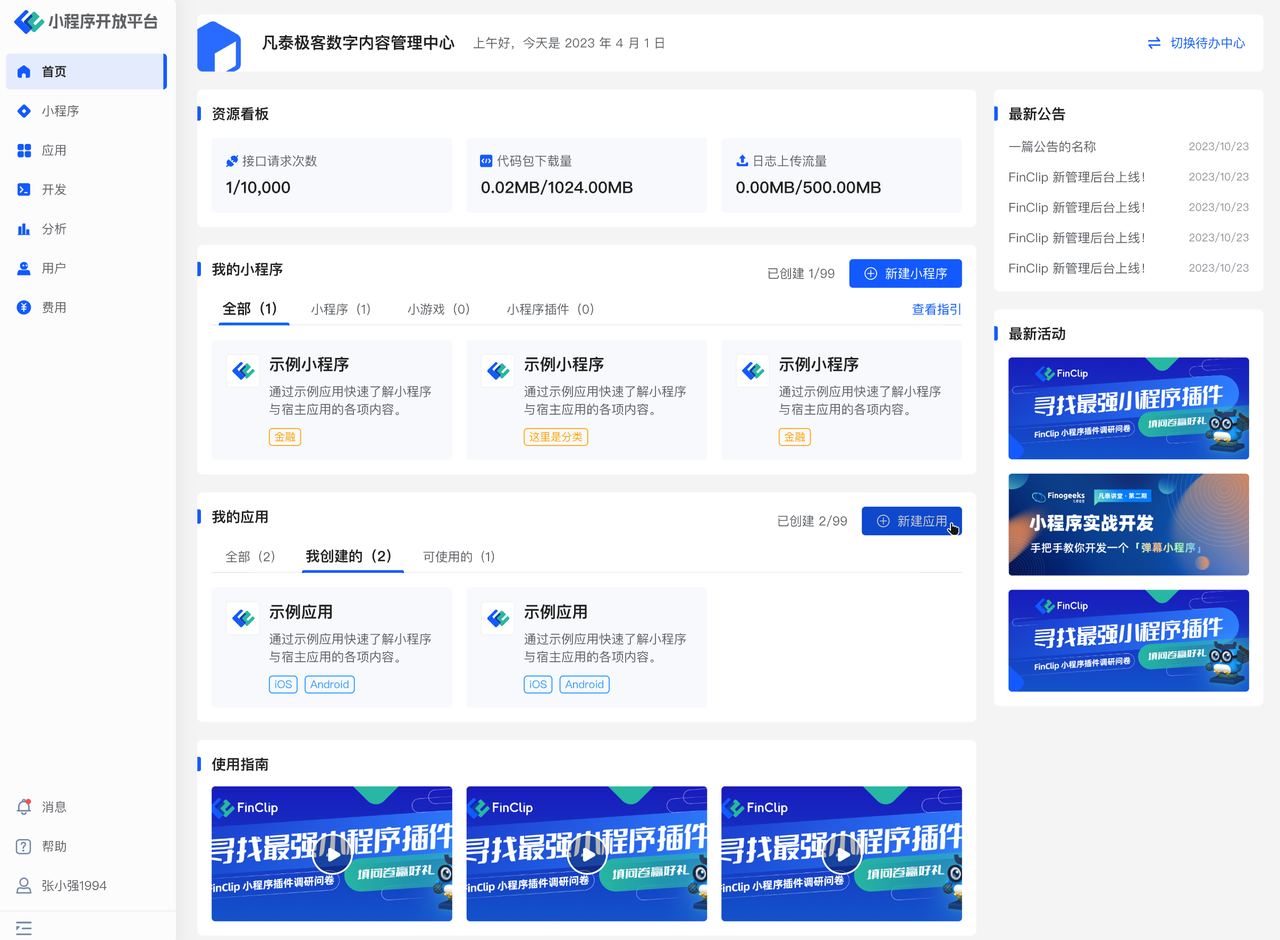
In the "Task Center," you can see different pending tasks based on the current user's role permissions, such as "Mini-Program review, Mini-Program binding, custom API calls," and other menus as shown in the figure below.
# 3.2 Handling Pending Tasks
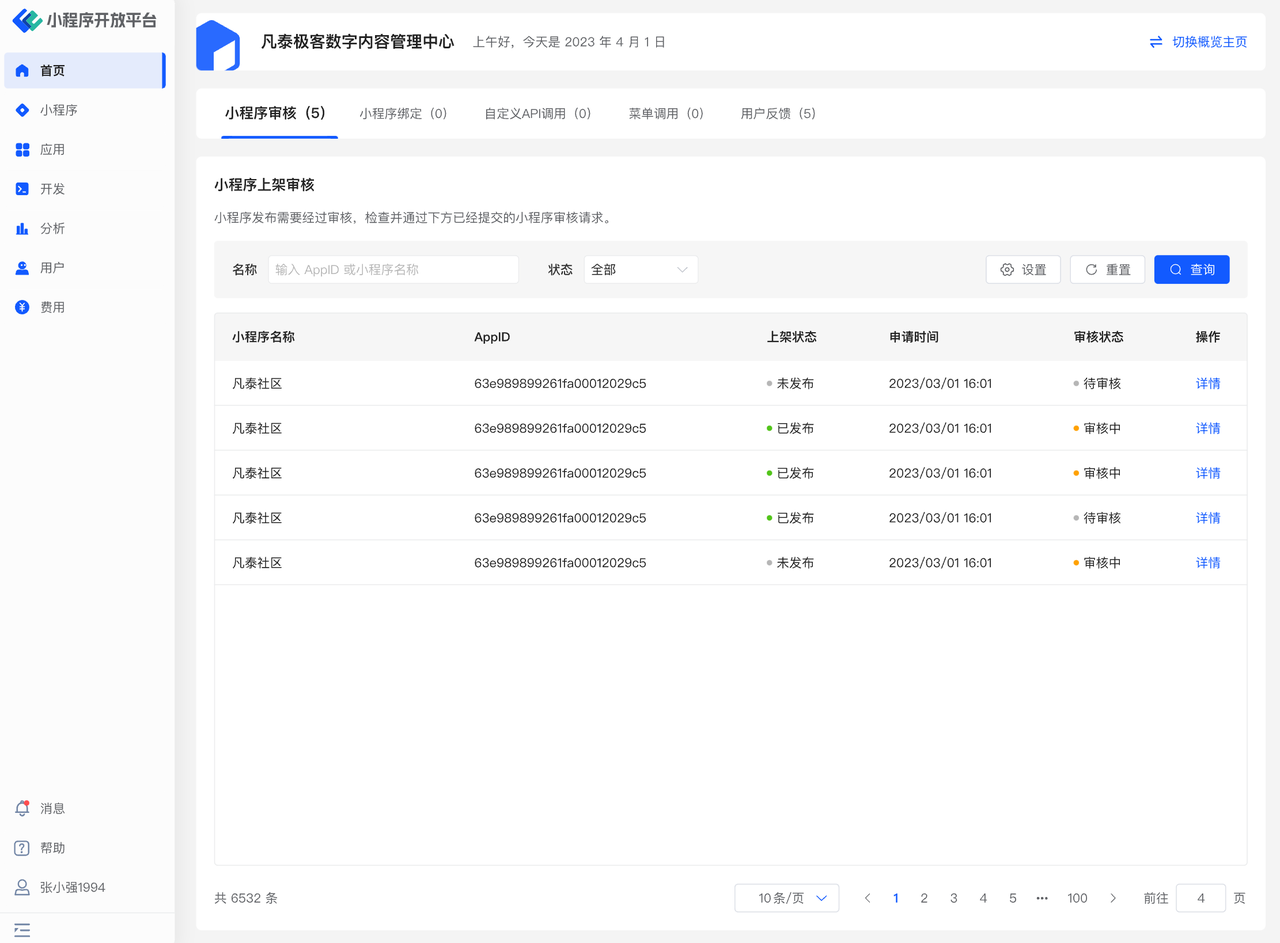
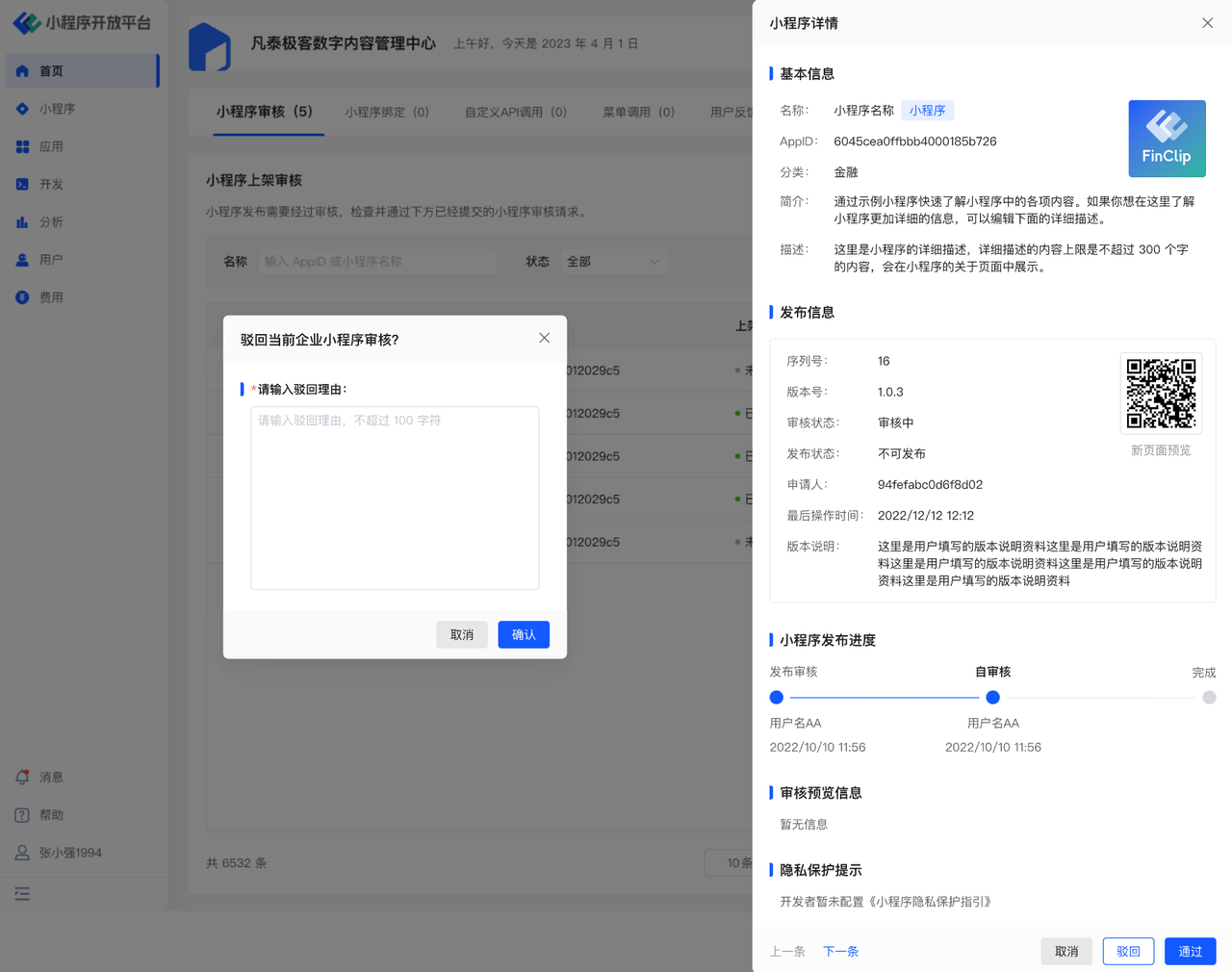
As shown in the figure below (the screenshot uses Mini-Program review as an example), click the "Details" button on the far right of the pending item. In the subsequent pop-up window, you can view the detailed content of the task.
Click the "Reject" or "Approve" button at the bottom of the pop-up window to take action on the current pending content.
# 4. Environment Specifications
| Community Edition | SaaS Edition | Enterprise Edition (Annual Payment or One-Time Purchase) | |
|---|---|---|---|
| Task Center | ✅ | ✅ | ✅ |