# Certificate Management FAQ
# 1. Feature Introduction
You can click here to view the introduction information for the certificate management feature.
# 2. FAQ
Please Note
To use this feature, please ensure the SDK version is higher than the following:
- iOS SDK: 2.24.4
- Android SDK: 2.24.3
# 2.1 How to obtain a certificate?
You can obtain or purchase certificates through third-party channels. The downloadable certificate types generally include Apache, IIS, Nginx, and Tomcat. Please select and download the SSL certificate of the Nginx type.
Enter the Nginx folder, you will see two files: one with the .crt extension (certificate) and one with the .key extension (private key). Open these files with a text editor, and you will see the certificate content and private key content in PEM format, similar to the format shown in the image below.
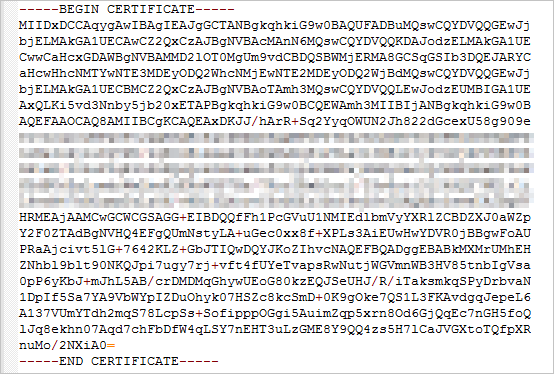 PEM Format Certificate
- Starts with "-----BEGIN CERTIFICATE-----" and ends with "-----END CERTIFICATE-----".
- Each line contains 64 characters, except the last line which may contain fewer.
Certificate Upload Requirements
- Please upload the entire content starting with "-----BEGIN CERTIFICATE-----" and ending with "-----END CERTIFICATE-----".
- Each line contains 64 characters, except the last line which may contain fewer.
Please Note
Normal App network requests cannot use self-signed certificates, so it is not recommended to use self-signed certificates in certificate management.
# 2.2 What if the certificate I obtained is in another format?
The certificate management feature only supports certificates in PEM format. Certificates in other formats need to be converted to PEM format. It is recommended to perform the conversion using the OpenSSL tool. We provide methods for converting several popular certificate formats to PEM format for your reference.
# Convert DER to PEM
The DER format is commonly found on the Java platform.
- Certificate conversion:
openssl x509 -inform der -in certificate.cer -out certificate.pem
# Convert P7B to PEM
The P7B format is commonly found on Windows Server and Tomcat.
- Certificate conversion:Use the content between -----BEGIN CERTIFICATE----- and -----END CERTIFICATE----- from the obtained outcertificat.cer file as the certificate for upload.
openssl pkcs7 -print_certs -in incertificat.p7b -out outcertificate.cer
# Convert PFX to PEM
The PFX format is commonly found on Windows Server.
- Certificate conversion:
openssl pkcs12 -in certname.pfx -nokeys -out cert.pem
# 2.3 After uploading the certificate, how to verify its validity?
We will verify the certificate by extracting the authenticated domain name, validity period, and certificate type from the certificate and cross-checking them with the requested domain name. When you upload the certificate, we will also display the corresponding information for your secondary confirmation.
# 2.4 If a Mini-Program contains multiple domain names, does each domain name require a certificate upload?
No.
Multiple domain configurations can use different certificates, or the same certificate can correspond to multiple domain names. Domain names without configured certificates will not be validated.
# 2.5 If downloading the certificate fails, does the certificate verification mechanism become invalid?
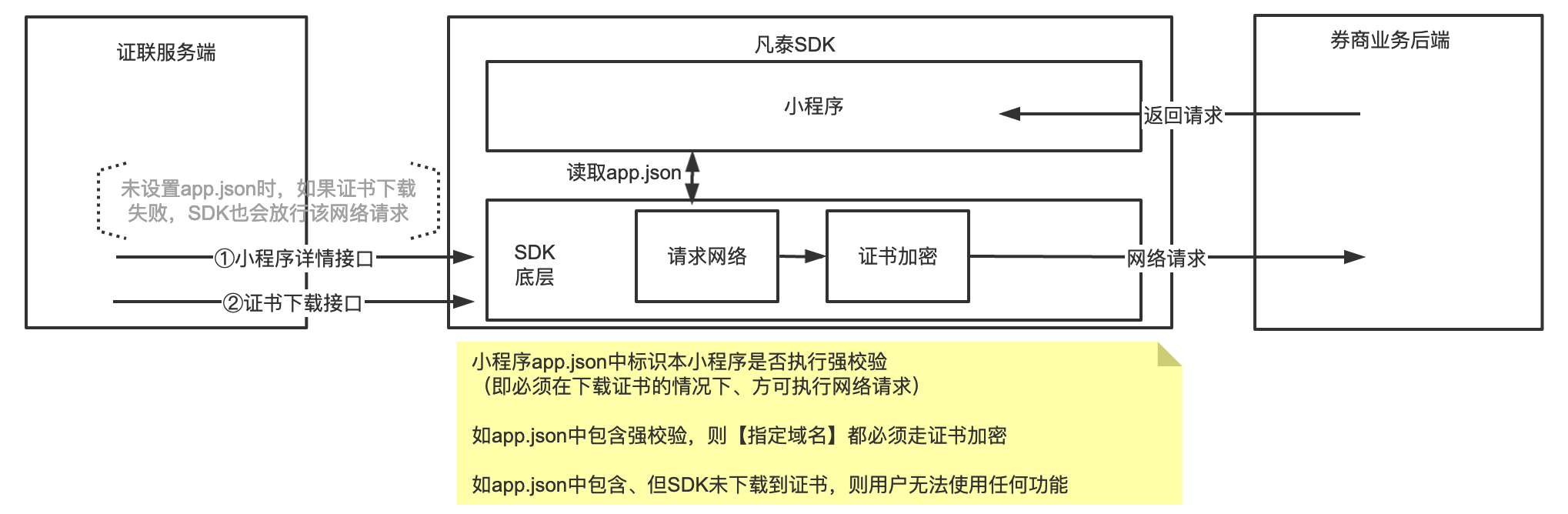
The APIs for obtaining the certificate and obtaining Mini-Program details are not coupled. Theoretically, if the former request fails, the latter should also fail. The FinClip Mini-Program SDK also includes internal interface retry mechanisms.
However, extreme situations might occur: if the Mini-Program details interface request succeeds (the user locally obtains the corresponding Mini-Program), but the certificate request fails (fails to obtain the domain's corresponding certificate), then requests within the Mini-Program will follow the default HTTPS request flow and will not perform strong verification.
If you are highly concerned about security, it is recommended to add additional verification mechanisms within the Mini-Program.
# 2.6 After modifying a certificate (e.g., deleting or modifying the corresponding domain name), how long does it take to take effect?
It takes effect the next time the user opens the Mini-Program.
# 2.7 If developers want to enforce strict encryption for network requests, what can they do?
"Strong certificate verification" means: certain network requests within the current Mini-Program must enforce certificate encryption. If encryption cannot be performed, users are not allowed to execute any business.
To achieve this goal, we have added configuration items in the Mini-Program's app.json file. Developers can specify the domains (URLs) that must undergo strong verification. If an abnormal situation occurs, resulting in no certificate being available in the SDK, the user will be unable to continue usage.