
Navigate (navigateTo)
# Navigate (navigateTo)
This event allows users to navigate between internal pages of the application or to external URLs. It can be triggered on any widget action, such as a Button's onClick, a Dropdown's onOptionChange, etc. In the navigateTo function, enter the page name or external URL (triggered under actions like onClick), input Query parameters if needed, and select the destination for the new page (new window or same window).
JS Format
navigateTo(pageName | Url: string, params?: {}, target: "SAME_WINDOW" | "NEW_WINDOW") -> Promise
Parameters
| Property | Description |
|---|---|
| pageName or Url | The page name or URL you wish to navigate to. PageName is case-sensitive. |
| params (Optional) | Query parameters passed via the URL, used to share information with the target page. |
| target (Optional) | Configures where to open the URL, defaults to the current window. |
Corresponding Action Event

Example
For example, if Page1 wants to share certain data with Page2:
Select "Navigate to" for the onClick event of a button component.
Select Page: Choose Page2.
Enter the following code in the Query Parameters field.
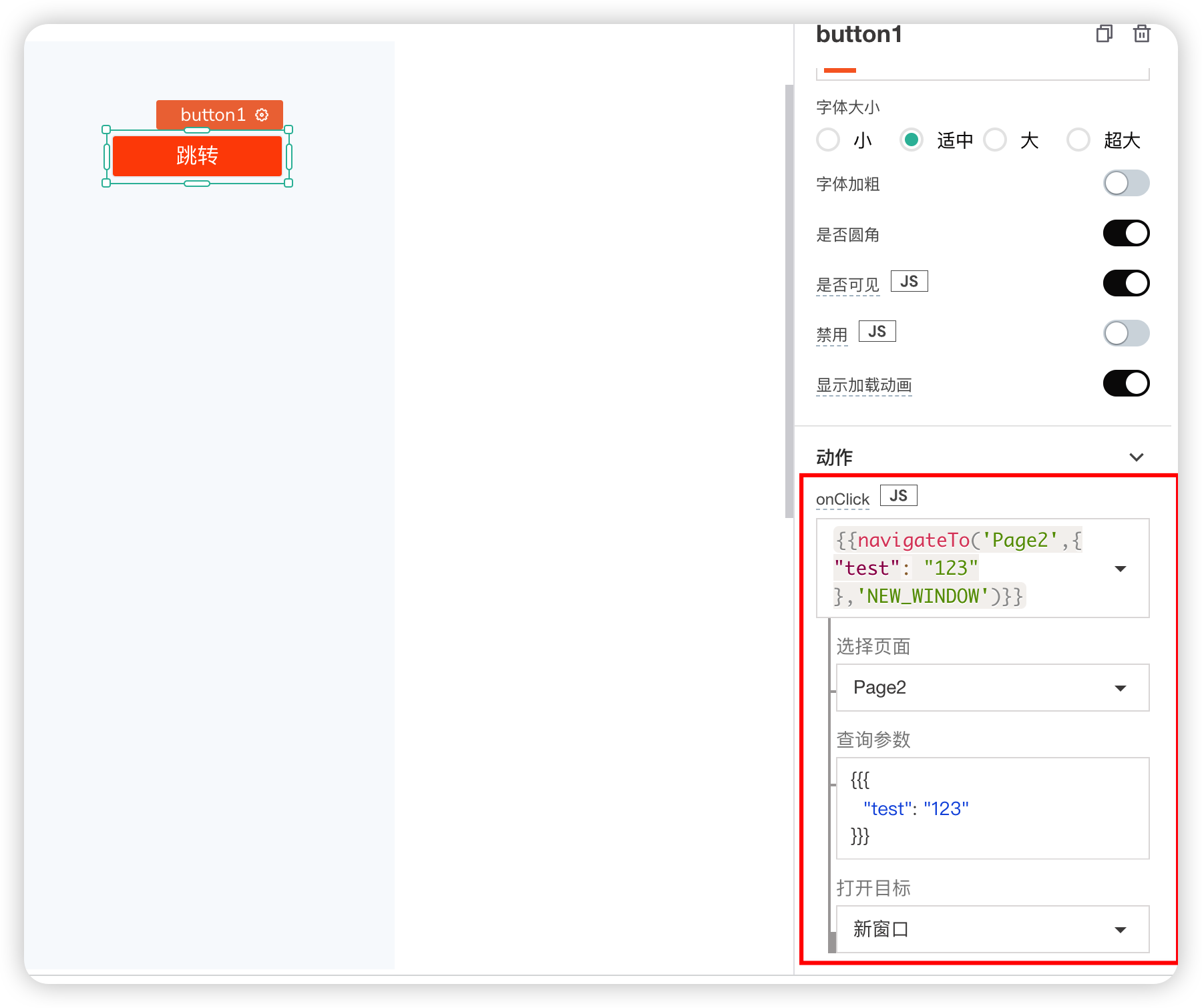
- After clicking to navigate, on Page2, the data can be retrieved via
global.URL.queryParams.
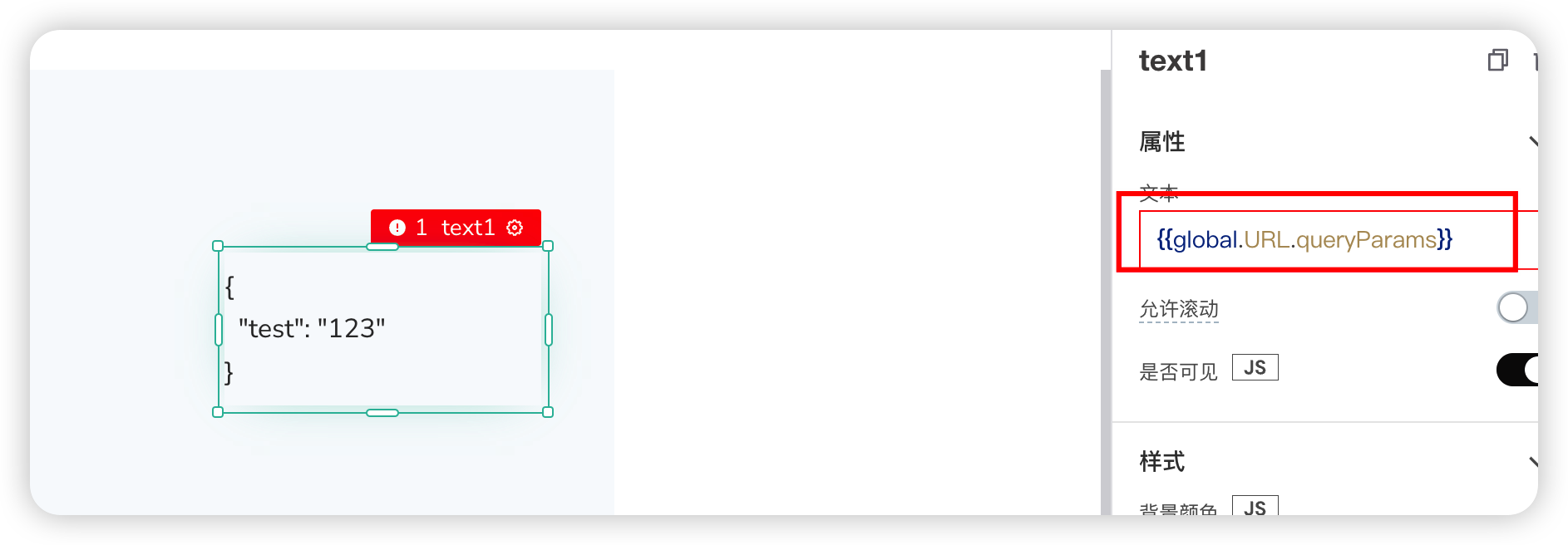
If clicking navigates to a new window, the parameters will be obtained from the URL in the new window.

# Show Message Alert (showAlert)
Displays a temporary message alert to the user, lasting for 5 seconds. The duration of the alert message cannot be modified.
Format
showAlert(message: string, style: string)
Parameters
| Property | Description |
|---|---|
| Message | The message text you want to display. |
| Style (Alert Type) | The style of the alert message. Can be one of "info", "success", "error", or "warning". |
Example
Select "Show Message Alert" for the onClick event of a button and fill in the alert message content.
Info, success, error, and warning type alerts are shown in the figure below respectively.

# Open/Close Modal
This function is used to open a modal when triggered.
Format
Open Modal
showModal(modalName: string)
Close Modal
closeModal(modalName: string)
| Property | Description |
|---|---|
| Modal Name | The name of the modal to display. |
Example
Please Note
Remember to create the modal before attempting to open it.
Select "Open Modal" for the onClick event of a button.
After clicking the button, the modal will be displayed.


- To close the modal, simply click the close (X) button in the top-right corner of the modal, or call
closeModal(modalName: string)elsewhere.
# Global Data
The storeValue() function saves data in the browser as key-value pairs, accessible via the browser's localstorage, and can be accessed anywhere in the application later.
# storeValue
- Store Data
Format
storeValue(key: string, value: any, persist? = true)
If you wish to store the text from an input component, you can use storeValue():
{{storeValue('email',input1.text)}}
- Read Data
Values in the store can be accessed by referencing the key within the store object.
{{ global.store.key }}
- Modify Data
Values saved in the store can be updated by overwriting the data using its key.
For example, to update a boolean value from True to False using the key isActive, you can do the following:
export default {
    updateStore: () => {
        if(global.store.isActive === true)
            storeValue("isActive", false)
    }
}
If you need to store many values, instead of calling the storeValue function multiple times, it is recommended to use an object format to store the values. All values can be assigned in a single storeValue() function, as shown below:
storeValue("user", { "name": "Bar Crouch", "email": "bar@appsmith.com", "pin": "9984"})
# removeValue
This function clears the value for a specified key in the store.
{{removeValue(key)}}
Refer to the code below, which uses a JSObject to delete the value for the key isActive:
export default {
    deleteStore: () => {
        // Delete value for a particular key
        removeValue("isActive")
            }
}
# clearStore
This function clears all data in the application's store.
{{clearStore()}}
- Corresponding Action Event

# Copy to Clipboard
This function is used to copy text to the clipboard.
Format
copyToClipboard(data: string, options: object)

Example
For example: Select to copy the content of an input component in a button component's action.

# Timer
Timed events (timer functions in JavaScript) allow users to run APIs and DB queries periodically. You can configure these using the setInterval and clearInterval functions.
# setInterval()
setInterval() executes a callback function at fixed time intervals.
setInterval(callbackFunction: function, interval: number, id?: string)
Parameters
| Property | Description |
|---|---|
| callbackFunction | The function to be repeatedly called at the specified time interval. |
| interval | The time, in milliseconds, to wait between calls to the callbackFunction (i.e., the interval). |
| id | A unique identifier for the timer. This id is used with clearInterval to clear the timer. |
Corresponding Action Event

Example
This timer will execute Query1.run() every 10 seconds:
setInterval(() => { Query1.run() }, 10000, "myTimer");
# clearInterval()
This function clears a timer, preventing it from consuming memory.
clearInterval(id: string)
Parameters
| Property | Description |
|---|---|
| id | The id of the timer that needs to be cleared. |
Corresponding Action Event
