
# Base Library Maintenance
Please Note
When using the Community Edition or a private deployment of FinClip, you need to log in to the Operation Center yourself and maintain the relevant version information of the base library in "Mini-Program Management > Mini-Program Base Library". If you are using the FinClip SaaS version, you do not need to maintain the Mini-Program base library.
# 1. Base Library Maintenance
# 1.1 Obtain the Latest Base Library
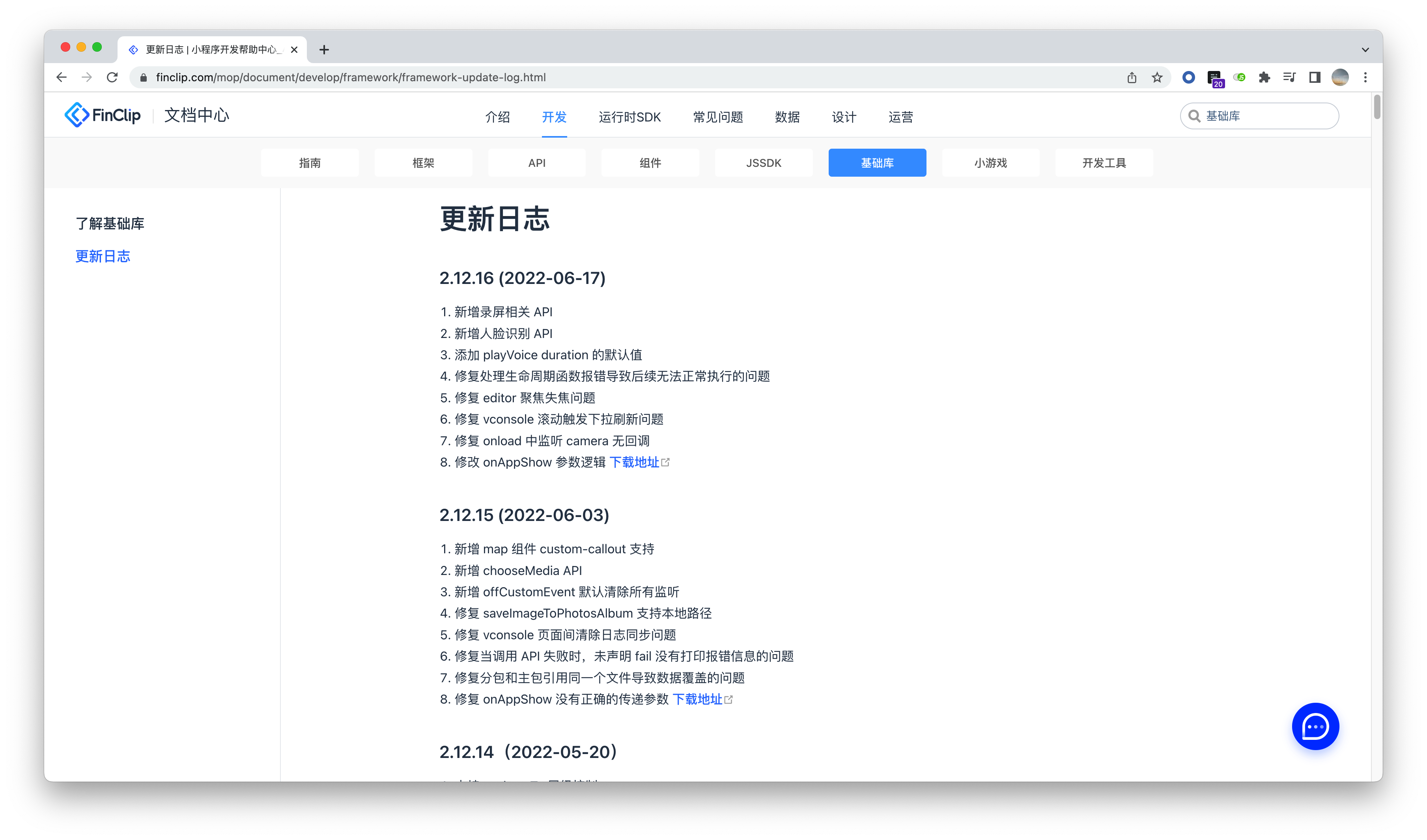
You can learn about different versions of the base library in Development > Base Library > Update Log and click the "Download Link" on the page to obtain the base library file for the corresponding version.
Please Note
Since lower versions of the base library have corresponding relationships with the SDK, please refer to the SDK and Base Library Version Comparison Table to obtain available base library information. In each row, you can find the minimum SDK version corresponding to a specific base library version.
When the SDK fetches the base library, it will first attempt to match the latest version within the current compatible range. If no available base library within the range is uploaded to the Operation Center, it will default to fetching the latest version of the base library content.
# 1.2 Update the Base Library
After obtaining the base library file, you need to log in to "Operation Center > Mini-Program Management > Mini-Program Base Library", click the "Add" button on the right side of the page, upload the base library file, configure whether to notify the enterprise side, and enter the base library version description.
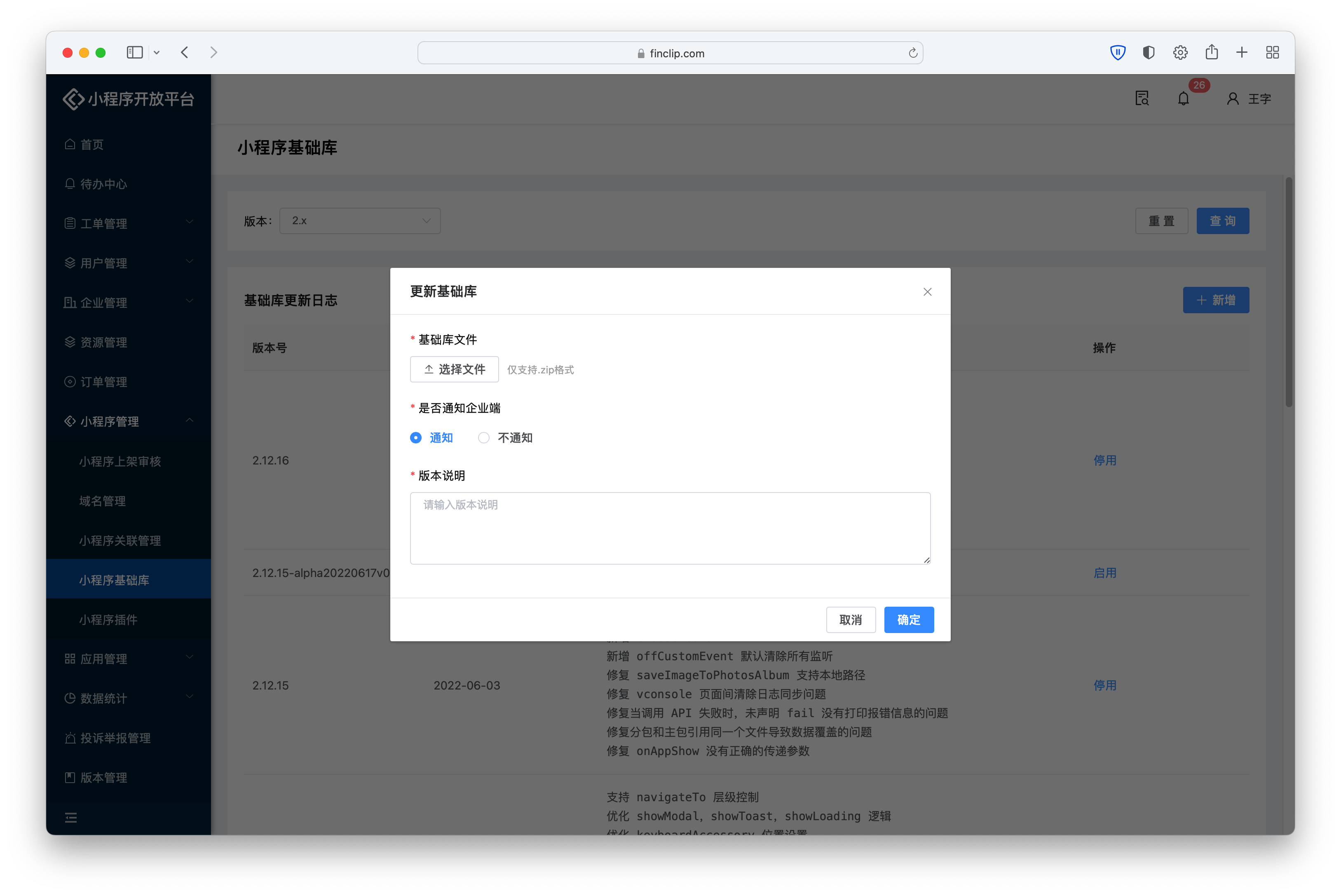
After clicking the "Confirm" button, the Mini-Program base library update is complete.
# 1.3 Disable a Base Library
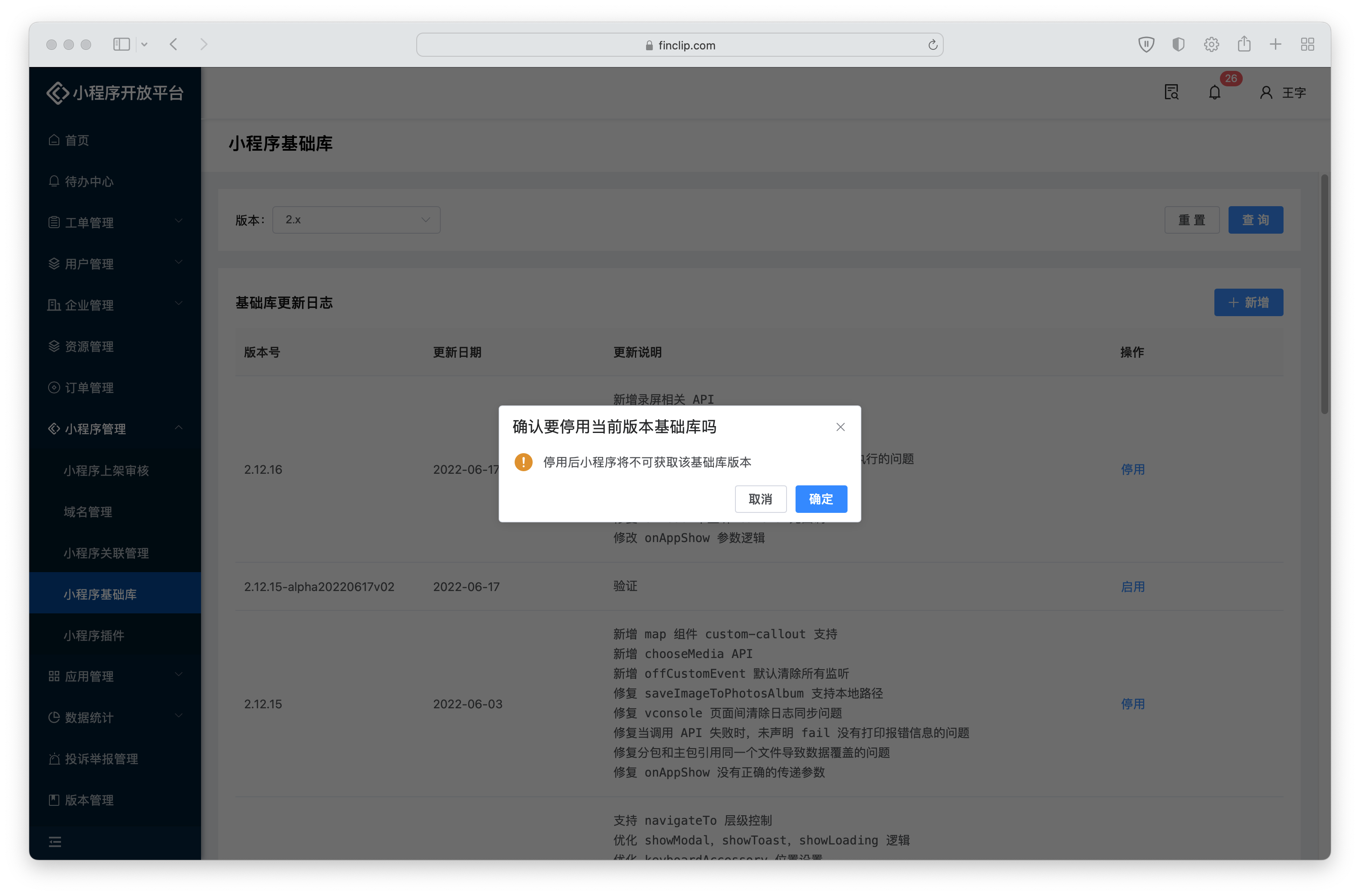
If you need to temporarily disable a specific version of the base library, you can click "Disable" in the far-right column of that base library entry. After clicking, Mini-Programs will no longer fetch information for that version of the base library.
# 2. Base Library Maintenance FAQs
# 2.1 Can I Control Base Library Version Updates?
You can manage and control base library updates according to your needs within the base library management section.
Different companies may have different policies regarding Mini-Program updates and releases. If your team or company requires stricter control over releases, you can configure Mini-Programs to run on a specified base library version and proceed with the official release after testing is complete. This helps manage development risks or locate defects.
# 2.2 How Long Does It Take for a Base Library Update to Take Effect?
After the base library update is complete, the SDK will check for a new base library version the next time a Mini-Program is opened. When a new version is detected and the App is running in the foreground, the new base library will be downloaded automatically. The new base library version will then be used the next time the Mini-Program is opened.
# 2.3 How to Check the Currently Used Base Library Version?
If the Mini-Program has debug mode enabled, you can see the base library version information in the first line of the logs.
If debug mode is not enabled for the Mini-Program, you can also obtain the base library version information via the getSystemInfo or getSystemInfoSync API.