
# FinClip Studio FAQ
# Network Proxy Causing Connection Failures
Sometimes, local network proxy or VPN settings can cause connection failures in FinClip Studio. You can try the following steps to check your local network proxy settings:
# IDE Proxy Settings Check
First, check if the local proxy for the IDE is enabled. Open the settings path: Menu -> File -> Preferences -> Settings -> Search for "proxy"
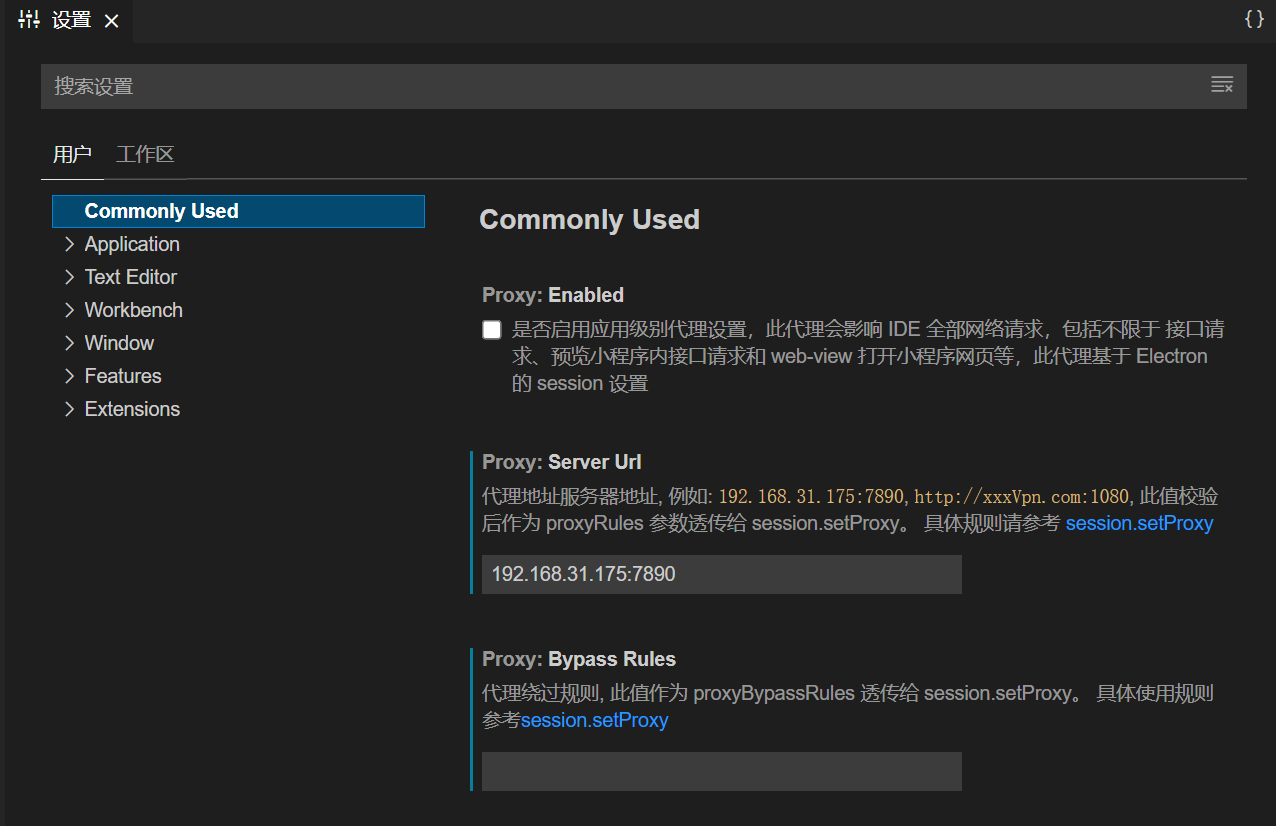
# Solution 1: Reset Internet Settings
Resetting settings can fix incorrect configurations and issues within programs. Below are the steps to reset Internet settings:
- First, press the Windows+R combination keys, then type inetcpl.cpl in the Run window that pops up, and press Enter.
- The Internet Options window will open. Navigate to the "Advanced" tab at the top.
- Now click the "Reset" button and wait for the process to complete.
# Solution 2: Check Proxy Settings
- First, click the Windows key, then type "Control Panel" and click on the search result.
- Next, click on the "Network and Internet" option, then navigate to "Internet Options".
- Select the "Connections" tab at the top of the window.
- Now, click "LAN settings" at the bottom of the window. Ensure that the proxy server checkbox (the third checkbox) is unchecked. If it is checked, uncheck it.
# Solution 3: Temporarily Disable Proxy
If the issue lies with the proxy, you can try temporarily disabling it to see if the error persists. Follow these steps to temporarily disable the proxy:
- First, press the Windows + R combination keys, then type Regedit in the Run window that pops up, and press Enter.
- Before making any changes, it is recommended to create a backup of the registry. To do this, expand the "File" tab and click "Export".
- Then follow the path given below: HKEY_CURRENT_USER → Software → Microsoft → Windows → Current version → Internet setting
- Now, delete the following values:
- Proxy override
- Migrate Proxy
- Proxy Enable
- Proxy Server
- Restart the computer system.
# Solution 4: Reset TCP/IP
Resetting TCP/IP will restore default settings and eliminate all errors in the process. Below are the steps to reset TCP/IP:
- First, right-click on the Windows key, then select "Command Prompt (Admin)".
- Now, copy and paste the commands given below, then press Enter:
perlCopy code
netsh winsock reset
netsh int ip reset
- Then type "Exit" and press Enter, and close the Command Prompt.
- To implement the changes made, restart Windows.
# Solution 5: Update IP Address
If none of the above methods work, try updating your IP address. Follow these steps:
- First, right-click on the Windows key, then select "Command Prompt (Admin)".
- In the Command Prompt window, enter the commands given below, pressing Enter after each command:
bashCopy code
ipconfig /release
ipconfig /flushdns
ipconfig /renew
- Finally, type "Exit", then press Enter to close the Command Prompt.