
Third-Party SDK Parameter Configuration
# Third-Party SDK Parameter Configuration
Note
The Developer Tools have the capability to "Generate an App." Through "App Settings," the App can acquire certain extended capabilities, such as Amap (AutoNavi), WeChat Login, etc. This document primarily explains how to configure and obtain the capabilities of third-party SDKs.
Currently, FinClip Studio supports the integration of the following third-party SDKs:
- Amap (AutoNavi)
- WeChat Login/Payment
# Amap (AutoNavi) SDK Configuration
To use the Amap SDK, you need to apply for a key on the Amap official website:
After successfully applying, configure it in FinClip Studio:
- Check the Amap option, which will bring up the key configuration pop-up window.
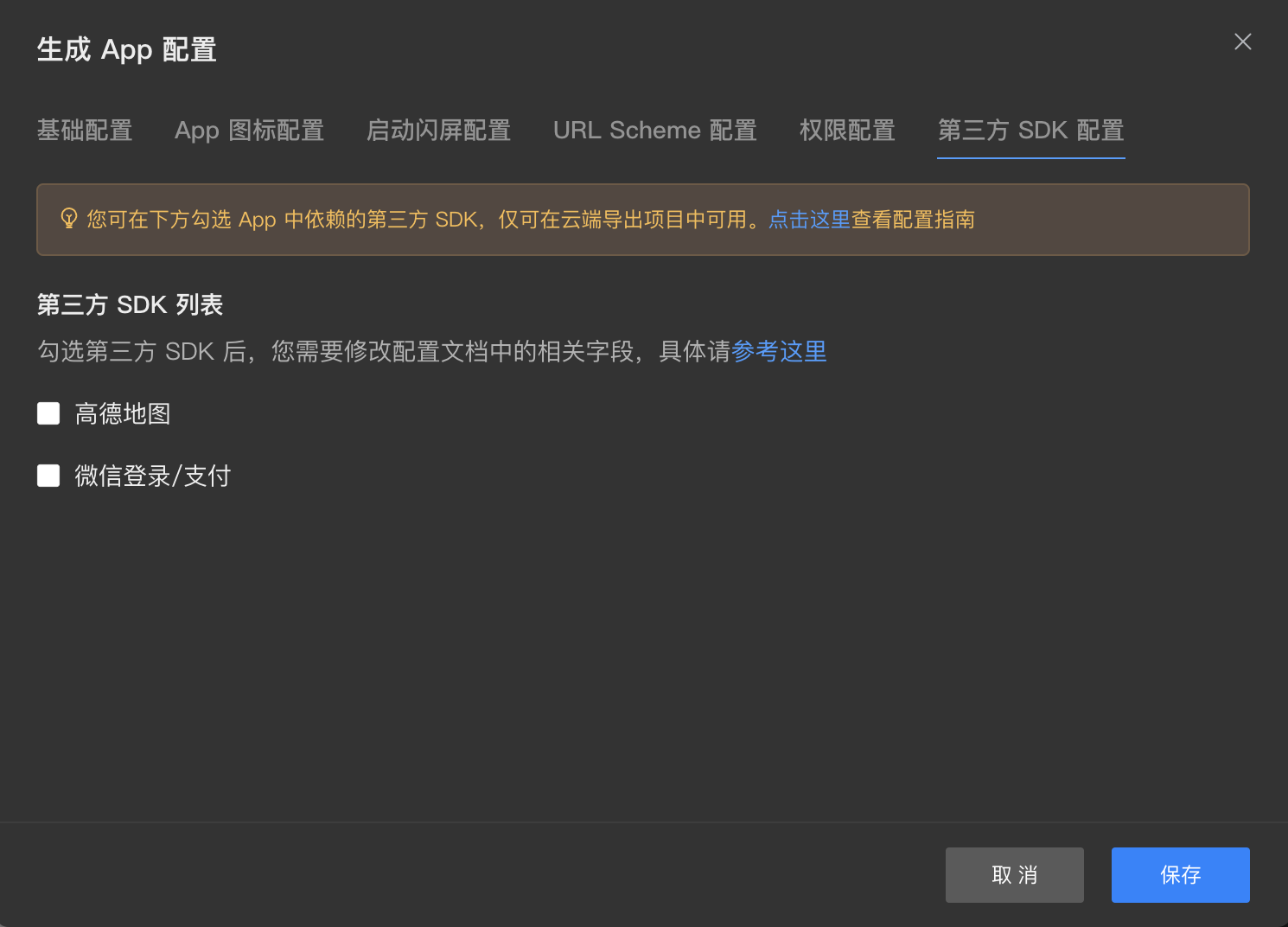
- Fill in the keys applied for the iOS and Android platforms respectively, then click "Save."
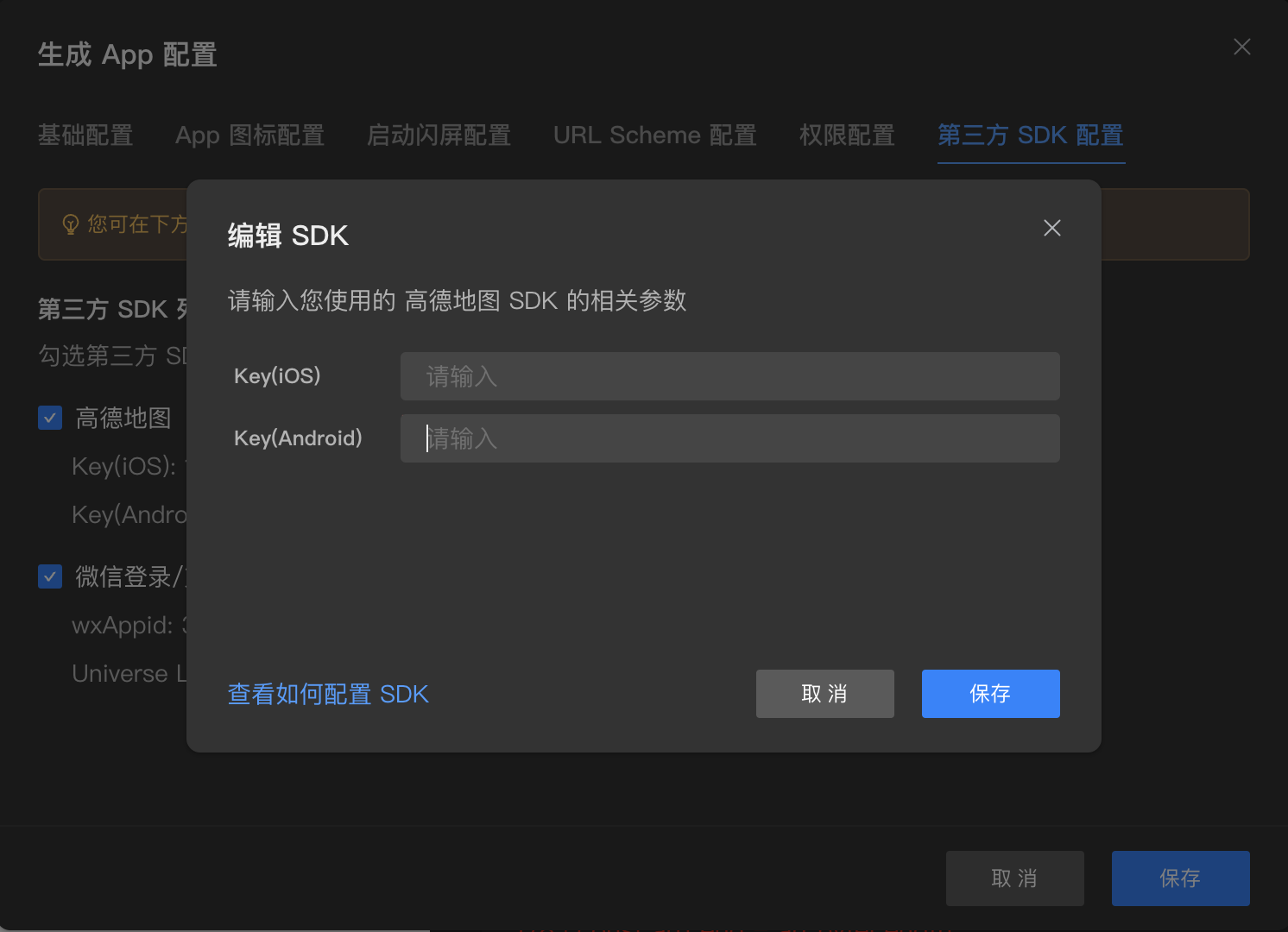
- Save the App settings.
# WeChat Login/Payment SDK Configuration
Add the WeChat authorization page:
Refer to Adding the WeChat Authorization Page.
WeChat Login/Payment SDK configuration requires referencing the following WeChat integration documents to obtain the AppID (used by WeChat to identify mobile applications):
- iOS Obtain AppID (opens new window) (The iOS end also needs to configure Universe Link)
- Android Obtain AppID (opens new window)
After successfully obtaining the AppID, configure it in FinClip Studio:
Check the WeChat Login/Payment option, which will bring up the WeChat SDK configuration pop-up window.
Enter the AppID obtained from the above documentation into wxAppid, fill in the Userverse Link (iOS only), and click "Save."

- Save the App settings.